
3 Essential Cache Clearing Tips for Android Users
Understanding the Android Cache and Its Impact
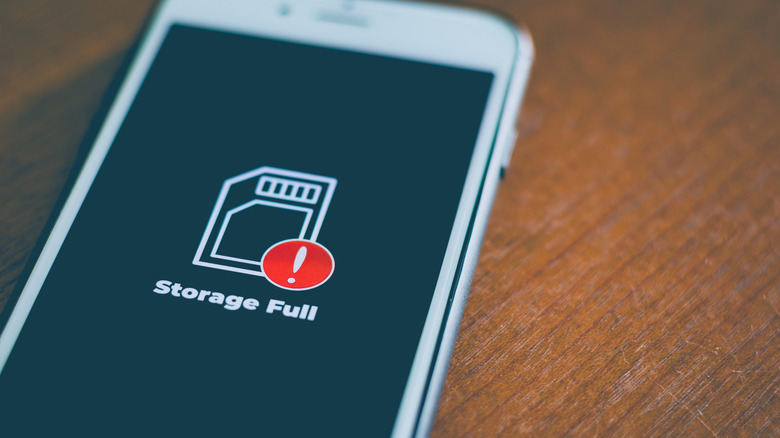
On an Android phone, the cache is a collection of temporary files that store data such as images, scripts, and other elements. These files are meant to improve performance by allowing apps and websites to load faster since the data is already stored on the device. However, when the cache becomes too large, it can have the opposite effect, slowing down your phone and making the internet experience less smooth.
An overloaded cache can lead to sluggish performance, with websites taking longer to load and videos buffering constantly. This is why clearing your browser cache is essential for maintaining a fast and efficient smartphone experience. It helps free up storage space and removes unnecessary data that your phone has been holding onto.
Tools for Clearing Your Android Cache
Android offers several built-in features and tools to help you manage your cache effectively. You can clear the cache of individual apps through the Settings menu or use third-party applications to clean up your entire device more efficiently. Additionally, clearing your internet cache can be done directly through your browser’s settings.
Clearing App Cache Individually
One effective approach is to start by clearing the cache of specific apps. Prioritize apps that you use frequently, those that take up significant storage space, or apps that contain a lot of video or image content. To do this, go to Settings > Apps, select the app you want to clean, and navigate to its Storage section. There, you’ll find an option to clear the cache.
This process not only frees up space but also helps maintain the smooth operation of your most-used apps.
Using Third-Party Cache Cleaners
For a more comprehensive cleaning, consider using a third-party app like 1Tap Cleaner, which is available for free on the Google Play Store. This tool allows you to clean browsing history, call logs, text messages, reset settings, and even clean your SD card. It also provides detailed information about how much cache each app is using, helping you identify which apps need attention.
By tracking your cache usage, you can gain insights into your phone’s storage habits and make informed decisions about future optimization.
Clearing Your Internet Cache
Clearing your internet cache is often referred to as clearing your Android browsing history, but there are additional steps involved. Open the browser you use on your Android device, and look for three dots or three bars in one of the corners. Clicking on this will open a mini menu where you can access your browsing history.
Depending on your phone and browser, the options may vary. Under the History section, you might have the option to directly clear your history, or you may need to click another set of three dots to open a menu. Be sure to clear all your browsing history and video history, as some devices separate these. You can choose to delete data from the last day or for all time—deleting everything will yield the best results.
Some browsers also offer options to clear cookies and cached images. Again, it’s recommended to clear all of these for optimal performance.
The Importance of Regular Cache Maintenance
While temporary files can be beneficial, they can also negatively impact your phone's performance if left uncleaned for too long. By regularly clearing the cache of your apps, system, and internet, you can ensure that your Android device runs smoothly and efficiently.
Maintaining a clean cache not only frees up valuable storage space but also enhances the overall user experience. Whether you’re managing individual apps or using a third-party tool, taking the time to clean up your cache can make a significant difference in how your phone functions.

Posting Komentar untuk "3 Essential Cache Clearing Tips for Android Users"
Posting Komentar