
Running Out of Apple Watch Storage? Here's How to Free Up Space
Understanding Apple Watch Storage Capacity
Apple Watch models come with varying amounts of storage depending on the version. The Apple Watch Series 10, Series 9, and Apple Watch Ultra 2 offer 64GB of space, while the Apple Watch Ultra and Series 8, 7, 6, 5, SE, and SE 2 provide 32GB. For older models, such as the Series 4 and Series 3 GPS + Cellular, there is only 16GB available, and the Series 3 GPS model has just 8GB.
However, the total capacity isn't the only factor to consider. Apple imposes restrictions on how much media you can store on your watch, including music, podcasts, and audiobooks. For instance, devices with 64GB of total space typically allow up to 16GB for media, while those with 32GB may only permit 8GB for media files. This limitation can quickly fill up your watch if you download or sync a lot of content.
Checking Available Storage Space
To check the storage space on your Apple Watch, you can use the Watch app on your iPhone. Navigate to My Watch > General > About to see the total number of songs, photos, and external applications stored on the device. This section also displays the total capacity and the available amount of space.
If you prefer checking directly on your Apple Watch, go to Settings > General > Storage. The Storage section shows the amount of available and used space. Swipe down to view how much space each app and type of content takes up, including Music, Podcasts, and Photos.
Removing Apps from Your Apple Watch
Once you identify which apps are consuming the most space, you can remove them. To delete apps using the Watch app on your phone, swipe down the My Watch screen until you reach the Installed on Apple Watch section. Tap the name of an app you want to remove and turn off the Show App on Apple Watch switch. The app will move to the Available Apps section, where you can reinstall it by tapping the Install button.
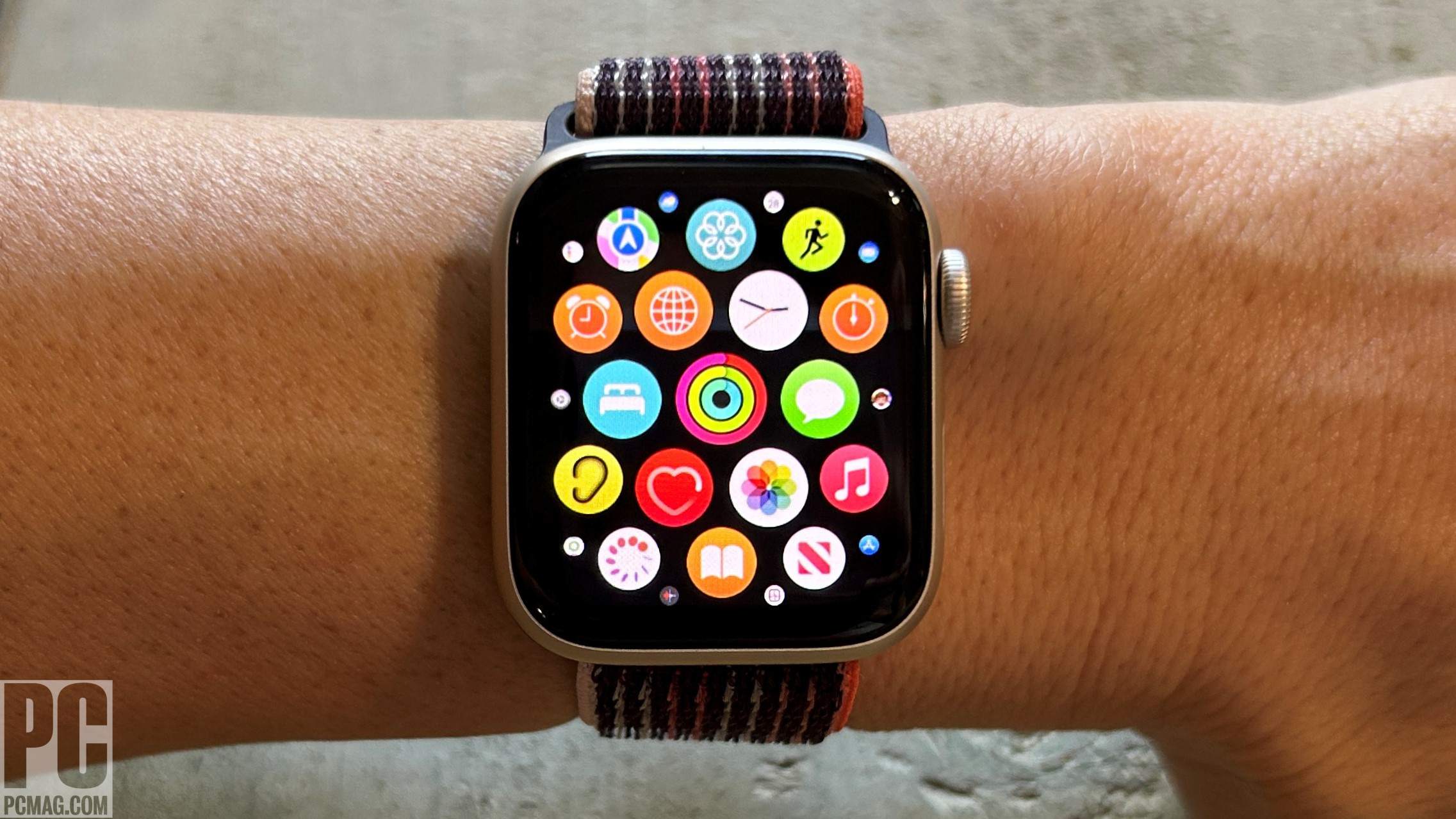
To delete an app directly from your Apple Watch, press the Digital Crown to access the Home screen. If in Grid View, press down on any icon until they shake, then tap the X button on the app you wish to remove and confirm with Delete App. Press the Digital Crown again to stop the icons from shaking. If in List View, locate the app, swipe left, and tap the trash can icon. Confirm by tapping Delete App.
Managing Media Files
You may also want to delete saved music from your Apple Watch. Open the Watch app on your iPhone, navigate to the Music entry, and disable Recent Music to free up space. Tap Edit, then select the Delete icon next to any playlist or album you no longer need.
To delete albums directly from your Apple Watch, open the Music app, swipe down on each album thumbnail, and tap Albums. Swipe further down to find an album you want to remove, swipe its name to the left, tap the ellipsis icon, and select Delete from Library. Confirm by tapping Delete Album.
For audiobooks, open the Watch app on your iPhone, tap Audiobooks, and turn off options like Reading Now and Want to Read to stop automatic downloads. Swipe through the list of synced audiobooks and delete any you no longer need.
Podcasts stored on your Apple Watch can be managed by tapping the Podcasts entry in the My Watch section. Adjust settings like Up Next and Saved to limit the number of episodes downloaded. You can also remove specific podcasts entirely by selecting Remove Show.
Adjusting Photo Sync Settings
You can also change photo sync settings to manage the number of photos stored on your Apple Watch. Open the Watch app on your iPhone, go to Photos, and adjust the Sync Album or Photos Limit settings. Choose an album with fewer photos or reduce the number of synced photos to as few as 25.
Unpairing Your Apple Watch
If you still experience low storage after these steps, consider unpairing and repairing your Apple Watch. In the Watch app, tap All Watches, select the Info icon for your watch, and choose Unpair Apple Watch. Wait for the process to complete, then bring your iPhone near your Apple Watch and follow the pairing instructions.

Posting Komentar untuk "Running Out of Apple Watch Storage? Here's How to Free Up Space"
Posting Komentar