
4 Streaming Settings to Boost Sound Quality Instantly
Lossless Audio and the Importance of Sound Quality
Lossless audio has become a standard in music streaming by 2025, with most major platforms offering at least CD-quality tracks. However, YouTube Music remains an exception, while services like Apple Music, Spotify, Tidal, and Amazon Music all provide lossless options as part of their premium subscriptions. While high-end accessories can enhance the experience of high-resolution streaming, there are also software tweaks that can significantly improve sound quality without requiring access to lossless formats.
Turn Off Volume Normalization
Volume normalization is a feature that adjusts the volume of songs to maintain a consistent loudness level. This means louder tracks are softened, and quieter ones are amplified. While this may seem helpful for balancing playback, it alters the original master recording's decibel level, potentially affecting the intended sound quality. The compression involved in this process can reduce a track's dynamic range.
Disabling volume normalization might require manual volume adjustments between songs, but it preserves the original sound. On Spotify, users can go to Settings and privacy > Playback and turn off Volume normalization. For YouTube Music, navigate to Settings > Playback & restrictions > Consistent volume and ensure it's disabled.
Tune the EQ to Your Preferences
Equalizers allow users to adjust how their music sounds by emphasizing or balancing specific frequencies such as bass, midrange, or treble. Most platforms offer built-in EQ settings, and some integrate with third-party apps. For example, Spotify users can access the EQ through Settings > Playback > Equalizer, while YouTube Music users find it under Settings > Equalizer. On iOS, Apple Music streamers can use the Settings app > Music > EQ to select a preset.
If the built-in EQ isn't sufficient, consider using third-party apps like Wavelet on Android or Boom on iOS.
Don't Use Dolby Atmos
Dolby Atmos and lossless audio are often confused, but they serve different purposes. Dolby Atmos is a spatial audio format that creates a surround-sound effect, while lossless audio provides high-bitrate stereo files without compression. Although it's technically possible to have lossless audio with Dolby Atmos data, most services treat them separately.
For instance, Apple Music allows downloads in either Dolby Atmos or lossless quality, but not both. If Dolby Atmos is enabled, the downloaded content won't be in lossless format. To disable it, go to Settings app > Music > Dolby Atmos. Users may need to delete and re-download their library to switch to lossless or Hi-Res Lossless versions.
Adjust Your Audio Quality Settings
The highest-quality audio setting available is crucial for optimal sound. Even free tiers can be upgraded to higher quality. For example, Spotify’s default is Automatic, but it can be set to High. Premium users gain access to Lossless, which uses 24-bit/44.1 kHz FLAC files.
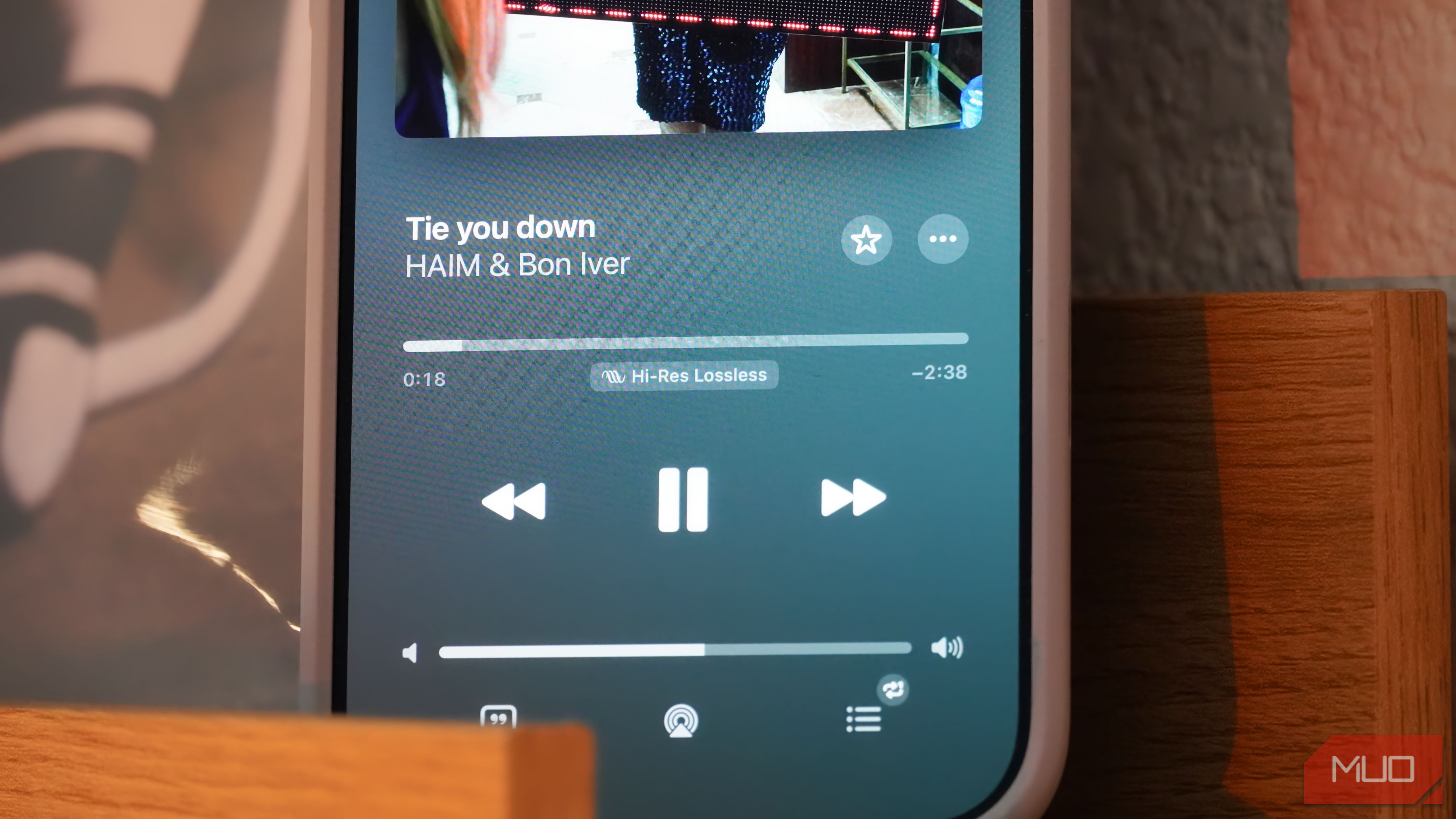
Apple Music offers Hi-Res Lossless with 24-bit/192 kHz ALAC files, while Amazon Music’s Ultra HD and Tidal’s Max reach similar levels. YouTube Music does not support lossless quality. To change these settings, users can navigate to Settings > Media quality on Spotify, Settings > Audio & Playback on Tidal, and Settings app > Music > Audio Quality on Apple Music.
Other Ways to Get Better Audio Quality
Beyond adjusting settings, check if your headphones or earbuds support high-resolution wireless audio codecs like AptX Adaptive or LDAC. These require both the device and the headphones to support them. Without these codecs, playing lossless music over Bluetooth can lead to poor sound quality.
To avoid this, consider using a USB-C digital-to-audio converter (DAC). While improving sound quality can involve significant investment, changing these settings already puts you ahead of the curve.

Posting Komentar untuk "4 Streaming Settings to Boost Sound Quality Instantly"
Posting Komentar