
8 Quick Linux Tweaks to Boost Desktop Speed
Enhancing Linux Performance with Essential Tools
If you follow my work, you probably know that I'm mostly using macOS and Linux computers in my daily life. My Mac Mini is my main workstation at home, but when it comes to laptops, I spend most of my time on Linux, and I love it that way. While Arch Linux is a very snappy and lightweight Linux distro, that's also because it's a bit barebones. To maximize my productivity, there are some tools that can really help make everything feel faster. And the best part is they don't even have to take up that much space in the first place.
Zram-generator: Legitimate Performance Improvements
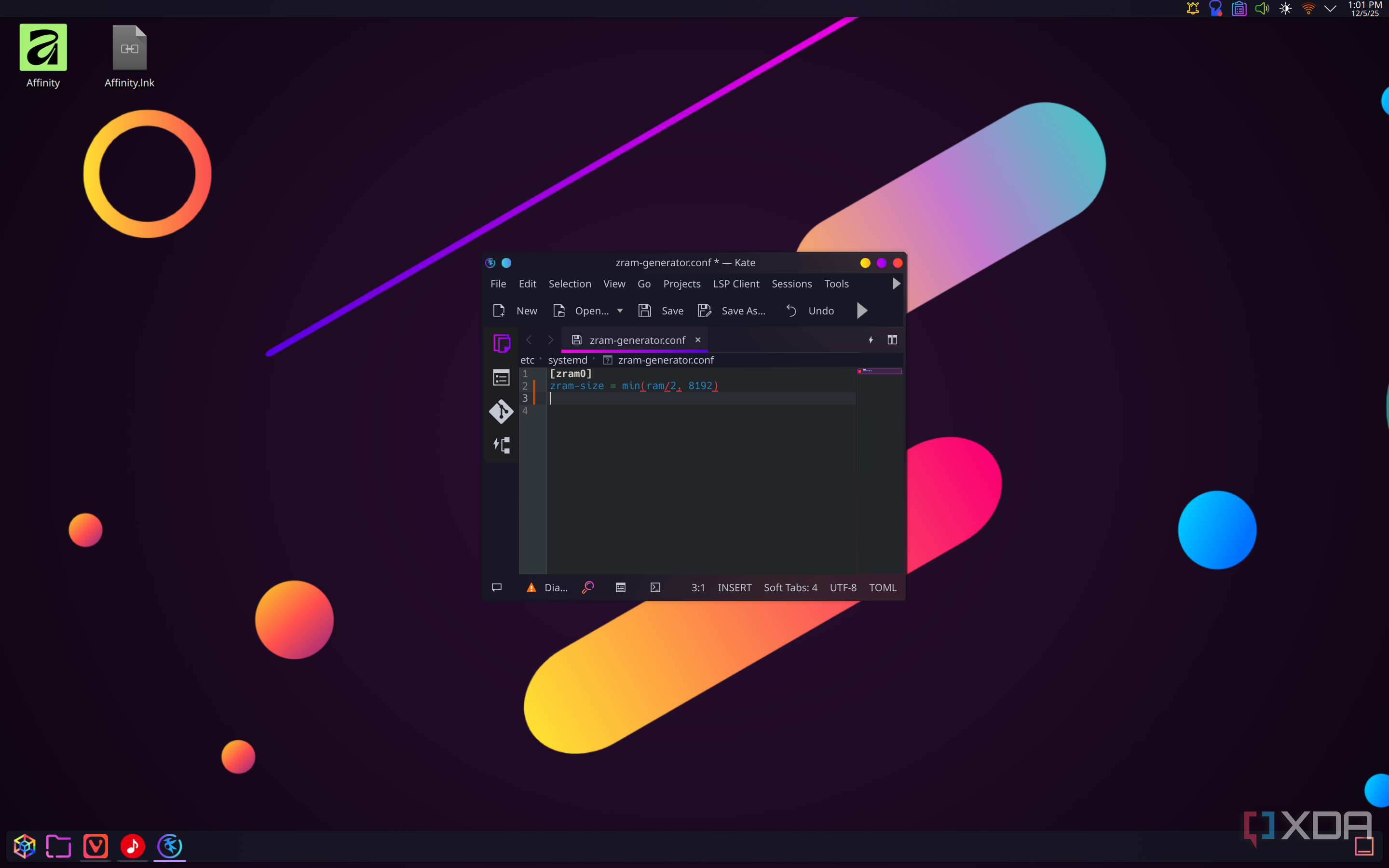
Let's start with a more technical tool that can improve the actual performance of your PC. The zram-generator package is a tool that automatically sets up part of your RAM as swap, enabling memory compression so more information can be stored on your RAM before it needs to be moved to the disk. Storing more information on the faster RAM is obviously a big performance benefit that helps with multitasking performance so you can swap between apps and tabs much more quickly. Of course, since it uses compression, that means there's a little more CPU work required to compress and decompress those files, but for the vast majority of scenarios, you'll experience generally faster performance across the board, and that can only be a good thing.
Tweaking your zram settings is one of the most surefire ways to improve your system responsiveness, and zram-generator isn't the only option here, with other like zram-tools and zram-config also available. You can even configure it all more manually if you prefer. But if you want to check it out, zram-generator is on GitHub.
Preload: Why Wait for an App to Open?
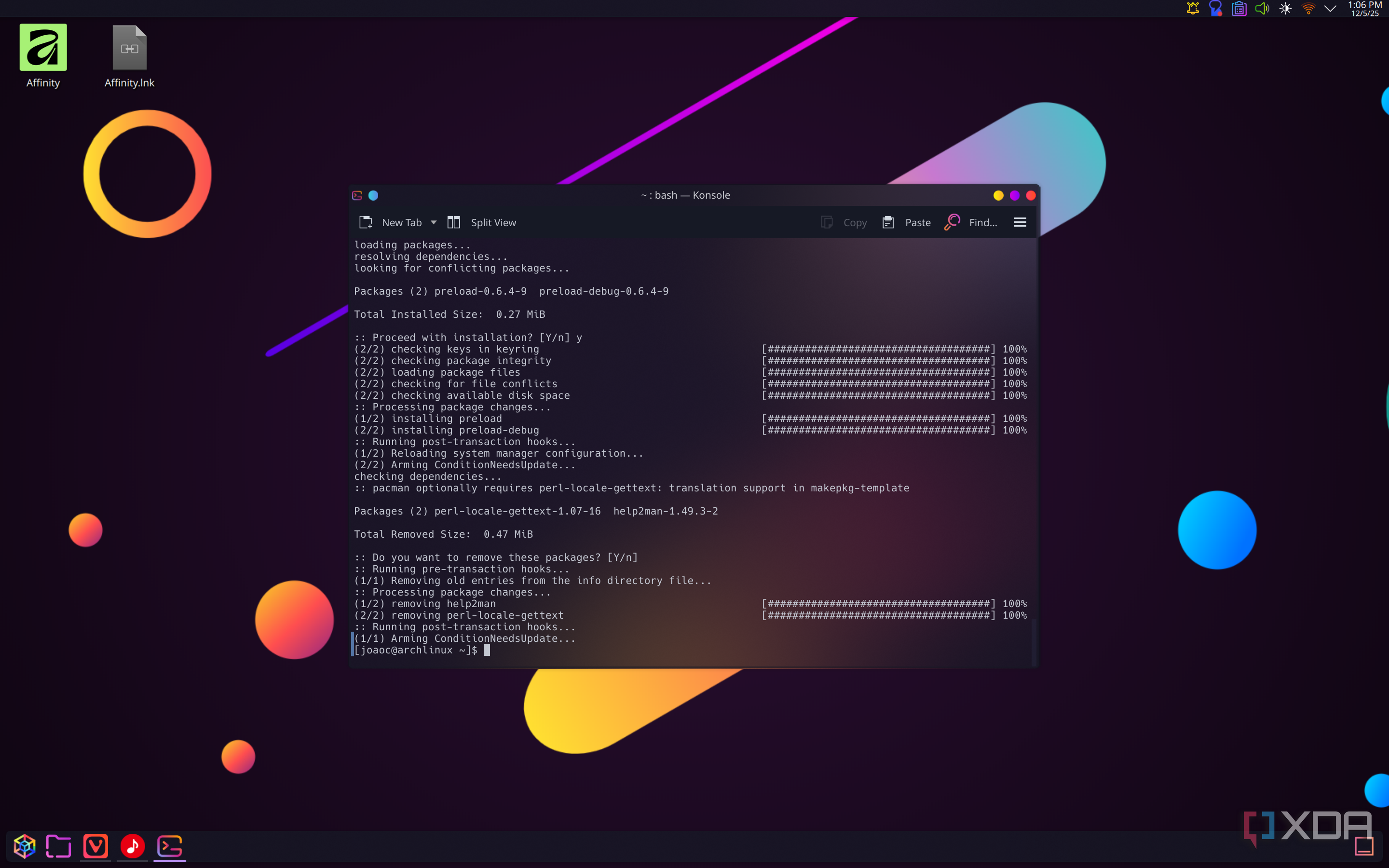
If you spend most of your time using the same app on your computer, you probably want it to launch as fast as possible. Preloading can help with that by putting your most commonly used applications into memory before you launch them, allowing them to boot up much more quickly. The preload package tracks and analyzes your computer's usage to figure out the most commonly used packages and services and preemptively load them into memory whenever the machine isn't actively doing something else. This helps ensure that your most important programs load more quickly when you try to open them, resulting in overall faster performance in most cases.
You can learn more about preload on the ArchWiki, though the package works on most Linux distros.
Profile-sync-daemon: Your Browser Profiles, Now in Your RAM
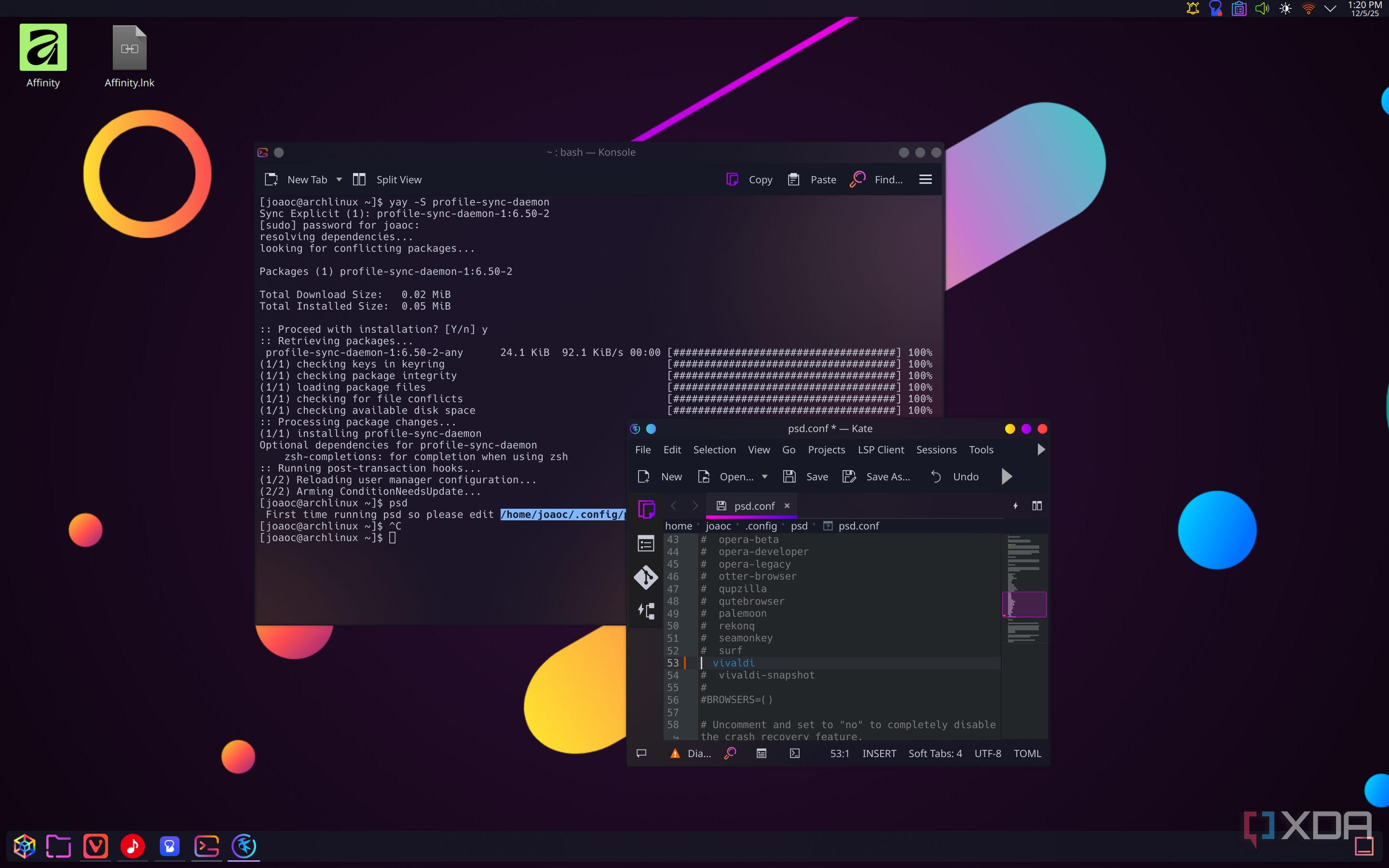
Typically, your web browser stores your user profile information on the disk, as any program would. As you browse the web, save passwords, and add and remove bookmarks, your profile gets updated, and those changes are saved to the disk, and the information is pulled from it whenever necessary. But what if it used RAM instead? That's what the profile-sync-daemon utility does, and it's interesting for a couple of reasons. For one thing, storing and loading information from RAM is naturally going to make everything feel faster. That's always the main benefit of using RAM instead of the disk. But it's also interesting for the way it changes how your browser works under the hood. Changes are saved and loaded from a small portion of the RAM, and it uses rsync to periodically sync those changes back to the disk as needed, thus ensuring higher performance while also keeping persistent data. It can also reduce wear on your disk, which is another plus. You can find more information about it on GitHub.
Ananicy-cpp: That's Just a Fun Name to Say
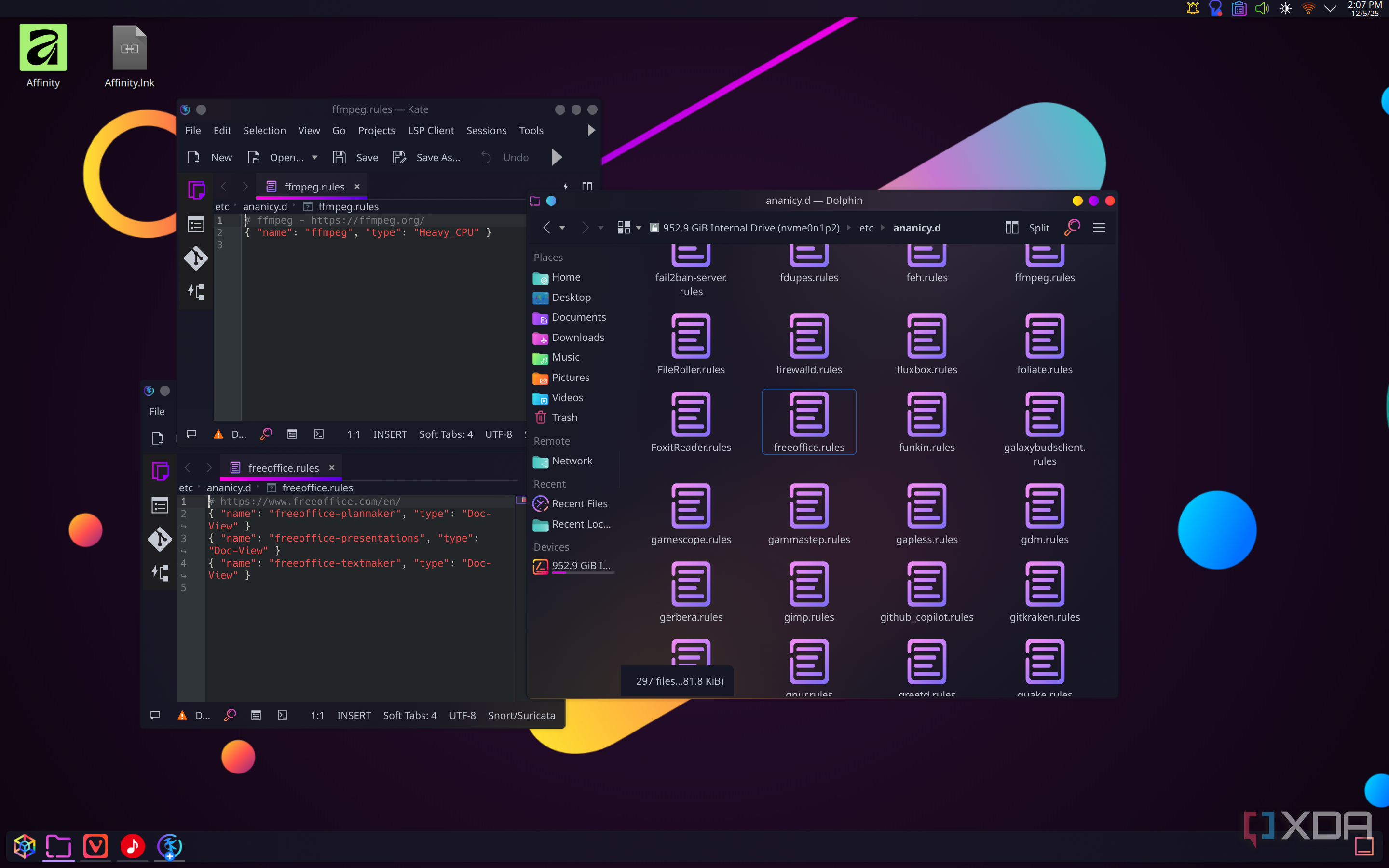
The performance of a given app or game can sometimes be determined by the priority level assigned to its processes, and on Linux, this is sometimes referred to as a nice level. The higher the nice level of a process, the lower its priority, and setting the appropriate nice level for a process can make a big difference. Ananicy-cpp is designed for precisely this, helping to set nice levels for processes automatically by pointing to the location of the process's source file. You can configure these manually for each process by modifying a rules file, but if you want to make it even easier to improve performance in games, the CachyOS team also maintains a premade list of Ananicy rules you can load up instantly to improve game performance without setting it all up yourself. It's something you can play around with to fit your needs.
Nohang: Keep It Moving
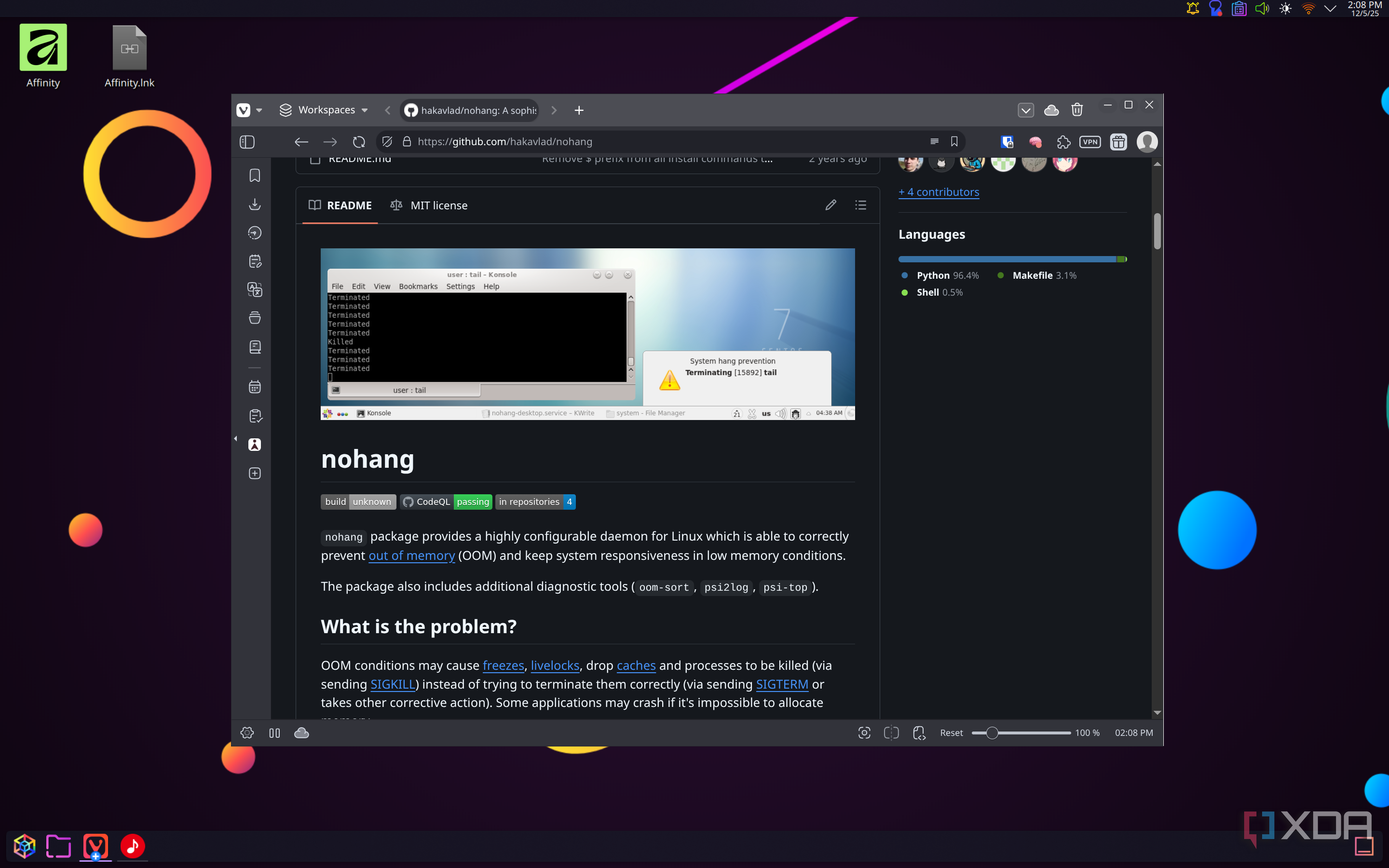
Nohang is yet another daemon for Linux machines that can help prevent wasted time and lost work by preventing out-of-memory errors from freezing your entire system. Historically, Linux has had some trouble handling low-memory situations where a process that uses too much memory could cause the entire system to become unresponsive, forcing processes to be killed and potentially losing progress. With this tool, the system tries to take corrective action when a low-memory situation occurs, attempting to terminate processes using the SIGTERM signal instead of SIGKILL, and offering customizable behaviors for different processes. This is hopefully something you won't need very often, but it can make a big difference when it matters, and especially if you're using a PC with low amounts of RAM.
Wl-clipboard: Use Your Clipboard in the Terminal
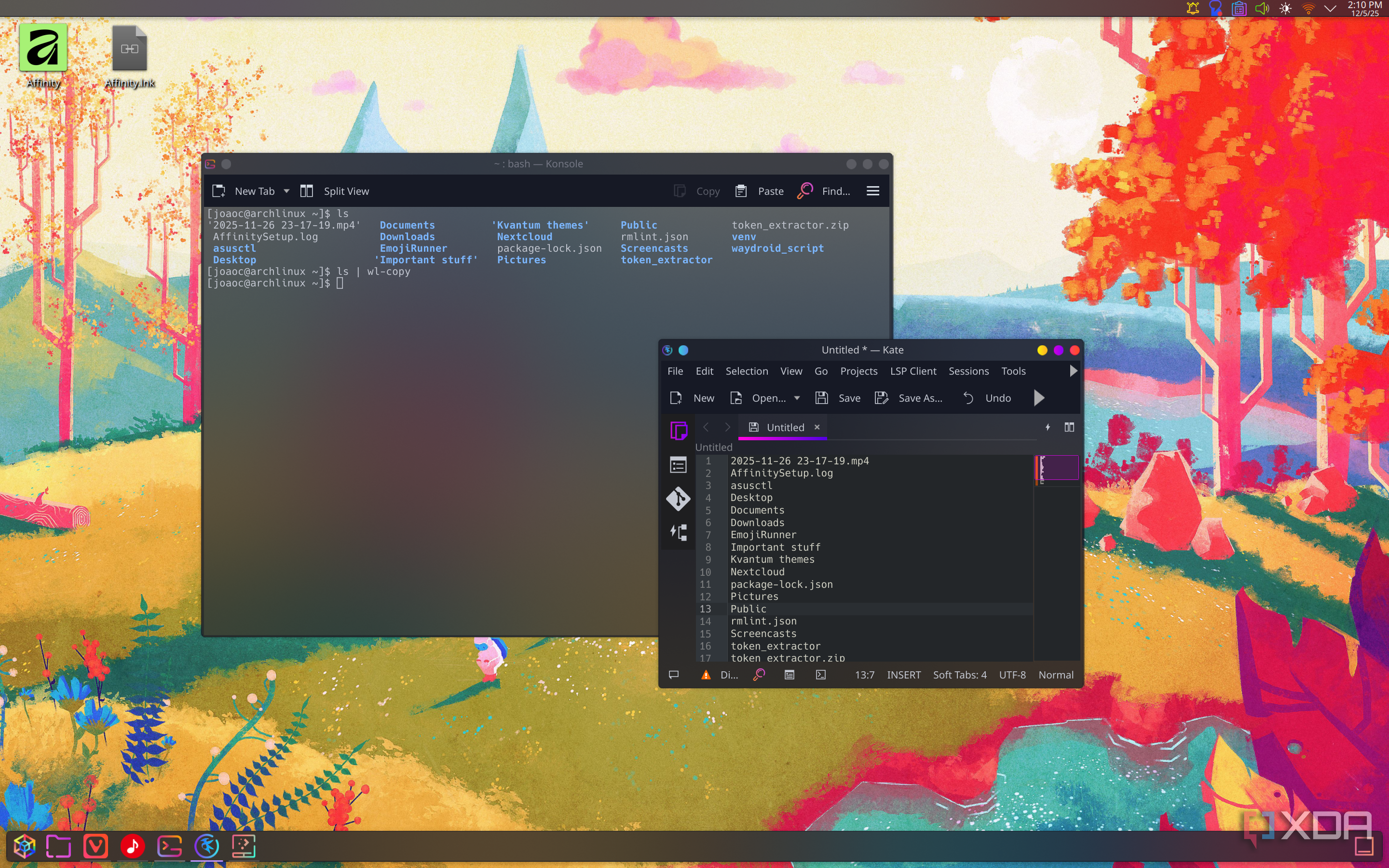
For a tool that mostly relies on the keyboard, the terminal can make it very annoying to manipulate text, especially if it means copying and pasting the output of a command. The wl-clipboard package can help fix this by allowing you to use commands that copy and paste content when using the terminal. For example, you can use wl-copy to copy a simple text string or the output of another command directly to the clipboard, so you don't have to manually select it and copy it using the mouse. Conversely, you can use wl-paste to insert clipboard content into specific files, upload them to a remote location, and more. If you're often working in the terminal but you need to copy and paste content frequently, this tool can be a life-saver.
FSearch: Super-Fast File Search
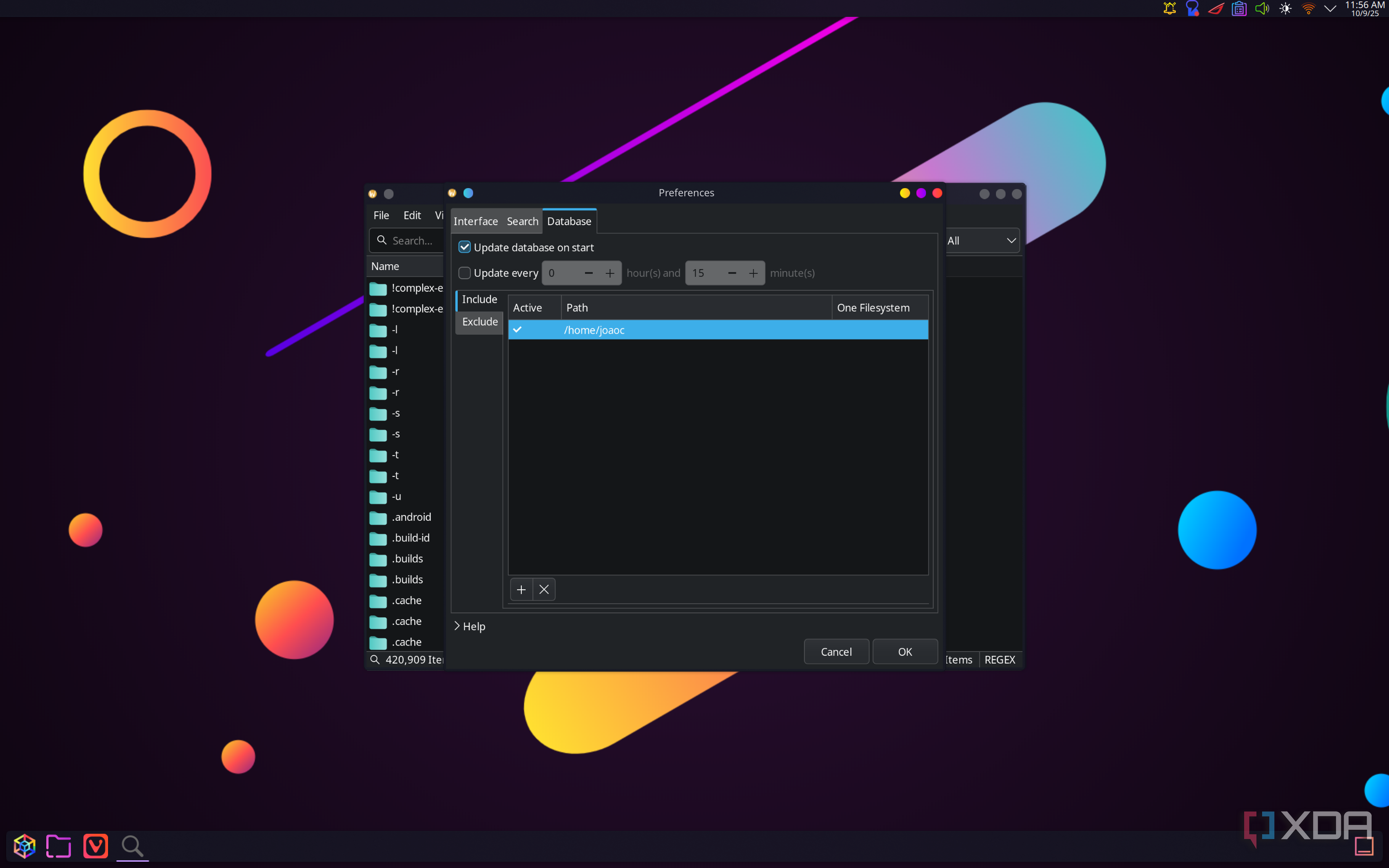
I've covered FSearch before, and for good reason. This app may best be described as Everything but for Linux, and it's wonderful. FSearch makes it easy to find any files on your system in the blink of an eye by simply typing away. You start by defining the indexed search locations, and once that's done, you just search for what you need. FSearch instantly locates files that match the text string you entered, regardless of whether it's at the start, middle, or end of a file name, and you can use wildcards and regular expressions (RegEx) to narrow down your search based on specific parts of the name. You can even find folders by specifying how many child folders are inside it. It can be as simple or as complex as you want it to be, but one thing is for sure: it's tiny, fast, and very effective.
Vicinae: A Personal Favorite
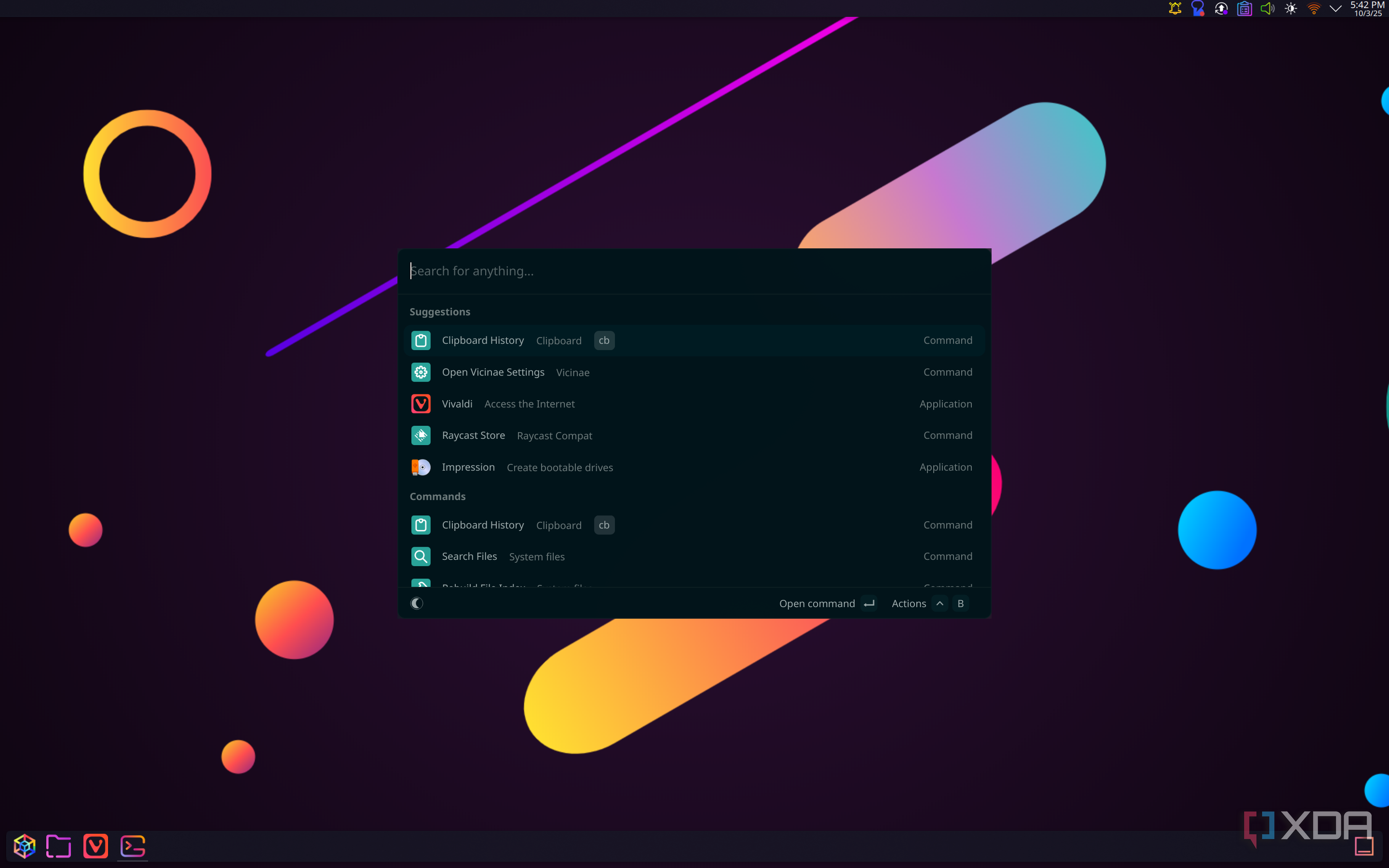
Finally, I couldn't go without mentioning my absolute favorite Linux tool, though this one is a little larger than some of the options we've covered so far. Vicinae is a keyboard-based launcher, not too different on the surface from something like Krunner. However, Vicinae has a few advantages. For one thing, it's fast. It's summoned very quickly and responds instantly to your input in a way that Krunner doesn't really match for me. But on top of that, it's heavily customizable and extensible. Two of my favorite extensions are built-in, those being the emoji selector and the clipboard, which work very well. These make it so easy to use some of the emoji I rely on most frequently, and also access any clipboard content I copied in the past few weeks.
Vicinae is essentially an open-source Linux version of Raycast from macOS, even attempting to support all the same extensions (with varying degrees of success), in addition to having its own separate store for those wanting to make dedicated extensions. It's not as fully robust as the original, but it's still absolutely phenomenal and allows me to work much faster.
Make the Most of Your Linux PC
There are plenty of ways to get more out of your computer, but the apps above are a great way to get started and make the best use of your Linux PC. You'll be able to do all your tasks much faster with these tools, and they won't take up too much space on your computer, either. I highly recommend checking them out.

Posting Komentar untuk "8 Quick Linux Tweaks to Boost Desktop Speed"
Posting Komentar