
Enable Your Android Phone to Alert You to Unheard Important Sounds
Understanding Sound Notifications on Android
Staying aware of your surroundings is crucial, especially when it comes to hearing emergency alarms, appliance beeps, or sounds like a doorbell ringing. However, it's not always possible to catch these sounds, particularly when you're distracted or wearing headphones. Fortunately, your Android phone has a feature called Sound Notifications that can help you stay informed about important sounds around you.
This feature uses your phone’s microphone to listen for specific sounds and sends a popup alert to your screen when it detects something significant. It essentially turns your phone into an extra set of ears, ensuring you never miss a sound that matters.
What Makes the Sound Notifications Feature Useful
A Smart Way to Stay Aware
The Sound Notifications feature on Android is designed to help individuals who are hard of hearing by keeping them informed about their surroundings. However, even if your hearing is perfectly fine, you might find this accessibility feature incredibly useful in daily situations.
Consider moments when you're deeply engaged in a game, listening to music, or using noise-canceling headphones. In such cases, your phone can still monitor important sounds you might overlook and provide notifications like a gentle tap on the shoulder.
Setting Up the Sound Notifications Feature
Set It and Forget It
Setting up the Sound Notifications feature is straightforward. You can find it within the Accessibility menu of your Android device. Open the Settings app, navigate to Accessibility > Hearing enhancements > Sound Notifications, and turn it on. Your phone will then start listening for sounds in the background.
If you can't locate the feature on your phone, you can download the Live Transcribe & Notifications app from the Play Store and enable the feature from there.
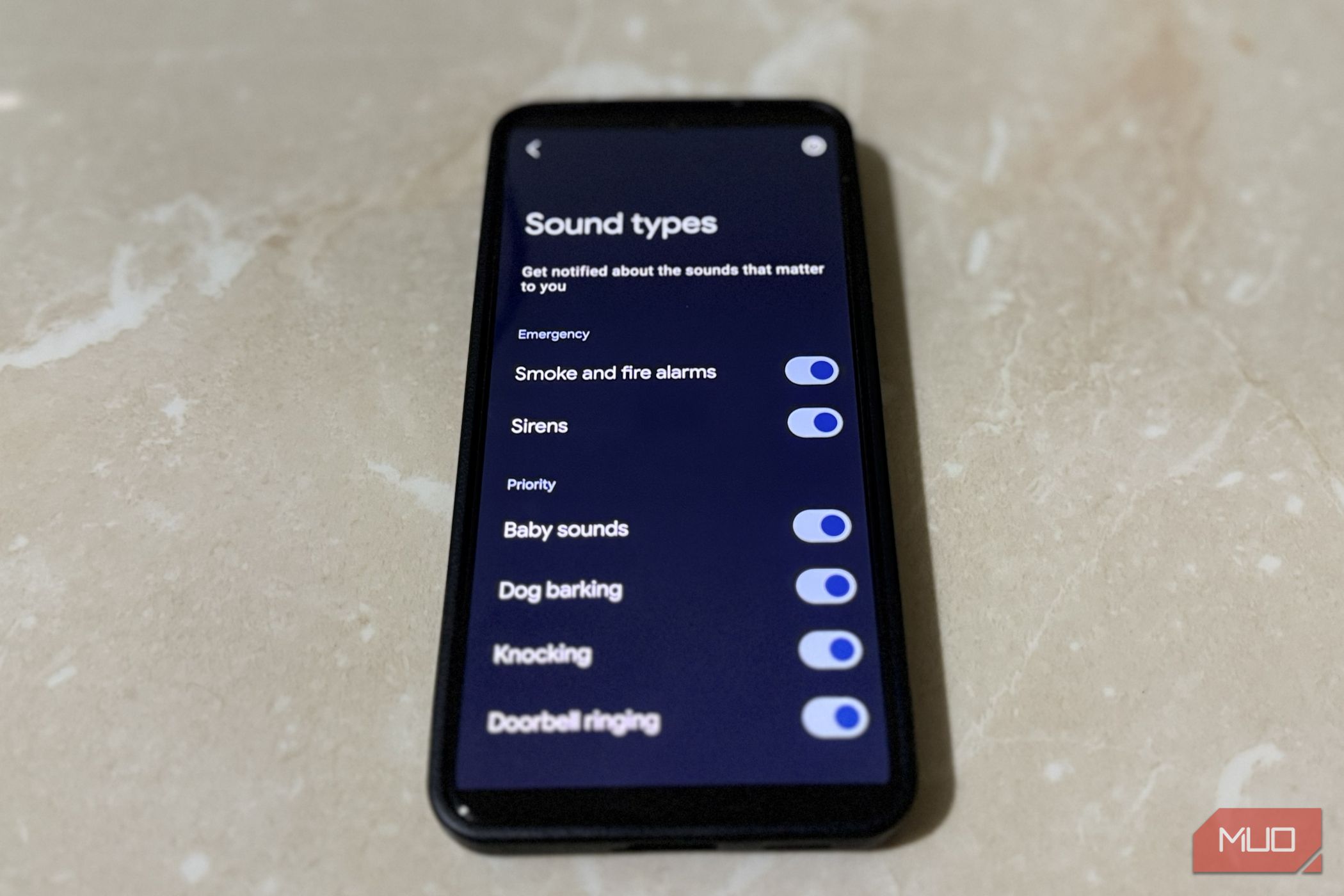
By default, the feature alerts you to several important sounds, including smoke alarms, fire alarms, sirens, a baby crying, a dog barking, someone knocking on the door, doorbell ringing, appliance beeps, landline phone ringing, and even running water. If this seems overwhelming, you can customize your preferences.
Tap Edit sound types and use the toggles to select which sounds you want to be notified about. This way, you won’t get interrupted every time the neighbor's dog barks, which is especially helpful if you live in a busy area. Once you're all set, you can tap the icon in the top left corner to see a demo of how the feature works.
Get Alerts for Almost Any Sound Around You
Custom Alerts for the Sounds You Care About
The Sound Notifications feature also maintains a log of the sounds it hears. This is beneficial if you're away from your phone and want to check what happened. You can even save specific sounds and assign unique names to them, making it easier to distinguish between different noises, such as your washing machine's end-of-cycle beep and your microwave's timer tone.
Moreover, you aren't limited to the preset list of sounds the feature recognizes. You can teach your phone to listen for sounds that are unique to your environment. For example, if your appliance has a tone that isn't recognized by default, or you want to be notified every time the garage door closes, simply record the sound once, and your phone will keep an ear out for it from then on.
In the Sound Notifications menu, tap the gear icon in the top right corner and select Custom sounds. Then, tap Add sound and hit Record. You’ll need to capture the sound in a 20-second audio clip. The clearer the recording, the better your phone will be at recognizing the sound later.
Customize How You Receive Sound Notifications on Android
Stay Aware Your Way
The Sound Notifications feature is all about ensuring you don’t miss anything important. By default, your phone vibrates and activates the camera flash every time you receive a notification. While the visual cue is helpful, it's not always necessary.
If an alert is less urgent, such as your washing machine finishing its cycle, you can customize how it appears. In the Sound Notifications menu, tap the gear icon and select Ways to be notified. Use the toggles to set your preferences for various alert types.
The Big Question: What About Privacy?
If the idea of your phone constantly listening makes you uneasy, here's some good news. Sound Notifications operates locally on your device, meaning any audio it captures stays on your phone and is never sent to Google. The only time sound data might be shared is if you willingly include it while submitting feedback.

Posting Komentar untuk "Enable Your Android Phone to Alert You to Unheard Important Sounds"
Posting Komentar