
How to Remove the Calendar from CarPlay (and When You Should)
Enhancing Your CarPlay Experience
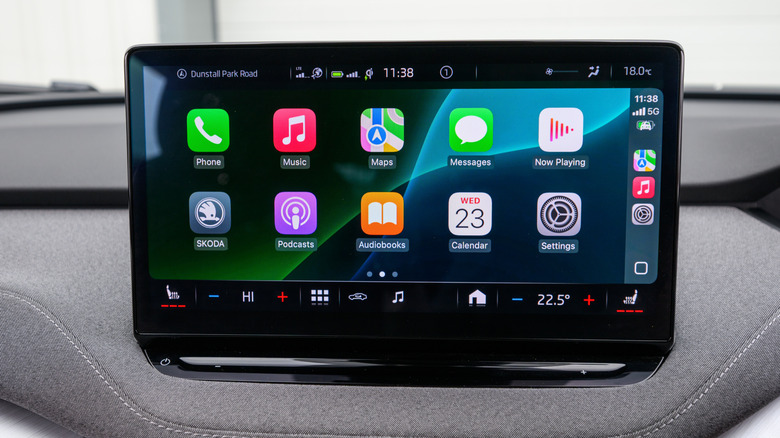
CarPlay is an excellent way to use your iPhone while driving, offering a seamless integration between your phone and your car's infotainment system. While there are many tips and tricks to maximize its functionality, one lesser-known suggestion involves removing the Calendar app from your CarPlay. This adjustment can help streamline your experience and improve safety on the road.
Before making any changes, it's essential to ensure that you're at a full stop for your own safety. To remove the Calendar app, navigate to your iPhone's General settings and select CarPlay. From there, choose your car model, and you'll see the list of apps and widgets currently accessible through CarPlay. Look for an option to organize or remove apps, then select the Calendar widget or app. Removing it from CarPlay won't affect your iPhone; you can always add it back through the Customize menu if needed.
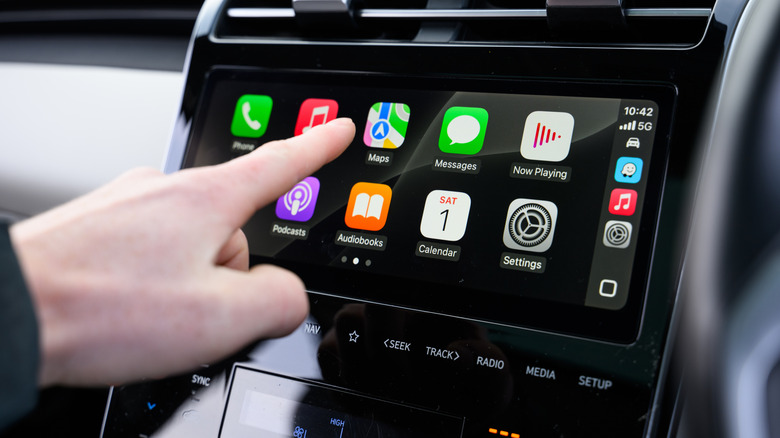
But why would someone want to remove the Calendar from CarPlay? One significant benefit is the amount of physical space it frees up on your display. This can be especially useful if your screen is already crowded with multiple apps. Additionally, once the Calendar widget is removed, its notifications and upcoming event information will no longer appear on the CarPlay screen. This can help keep your reminders and appointments private, which is particularly beneficial during long drives or when sharing the vehicle with others.
If you prefer not to remove the Calendar entirely, another option is to turn off calendar notifications on your iPhone before driving. However, remembering to turn them back on after your trip could become a hassle. For some users, the convenience of simply removing the app might outweigh the effort of toggling notifications.
Optimizing Display Space on CarPlay
If you're concerned about display space on your CarPlay, there may be a solution coming soon. iOS 26 introduces a feature called Smart Display Zoom, which allows you to adjust the size of icons on your screen. By making the icons smaller, you can reduce clutter and potentially add another row of apps or widgets. This adjustment can lead to a neater and more readable layout, depending on your car's display size.
Apple has also introduced updates that allow for more widgets to be displayed simultaneously. These new "stacks" show three widgets side-by-side instead of the previous two, enabling you to access more important information at once—such as weather, navigation, or music controls. Another update lets you disable pinned message threads, which can free up even more display space. This is particularly helpful if you're working with a smaller screen.
These improvements come shortly after the limited release of CarPlay Ultra, which we reviewed in July of 2025. CarPlay Ultra offers content for all screens in your car, including the instrument cluster. This means you can display iPhone apps, media, and more, along with essential vehicle information like speed, fuel, and tire pressure. However, CarPlay Ultra is not yet widely available, and Apple has not confirmed when it will be released to the general public.
)
Posting Komentar untuk "How to Remove the Calendar from CarPlay (and When You Should)"
Posting Komentar