
How to Use iPhone LiDAR (And Why It Matters)
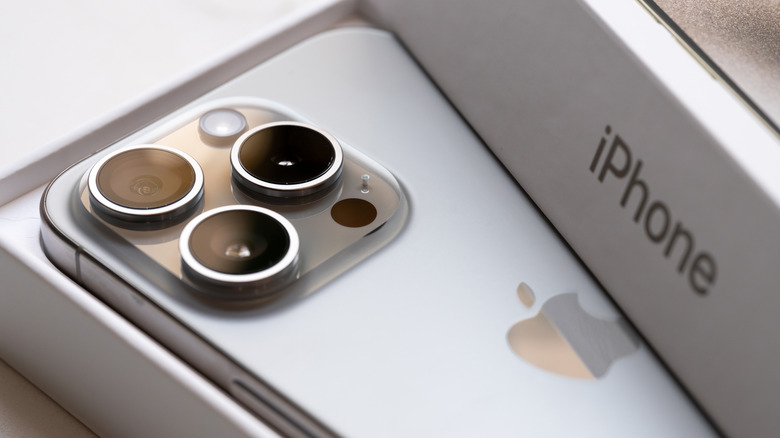
Apple has designed the iPhone with a variety of advanced sensors, one of which is the LiDAR scanner. LiDAR, or Light Detection and Ranging, functions by measuring distances to create a 3D map of the surrounding environment. While it's widely used in applications like self-driving cars, shoreline mapping, and building assessments, the LiDAR sensor on your iPhone offers more practical, everyday uses.
The small black circle located near the rear camera lenses plays a key role in some of the iPhone's lesser-known features, such as measuring a person's height, enhancing augmented reality (AR) gaming experiences, and improving camera autofocus. With the LiDAR sensor, you can interact with your surroundings in more meaningful ways.
It's important to note that the LiDAR scanner is not available on all iPhone models. It is only included in the Pro versions of both the iPhone and iPad. Specifically, this feature was introduced with the iPhone 12 Pro and Pro Max, as well as the iPad Pro 11-inch (2nd generation) and 12.9-inch (4th generation). If you own one of these devices, here are some ways to start using the LiDAR sensor.
How to use your iPhone's LiDAR sensor with native apps
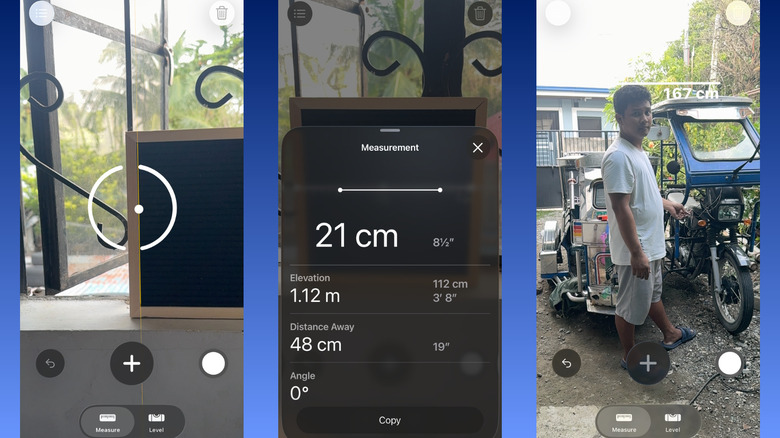
One of the easiest ways to try out the LiDAR scanner is through the Measure app. This app gains enhanced functionality when using the LiDAR sensor, including features like measuring a person's height, using a virtual ruler, drawing guide lines, capturing detailed measurements, and keeping a measurement history.
Here’s how to use these LiDAR-powered features:
- Launch the Measure app.
- To measure an object:
- Move your phone until you see a circle with a central dot on the screen.
- Place the dot over one end of the object you want to measure.
- If the point is on a straight edge, wait for a few seconds for the yellow guide line to appear. The dot will automatically snap to this guide line.
- Hit the plus icon in the middle to save the starting point.
- Drag the dotted line to the other end of the object.
- Press the plus icon again. The line will then turn solid with the measurement and a virtual ruler displayed over the object.
- Tap the measurement to see more details, including the elevation, your distance away from the object, and the measurement's angle.
-
To change the start and end points, long-press on the point and reposition it. You should see the new measurement appear on screen.
-
To measure someone's height on your iPhone:
- Point your iPhone to the person. Make sure their head and feet are in the frame.
- Wait for the measurement to pop up near their head. This should appear automatically, without any other input on your end.
- Hit the capture button on the bottom-right to take a screenshot of the measurement.
- To see the measurement history for the ongoing session, press the icon in the top-left. You can select Copy to copy all the measurements for use in another app, or Clear All to delete your history.
How to use your iPhone's LiDAR sensor with third-party apps
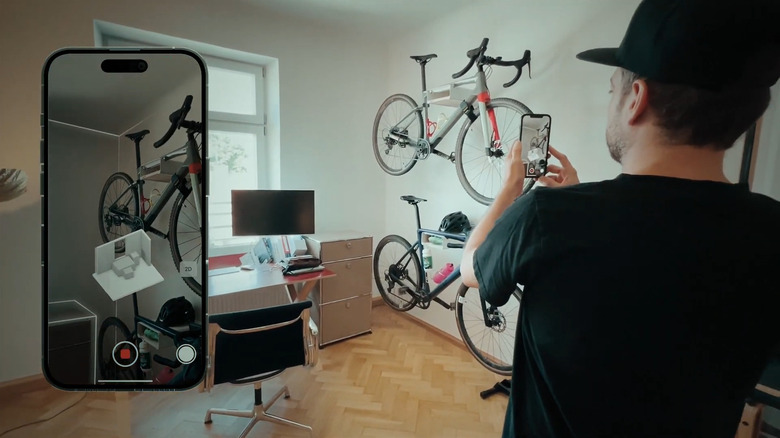
Beyond the Measure app, your iPhone's LiDAR sensor also powers a wide range of third-party applications. One of the most popular uses is room scanning and decorating. Apps like magicplan and the IKEA Kreative option in the IKEA app allow you to scan a room to generate accurate 3D models and 2D floor plans right on your iPhone. All you have to do is point your camera and sweep it around the room to capture every detail. Depending on the app, you can then decorate the space with furniture, measure the room, or import the plan to professional software like SketchUp and AutoCAD.
The LiDAR on your iPhone can also be used for object 3D scanning. With apps like 3d Scanner App and Polycam, you can create a 3D digital model of everyday objects for 3D printing or digital artwork. These apps work by simply moving your phone around the object to cover all the sides.
In addition to room scanners and 3D object makers, Augmented Reality (AR) gaming apps also utilize the power of your iPhone's LiDAR. The LiDAR sensor helps merge virtual objects with real surroundings. For example, in the RC Club AR Racing Simulator, you can control a virtual RC car to move across your room. It can jump from your coffee table, drive on the floor, and bump into books.
Another impactful application of the LiDAR scanner is in accessibility tools for people with vision impairments. Apps like Super Lidar and Obstacle Detector For Blind use the scanner to assess the distance of obstacles. After determining the distance, sound and haptic alerts are sent to help the user navigate better.
)
Posting Komentar untuk "How to Use iPhone LiDAR (And Why It Matters)"
Posting Komentar