
How to Use Quick Share on Android and Share with iPhones via AirDrop
Overview of Google's Quick Share
Google's Quick Share feature has evolved significantly since its initial launch as a competitor to Apple's AirDrop. Originally known as Nearby Share, it was rebranded as Quick Share after Google and Samsung collaborated to create a unified file-sharing platform. Recently, Google achieved a major milestone by making Quick Share fully interoperable with AirDrop on select devices.
This breakthrough allows Android users to send and receive content with iPhones, although there are some limitations to be aware of. This article will guide you through the process of using Quick Share, discuss its availability and restrictions, and explore what the future holds for this innovative feature.
How to Use Quick Share on Your Android Phone
Using Quick Share on your Android phone is straightforward, but you need to enable the feature first. Here’s how to do it:
- Swipe down twice from the home screen.
- Tap the Quick Share tile.
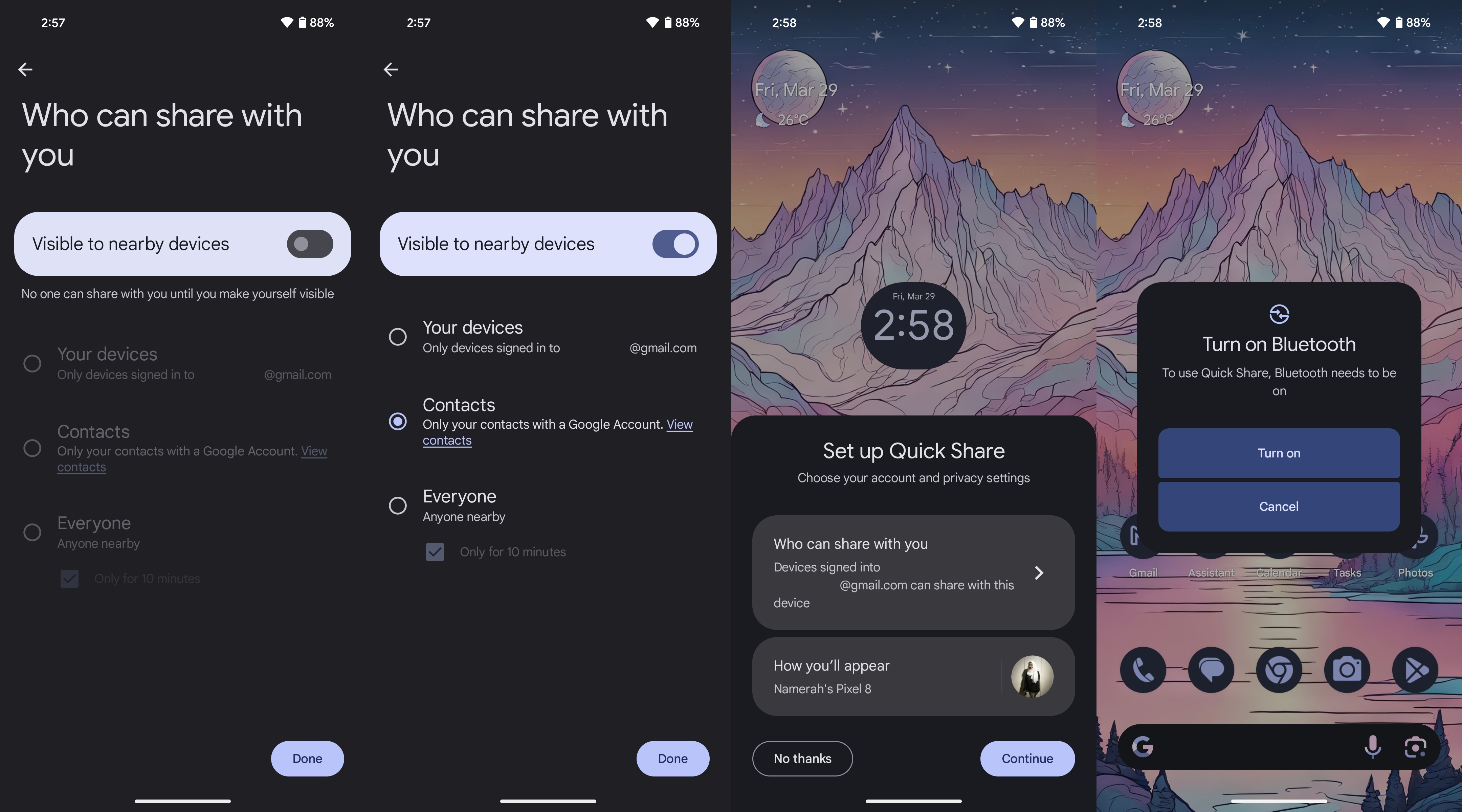
- Select Who can share with you.
- Turn on the toggle to make your phone Visible to nearby devices.
- Choose your preferences and tap Done.
- Tap Continue.
- Turn on Bluetooth.
- Pick a file or something you want to share.
- Tap the Share button.
- Select the Quick Share option.
- Choose the nearby device or contact and send the file.
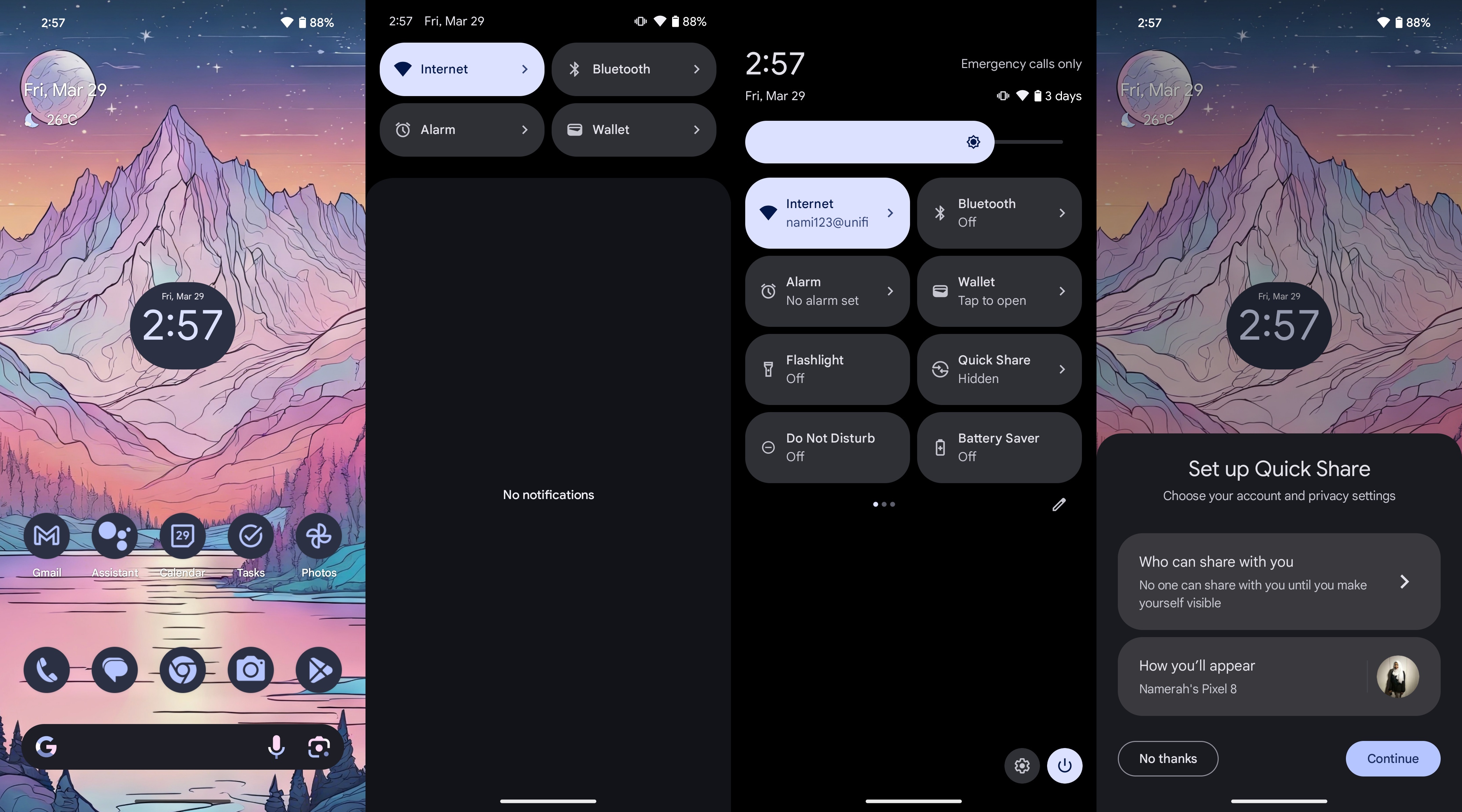
Once you’ve set up Quick Share, it will automatically be in use according to your preferences whenever you enable Bluetooth and GPS. You can share a wide variety of items, such as images, tweets, links, or even songs from Spotify.
How to Use Quick Share with iPhones
Google introduced the ability for Google Pixel 10 users to use Quick Share with AirDrop on iPhones in November 2025. Currently, only users with a Google Pixel 10, Pixel 10 Pro, Pixel 10 Pro XL, or Pixel 10 Pro Fold can share files from Android to iPhones via Quick Share. Google plans to expand this feature to more Android devices in the future.
Quick Share and AirDrop integration works both ways and functions seamlessly between supported devices. Here’s how to use it:
- Change the AirDrop settings on the iPhone, iPad, or Mac you want to share with to Everyone for 10 minutes.
- Open the content you want to share on your Google Pixel 10.
- Tap Share, then Quick Share.
- Select the iPhone, iPad, or Mac you want to share with from the list of nearby devices.
- Wait for the recipient to accept the Quick Share.
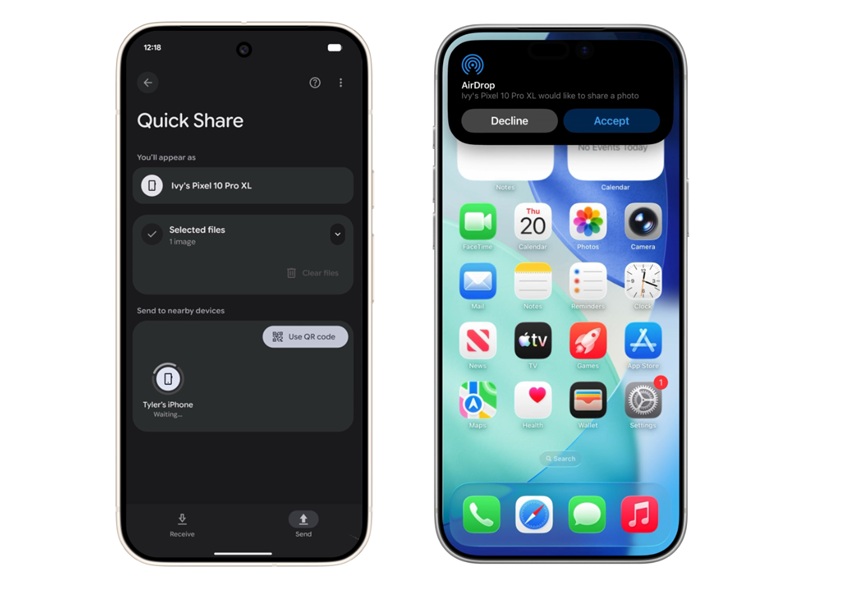
With these simple steps, you can share files and more from a Pixel 10 to an Apple device. To receive content, simply turn your Quick Share setting to Everyone for 10 minutes and wait for the Apple user to share something with you. Tap Accept like you normally would with any other Quick Share.
How to Use Quick Share on Your Chromebook
Sharing files on Chromebooks can be tricky, but the task is made easier with the help of Quick Share. Much like Android, Chrome OS requires you to set up and then use the feature. Here’s how you can use Quick Share on your Chromebook:
- Open Settings on your Chromebook.
- Look for Quick Share under Connected devices.
- Select the Set up option beside Quick Share.
- Set your device name and visibility preferences.
- Tap Confirm.
- Pick a file you want to share and tap the Share button.
- Select Quick Share as the method of sharing and send your file.
After setting up Quick Share, you can always disable it from the settings menu and enable it later on.
How to Use Quick Share on Your Windows PC
Windows PCs and Android smartphones have a growing relationship that sees the two operating systems working very cohesively. While apps like Phone Link make it possible to mirror your smartphone and move certain images between devices, Google has made file transfers much easier with the introduction of Quick Share for Windows.
Here’s how you can use the Quick Share on your Windows PC to enjoy seamless file transfer between compatible devices:
- Download and install the Quick Share app for Windows.
- Open the app and click Sign in. You can also skip the sign-in process if you'd rather not use your Google account.
- After signing into your account, return to the app. Enter a name to easily identify your PC.
- Click Visible to others as to edit your name and visibility. You can select from everyone, only contacts, your devices, or no one.
- Select a file by right-clicking and choose the Quick Share option to send via this feature.
What's Next for Quick Share
Quick Share was previously a Samsung-exclusive feature. Google recently decided to merge Nearby Share with Samsung's feature. Quick Share was not available on all devices with Nearby Share due to compatibility issues, which posed some big problems. Now, Quick Share is available on most Android phones, tablets, and Chromebooks.
Looking ahead, Quick Share is aiming to achieve full interoperability with AirDrop and the Apple ecosystem. It's already possible with the Pixel 10 series, but Google plans to expand this feature to more Android devices in the future.
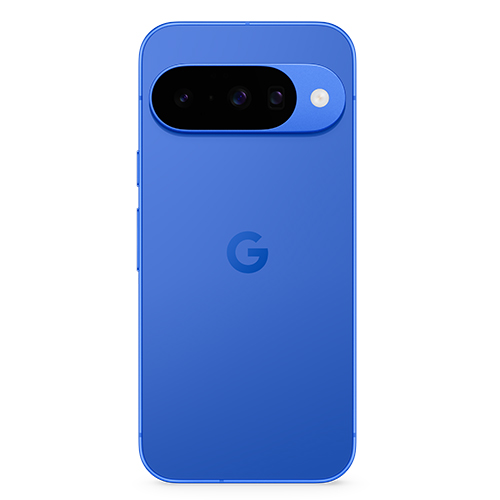
Google Pixel 10: The Ultimate Quick Share Phone
Who knew one phone would rule them all when it came to Quick Share? Now, the Google Pixel 10 series is the only one that can use Quick Share with AirDrop. It's a great all-rounder that offers a Tensor G5 chip and plenty of Google AI features, too.

Posting Komentar untuk "How to Use Quick Share on Android and Share with iPhones via AirDrop"
Posting Komentar