
3 Must-Use USB 3.0 Devices and 1 to Avoid
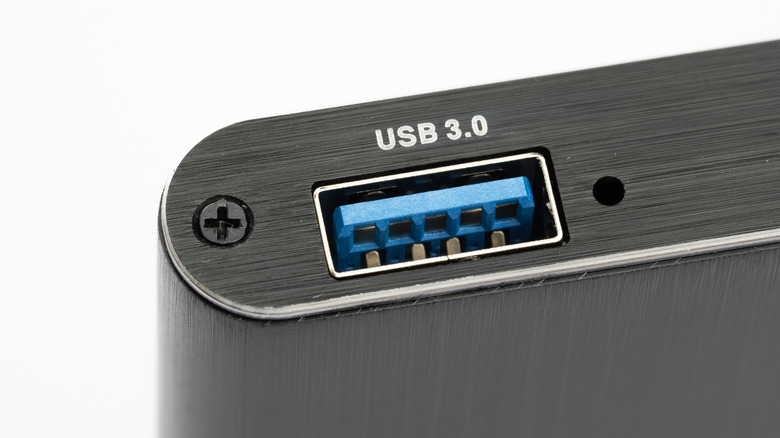
Understanding USB ports can be a bit of a challenge, especially with the different symbols and icons that represent various standards. Some USB ports are orange, while others have lightning bolts. This confusion is compounded by the fragmentation of standards, particularly when it comes to USB-C. As a result, you can't just plug in any device indiscriminately into your computer's USB-A ports (the rectangular-shaped ones). Certain devices may perform exceptionally well when connected to a USB 3.0 port but will be painfully slow or even unusable when plugged into a USB 2.0 port.
The key takeaway is that USB 3.0 is significantly faster and more efficient than USB 2.0. Introduced in 2009, USB 3.0 has a blue block inside, while USB 2.0 has a black one. We'll explore which devices should be connected to USB 3.0 ports and which ones shouldn't.
Devices That Should Be Plugged Into USB 3.0 Ports
Hard Drives and USB Drives (Especially SSDs)
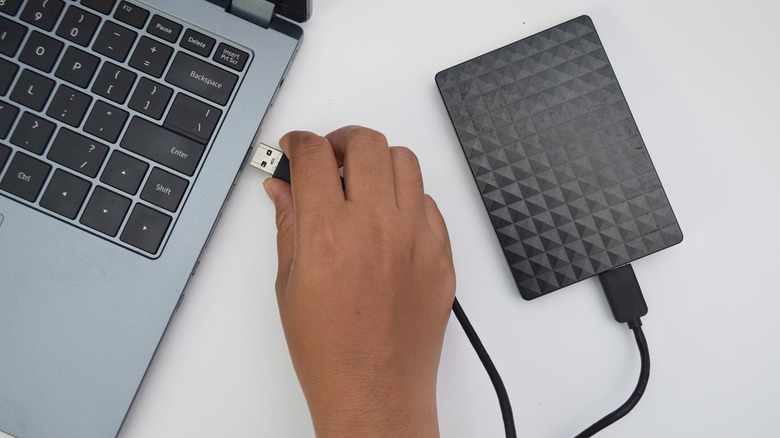
When you connect a hard drive to your PC, you're typically hoping for fast file transfers or backups. However, many people mistakenly plug an old external HDD into a USB 2.0 port, thinking it won't make a difference because spinning disk drives are slower than SSDs. This is a mistake. For example, the Seagate Portable 2TB External Hard Drive supports USB 3.0 and has a maximum data transfer rate of 130 MB/s, which is about double the speed of USB 2.0's 480 Mbps.
SSDs also benefit from USB 3.0. The Samsung T9 Portable SSD can support up to 2,000 MB/s, which is three times faster than USB 2.0. Even though USB 3.0 can't fully utilize this speed, it can still provide around a third of that with its 5 Gbps maximum.
If you're using a USB-C drive, always plug it into a USB-C port. If you're choosing between USB 2.0 and USB 3.0, go with USB 3.0 for hard drives. It's also preferable if you're using an overloaded USB hub, as shared bandwidth can slow down your hard drive.
USB Hubs
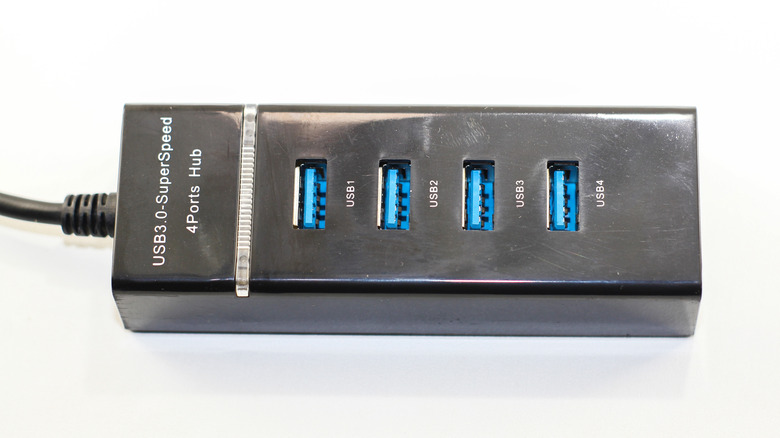
USB hubs should also be plugged into USB 3.0 ports. The Ugreen USB 3.0 Hub, for instance, supports USB 3.0 at its full 5 Gbps with four USB 3.0 ports. Even if some of these ports are used for low-demand peripherals like mice and keyboards, they still share bandwidth with other devices. USB 3.0 can handle multiple devices as long as their combined data usage stays below 5 Gbps, while USB 2.0 would struggle.
USB 3.0 also delivers almost double the power of USB 2.0 (900 mA vs. 500 mA), making it better for charging phones or powering other devices. Additionally, USB 3.0 offers two unidirectional data paths, unlike USB 2.0's single-direction path. These advantages make USB 3.0 superior in every way.
If you're planning on using a USB-C dock for heavy use, we recommend choosing USB-C if your computer has a USB-C port. Transfer rates and power draw will be much better. For basic uses like dongles or USB flash drives, USB 3.0 with a USB-A port will suffice.
Electronic Devices (Like Smartphones)
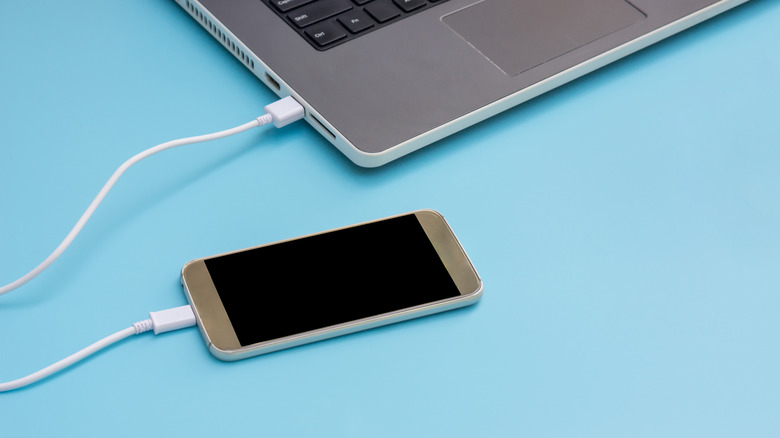
Plugging your smartphone, tablet, or e-reader into your computer will face similar data transfer limitations as a hard drive. Most phones made in the past five years use USB-C, so a USB-C to USB-C cable is ideal. However, a USB 3.0 to USB-C cable will work fine unless you're transferring large files.
Charging your phone via USB 2.0 could leave you waiting for hours to get a full battery. Other processes, such as booting into ADB on an Android phone or restoring an Apple device via a Windows PC, can also be affected by using the wrong USB port. These tasks can take significantly longer on USB 2.0 compared to USB 3.0.
Devices That Should Not Be Plugged Into USB 3.0 Ports
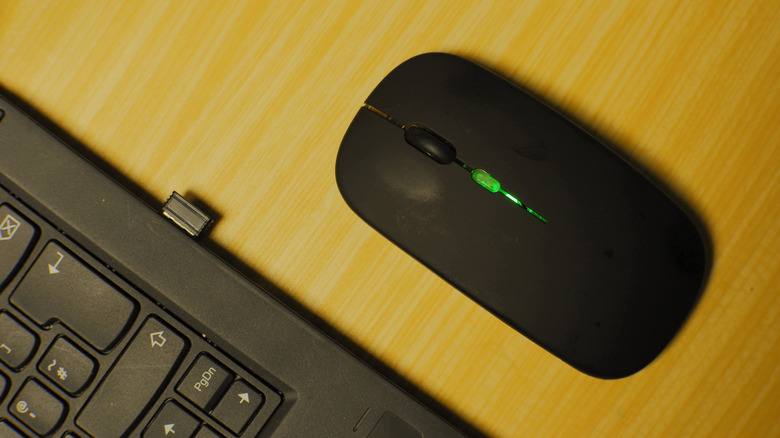
While it might seem like everything should be plugged into a USB 3.0 port, there are exceptions. Specifically, 2.4 GHz devices like mice and keyboards can perform worse with USB 3.0 due to radio interference. This can cause issues like a stuttering cursor or unresponsive keyboard.
Many people have found that using a USB extender can resolve these issues. The goal of a 2.4 GHz mouse is to achieve the fastest and smoothest performance, so addressing interference can be worth the effort if you experience connectivity problems. Don't worry about USB 2.0 being too slow for a mouse; it's sufficient for most tasks.
I've personally seen how this issue affects my setup and that of friends. If you're experiencing Bluetooth issues, this could be the cause. Repositioning a USB hub or laptop away from your peripherals, or using extenders, can suddenly improve wireless device performance.

Posting Komentar untuk "3 Must-Use USB 3.0 Devices and 1 to Avoid"
Posting Komentar