
50+ Essential Windows Keyboard Shortcuts to Boost Productivity

Key Takeaways from HAWXTECH.NET
Windows has a vast array of keyboard shortcuts that can significantly enhance your productivity when working on Windows 11. While many users are familiar with the basics like Ctrl + C for copying text, mastering more advanced shortcuts can streamline your workflow and reduce the need for mouse interactions.
Keyboard shortcuts have been a staple in Windows for years, but they often go underutilized. At first glance, they might not seem essential since you can perform similar actions using the mouse. However, integrating these shortcuts into your daily routine can lead to noticeable improvements in efficiency.
Additionally, there are several applications that many users consider essential for their new Windows PCs. These apps can greatly enhance functionality and user experience.
Productivity Shortcuts
Productivity shortcuts are among the most frequently used combinations. They simplify tasks and make managing work easier over time.
- Ctrl + C – Copy highlighted text or a file.
- Ctrl + V – Paste the copied item while preserving its format.
- Ctrl + Shift + V – Paste the copied item without any formatting.
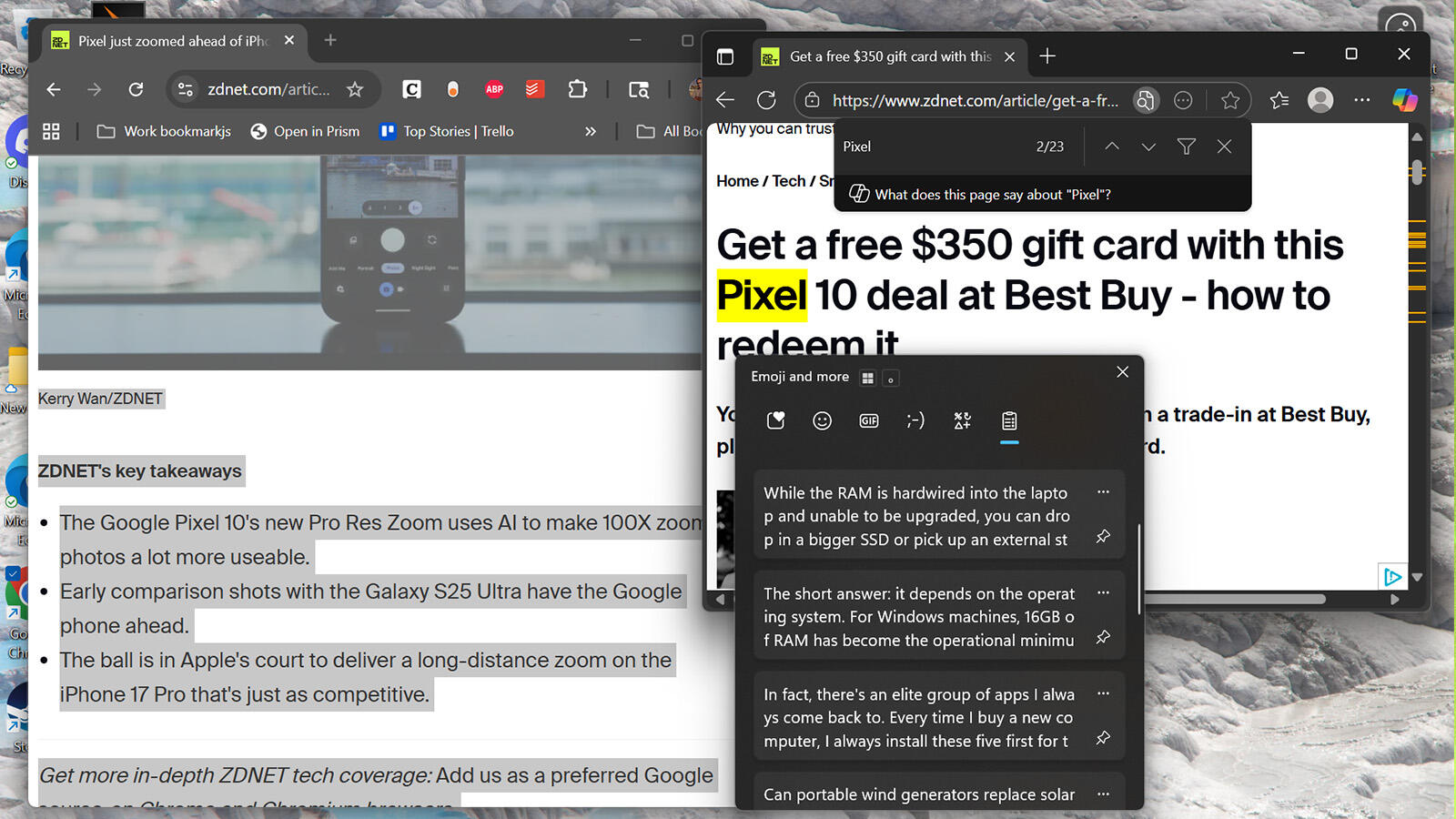
- Win + V – Opens the Clipboard tool, which displays previously copied items.
- Ctrl + X – Cut the selected item, which can be restored later with Ctrl + V.
- Ctrl + Z – Undo the last action, such as deleting text or moving a file.
- Ctrl + Y – Redo an action that was just undone.
- Ctrl + F – Opens the Find tool to search for specific words or phrases.
- Ctrl + A – Highlights all content in a window or document.
- Ctrl + S – Saves your current work quickly.
- Ctrl + Backspace – Deletes the entire previous word.
- Ctrl + Delete – Deletes the entire next word.
These shortcuts are especially useful for anyone looking to boost their efficiency while working on a Windows PC.
Accessibility Shortcuts
Windows 11 includes various accessibility shortcuts designed to make the operating system more accessible for individuals with movement limitations or other conditions. These features can also benefit anyone seeking to improve their overall experience.
- Win + Plus (+) – Activates the Magnifier tool and zooms in on the screen.
- Win + Minus (-) – Zooms out when the Magnifier is active.
- Win + Esc – Exits the Magnifier tool.
- Win + Ctrl + Enter – Launches Narrator, a text-to-speech function that describes what's on the screen.
- Shift key five times – Turns on Sticky Keys, which allows users to press one key at a time instead of multiple keys simultaneously.
- Ctrl + E – Opens the search bar across Windows 11 and web browser apps.
- Shift + Alt + Print Screen – Toggles high contrast mode for better readability.
- Shift + Alt + Num Lock – Toggles Mouse Keys, allowing cursor control via the numeric keypad.
- Win + Ctrl + C – Toggles color filters like grayscale, which can be adjusted in the Accessibility menu.
- Win + U – Opens the Accessibility menu in Settings.
- Win + Ctrl + O – Opens the on-screen keyboard.
These shortcuts are particularly helpful for users who rely on alternative input methods or require visual adjustments.
Navigation Shortcuts
Navigation shortcuts allow users to move between different applications without lifting their hands from the keyboard. These are ideal for multitaskers who juggle multiple programs.
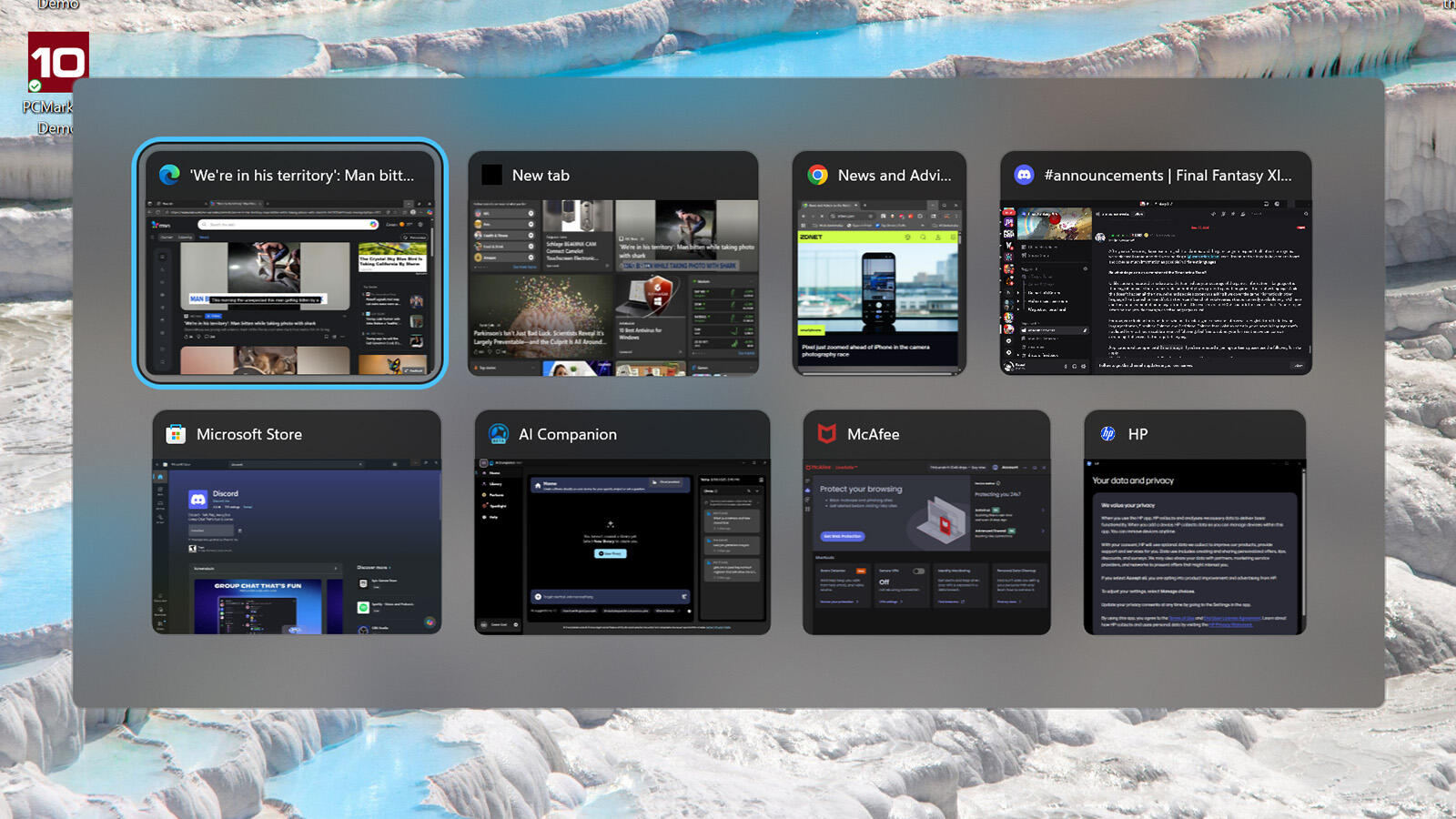
- Ctrl + Alt + Tab – Displays all open apps, allowing users to switch between them using arrow keys.
- Win + S – Opens Windows Search.
- Win + Tab – Opens Task View, showing all open windows and desktops.
- Win + D – Hides all windows on the desktop and reveals them again when pressed.
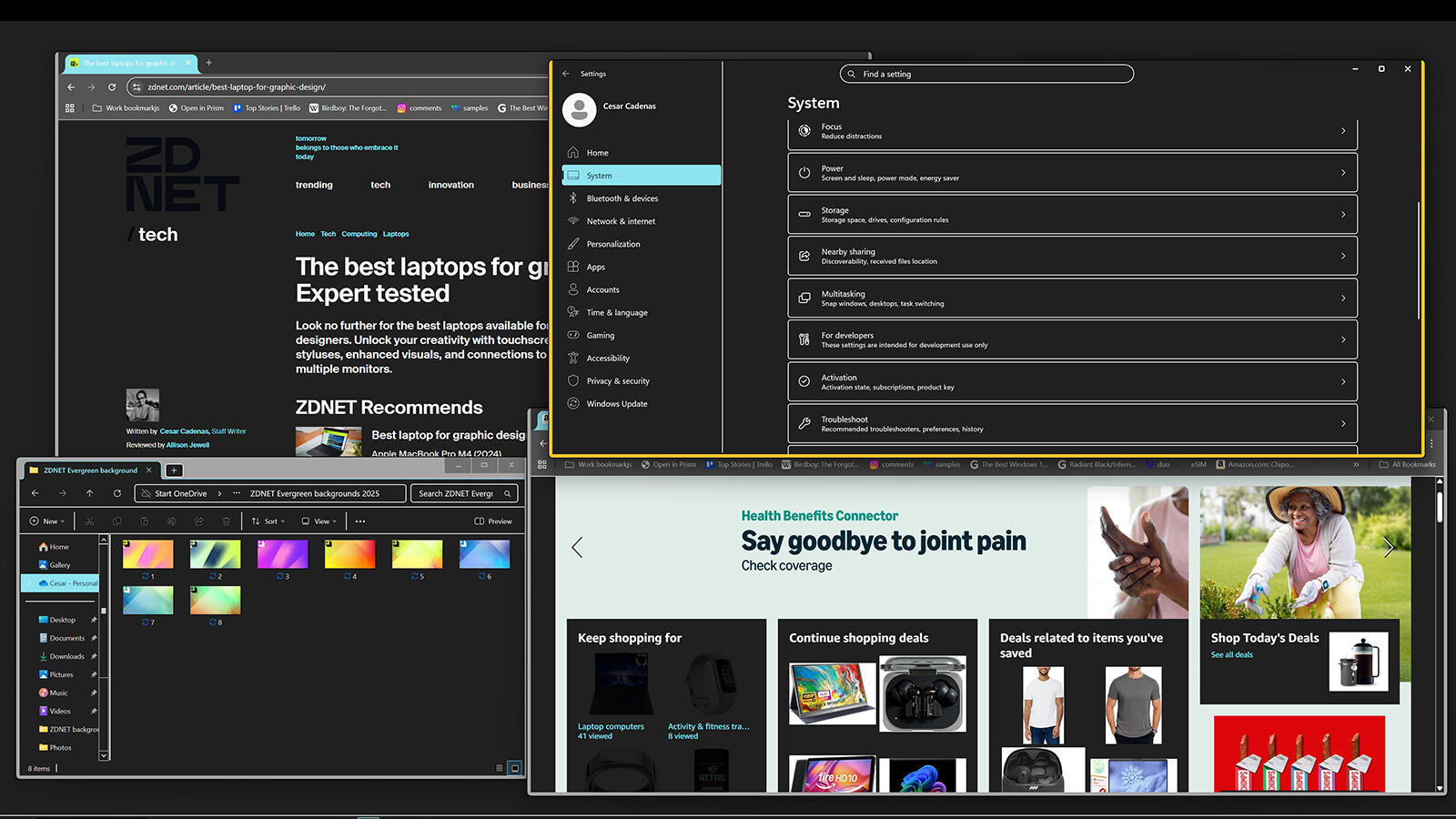
- Win + Left/Right Arrow – Snaps the current window to the side of the screen.
- Win + Up Arrow – Maximizes the current window.
- Win + Down Arrow – Minimizes the same window.
- Win + Ctrl + D – Creates a new desktop.
- Win + Ctrl + F4 – Closes the current desktop.
- Win + Number Key – Opens a taskbar app pinned to that number, such as Microsoft Edge or the Microsoft Store.
These shortcuts help users navigate efficiently and manage multiple tasks seamlessly.
File Management Shortcuts
The Windows 11 File Explorer comes with its own set of keyboard shortcuts to help users organize files and folders more effectively.
- Win + E – Opens File Explorer.
- F2 – Renames the selected file or folder.
- F3 – Opens the search bar to locate files.
- F4 – Selects the address bar at the top of the window.
- F5 – Refreshes the current window.
- F6 – Cycles through different parts of an active window.
- Shift + Delete – Permanently deletes an item without sending it to the Recycle Bin.
- Shift + F10 – Opens the context menu for a selected item.
- Ctrl + N – Opens a new File Explorer window.
- Ctrl + Shift + N – Creates a new folder.
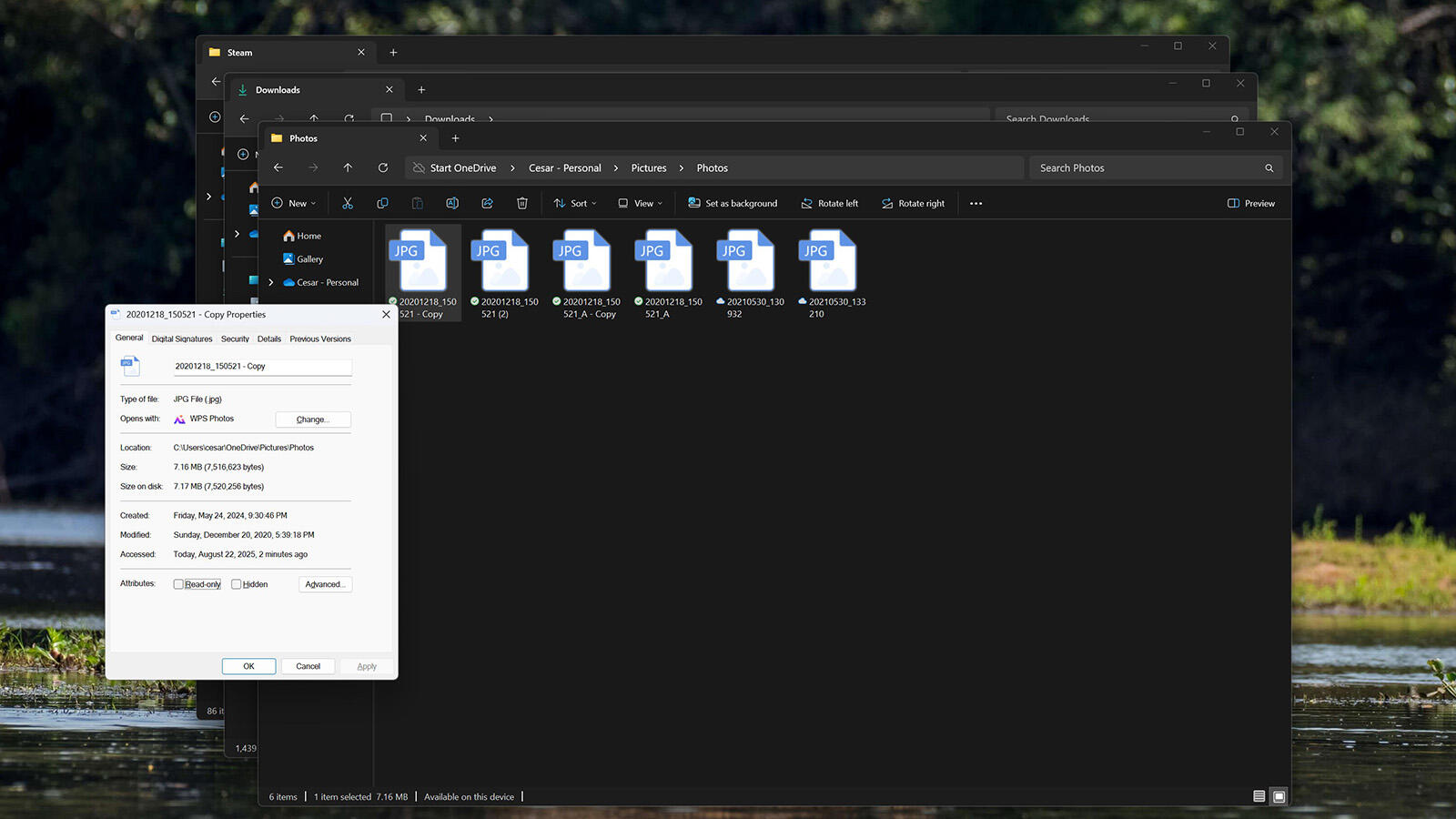
- Alt + Enter – Opens the Properties window for a file or folder.
- Alt + Left/Right Arrow – Navigates through File Explorer history.
- Alt + Up Arrow – Goes back one folder level.
These shortcuts make file management much more efficient, especially for those who handle large volumes of data.
Browser Shortcuts
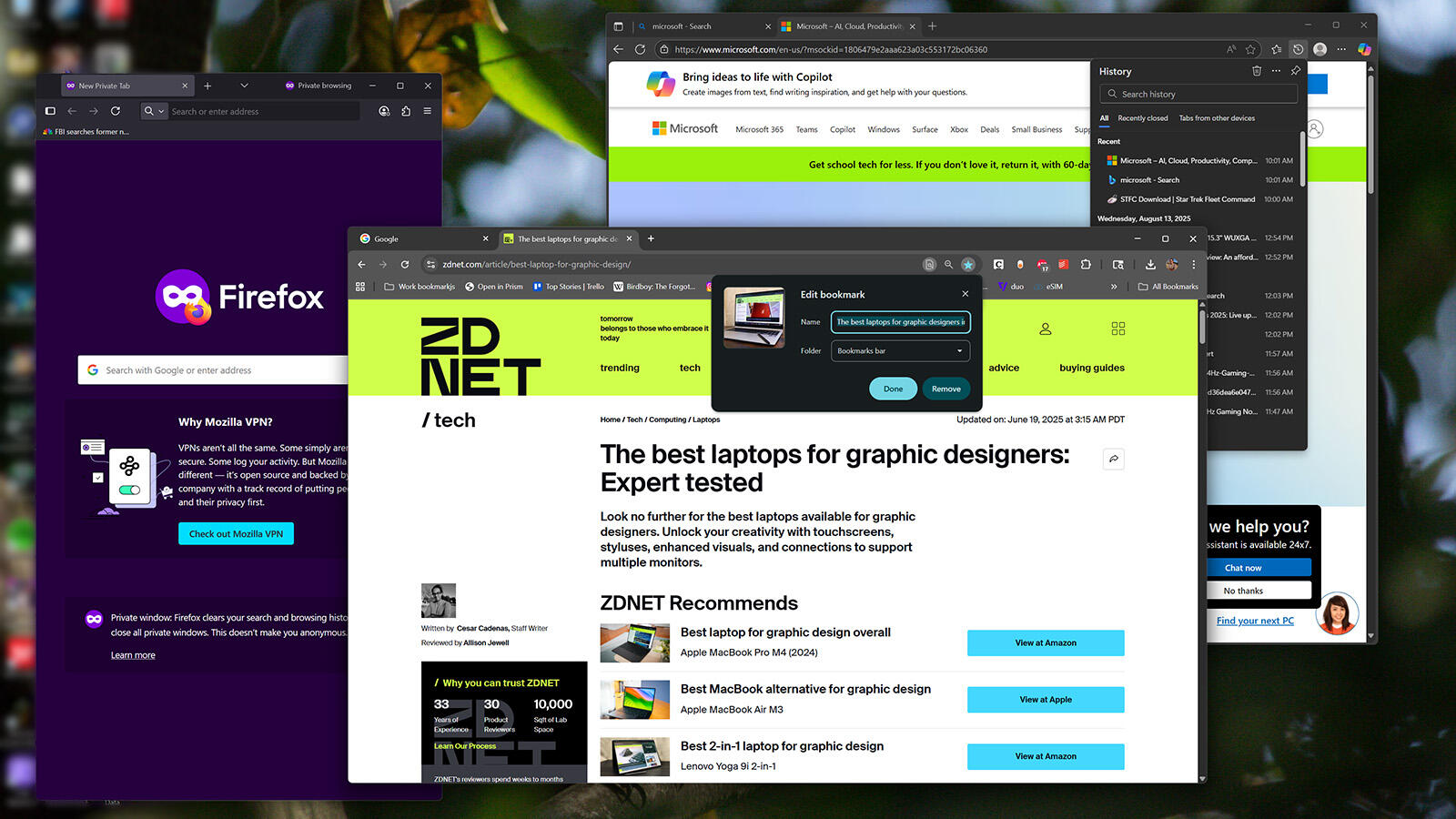
Browser shortcuts function similarly to productivity shortcuts but include unique tools such as tab management. These shortcuts work across major browsers like Chrome, Edge, and Firefox.
- Ctrl + T – Opens a new tab.
- Ctrl + Shift + T – Reopens the last closed tab.
- Ctrl + W – Closes the current tab.
- Ctrl + Tab – Moves right through tabs.
- Ctrl + Shift + Tab – Moves left through tabs.
- Ctrl + Shift + N – Opens a new private browsing window (Ctrl + Shift + P on Firefox).
- Alt + Left/Right Arrow – Navigates back and forth through tab history.
- Ctrl + D – Bookmarks the current page.
- Ctrl + H – Opens browser history.
- Ctrl + N – Opens a new browser window.
These shortcuts are invaluable for anyone who uses a web browser frequently.
Why Should You Trust Me?
With nearly a decade of experience writing about software and consumer electronics, I've worked in various settings, from traditional offices to home setups. Over the years, I've discovered numerous tricks to streamline my daily tasks. Many of the shortcuts mentioned here are part of my daily routine, even outside of work. For instance, Ctrl + Z has become an essential tool for me. Some of these shortcuts I only learned about while researching this guide, and I immediately recognized their value for both experts and casual users alike.

Posting Komentar untuk "50+ Essential Windows Keyboard Shortcuts to Boost Productivity"
Posting Komentar