
Deleted files linger on old hard drives, here's how to erase them
Why “Delete” Almost Never Means Gone
When you press Delete or use a keyboard shortcut to skip the recycle bin, the operating system usually just marks that space as available instead of overwriting the underlying data. The file’s entry in the index is removed, but the content often sits intact until something else happens to land on the same sectors. That is why basic removal, including the familiar Shift and Delete combination in Windows, does not provide real protection against forensic tools that can scan the disk surface for remnants of old content.
Vendors that specialize in data removal are blunt about this gap between appearance and reality, noting that files are only truly removed once they are erased in a way that prevents later reconstruction. Guidance on how to permanently erase files across macOS, iOS, Windows, and Android stresses that simply deleting a file does not permanently remove it, and that you need to use methods that overwrite or otherwise render the data unreadable if you want it gone for good, whether you are dealing with personal photos or sensitive work documents.
How Hard Drives Keep “Deleted” Data Alive
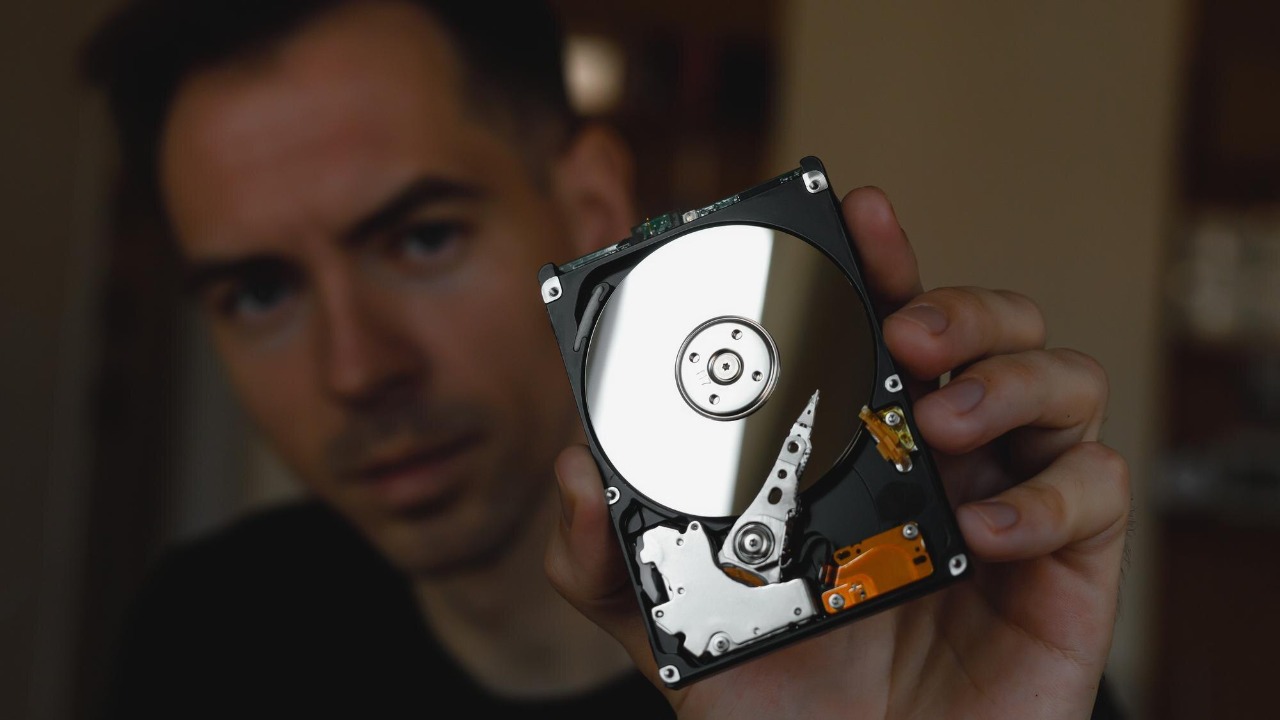
On a traditional spinning hard disk drive, the persistence of deleted data is a direct side effect of how the hardware is designed. Platters coated with magnetic material store bits in tiny regions that can be flipped to represent ones and zeros, and the file system keeps a map of which regions belong to which files. When you delete something, the map is updated, but the magnetic pattern usually stays in place until it is overwritten, which means the information can be reconstructed by software that reads the raw sectors instead of trusting the file system’s index.
Technical explanations of how to permanently delete data from an HDD walk through this behavior in detail, describing how a user like Rupert can ask what it takes to totally eliminate data and then learn that overwriting the entire disk surface is the only reliable answer. That is why guidance on how to permanently delete data from an HDD focuses on full-drive techniques rather than simple file removal, and why you cannot assume that dragging a folder to the trash will protect you if the drive later ends up in someone else’s hands.
Why SSDs Are Trickier to Wipe Clean
Solid-state drives complicate the picture because they do not store data in neat, fixed locations that you can overwrite in a predictable way. To extend the life of flash memory, SSD controllers spread writes across many cells, a process known as wear leveling, and they often keep spare blocks in reserve. That means a file you think you have overwritten might still exist in a hidden area the operating system cannot directly reach, which makes traditional multi-pass wiping tools less effective than they are on spinning disks.
Specialists in storage behavior have pointed out that, for SSD devices, there is not a guaranteed way to target every remnant of a deleted file with simple overwrites, and that strategies like encrypting the drive and then destroying the key can be more reliable. Discussions of permanently deleting files on an SSD emphasize these limits, explaining that the controller’s internal logic can leave old data in blocks that are no longer visible to the file system, which is why you have to lean on dedicated secure erase commands or encryption-based approaches instead of assuming that a classic wipe pass will do the job.
What “Secure Erase” Really Means on HDDs
For a traditional hard drive, secure erasure usually means overwriting every addressable sector so that no previous pattern remains. In practice, that can involve a single pass of zeros or a more elaborate pattern, but the core idea is the same: you want to replace the magnetic traces of old files with new data across the entire disk. When done correctly, this process makes it extremely difficult for recovery tools to reconstruct anything meaningful, because there is no longer a readable signal corresponding to the original content.
Practical guides on securely erasing all data from a hard drive describe how users have tested different methods and settled on approaches that are both simple and good enough for most real-world threats. One widely cited answer on securely erasing all data from a hard drive notes that a straightforward full-disk overwrite can be the simplest and “good-enough-est” solution for many people, especially when they are not facing state-level adversaries, and that advice on securely erasing all data often favors tools that automate this process so you do not have to manage sector-level details yourself.
Using Dedicated Tools to Purge Individual Files
Sometimes you do not want to wipe an entire drive, you just want to make sure a handful of sensitive files cannot be recovered. That is where targeted secure deletion tools come in, overwriting the specific clusters that held a file before removing its entry from the file system. On older HDDs, this approach can be effective, because the operating system can still map those clusters to physical locations on the platters and instruct the drive to write new patterns over them.
One long-standing example is Eraser, an advanced security tool for Windows that allows you to completely remove sensitive data from hard drives by overwriting it several times with carefully chosen patterns. The project’s own description of Eraser highlights that it works with Windows XP and later and is designed to securely erase files from hard drives, which makes it a practical option when you need to purge specific documents without flattening the entire disk.
Full-Drive Wiping Before Selling or Recycling
When you are preparing to sell or recycle a computer, a full-drive wipe is usually the safest path, because it addresses not just obvious documents but also browser caches, email archives, and fragments of old user profiles. The process typically starts with a backup of anything you still need, followed by a bootable tool or built-in utility that can overwrite the drive outside the running operating system. For a desktop tower or a laptop with a removable drive, that might mean connecting the disk to another machine and running a dedicated erasure program that can see the entire device.
Data recovery specialists are clear that the most reliable way to securely wipe a traditional hard drive before selling or recycling it is to use methods that write over every sector, whether through a software utility or a hardware-level command. Guidance on how to securely wipe a hard drive before selling explains that a full overwrite or a built-in secure erase command accomplishes the same thing, leaving no accessible trace of the previous contents, which is exactly what you want before handing the machine to a stranger or dropping it at an e-waste collection point.
Built-In Options in Windows and Vendor Utilities
Modern operating systems and hardware vendors have started to bake secure erasure features into their tools, which can save you from juggling third-party utilities. On Windows, you can use system reset options that include a thorough wipe of the drive, and you can also rely on disk erasing tools that overwrite the entire hard drive when you need complete data destruction. Community guidance on how to erase files permanently from a Windows computer notes that using a disk erasing tool is useful if you are wiping the entire hard drive, and that using such a tool is different from simply emptying the recycle bin.
PC makers and component manufacturers also offer their own utilities, especially for SSDs. Detailed instructions on how to secure erase an SSD explain that you should download the appropriate software for your SSD brand, visit the manufacturer’s site, and follow the steps to trigger the drive’s internal secure erase function, which is designed to clear all cells in a way that respects the controller’s wear-leveling logic. One guide on how to secure erase SSD devices walks through these steps and underscores that using the vendor’s own tool is often the safest way to ensure the drive’s firmware actually purges its hidden areas instead of leaving stale data in reserved blocks.
Why Encryption Belongs in Any Deletion Strategy
Even the best erasure routines can miss corners of a disk, especially on SSDs, which is why you treat full-disk encryption as a critical layer rather than an optional extra. If a drive is encrypted from the start, every bit of user data is stored in a scrambled form that is unreadable without the key, so destroying that key can be as effective as overwriting the entire disk. In practice, that means you can sometimes retire a drive by securely wiping the encryption keys instead of trying to chase every last block of user data.
Digital security advocates point out that some full-disk encryption software has the ability to destroy the master key, rendering a hard drive’s encrypted contents permanently inaccessible, and they recommend pairing this with a secure deletion tool to remove individual files when needed. Guidance on how to delete computer data securely notes that if you are selling or giving away a device, you should use full-disk encryption and, when appropriate, rely on the option to destroy the master key, as described in advice that highlights how some encryption tools can make the entire drive unreadable in a single step.
When Software Is Not Enough: Physical Destruction
There are situations where you do not trust software alone, especially for drives that held highly sensitive material or for hardware that is failing and cannot complete a secure erase. In those cases, physical destruction becomes the last line of defense. For magnetic hard drives, that can involve degaussing, which uses a powerful magnetic field to scramble the drive’s platters, or mechanical shredding that breaks the platters into small fragments. For SSDs, physical destruction usually means shredding or pulverizing the chips that store the flash memory so that no intact cells remain.
Companies that specialize in secure disposal describe degaussing as a method that uses a strong magnetic field to disrupt the magnetic domains on a hard drive’s platters, effectively wiping the data, and they note that organizations handling sensitive information use this type of destruction regularly. One overview of how to securely destroy a hard drive explains that degaussing is a method that can permanently erase data on magnetic media, and that many enterprises combine it with shredding to ensure that even if someone recovered a fragment of a platter, it would not contain a coherent sequence of bits.
Vendor Guidance on Wiping and What It Leaves Behind
PC manufacturers have a front-row view of how often users misunderstand deletion, which is why their support documents tend to spell out the limits of simple file removal. When you look up how to clear and wipe a hard drive, you find repeated warnings that deleting files using the Shift and Delete key combination or emptying the recycle bin does not permanently erase data, and that you need to use proper wiping tools if you want to prevent recovery. Those same guides usually start with a reminder to back up your data to an external drive or cloud service before you begin, because a full wipe is irreversible once it starts.
One support article on wiping a hard drive explains that wiping your hard drive is different from deleting files, and that deleting files using the Shift and Delete keys only removes them from the file system without securely erasing the underlying data. It also walks through how to back up your data to an external device and then download the appropriate erasure software from the software manufacturer’s website, underscoring that you should follow the instructions provided by the tool’s developer. That guidance on back up your data before wiping is echoed in a broader explanation of how to erase data from a hard drive, which reinforces that wiping is a separate, more thorough process than simply deleting files.
Putting It All Together: A Practical Purge Checklist
For most people, the path to truly clearing old drives starts with a simple decision tree. If you are keeping the machine but want to remove a few sensitive items, you can use a targeted erasure tool on an HDD or rely on encryption and secure deletion for SSDs. If you are selling or recycling the device, you should plan on a full-drive wipe using either the operating system’s built-in reset options, a dedicated erasure utility, or the drive manufacturer’s secure erase feature, and you should confirm that the process completed without errors before the hardware leaves your control.
Specialized tools and guides can help at each step. For example, you can use an advanced Windows utility like Eraser to securely erase files from hard drives when you need granular control, or follow a hardware-focused walkthrough on how to securely erase your SSD via your motherboard if the SSD is the boot drive in the PC you are wiping. When you combine those techniques with the broader advice on secure erase files from hard drives, the reminders that deleting with Shift and Delete is not enough, and the warnings about the limits of overwriting on SSD devices, you end up with a layered approach that makes it far harder for your supposedly deleted files to haunt any old hard drive you leave behind.
More from HAWXTECH.NET Chinese satellite hits Starlink with a 2-watt laser from orbit USGS says lava could reach 1,500 ft as thousands get ready to leave 7 Apps That Secretly Record You—and How to Delete Them A 6.0 magnitude earthquake was just reported in the U.S.

Posting Komentar untuk "Deleted files linger on old hard drives, here's how to erase them"
Posting Komentar