
Free Tool Reveals What's Slowing Down Your Windows Boot
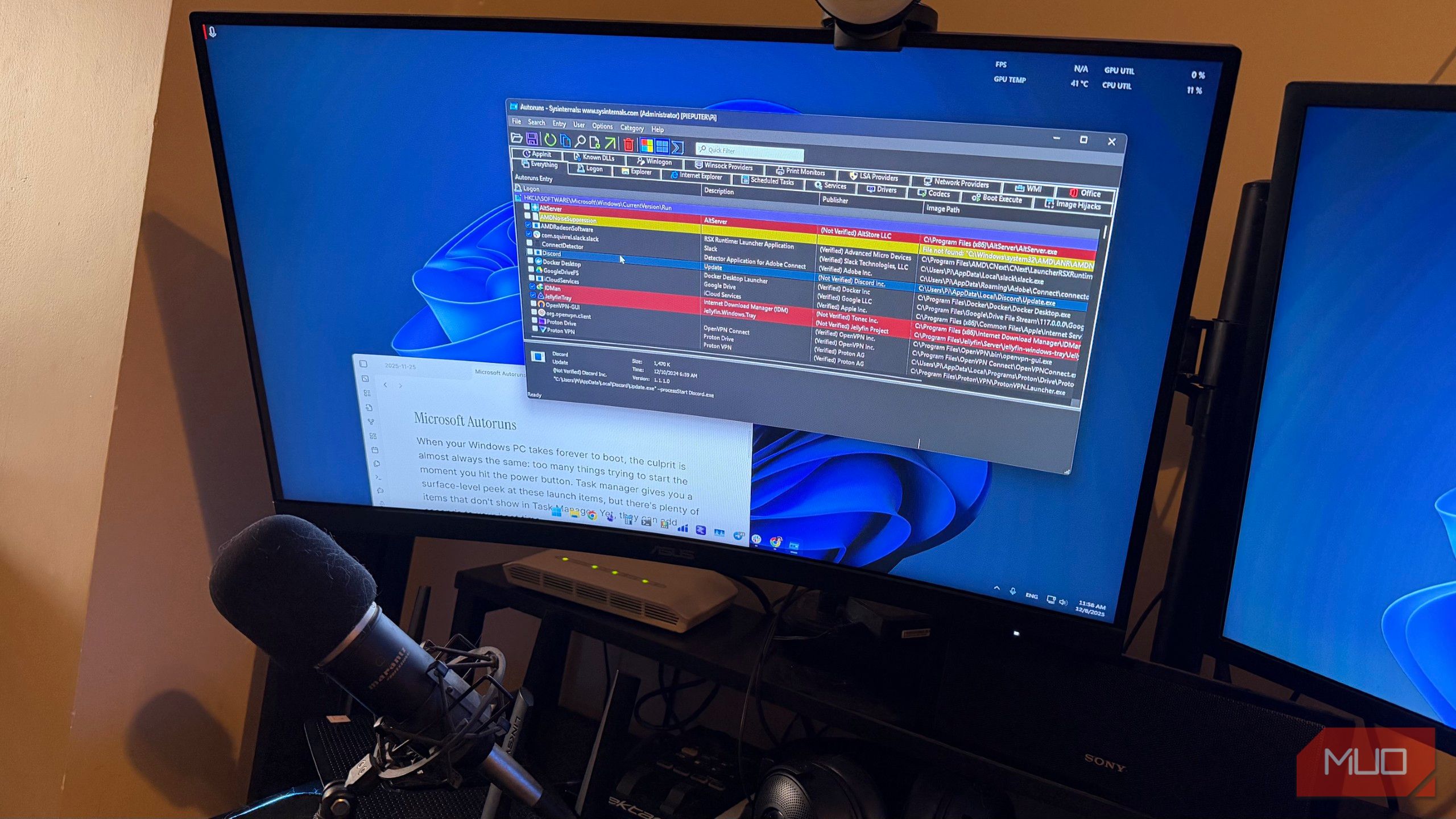
When your Windows PC takes an eternity to boot, the issue is usually the same: too many programs launching at once when you turn it on. While Task Manager gives you a basic view of these startup items, it only shows part of the story. Many components don't appear in Task Manager at all — yet they still add seconds to your boot time.
Microsoft has another tool that serves a similar purpose to the Startup apps tab in Task Manager. The difference is that it reveals every single component that starts up at boot, login, or alongside an application. Even if you're happy with your current startup speed, it's worth checking out.
Meet Microsoft Autoruns
The startup tool that shows you everything
Microsoft’s Autoruns is a small, portable utility from the Sysinternals suite that — quoting Microsoft — “has the most comprehensive knowledge of auto-starting locations of any startup monitor.” They’re not exaggerating. If Task Manager shows you the tip of the iceberg, Autoruns hands you the entire glacier.
Task Manager focuses on user-level startup programs: apps that register themselves through predictable, standardized methods. Autoruns, by contrast, enumerates every autostart location Windows checks during boot and login. It inspects registry keys, system directories, scheduled tasks, services, drivers, browser helper objects, Winsock providers, Codecs, Explorer shell extensions, and even Office add-ins.
This makes Autoruns far more powerful for troubleshooting. It exposes launch points that would otherwise stay hidden, shows both user-specific and system-wide entries, and lets you disable almost anything with a simple checkbox. On top of that, it integrates with VirusTotal, allowing you to run multi-engine malware checks on suspicious startup entries without leaving the app.
Navigating Autoruns
Without getting overwhelmed
All of these advantages accumulate into one big drawback: Autoruns is overwhelming. You really do see everything, everywhere, all at once. Fortunately, it becomes much simpler once you know how to read what you’re seeing.
The Everything tab is the master view. It displays every entry Autoruns detects, across all categories, in one giant scrollable list. Anything highlighted in yellow is missing, and anything highlighted in pink or red has no verified digital signature. To make the view manageable, toggle the two filters at the top:
- Hide Windows entries
- Hide Microsoft entries
The first hides core Windows components, while the second hides items from additional Microsoft apps like OneDrive. Turn on both filters, then bring Microsoft entries back only when you want to examine them.
It’s worth scanning the Everything tab once with filters off just to appreciate how much is going on behind the scenes every time you log in.
The Logon tab is the closest match to Task Manager’s startup list, showing the user-level items that launch when you sign in. If your only goal is speeding up your boot, this is where you’ll spend most of your time. Right-clicking any entry lets you jump directly to its registry location, run a VirusTotal scan, or search online for more information.
The Services and Scheduled Tasks tabs are especially helpful if something keeps launching without your permission. Many persistent apps and update agents hide in scheduled tasks instead of startup folders. Autoruns pulls them into the open and lets you disable them without digging through Windows’ Task Scheduler.
To make navigation easier, you can toggle the two filters at top:
- Hide Windows entries
- Hide Microsoft entries
The former filters out built-in core Windows items, and the latter hides items from additional Microsoft apps like OneDrive. I'd suggest you turn on both these filters, then toggle the Microsoft filter when you're done with the first batch.
You can also use the search field up top, if you're looking for a particular item.
Drivers, Boot Execute, and Winsock are more specialized. These tabs matter when troubleshooting networking problems, broken drivers, or stubborn background components you can’t identify. You probably won't ever need to touch them, but the fact that they’re visible gives Autoruns its diagnostic advantage.
What can you actually do with Autoruns?
Flip switches, test, repeat
Unchecking an entry disables it immediately. This is ideal for troubleshooting — you can disable something, test the affected app, or reboot to check the impact. If it breaks, just re-enable it. If you’re absolutely certain you don’t want it anymore, you can right-click and choose Delete, though that’s irreversible.
If you want more information about an entry, right-click and choose Jump to Image or Jump to Entry. The former opens the file location; the latter opens the corresponding registry key. If you have no idea what an entry is, choose Search Online. And if you suspect something malicious, run a VirusTotal scan to check its reputation.
For example, I had noticed for a while that my right-click menu was slow to load. It’s just as annoying as it is embarrassing to have an expensive computer and then have to wait for the context menu to load. I thought the clutter was to blame, so I customized the menu with Nilesoft Shell to declutter it, but that didn't help the performance. Looking at Autoruns, I saw that the injected context menu extensions were still active. That included Adobe’s PDF menu entries, Google Drive integration, OneDrive shortcuts, and more. I don’t use any of them, so I disabled them all. My right-click menu is noticeably snappier now.
You can view all of these entries under the Explorer tab in Autoruns.
Take control of your computer
When I wrote about the Outlook client on Windows, I said Microsoft doesn’t seem to make the best Windows apps anymore. Autoruns feels like it came from a completely different team. Autoruns is one of those rare Windows tools that gives you both visibility and control.
Microsoft’s newer utilities, like PC Manager, promise to optimize your system with a single click. Autoruns makes no such promise. It simply shows you everything that launches on your machine and leaves the decisions to you. If you’ve cleaned up your startup apps in Task Manager and your PC still boots slowly, Autoruns is the missing step.

Posting Komentar untuk "Free Tool Reveals What's Slowing Down Your Windows Boot"
Posting Komentar