
Google Chrome's New Feature: The Productivity Boost You Didn't Know You Needed
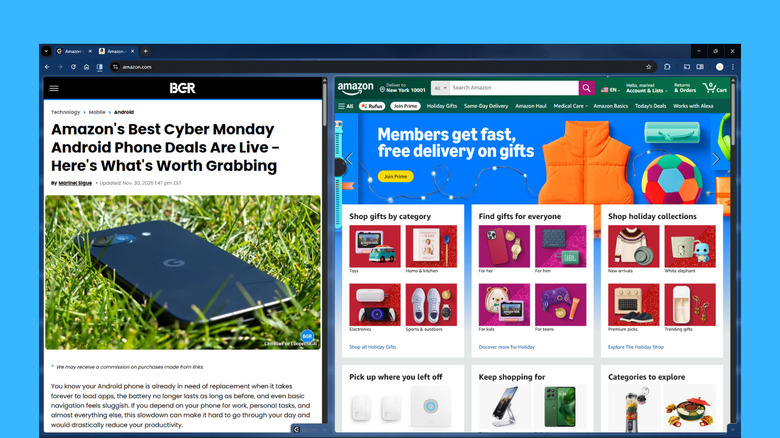
Google Chrome has long been criticized for its limited multitasking capabilities, particularly the absence of a split view feature. This feature, which is available in browsers like Opera, Edge, and Vivaldi, has allowed users to efficiently manage multiple webpages simultaneously. However, with the latest update, Chrome is finally catching up by introducing a split view option that promises to enhance user experience and productivity.
The new split view feature in Chrome can be accessed by right-clicking on any tab. This action brings up an option labeled "Add tab to new split view," which allows users to divide their screen into two sections — one on the left and another on the right. This functionality enables users to browse two different websites at the same time without the need to constantly switch tabs or use external tools like the built-in split screen assistant on their computers.
This feature can be especially useful for various tasks such as comparing prices from different online platforms, taking notes while reading, or watching a video while browsing social media. It offers a more streamlined approach to managing multiple webpages, making it easier to stay productive during both work and personal hours.
Although there hasn't been an official announcement regarding the split view feature, some users have already started noticing it in Chrome versions 142 and 143. If you haven't updated your browser yet, it's recommended to do so to access this new functionality.
How to Use Split View in Chrome
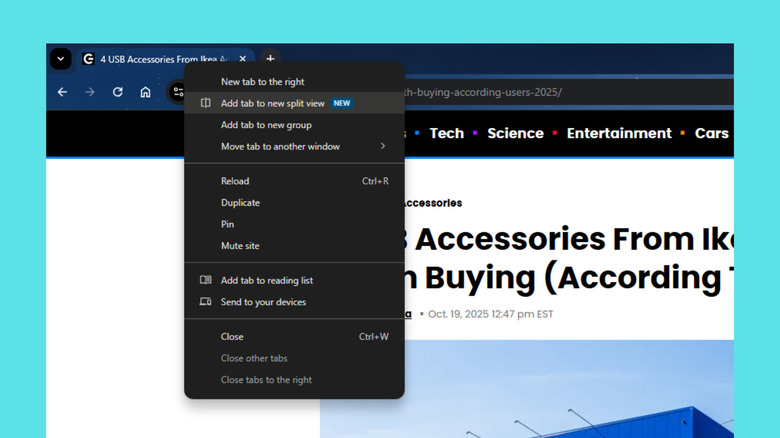
To set up split view in Chrome, follow these steps:
- Open one Chrome window and navigate to the webpages you want to view side by side.
- Right-click on one of the tabs and select "Add tab to new split view." This will move the current tab to the left half of the split view.
- On the right side, select the other tab you want to display.
Once in split view mode, you can click anywhere on either page to browse it or use its address bar to perform a Google Search. Here are some additional tips for customizing and managing split view:
- Resize Webpages: Drag the middle divider to the left or right to adjust the size of each webpage.
- Swap Sides: Click the split view icon in the top-left corner of the screen and select "Reverse views" to swap the positions of the two pages.
- Close a Webpage: Click the X icon in the bottom-right corner of the page you want to close.
- Deactivate Split View: Press the split view icon and choose "Separate views" to return the webpages to their own tabs.
To make it easier to switch between regular view and split view:
- Activate split view using the steps above.
- Right-click on the split view icon that appears to the left of the address bar.
- Select "Pin" to keep the split view icon on the toolbar permanently.
- In a regular tab, click the split view icon to activate split view in Chrome.
While using split view, you can still open other regular tabs within the same window. Additionally, multiple split-view sessions can be created in one window, offering greater flexibility for managing multiple tasks.
With the introduction of split view, Google Chrome is taking a significant step toward improving its multitasking capabilities. Whether you're working on a project, researching information, or simply browsing the web, this feature is designed to make your experience more efficient and enjoyable.

Posting Komentar untuk "Google Chrome's New Feature: The Productivity Boost You Didn't Know You Needed"
Posting Komentar