
How to Connect iPhone to Windows Phone Link
Understanding Phone Link and Its Role in Windows
Phone Link is a feature developed by Microsoft to bridge the gap between your mobile device and your Windows PC. It allows users to access certain phone functions directly from their desktop, making it easier to manage tasks like receiving notifications, sending text messages, and even making calls without picking up your phone. While it may not offer the same level of integration as Apple’s ecosystem, it can still be a useful tool for those who rely on Windows for their daily work.
What Is Phone Link?

Phone Link is designed to provide a more seamless experience between your Windows computer and your mobile device. For Android users, this feature offers deeper integration, allowing them to access a wide range of functionalities directly from their desktop. However, with an iPhone, the capabilities are more limited. Users can still receive notifications, send and receive SMS and MMS messages, and make calls through their PC, but they won’t have access to features like iMessage or full app integration.
Despite these limitations, Phone Link can still be a valuable addition to your workflow if you primarily use a Windows computer and want to minimize the need to switch between devices.
Setting Up Windows Phone Link
Setting up Phone Link is a straightforward process that requires both your iPhone and Windows computer to be connected via Bluetooth. Here’s how to get started:
- On your Windows 11 PC, ensure that Bluetooth is enabled.
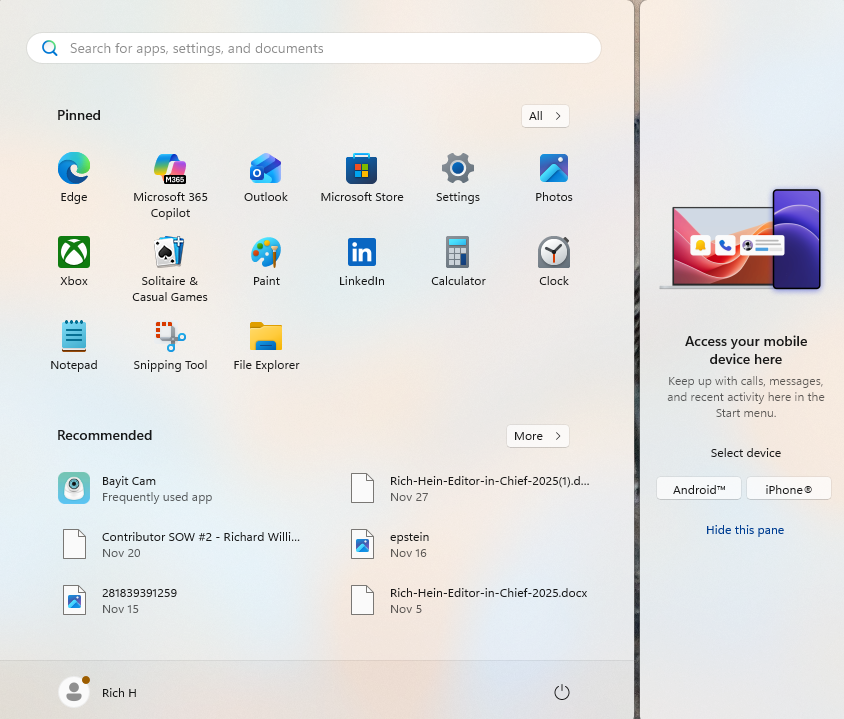
- Click the Start button and look for the prompt that says “Access your mobile device here.”
- Select the iPhone option to open the Phone Link app.
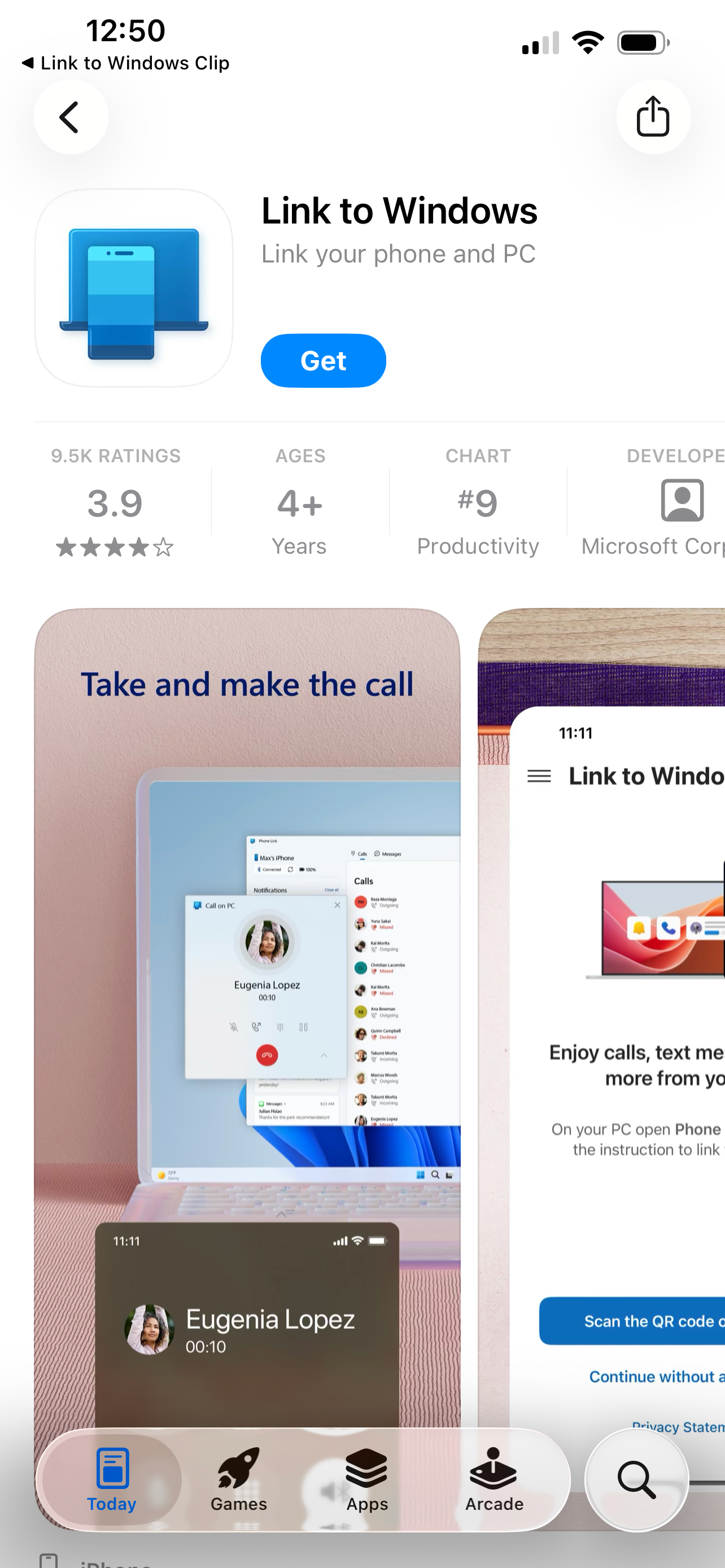
On your iPhone, open the Camera app and scan the QR code displayed on your screen. This will take you to the App Store, where you can download and install the Link to Windows app.

Once the installation is complete, open the app and sign in using the same Microsoft account you use on your Windows computer.
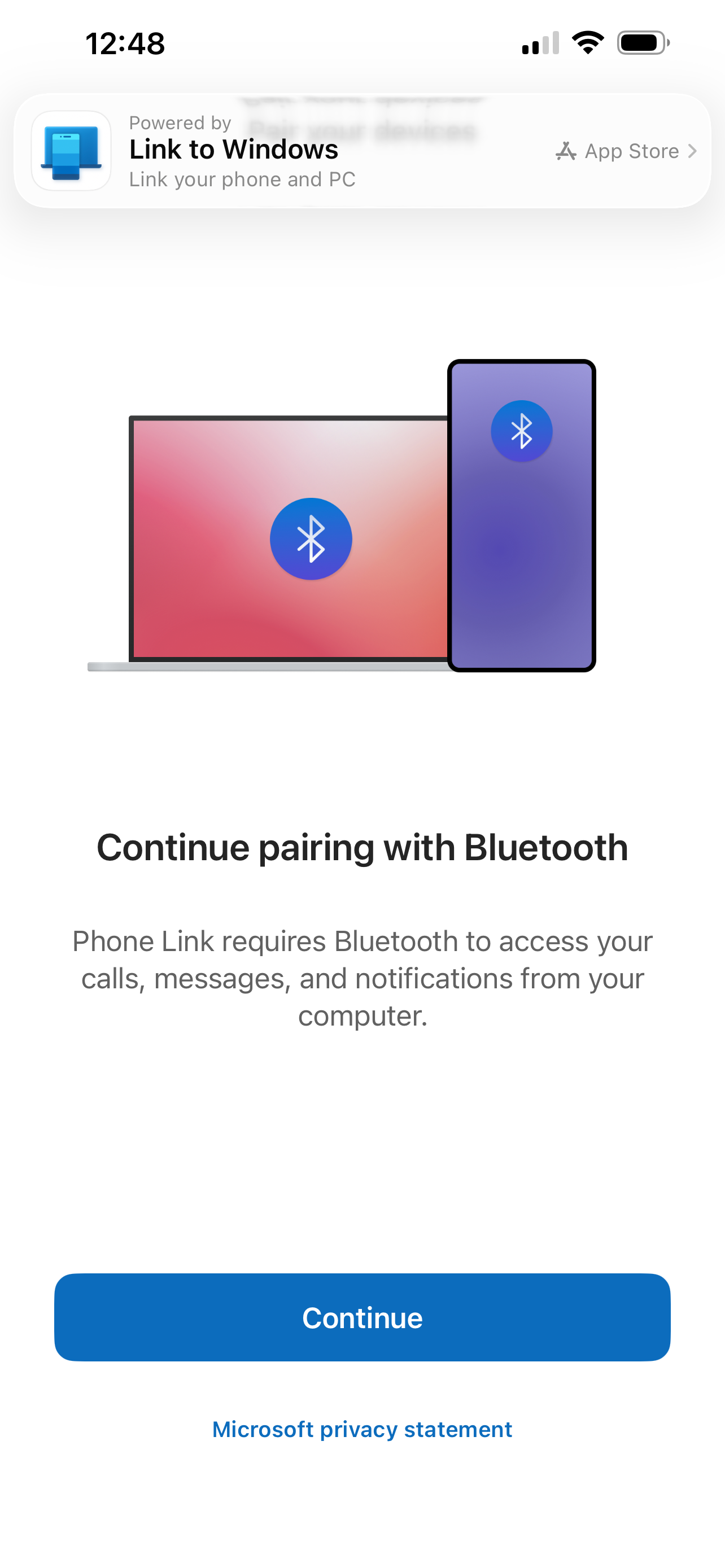
The app will request permission to access Bluetooth. Allow this, as it is necessary for basic messaging, calls, and notifications. Next, you will need to pair your iPhone with your Windows computer.
On your iPhone, the app will prompt you to connect to your Windows device. At the same time, the Phone Link window on your PC will show a pairing request. Confirm that the codes match and approve the pairing on both devices.
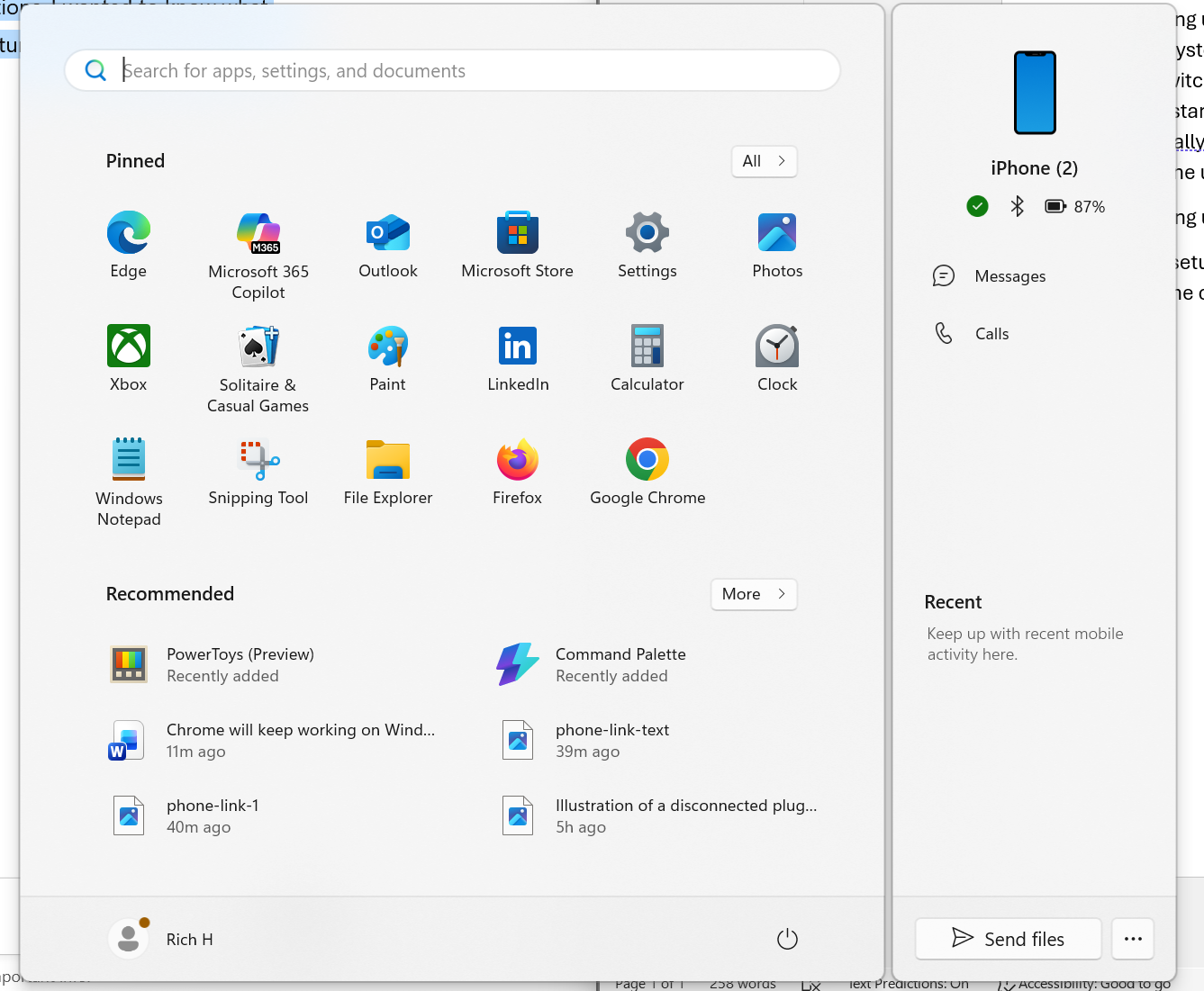
After that, you’ll see a few more prompts to enable notifications and confirm call access. Once you accept these, Phone Link will finish syncing, and you’ll be ready to start using it.
How Phone Link Works with an iPhone

When using Phone Link with an iPhone, it functions more like a bridge than a full integration. This is due to Apple’s restrictions on third-party apps accessing its ecosystem. However, once everything is paired, you can view your notifications on your desktop, send and receive simple SMS and MMS messages, and make calls directly from your PC.
These features work reliably enough and can be convenient when you're trying to stay focused at work. However, it's important to note that you won't have access to your full photo library, your apps, or anything resembling iMessage-level features. Phone Link is helpful, but only in the most basic ways.
Comparing Phone Link with Using a Mac
Apple has built continuity features directly into its operating system, making your iPhone and Mac feel like extensions of each other. Messages sync instantly, AirDrop is always a tap away, your clipboard travels with you, and your photos and apps feel unified.
In contrast, Phone Link offers some convenience on Windows, but it never reaches the level of integration you get on a Mac. If you’re used to that experience, Phone Link feels like a lightweight substitute. That said, it’s still worth trying, especially if you work within both ecosystems.
Is Phone Link Worth Using?
Phone Link is worth using if you want small conveniences on your Windows PC. It is not a replacement for Apple’s continuity features, but it does make your Windows setup a little easier to live with. For many users, what Phone Link does is enough to keep them using it. I’m not looking for deep integration; I spend most of my day using a Windows computer and simply want to avoid switching devices every time a text or a phone call comes in. Phone Link does this for me just fine.

Posting Komentar untuk "How to Connect iPhone to Windows Phone Link"
Posting Komentar