
Kindle won't charge? Fix the low battery screen issue
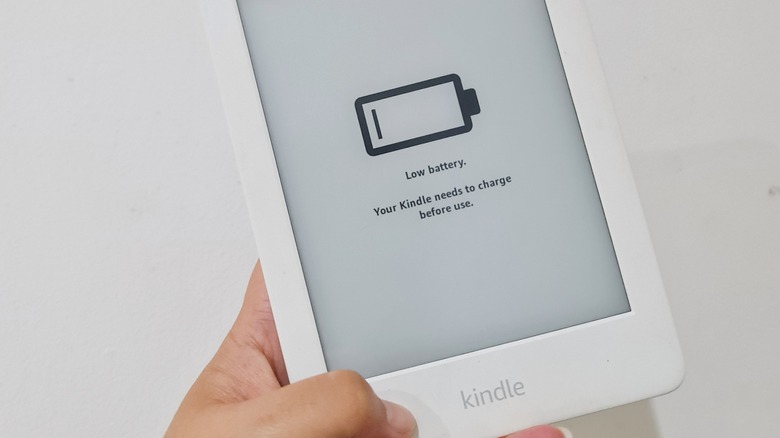
Kindles have revolutionized the way people read by providing instant access to a vast library of books. For many, this has made reading more convenient and enjoyable. However, even the most dedicated readers can experience periods where they lose interest in reading. Whether it's due to a busy schedule or simply not feeling like starting a new book, there are times when your Kindle might sit unused on the shelf.
While it's perfectly normal to take a break from using your device, one common mistake that Kindle users make is neglecting to charge it. Leaving your Kindle uncharged for extended periods can drain its battery completely. As a result, the next time you try to use it, you may see a "low battery" message or a battery icon with an exclamation point. If your Kindle doesn't power on at all, don't worry — it's not necessarily a lost cause. Here’s how to revive a dead Kindle and get it working again.
How to reboot a Kindle while on the low battery screen

Resetting a Kindle that's stuck on the low battery screen is a relatively simple process, but it requires some patience. The first step is to connect your Kindle to a wall charger and cable, ensuring it's plugged directly into a power outlet. This should activate the orange status light, indicating that the device is charging.
Once connected, press and hold the power button for about a minute. Your Kindle may either turn on, flash a white screen, and return to the low battery screen, or it may remain unresponsive. If it powers up, you're in luck — your Kindle is back to life and ready for use once it's fully charged.
If the screen only flashes white or remains unresponsive, your Kindle likely needs more power. Allow it to charge for at least 30 minutes before trying again. Some users have reported success by letting their Kindle charge for a full 24 hours before attempting a reset. If your Kindle doesn’t boot on the first attempt, release the power button and press it again. Repeat this process until the device turns on.
Once you've successfully revived your Kindle, it's important to be more mindful of its battery levels moving forward. To extend the battery life of your device, consider turning on Airplane Mode, putting your Kindle to sleep when not in use, and adjusting the screen brightness to a lower setting.
What to do if your Kindle still won't boot

If you’ve charged your Kindle for an entire day and tried resetting it multiple times without success, there are additional troubleshooting steps you can take.
First, check if the problem lies with your cable or charger. It’s possible that either one is defective. Start by replacing the cable, and then try using a different power adapter to identify the issue.
If your Kindle has been stored away for several months, the charging port might be clogged with dust or debris. Gently clean the port using a wooden toothpick (avoid using any metal objects), or use compressed air to remove any buildup.
Another option is to try connecting your Kindle to a laptop instead of a wall outlet. Some users have found that this method works effectively. Leave it connected for an hour or so before pressing the power button.
If none of these solutions work, the issue could be with the battery itself. In this case, you may need to replace the battery. If you’re comfortable with DIY repairs, you can purchase a third-party replacement battery from Amazon and follow YouTube tutorials for installation. However, if you’re unsure about the process, it might be safer to trade in your old Kindle for a discount on a new one.
By taking these steps, you can potentially bring your Kindle back to life or find a suitable alternative if it's beyond repair.

Posting Komentar untuk "Kindle won't charge? Fix the low battery screen issue"
Posting Komentar