
Should You Use a USB Wi-Fi Adapter?
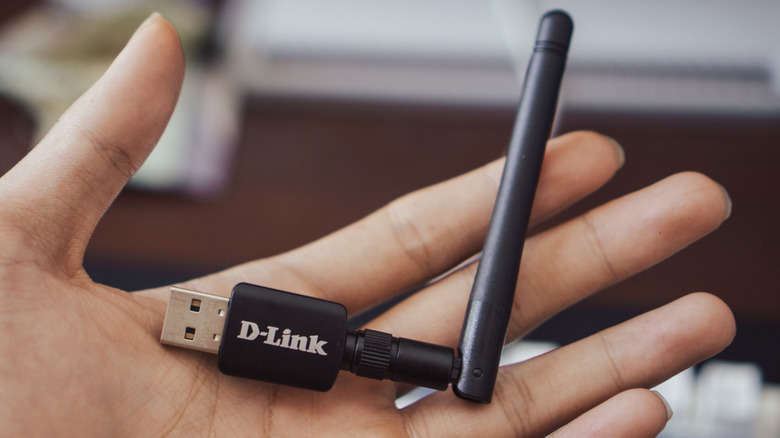
There are several reasons why a USB Wi-Fi adapter might seem like an attractive option for users looking to connect to the internet. These small devices are easy to install and can be as simple as plugging them into a USB port, much like using a flash drive. For those on a tight budget, they offer an affordable solution for adding wireless connectivity to a desktop computer that doesn’t have built-in Wi-Fi. They can also be a good choice for users who aren’t comfortable with more complex installations, such as PCIe Wi-Fi cards, which require some understanding of motherboard components.
However, even though USB Wi-Fi adapters work adequately, especially newer models that support Wi-Fi 6 or later standards, they may not be the best option for everyone. In fact, for power users, these adapters often fall short when compared to their PCIe counterparts. The primary reason for this is the limitations imposed by the USB interface itself. Unlike PCIe cards, which are directly connected to the motherboard, USB adapters rely on the USB port for communication, which can introduce bottlenecks and other performance issues.
Limitations of USB Wi-Fi Adapters
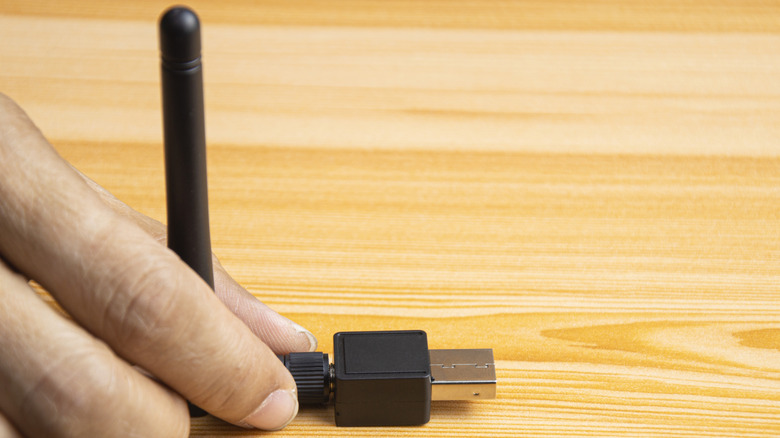
One of the main drawbacks of USB Wi-Fi adapters is their compact design. Many of these devices are so small that they lack external antennas, relying instead on internal ones. This design makes them more susceptible to interference from metal and concrete, which can block or weaken your Wi-Fi signal. Placing the adapter near metal objects, such as the legs of your desk, can lead to reduced speeds and unstable connections. While there are ways to improve Wi-Fi performance, such as adjusting the position of the adapter or using a Wi-Fi extender, these solutions may not always be effective.
Another issue is the lack of cooling in USB Wi-Fi adapters. Due to their small size, they don’t have any form of active or passive cooling. During heavy usage, such as streaming high-definition videos or downloading large files, these devices can overheat. If the adapter gets too hot, it may stop working altogether. This problem can be exacerbated if the computer itself is running hot or if the adapter is used in a warm environment.
USB Port Limitations
The performance of a USB Wi-Fi adapter is also heavily dependent on the USB port it’s plugged into. Older USB 2.0 ports, which have a maximum transfer speed of 480 Mbps, can become a bottleneck for newer Wi-Fi adapters that are capable of reaching speeds above 1 Gbps. To avoid this issue, it’s recommended to use a USB 3.2 port, which offers a maximum transfer speed of 5 Gbps. However, not all computers come with USB 3.2 ports, and identifying which ports are which can be confusing for some users.
Use Cases for USB Wi-Fi Adapters
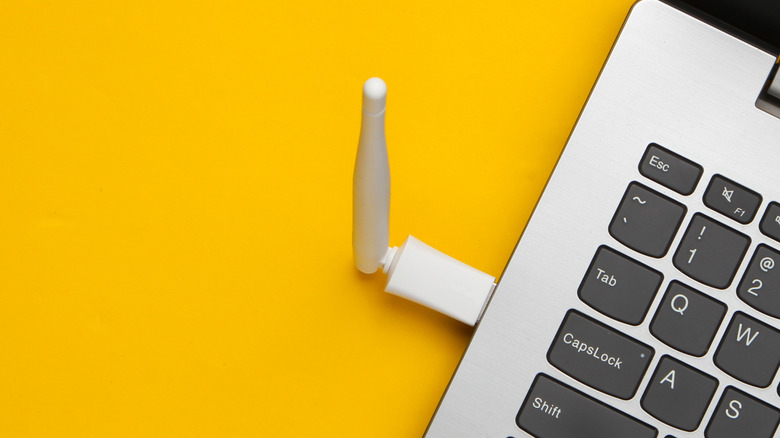
Despite their shortcomings, USB Wi-Fi adapters still have their place, particularly for laptop users. If you have an older laptop with an outdated Wi-Fi chip, a USB Wi-Fi adapter can provide a quick and cost-effective upgrade. Some models, like the Netgear Nighthawk Wi-Fi 7 dongle, are designed to work with the latest Wi-Fi standards and can be easily plugged into a laptop’s USB port. For added flexibility, some adapters come with docks that allow you to place the device further away from your laptop, helping to reduce interference.
Using a USB Wi-Fi adapter on a laptop may require disabling the built-in wireless module. This can be done through the BIOS, but it’s typically recommended for advanced users. Alternatively, you can disable the adapter via the Control Panel, Device Manager, Command Prompt, or PowerShell. The Device Manager method is the quickest and most straightforward. Simply open the Device Manager, navigate to the Network Adapters section, locate your Wi-Fi adapter, right-click on it, and select Disable Device. You can follow the same steps to re-enable the device when needed.

Posting Komentar untuk "Should You Use a USB Wi-Fi Adapter?"
Posting Komentar