
How to Configure TikTok Ads Pixel Events for Maximum Campaign Performance
In today’s digital marketing landscape, leveraging the power of social media platforms is essential for businesses aiming to reach their target audience effectively. Among these platforms, TikTok has emerged as a dominant force, with over 1 billion active users globally. For marketers and business owners, understanding how to configure TikTok Ads Pixel events is crucial for optimizing campaign performance and driving conversions.
TikTok Ads Pixel is a tracking tool that allows you to monitor user interactions on your website, helping you understand how your ads are performing and where they can be improved. By setting up event-based tracking, you can gain valuable insights into customer behavior, refine your targeting strategies, and ultimately boost your return on ad spend (ROAS).
What Is TikTok Ads Pixel?

The TikTok Ads Pixel is a snippet of JavaScript code that you place on your website. This pixel tracks user actions such as page views, product views, add-to-cart actions, and purchases. It provides critical data that helps you measure the effectiveness of your TikTok ads and optimize them for better results.
With the rise of TikTok as a major advertising platform, businesses have started to rely heavily on this tool to track conversions and improve their ad campaigns. According to recent reports, over 58% of TikTok users discover new products through targeted ads, making it an invaluable channel for marketers.
Why Integrate TikTok Pixel with Your Website?
Integrating TikTok Pixel with your website offers several benefits:
- Enhanced Ad Targeting: Track user behavior to create custom and lookalike audiences.
- Optimize Ad Spend: Allocate your budget more effectively by focusing on high-performing campaigns.
- Accurate Conversion Tracking: Monitor sales, leads, and other key actions directly attributed to your TikTok ads.
- Retargeting Capabilities: Reach potential customers who visited your site but didn’t make a purchase.
- Valuable Insights: Understand user interactions and improve the overall customer experience.
By integrating TikTok Pixel, you can ensure that your ad campaigns are not only reaching the right audience but also converting them effectively.
Step-by-Step Guide to Configure TikTok Ads Pixel Events
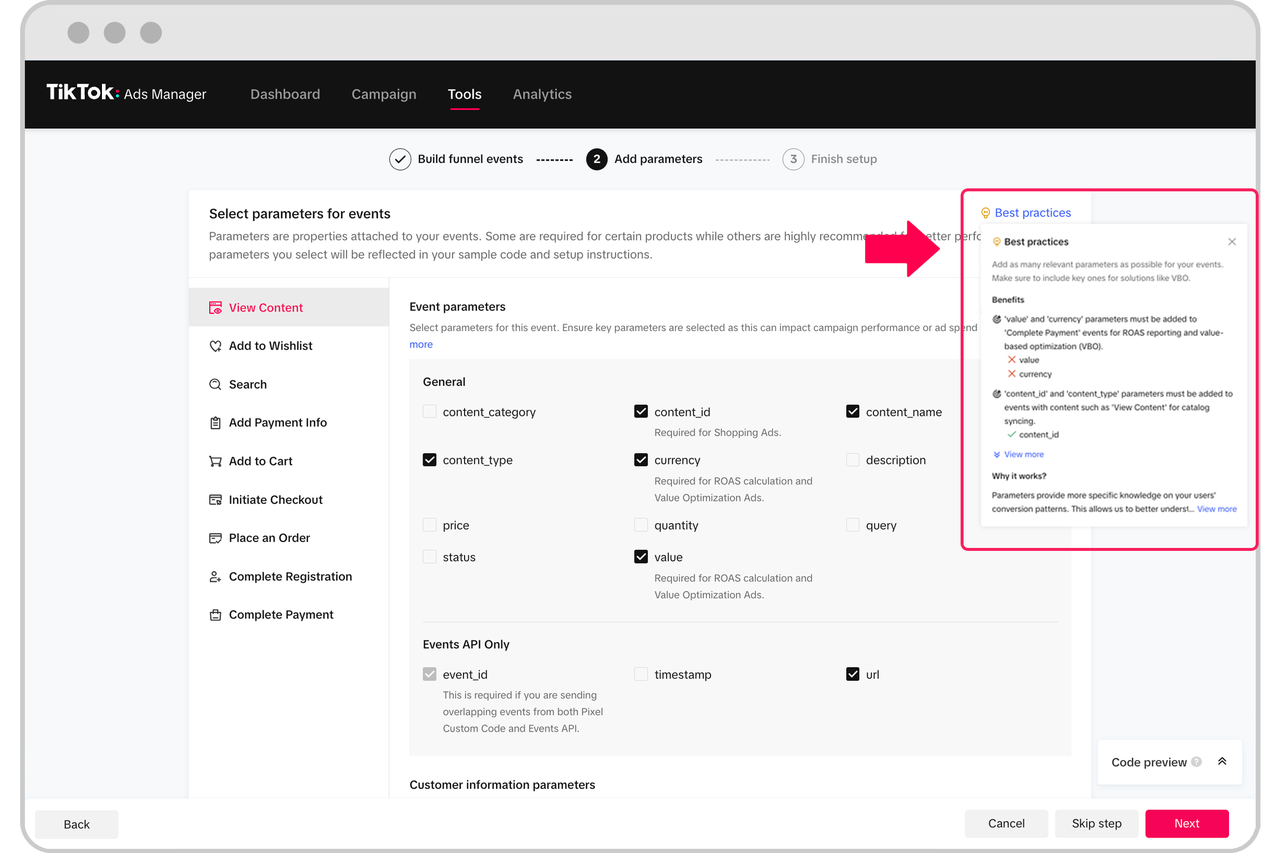
Setting up TikTok Ads Pixel events involves a few key steps. Here's a simplified guide to help you get started:
1. Access TikTok Business Manager
Log in to your TikTok Business Manager account. Navigate to the "Events" section under "Tools."
Click "Get Started" to begin the process of creating your TikTok Pixel.
2. Connect Your Website
Select the option to track events on your website. Enter the URL of your site and choose the type of pixel installation. You can either use automatic setup via partner integrations or manually install the pixel code.
If you're using a plugin like FunnelKit Funnel Builder, it will handle the integration automatically, eliminating the need to copy and paste any code.
3. Create Your TikTok Pixel
Enter a name for your TikTok Pixel and click "Create." You'll then be prompted to generate a Pixel ID, which you'll need to paste into your website's settings.
4. Enable Advanced Matching
Turn on Advanced Matching to capture important visitor information such as email addresses and phone numbers. This enhances your ad targeting and improves the accuracy of your campaign analytics.
5. Set Up Events
Choose the events you want to track, such as Page View, Add to Cart, and Place Order. These events will provide insights into user behavior and help you refine your ad strategy.
6. Test Your Pixel
Use the TikTok Pixel Helper extension to test whether your pixel is working correctly. Navigate through your website and check if the events are being triggered as expected.
Tips for Optimizing TikTok Pixel Events
To maximize the effectiveness of your TikTok Ads Pixel, consider the following tips:
- Enable Advanced Matching: This helps improve audience matching and retargeting.
- Use UTM Parameters: Track traffic sources and analyze the performance of your TikTok ads.
- Set Up Retargeting Audiences: Create custom audiences based on user behavior and retarget them with relevant ads.
- A/B Test Creatives: Experiment with different ad formats and content to find what resonates best with your audience.
Frequently Asked Questions
What is the purpose of TikTok Pixel?
TikTok Pixel is used to track user actions on your website, helping you measure the effectiveness of your ad campaigns and optimize them for better performance.
How do I connect TikTok Pixel to my website?
You can connect TikTok Pixel to your website using plugins like FunnelKit Funnel Builder, which simplifies the integration process.
Where can I view TikTok Pixel data?
You can view your TikTok Pixel data within the TikTok Ads Manager account, where you can access detailed reports on your campaign performance.
Can I add TikTok Pixel to my WordPress site?
Yes, you can add TikTok Pixel to your WordPress site using tools like FunnelKit, which streamlines the process and eliminates the need for manual coding.
Conclusion
Configuring TikTok Ads Pixel events is a powerful way to enhance your advertising efforts and drive meaningful results. By tracking user interactions, optimizing ad targeting, and analyzing campaign performance, you can ensure that your TikTok ads are reaching the right audience and converting them effectively.
Whether you're a small business owner or a seasoned marketer, integrating TikTok Pixel into your strategy can significantly improve your ROI and help you stay ahead in the competitive digital landscape. With the right tools and configurations, you can unlock the full potential of TikTok as a marketing platform.

Posting Komentar untuk "How to Configure TikTok Ads Pixel Events for Maximum Campaign Performance"
Posting Komentar