
How to Implement TikTok Ads Pixel: A Step-by-Step Guide
In the ever-evolving digital marketing landscape, TikTok has emerged as a powerful platform for businesses to connect with their target audience. With its massive user base and high engagement rates, TikTok offers an excellent opportunity for brands to promote their products and services. However, to maximize the effectiveness of your TikTok ads, it's essential to implement the TikTok Ads Pixel correctly. This guide will walk you through the process of setting up the TikTok Ads Pixel on your website, ensuring you can track user interactions, optimize ad performance, and gain valuable insights.
What is the TikTok Ads Pixel?
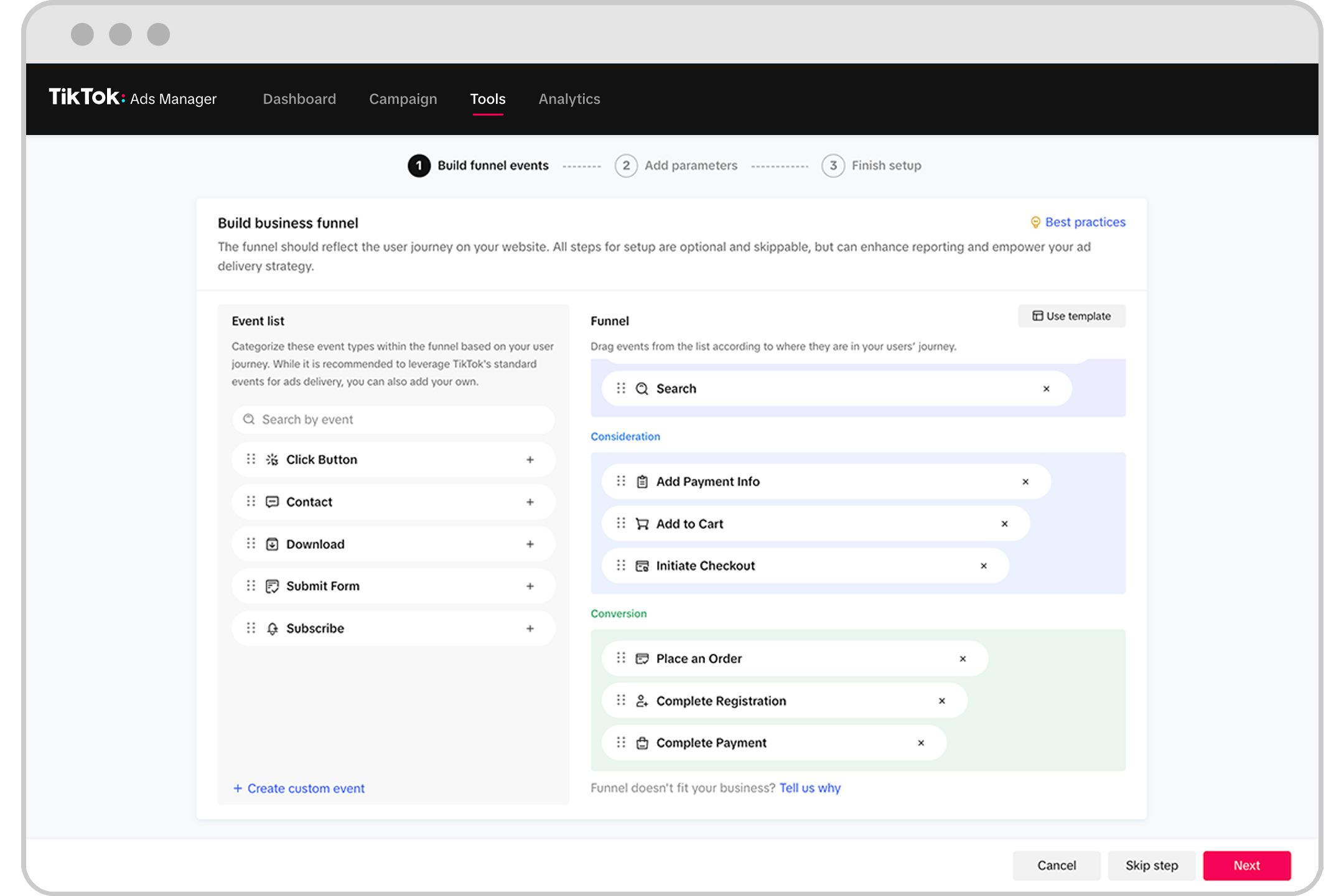
The TikTok Ads Pixel is a tracking tool that allows you to monitor user activity on your website and measure the effectiveness of your ad campaigns. It enables you to track key events such as page views, product views, add-to-cart actions, and purchases. By integrating the TikTok Ads Pixel into your website, you can gain valuable insights into user behavior, retarget potential customers, and improve the overall performance of your advertising efforts.
Why Integrate TikTok Ads Pixel with Your Website?
Integrating the TikTok Ads Pixel with your website offers several benefits:
- Enhanced Ad Targeting: The pixel tracks user behavior on your site, allowing you to create custom and lookalike audiences on TikTok for more targeted ads.
- Optimized Ad Spend: By tracking user interactions and conversions, you can allocate your ad budget more effectively and focus on high-performing campaigns.
- Accurate Conversion Tracking: The pixel captures detailed conversion data, helping you assess the effectiveness of your ad campaigns and identify areas for improvement.
- Retargeting Capabilities: You can re-engage users who visited your site but didn't make a purchase, increasing the likelihood of conversion.
- Valuable Insights: The pixel provides insights into how users interact with your site, helping you improve the customer experience and optimize your website.
Tools Needed for Implementation
To implement the TikTok Ads Pixel on your website, you'll need the following tools:
- FunnelKit Funnel Builder (a WordPress plugin)
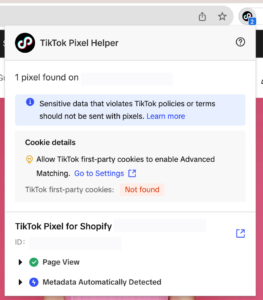
- TikTok Pixel Helper (a Google Chrome extension)
These tools will help you set up and test the pixel on your site efficiently.
Step-by-Step Implementation Guide
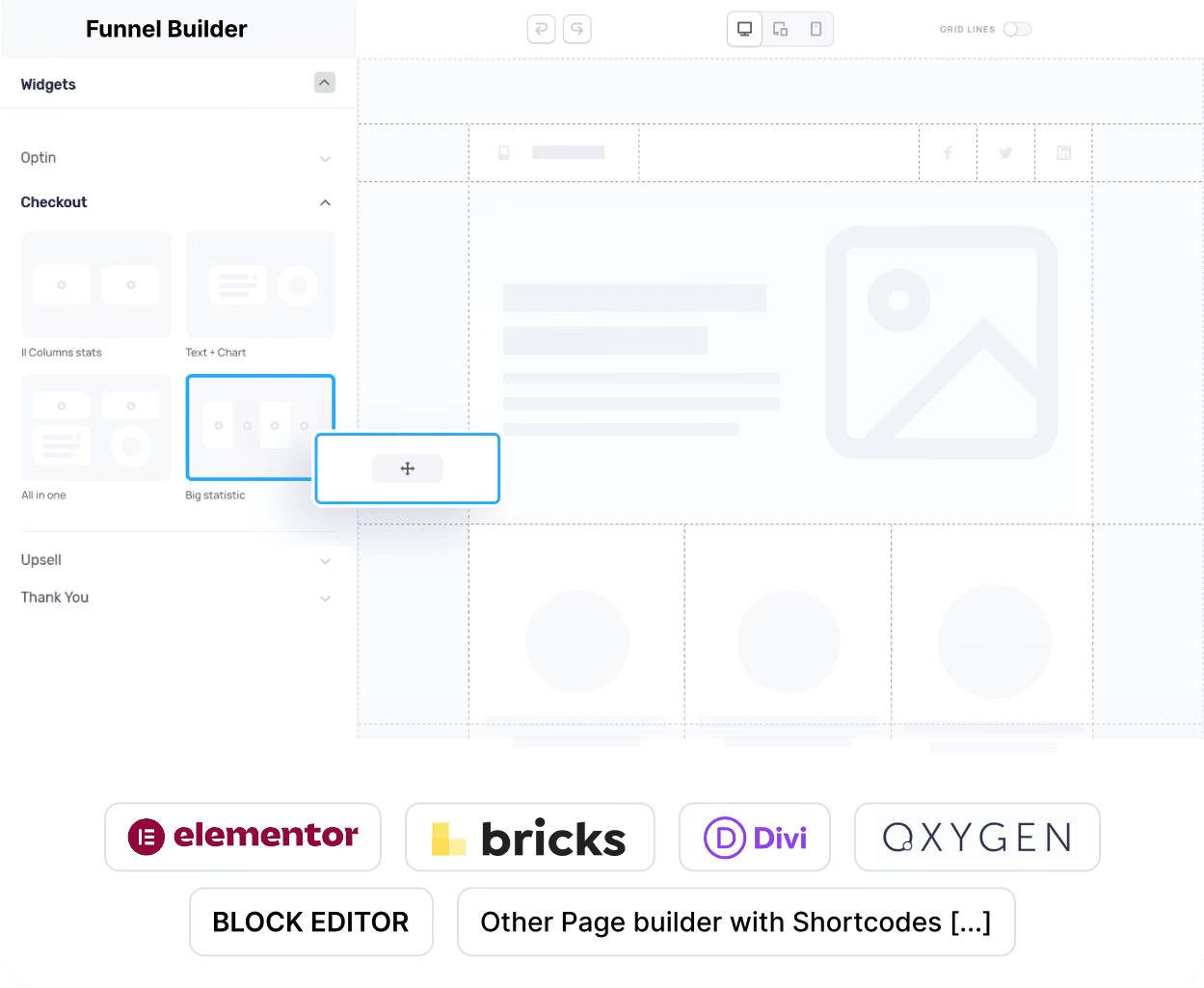
Step 1: Install FunnelKit Funnel Builder
- Go to your WordPress dashboard.
- Click on Plugins > Add New.
- Search for "FunnelKit Funnel Builder" and click Install Now.
- Once installed, click Activate to enable the plugin.
Step 2: Install TikTok Pixel Helper

- Open Google Chrome and go to the TikTok Pixel Helper extension page.
- Click Add to Chrome and confirm the installation.
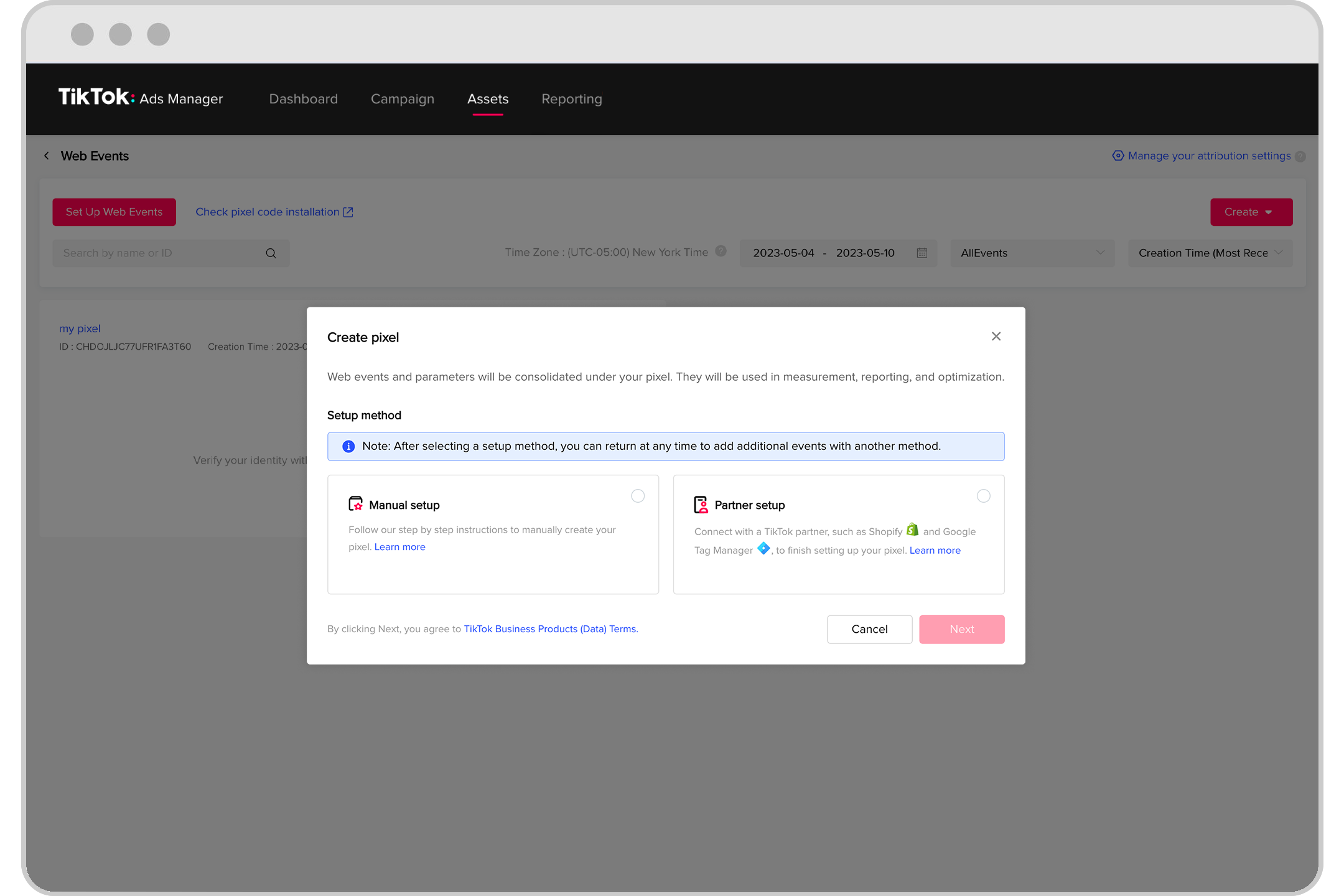
Step 3: Create a TikTok Pixel
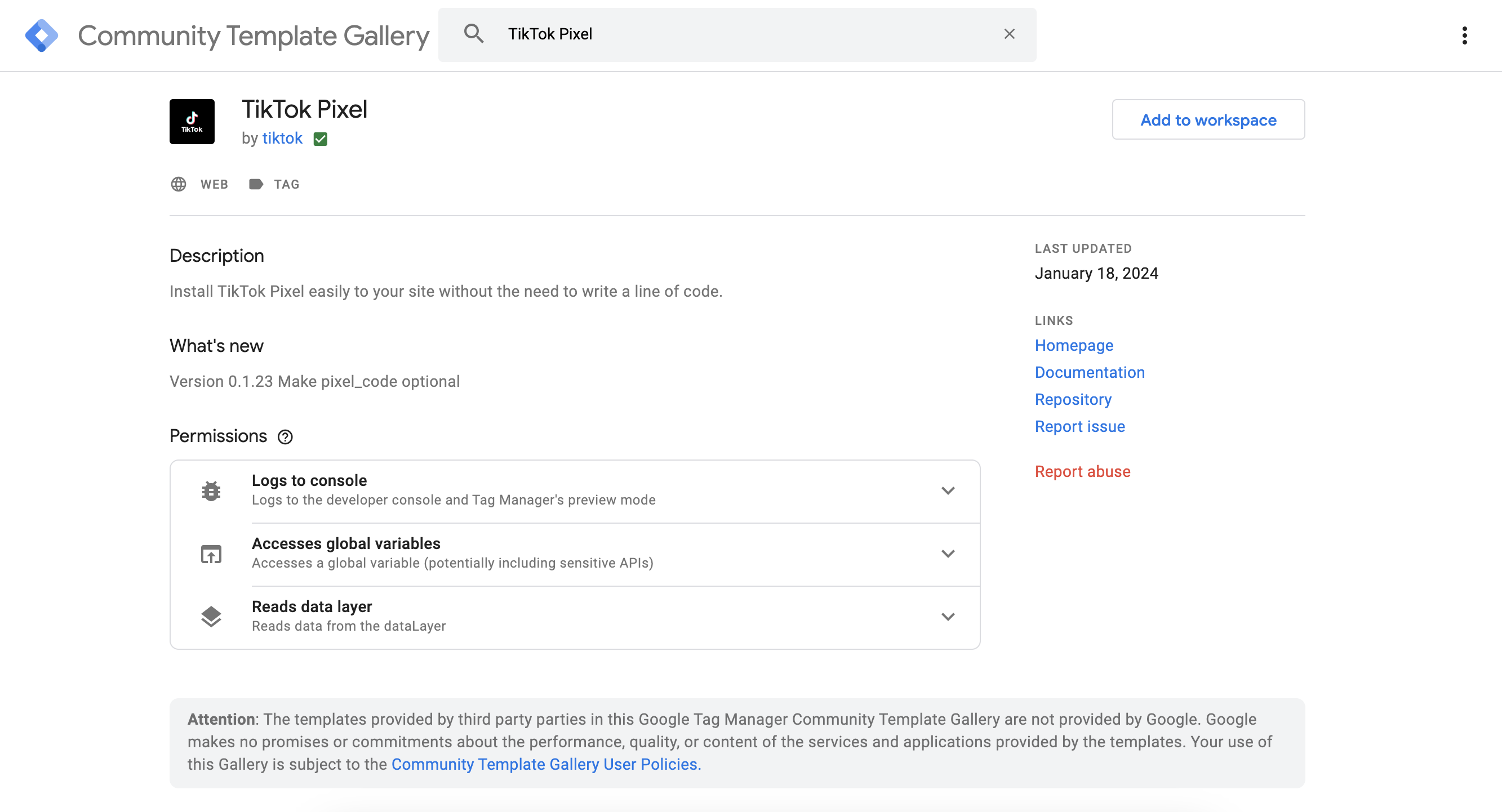
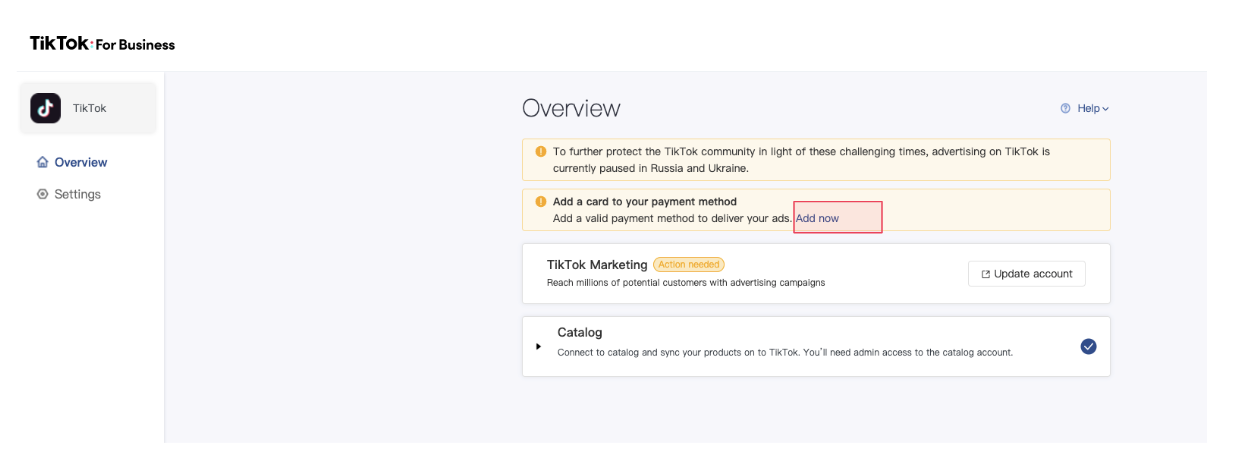
- Log in to your TikTok Business Manager account.
- Navigate to Events > Web Events.
- Click Get Started to begin the process.
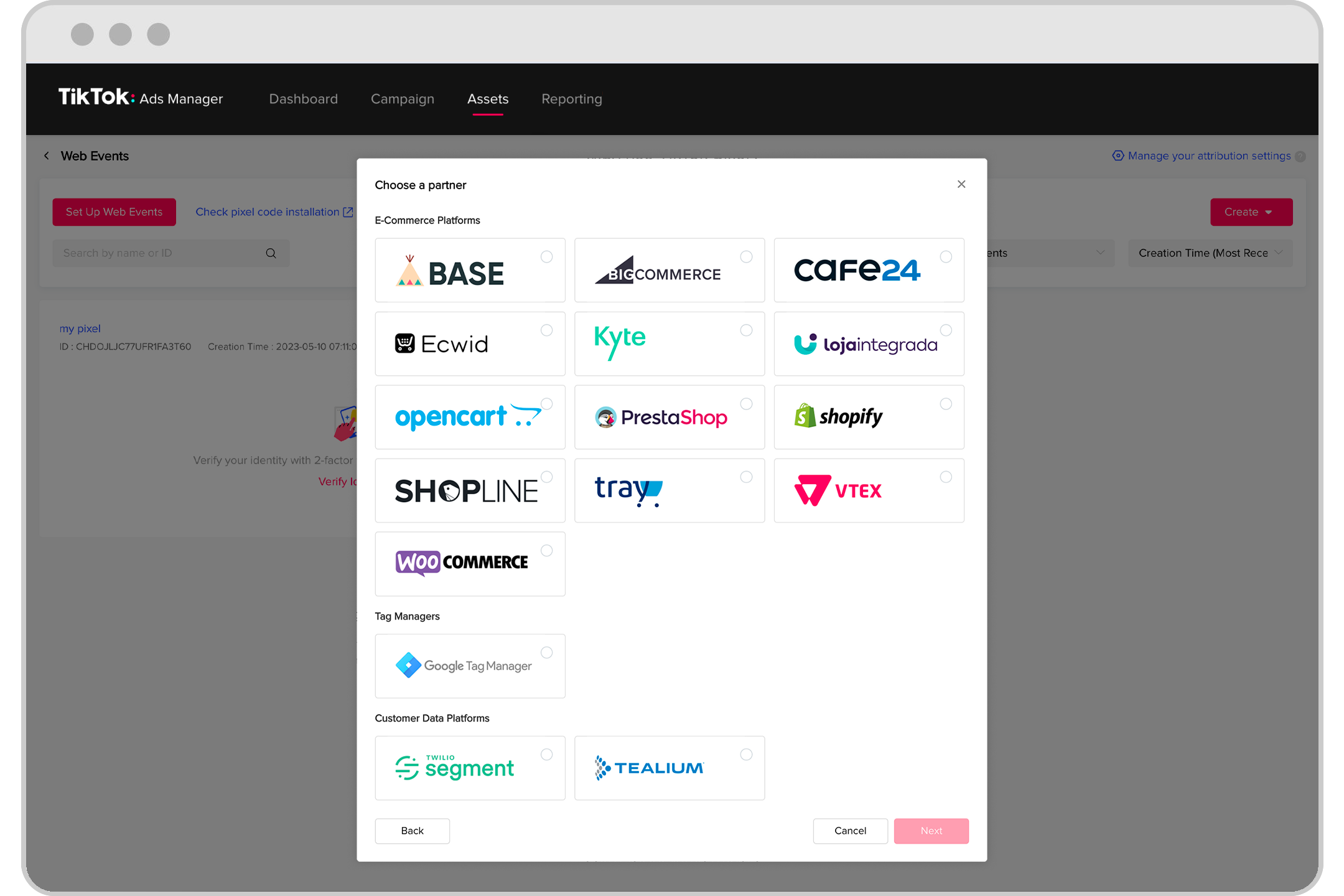
- Enter the URL of your website and choose the connection method.
- Select TikTok Pixel + Events API and click Next.
- Enter a name for your pixel and click Create.
Step 4: Add the TikTok Pixel ID to FunnelKit

- Copy the Pixel ID from your TikTok Business Manager.
- Go to the Settings section under FunnelKit Funnel Builder.
- Paste the Pixel ID into the designated field and click Save.
Step 5: Enable Event Tracking

- In the FunnelKit Funnel Builder, navigate to the Events section.
- Choose the events you want to track, such as:
- Page View
- Add to Cart
- View Content
- Place Order
- Complete Payment
- Enable the events and click Save.
Testing the TikTok Pixel

After setting up the pixel, it's crucial to test it to ensure it's working correctly. Use the TikTok Pixel Helper extension to verify that events are firing as expected. Navigate through your website, add items to your cart, and complete a purchase to see if the events are being tracked accurately.
Tips for Optimizing TikTok Pixel Performance
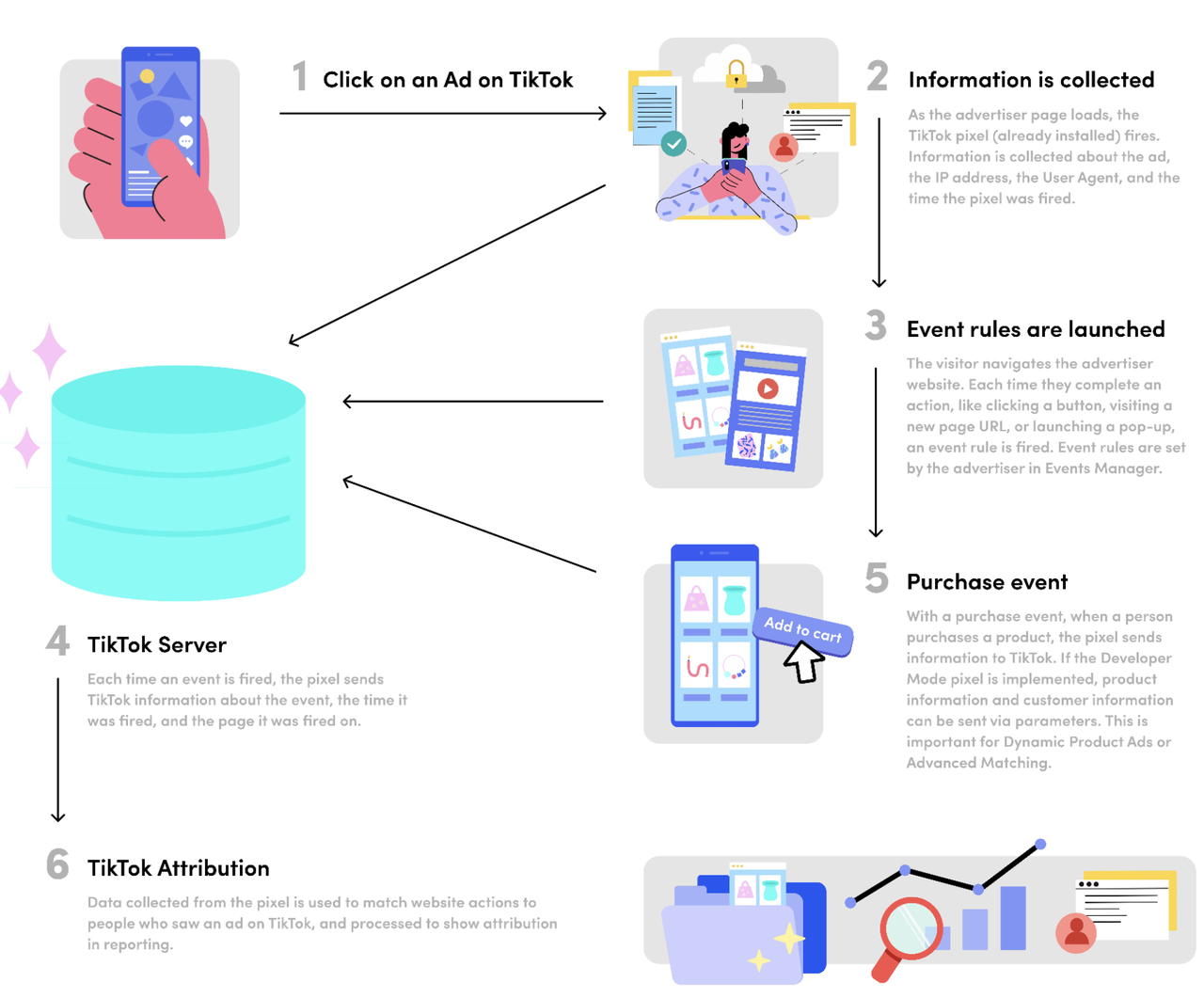
- Enable Advanced Matching: Turn on advanced matching to send important customer information like email and phone numbers to TikTok, improving attribution and ad delivery.
- Use UTM Parameters: Add UTM tracking to your ad links to analyze traffic and conversions within FunnelKit.
- Set Up Retargeting Audiences: Create custom audiences based on past visitors, purchasers, or add-to-cart users to retarget them effectively.
- A/B Test Creatives: Test different ad formats, including Spark Ads, UGC-style videos, and product demos, to find what resonates best with your audience.
Conclusion
Implementing the TikTok Ads Pixel is a critical step in maximizing the effectiveness of your advertising efforts on TikTok. By following this step-by-step guide, you can track user interactions, optimize ad performance, and gain valuable insights into your audience's behavior. With the right tools and strategies, you can take your TikTok advertising to the next level and drive meaningful results for your business.

Posting Komentar untuk "How to Implement TikTok Ads Pixel: A Step-by-Step Guide"
Posting Komentar