
How to Install TikTok Ads Pixel: Step-by-Step Guide for 2024
In today's digital marketing landscape, TikTok has emerged as a powerful platform for businesses to reach millions of users. With over 1.6 billion active users, TikTok offers an incredible opportunity for brands to connect with their target audience through engaging video content. One of the most effective tools for maximizing the impact of TikTok ads is the TikTok Ads Pixel. This small piece of code allows marketers to track user behavior, measure campaign performance, and optimize ad strategies for better results.
If you're looking to take your TikTok advertising to the next level, this guide will walk you through the process of installing the TikTok Ads Pixel step by step. Whether you're a seasoned marketer or just starting out, understanding how to set up and use the TikTok Pixel can significantly enhance your advertising efforts.
What is a TikTok Pixel?
The TikTok Pixel is a tracking tool that helps businesses monitor user interactions on their websites after they've seen a TikTok ad. It works by placing a snippet of code on your website, which then tracks specific actions—known as "events"—that users take. These events can include things like clicking a call-to-action button, adding items to a cart, completing a purchase, or submitting a form.
By capturing this data, the TikTok Pixel enables advertisers to:
- Attribute conversions to specific ads
- Optimize ad campaigns for better performance
- Build custom audiences based on user behavior
- Create lookalike audiences to find new customers
This level of insight allows for more targeted and effective advertising, ultimately leading to higher conversion rates and a better return on investment (ROI).
Why Use a TikTok Pixel?
There are several compelling reasons why every business should consider using a TikTok Pixel:
-
Conversion Tracking: The Pixel provides accurate data on how users interact with your website after seeing your ads. This helps you understand which campaigns are driving the most conversions and where improvements can be made.
-
Audience Building: By tracking user behavior, you can create custom audiences based on specific actions taken on your site. This allows for more personalized and relevant ad targeting.
-
Campaign Optimization: With detailed analytics, you can fine-tune your ad strategies to focus on the most effective channels and messaging.
-
Retargeting Opportunities: The Pixel also enables retargeting ads, allowing you to re-engage users who have previously interacted with your brand but didn't complete a desired action.
Step-by-Step Guide to Installing the TikTok Pixel
Step 1: Log in to TikTok Ads Manager
Start by logging into your TikTok Ads Manager account. If you don’t have one, you’ll need to create a business account first.
Step 2: Access the Events Section
Once logged in, navigate to the “Tools” menu and select “Events.” This is where you’ll manage all your tracking pixels.
Step 3: Choose Web as the Tracking Method
Select “Web” as the method for tracking engagement on your website. Click “Next” to proceed.
Step 4: Enter Your Website URL
Type in the URL of your website and click “Next.” Make sure it’s the correct domain you want to track.
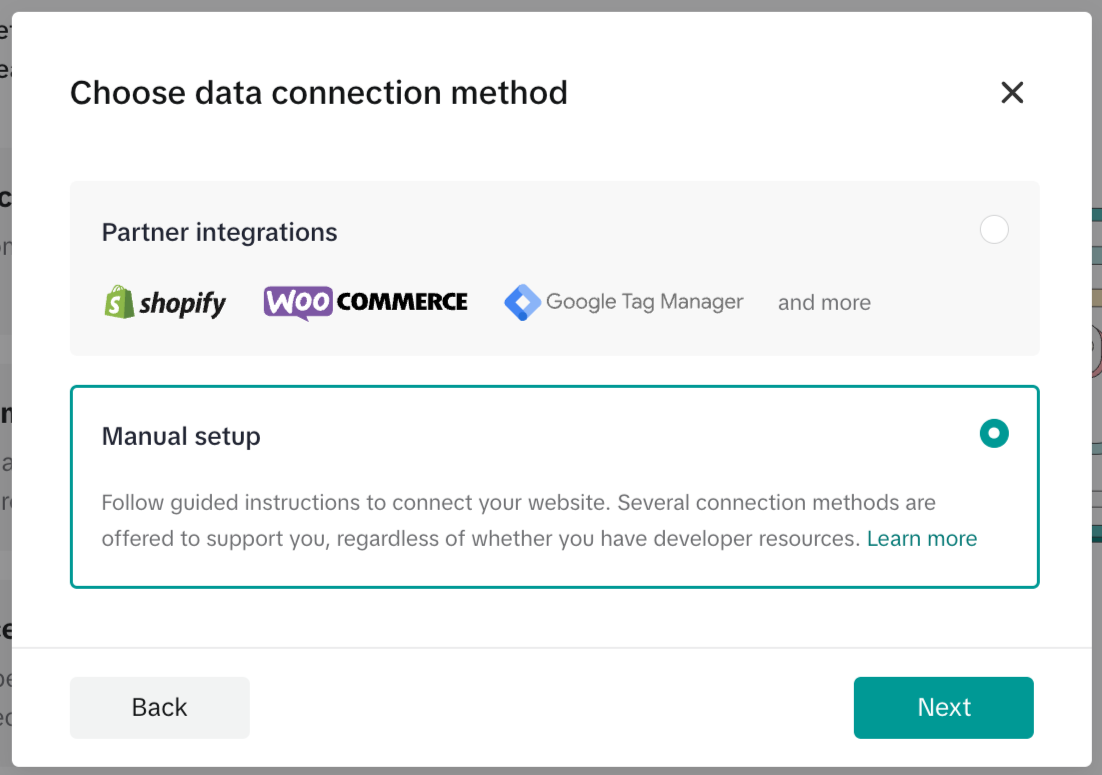
Step 5: Choose Installation Method
You have two options for installing the TikTok Pixel:
- Manual Setup: Copy and paste the code directly into your website’s HTML.
- Partner Integrations: If you’re using platforms like Shopify, WooCommerce, or Google Tag Manager, you can choose this option for easier setup.
Step 6: Select Pixel Type
Choose between “TikTok Pixel + Events API” or just “TikTok Pixel.” The former offers more comprehensive tracking, especially on modern browsers with privacy settings enabled.
Step 7: Name Your Pixel
Give your pixel a name that’s easy to identify, such as “Main Website Pixel.” Ensure the name is under 128 characters.
Step 8: Copy the Pixel Code
After creating your pixel, copy the base code provided. You’ll need this to install the pixel on your website.
Step 9: Install the Pixel on Your Website
Depending on your website platform, follow these steps:
- WordPress: Use a plugin like WPCode to add the pixel code to your header.
- Shopify: Either use the partner integration or manually add the code to your theme.liquid file.
- Google Tag Manager: Add the pixel code as a custom HTML tag and set it to trigger on all pages.
Step 10: Verify the Pixel
Use the TikTok Pixel Helper Chrome extension to test your installation. This tool will help you identify any errors and ensure the pixel is working correctly.
Tips for Effective Pixel Usage
- Track Key Events: Focus on tracking the most important user actions, such as form submissions, purchases, and sign-ups.
- Update Regularly: Keep your pixel updated with new events as your business evolves.
- Monitor Performance: Use the data collected by the Pixel to refine your ad strategies and improve ROI.
Conclusion
Installing the TikTok Ads Pixel is a crucial step in optimizing your digital marketing efforts. By tracking user behavior and measuring campaign performance, you can make informed decisions that lead to better results. Whether you're running a small business or managing a large-scale advertising campaign, the TikTok Pixel is a valuable tool that can help you achieve your goals.
With the right setup and ongoing monitoring, you'll be well on your way to leveraging TikTok's vast audience and maximizing the impact of your ads. Start implementing the TikTok Pixel today and watch your marketing efforts soar.

Posting Komentar untuk "How to Install TikTok Ads Pixel: Step-by-Step Guide for 2024"
Posting Komentar