
How to Install the TikTok Pixel: Step-by-Step Guide for Marketers
In today's digital marketing landscape, TikTok has emerged as a powerful platform for reaching millions of users. For marketers, leveraging TikTok's advertising tools is essential to drive engagement and conversions. One such tool is the TikTok Pixel, a small piece of code that helps track user actions on your website after they interact with your TikTok ads. This article will guide you through the process of installing the TikTok Pixel, ensuring you can measure the effectiveness of your campaigns and optimize your strategies accordingly.
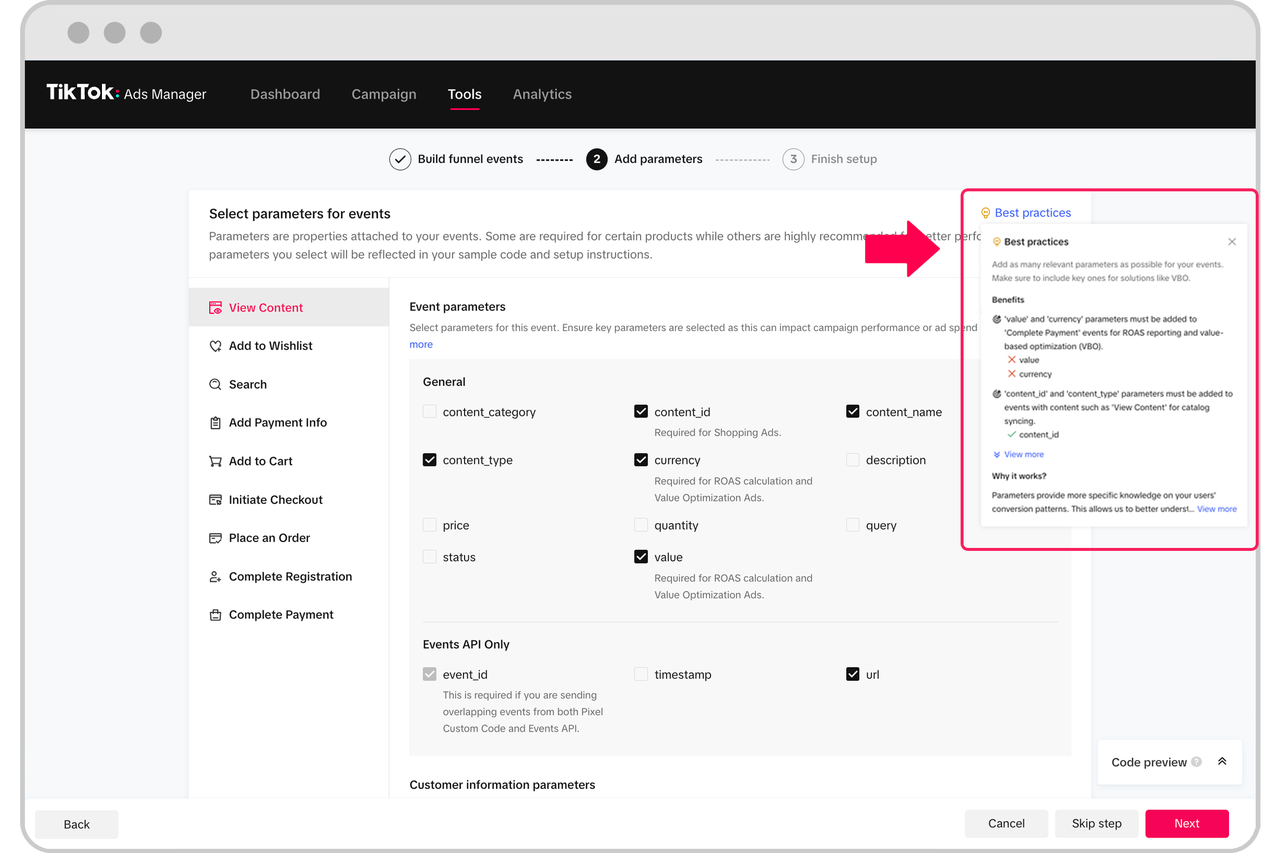
What is a TikTok Pixel?

The TikTok Pixel works by tracking people’s actions after viewing or engaging with your ads on the platform. It allows you to measure your return on ad spend and provides valuable insights into your audience's behavior. By setting up conversion tracking, you can determine which ads are driving the most conversions, whether it's adding a product to a cart, completing a checkout, or submitting a form.
The pixel shares information with TikTok whenever a visitor takes an action (known as an event) on your website. This data can be used with any TikTok Business tools to:
- Attribute conversions to a specific ad
- Optimize ad campaigns and performance
- Build custom audiences
- Find new customers (lookalike audiences)
Benefits of Using a TikTok Pixel
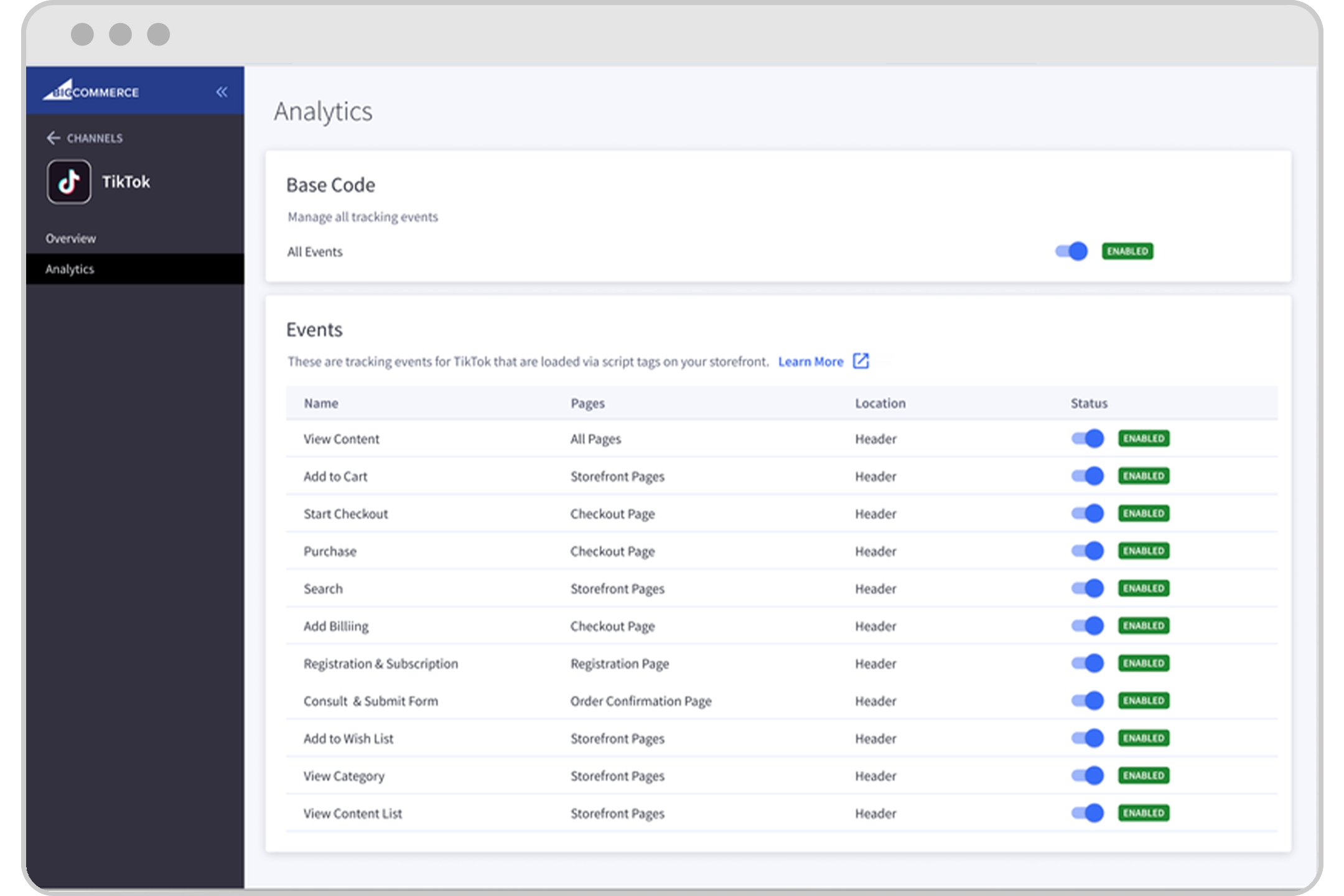
Implementing a TikTok Pixel offers several advantages for marketers:
- Conversion Tracking: Gain accurate insights into your website's user actions and conversion events resulting from your advertising efforts.
- Audience Building Tools: Create custom audiences based on user data gathered by triggered events, allowing for more targeted and relevant ads.
- Optimize Ad Campaign Performance: Use precise data on how users interact with your website after seeing an ad to refine your bidding strategies and improve campaign performance.
- Retargeting Ads: Set up retargeting ads to reach users who have previously interacted with your website but didn't complete a desired action.
Step-by-Step Guide to Installing the TikTok Pixel

Step 1: Log in to TikTok Ads Manager
Start by logging into your TikTok Ads Manager account. This is where you'll manage all aspects of your TikTok advertising campaigns.
Step 2: Name Your Pixel and Select Manual Installation
Once logged in, navigate to the "Tools" section and select "Events." Click "Get Started" to begin the setup process. Choose "Web" as the platform you want to track, then click "Next." Enter your website URL and proceed to the next step.
Step 3: Choose Developer Mode for Event Rules
Select "Manual Setup" for any other platform, including WordPress. If you're using Shopify, WooCommerce, or Google Tag Manager, choose "Partner Integrations." Ensure you select "Developer Mode" when setting your event rules to avoid incorrect tracking.
Step 4: Copy Your Pixel Code
After naming your pixel, copy the provided Pixel Code. This code will need to be installed on your website to start tracking user actions.
Step 5: Install the Pixel on Your Website

Depending on your website platform, follow these steps:
- WordPress: Use a plugin like WPCode to paste the Pixel code into the Header section of your site.
- Shopify: Either use the Partner Integration method or manually add the code to your theme's
theme.liquidfile. - Google Tag Manager: Configure a Custom HTML tag with the TikTok Pixel code.
Step 6: Verify the Pixel Installation
After installing the Pixel, verify its functionality using the TikTok Pixel Helper, a Chrome extension that checks for errors. Additionally, test web events under Event Manager in the Ad Manager platform to ensure everything is working correctly.
Additional Tips for Effective Pixel Usage
- Track Custom Events: While standard events cover most needs, consider creating custom events for unique actions like starting a free trial.
- Use Lookalike Audiences: Leverage the data collected by the Pixel to find new customers similar to your existing ones.
- Regularly Monitor Performance: Keep an eye on your campaign performance and make adjustments as needed to maximize ROI.
By following these steps, you can effectively install and utilize the TikTok Pixel to enhance your marketing efforts and achieve better results from your TikTok ads. With the right setup, you'll gain valuable insights into your audience's behavior and optimize your campaigns for maximum impact.

Posting Komentar untuk "How to Install the TikTok Pixel: Step-by-Step Guide for Marketers"
Posting Komentar