
How to Install TikTok Pixel Tracking for Your Website
In today’s digital landscape, social media platforms have become essential tools for businesses looking to connect with their target audience. Among these platforms, TikTok has emerged as a powerful marketing channel, boasting over 1 billion active users. For marketers and business owners, leveraging TikTok's potential requires more than just creating engaging content—it also involves tracking user behavior and measuring the effectiveness of your advertising efforts. This is where the TikTok Pixel comes into play.
The TikTok Pixel is a tracking code that allows you to monitor user interactions on your website or app. By installing this pixel, you can track actions such as purchases, form submissions, and page views, which are crucial for optimizing your TikTok ad campaigns. In this article, we’ll walk you through the steps to install the TikTok Pixel on your website, ensuring you get the most out of your marketing strategy.

What is a TikTok Pixel?

A TikTok Pixel is a small snippet of code that you place on your website or app. It works by collecting data about user behavior and sending it back to TikTok’s analytics platform. This data helps you understand how your audience interacts with your website after seeing your ads, enabling you to make informed decisions about your marketing efforts.
By using the TikTok Pixel, you can:
- Track conversions (e.g., purchases, sign-ups)
- Retarget users who have visited your site but haven’t converted
- Build custom audiences based on user behavior
- Optimize your ad campaigns for better performance
Why Install a TikTok Pixel?

There are several compelling reasons to install a TikTok Pixel on your website:
1. Track Conversions
One of the primary benefits of the TikTok Pixel is its ability to track conversions. Whether it's a purchase, a form submission, or a newsletter sign-up, the pixel captures these actions and provides valuable insights into how your ads are performing.
2. Retarget Potential Customers
If a user visits your website but doesn't complete a desired action, the TikTok Pixel allows you to retarget them with personalized ads. This increases the chances of converting them into customers.
3. Build Custom Audiences
Using the data collected by the TikTok Pixel, you can create custom audiences based on specific behaviors, such as visiting a product page or adding an item to a cart. These audiences can then be targeted with highly relevant ads.
4. Improve Ad Performance
With detailed analytics from the TikTok Pixel, you can identify which ad campaigns are driving the most conversions and adjust your strategies accordingly. This leads to better ROI and more effective marketing.
How to Install TikTok Pixel on Your Website

Installing the TikTok Pixel on your website is a straightforward process. Here’s a step-by-step guide to help you get started:
Step 1: Create a TikTok Pixel
- Log in to your TikTok for Business account.
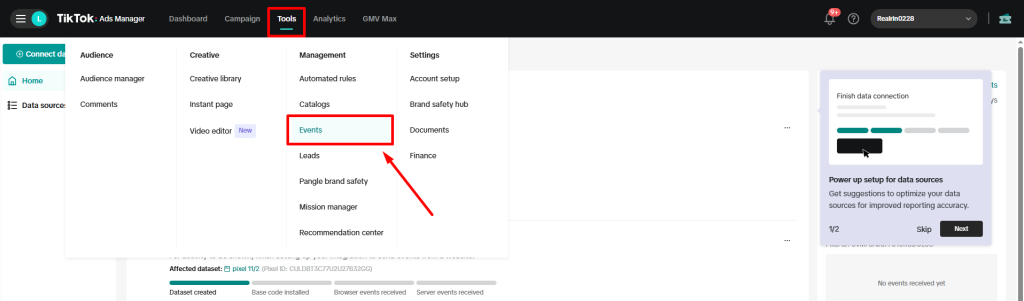
- Navigate to the Events section under the Assets tab.
- Click on Manage under the Web Events section.
- Select Create Pixel and give your pixel a name.
- Choose TikTok Pixel as the connection method and click Next.
Step 2: Get the Pixel Code
After setting up your pixel, you’ll be directed to the Pixel Code page. Here, you can copy the code snippet provided by TikTok.
Step 3: Add the Pixel to Your Website
There are two main ways to add the TikTok Pixel to your website:
Option 1: Manual Installation
- Open your website’s HTML file.
- Locate the
<head>section of your HTML document. - Paste the TikTok Pixel code directly before the closing
</head>tag. - Save the changes and upload the updated file to your server.
Option 2: Use a Plugin (for WordPress Users)
If you're using WordPress, you can simplify the process by using a plugin like WPCode:
- Install and activate the WPCode plugin.
- Go to Code Snippets > Header & Footer in the WordPress dashboard.
- Paste the TikTok Pixel code into the Header field.
- Click Save Changes.
Configuring TikTok Tracking Events

Once the TikTok Pixel is installed, you can configure it to track specific events on your website. Here’s how:
Step 1: Access the Event Builder
- Log in to your TikTok Ads Manager.
- Navigate to the Event Builder section.
- Select Create Events to Track Actions.
Step 2: Set Up Web Events
You can track two types of events:
- URL Events: Track when users visit specific pages (e.g., a product page or checkout page).
- Click Events: Track when users interact with elements on your site (e.g., clicking a "Buy Now" button).
To set up these events:
- Click + Enter URL Keywords for URL Events.
- For Click Events, use the TikTok Pixel Helper Chrome extension to select elements on your site.
- Test your pixel to ensure it’s working correctly.
Final Tips for Effective TikTok Pixel Usage
- Verify the Pixel: After installation, use the TikTok Pixel Helper extension to check for errors and ensure the pixel is functioning properly.
- Update Regularly: The TikTok Pixel automatically updates, but you can manually edit it from the TikTok Business platform if needed.
- Monitor Performance: Keep an eye on your analytics to see how your ad campaigns are performing and make adjustments as necessary.
Conclusion
Installing the TikTok Pixel on your website is a critical step in maximizing the effectiveness of your TikTok advertising efforts. By tracking user behavior and conversions, you gain valuable insights that can help you refine your marketing strategy and improve your ROI. Whether you're running a small business or managing a large e-commerce site, the TikTok Pixel is a powerful tool that can elevate your online presence and drive more sales.

Posting Komentar untuk "How to Install TikTok Pixel Tracking for Your Website"
Posting Komentar