
How to Manage Access Control Permissions in TikTok Ads Manager
TikTok has become a powerful platform for businesses to reach their target audience through targeted advertising. However, managing access control permissions within the TikTok Ads Manager is crucial to ensure that only authorized individuals can create, manage, and analyze ad campaigns. This article will guide you through the process of managing access control permissions in TikTok Ads Manager, focusing on the key steps and best practices.
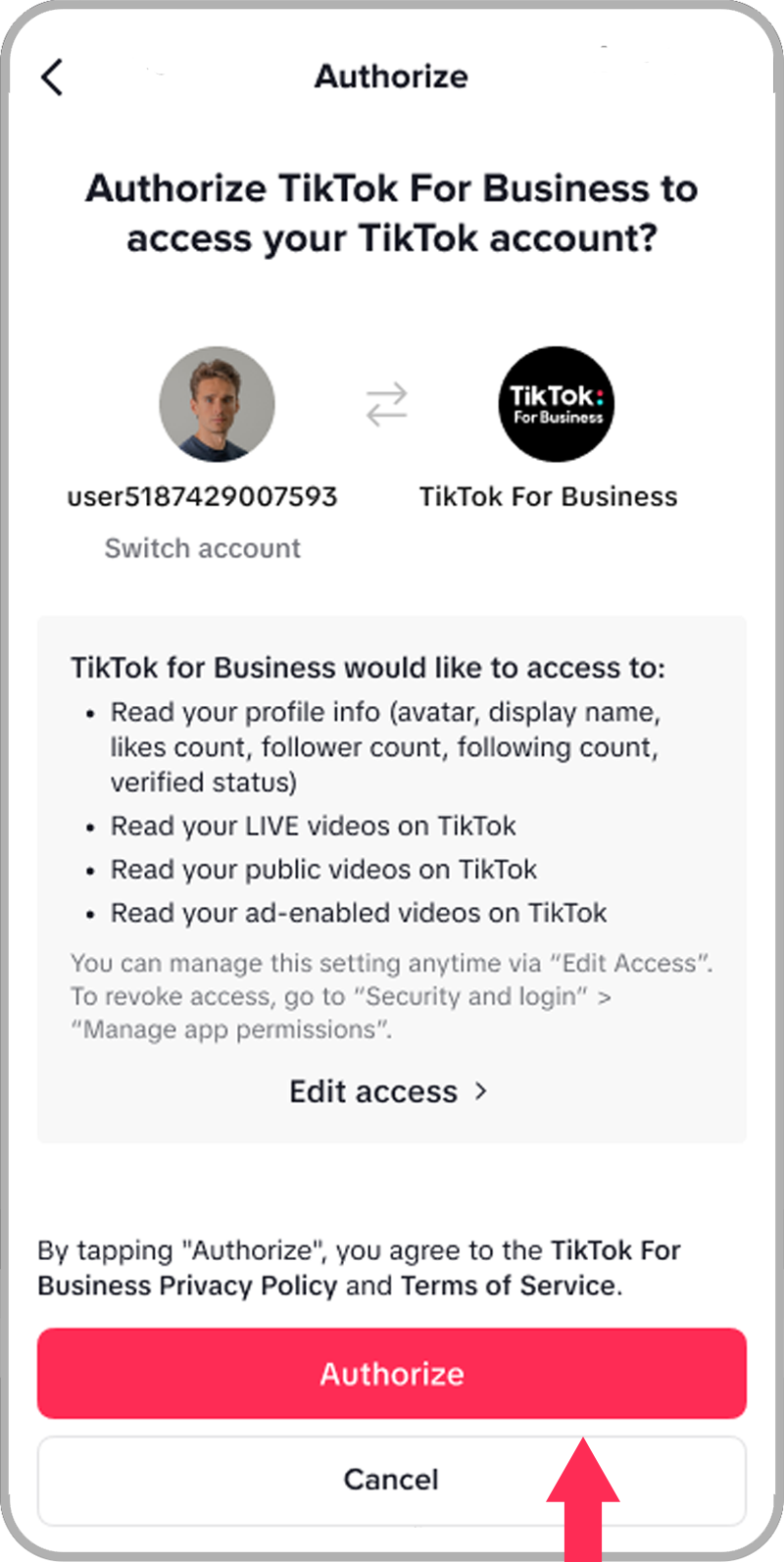
Understanding TikTok Access Control
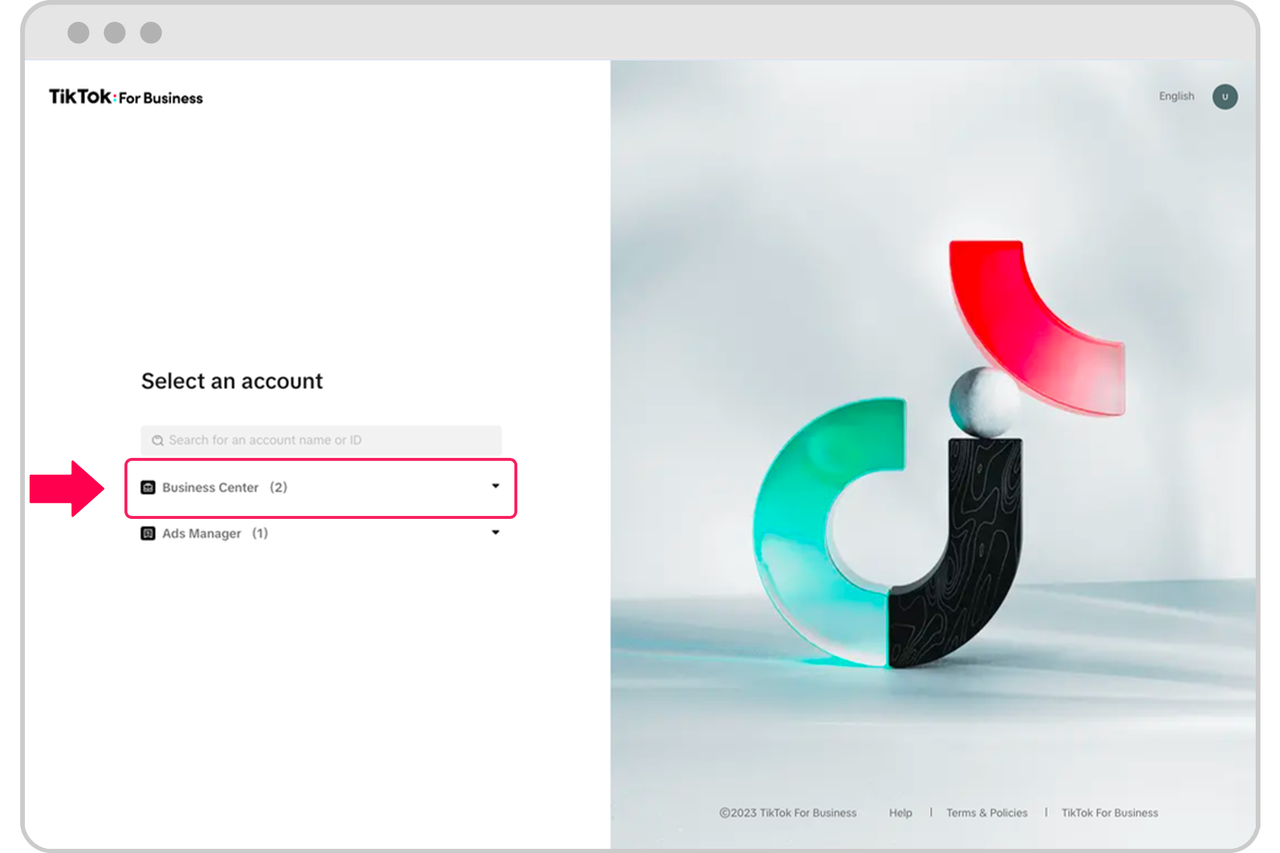
Before diving into the specifics of managing access control permissions, it's essential to understand the different components of TikTok's ecosystem. The TikTok Business Center serves as the central hub for managing access to your TikTok account, ad accounts, and other assets. It allows you to invite team members, assign roles, and control what they can do within your TikTok Business Account.
In addition to the Business Center, TikTok Ads Manager is where you create, manage, and analyze your ad campaigns. While it's a separate dashboard from your TikTok profile, any access to your ad account must be managed through the Business Center.
Types of Roles in TikTok Business Center

TikTok offers two main types of roles within the Business Center:
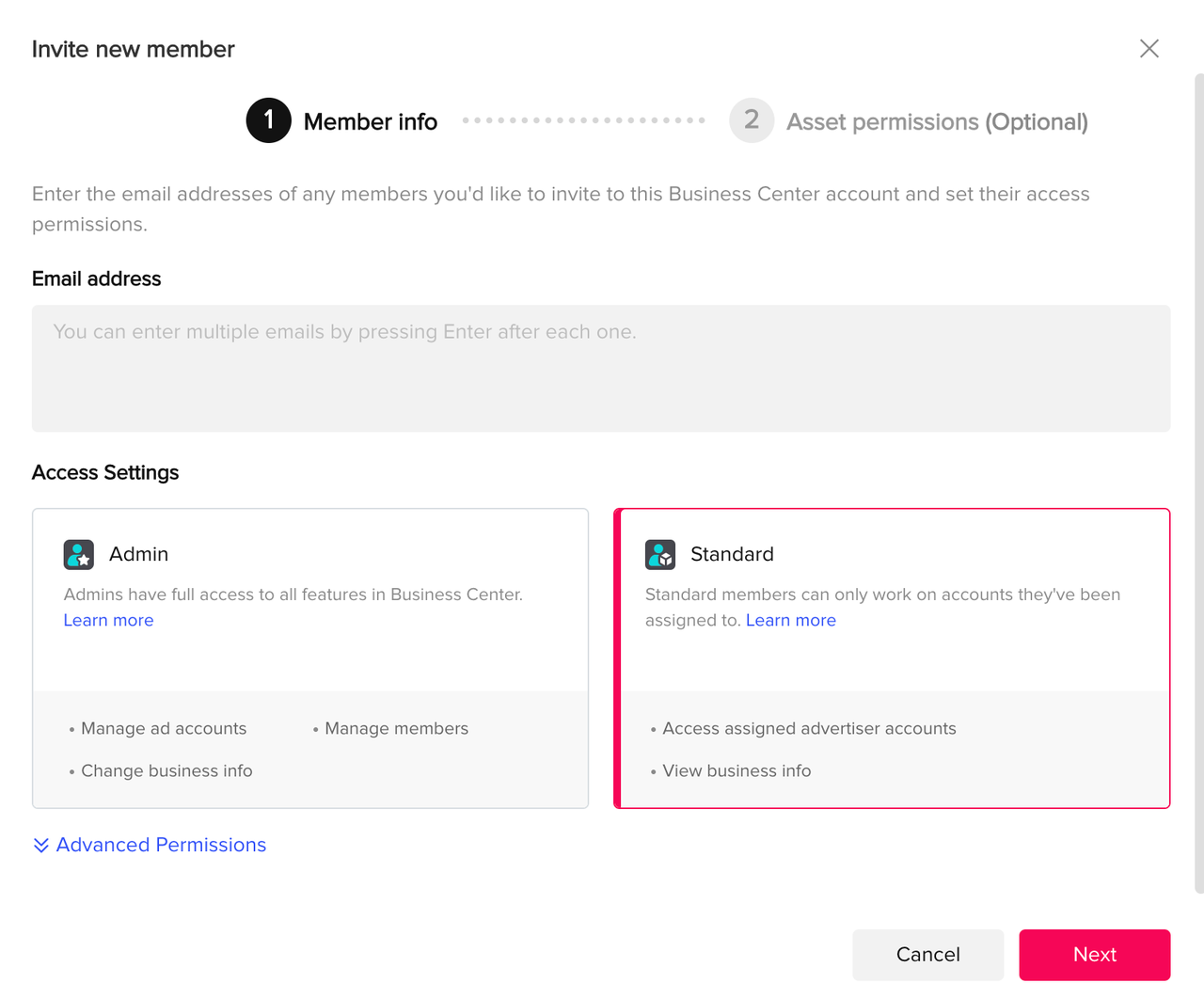
- Admin: Has full control over the Business Center. Admins can add/remove members, manage partners, create ad accounts, assign access, handle security settings, etc.
- Standard: Can only access the assets they're assigned to (e.g., an ad account or pixel). They cannot manage members or settings.
Additionally, there are Finance roles: - Finance Manager: Full control over billing, payments, and account balances. - Finance Analyst: Can view and download financial data but cannot make changes.
These roles help you define the level of access each user has within your Business Center.
Managing Access Control Permissions in TikTok Ads Manager
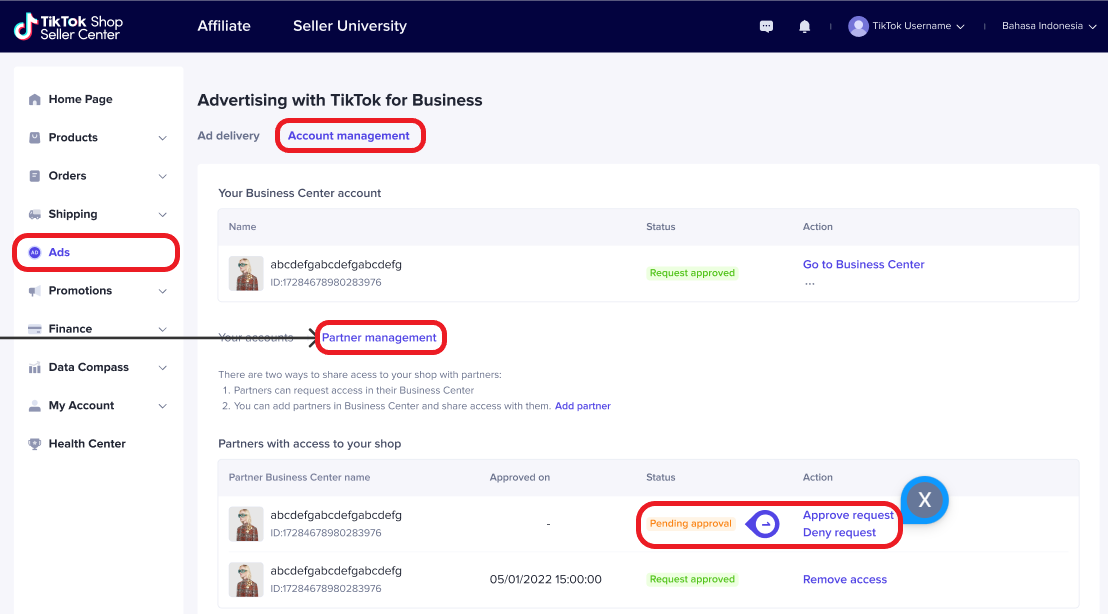
To manage access control permissions in TikTok Ads Manager, follow these steps:
1. Add Members in TikTok Business Center
If you want to give someone access to your ad account, you must do it through the TikTok Business Center. Here’s how:
- Step 1: Log in to your TikTok Business Center account.
- Step 2: On the left-hand sidebar, click “Users.”
- Step 3: Click “Add Members” to open the invitation window.
- Step 4: Enter the email address of the person you want to add.
- Step 5: Choose their Business Center role (Admin or Standard).
- Step 6: Assign asset-level permissions based on the specific ad account or asset they need access to.
- Step 7: Click “Save.” The user will receive an email invitation and must accept it to access anything.
2. Add a Partner Business Center
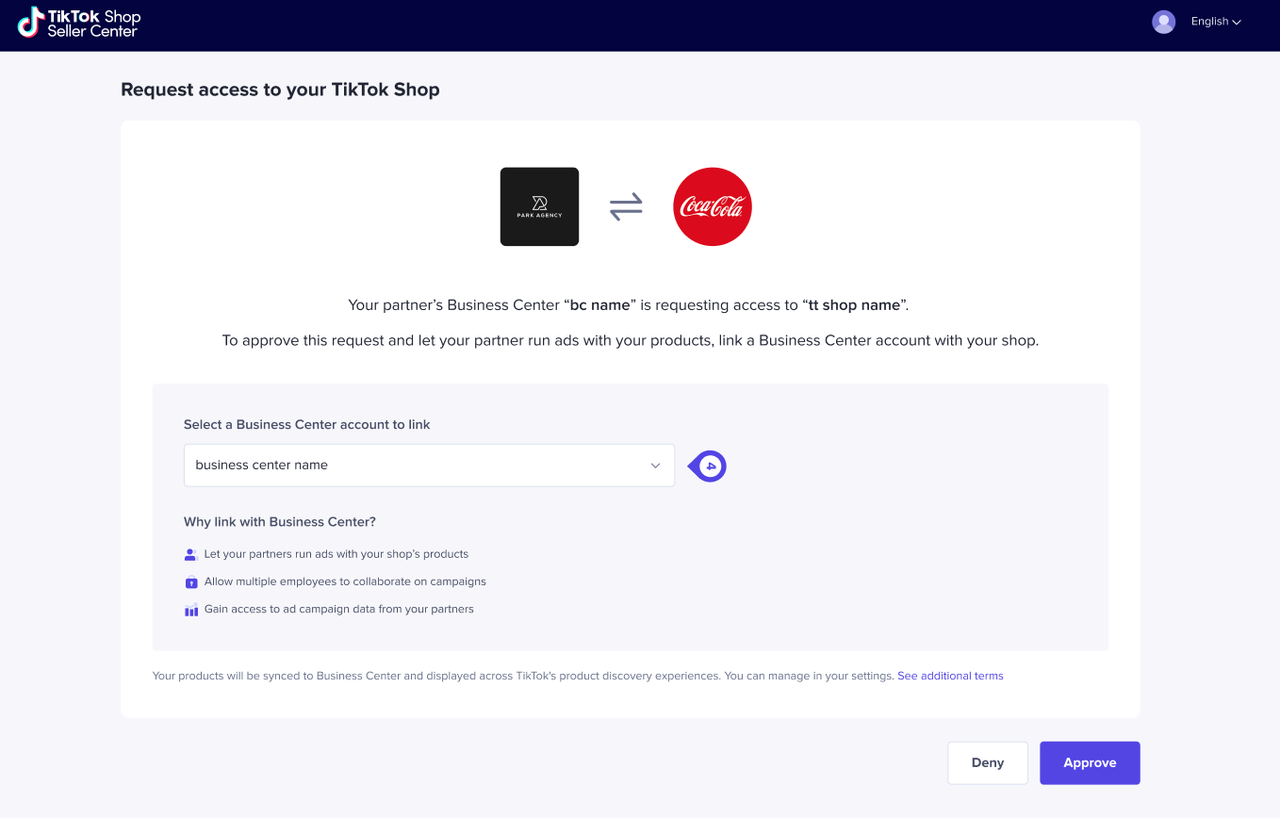
If you're working with an agency or collaborating with another business, adding them as a Partner in Business Center is the most efficient way to share access. Partners can access your assets, so multiple people on their team can work with you without adding them one by one.
- Step 1: Log in to your TikTok Business Center account.
- Step 2: On the left-hand menu, click “Partners.”
- Step 3: Click “Add a partner.”
- Step 4: Enter your partner’s Business Center account ID.
- Step 5: Click “Next.”
- Step 6: Choose which assets the partner can access.
- Step 7: Click “Confirm.”
3. Request Access via the TikTok Business Center
If you need to request access to a TikTok Ad Account or TikTok Account, follow these steps:
- Step 1: Log in to your TikTok Business Center account.
- Step 2: In the left menu, click Accounts > Advertiser Accounts.
- Step 3: Select Add advertiser account > Request Access > Next.
- Step 4: Enter your client’s Ad Account ID.
- Step 5: Choose the permission level you want to request.
- Step 6: Submit the request. The ad account owner will receive a notification and must approve it manually.
4. Use Leadsie for Easier Access Requests

Leadsie simplifies the process of requesting access to TikTok and other marketing platforms. Here’s how it works:
- Step 1: Send your client your custom Leadsie access link.
- Step 2: Wait for them to grant you access.
- Step 3: Leadsie automatically connects you to their Business Center, assigns the right ad account permissions, and ensures everything is configured correctly.
Best Practices for Managing Access Control Permissions
- Regularly review your user list to ensure that only active and authorized users have access.
- Assign the minimum necessary permissions to reduce the risk of unauthorized actions.
- Use the Finance roles only if someone handles budgets or reporting.
- Keep your Business Center updated to ensure that all access is properly managed.
By following these steps and best practices, you can effectively manage access control permissions in TikTok Ads Manager, ensuring that your ad campaigns are secure and well-managed.

Posting Komentar untuk "How to Manage Access Control Permissions in TikTok Ads Manager"
Posting Komentar