
How to Manage Billing Details in TikTok Ads Manager: A Complete Guide
Managing billing details in TikTok Ads Manager is a crucial step for any advertiser looking to run effective ad campaigns on the platform. Whether you're a small business owner or a digital marketer, understanding how to set up and manage your billing information can save you time and prevent potential issues down the line. This guide will walk you through the entire process of managing billing details in TikTok Ads Manager, ensuring a smooth and efficient experience.
Understanding TikTok Ads Manager
TikTok Ads Manager is the central hub where advertisers can create, manage, and monitor their ad campaigns. It offers a range of features, including targeting options, budget settings, and performance analytics. One of the essential components of this platform is the billing section, which allows users to input and manage their payment methods and financial information.
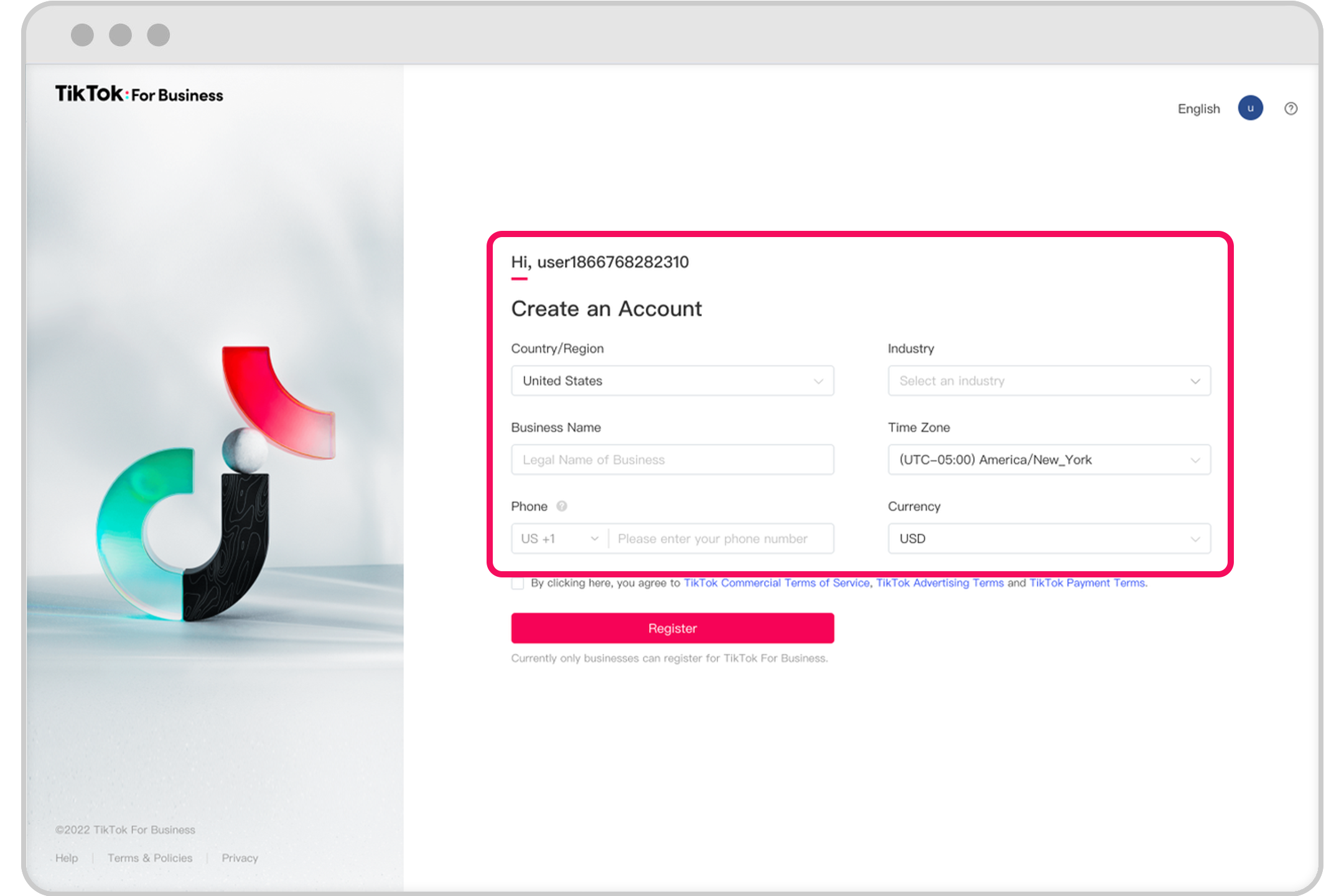
To access TikTok Ads Manager, you first need to create a TikTok Business account. This involves providing basic business information, selecting an industry, and setting up a payment method. Once your account is created, you can navigate to the "Billing" section within the Ads Manager to manage your financial details.
Step-by-Step Guide to Managing Billing Details
Here's a detailed breakdown of how to manage billing details in TikTok Ads Manager:
- Log in to Your TikTok Business Account
-
Start by logging into your TikTok Business account. If you haven't created one yet, follow the steps outlined in the previous sections to set it up.
-
Navigate to TikTok Ads Manager
-
Once logged in, go to the TikTok Ads Manager by clicking on the relevant option in the navigation menu. This will take you to the main dashboard where you can manage your ad campaigns.
-
Access the Billing Section
-
On the left-hand side of the dashboard, you'll see a menu with various options. Click on "Billing" to access the billing management section.
-
Add or Update Payment Methods
-
In the billing section, you can add or update your payment methods. TikTok supports multiple payment options, including credit/debit cards, PayPal, and Venmo. To add a new payment method:
- Click on "Add Payment Method."
- Choose the desired payment option (e.g., credit card).
- Enter the required details, such as the card number, expiration date, and security code.
- Confirm the information and click "Save."
-
Set Up a Default Payment Method
-
If you have multiple payment methods, you can set a default one for easier transactions. To do this:
- Click on the payment method you want to set as default.
- Select "Make Default" from the options provided.
-
Review and Confirm Billing Information
-
Before proceeding, review all the billing details to ensure accuracy. This includes your address, contact name, and payment method. Any errors here could lead to payment failures or delays.
-
Save Changes
- Once you've reviewed and confirmed all the details, click "Save" to apply the changes. You should receive a confirmation message indicating that your billing information has been updated successfully.
Tips for Managing Billing Details
- Regularly Update Payment Information: Ensure that your payment methods are up to date, especially if you change your card or bank account.
- Use a Reliable Payment Method: Opt for a payment method that you use frequently and have easy access to, such as a credit card or PayPal.
- Check for Errors: Always double-check your billing information before saving to avoid any potential issues with payments.
- Enable Notifications: Enable email or in-app notifications for billing updates so you're always aware of any changes or potential issues.
Common Issues and Solutions
While managing billing details in TikTok Ads Manager is generally straightforward, some users may encounter common issues. Here are a few solutions to help you troubleshoot:
- Payment Method Declined: If your payment method is declined, check the details you entered for accuracy. Also, ensure that your card has sufficient funds and is not expired.
- Unable to Add Payment Method: If you're unable to add a payment method, try using a different browser or device. Sometimes, technical issues can prevent certain actions from being completed.
- Billing Information Not Updating: If your billing information isn't updating, refresh the page or log out and back in. This can often resolve temporary glitches.
Conclusion
Managing billing details in TikTok Ads Manager is a vital aspect of running successful ad campaigns on the platform. By following the steps outlined in this guide, you can ensure that your payment information is accurate and up to date, allowing you to focus on creating effective ads without any financial hurdles. Whether you're just starting out or looking to optimize your existing campaigns, taking the time to properly manage your billing details can make a significant difference in your overall advertising strategy.
[IMAGE: TikTok Ads Manager billing details setup process]

Posting Komentar untuk "How to Manage Billing Details in TikTok Ads Manager: A Complete Guide"
Posting Komentar