
How to Navigate the TikTok Ads Manager Dashboard: A Complete Tour for Marketers
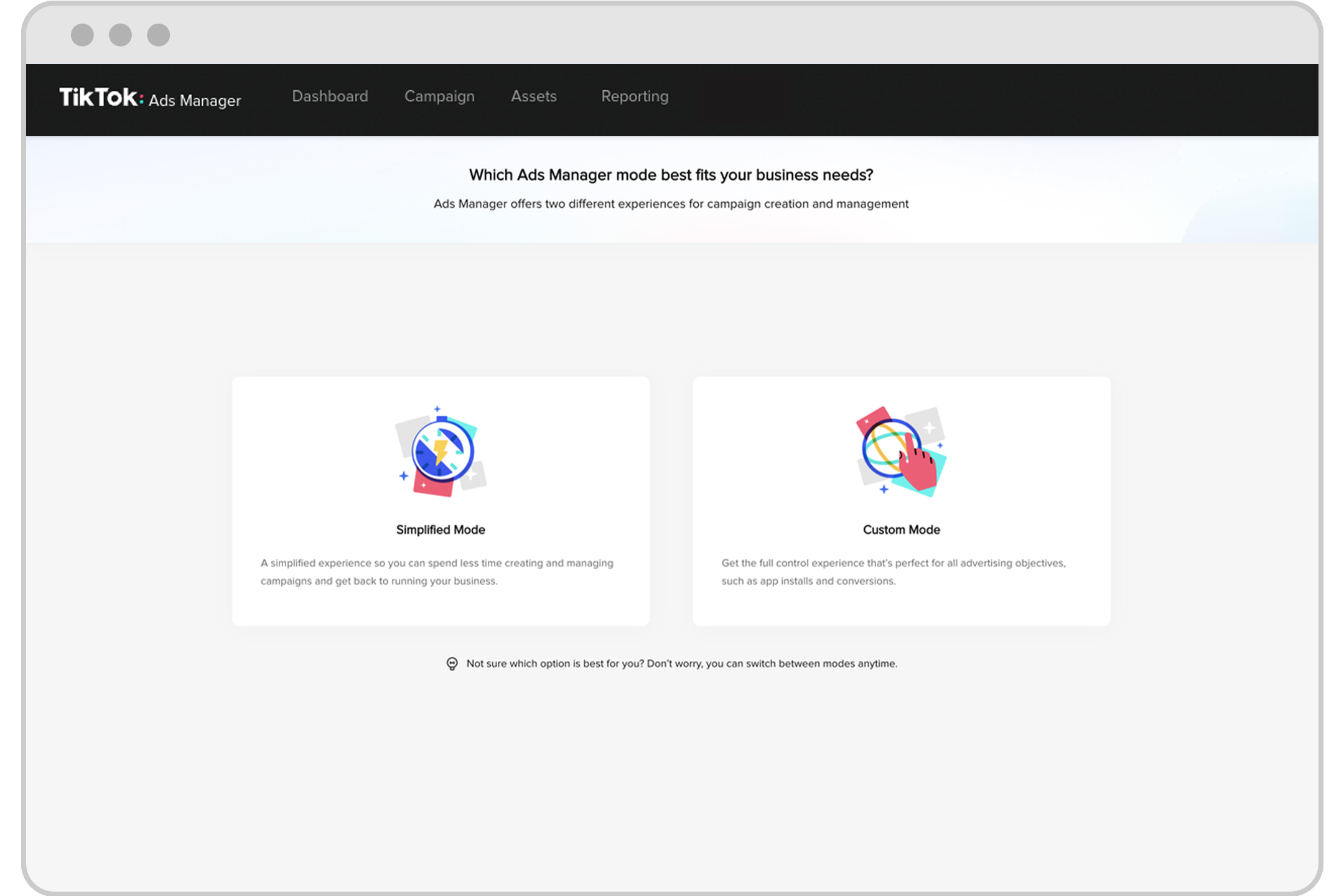
TikTok has become a powerful platform for marketers, offering a unique blend of creativity and analytics that can drive significant engagement and conversions. As a marketer, understanding how to navigate the TikTok Ads Manager dashboard is essential to leveraging this platform effectively. This article will guide you through the key features and functionalities of the TikTok Ads Manager dashboard, helping you maximize your advertising efforts.
Entering the Dashboard
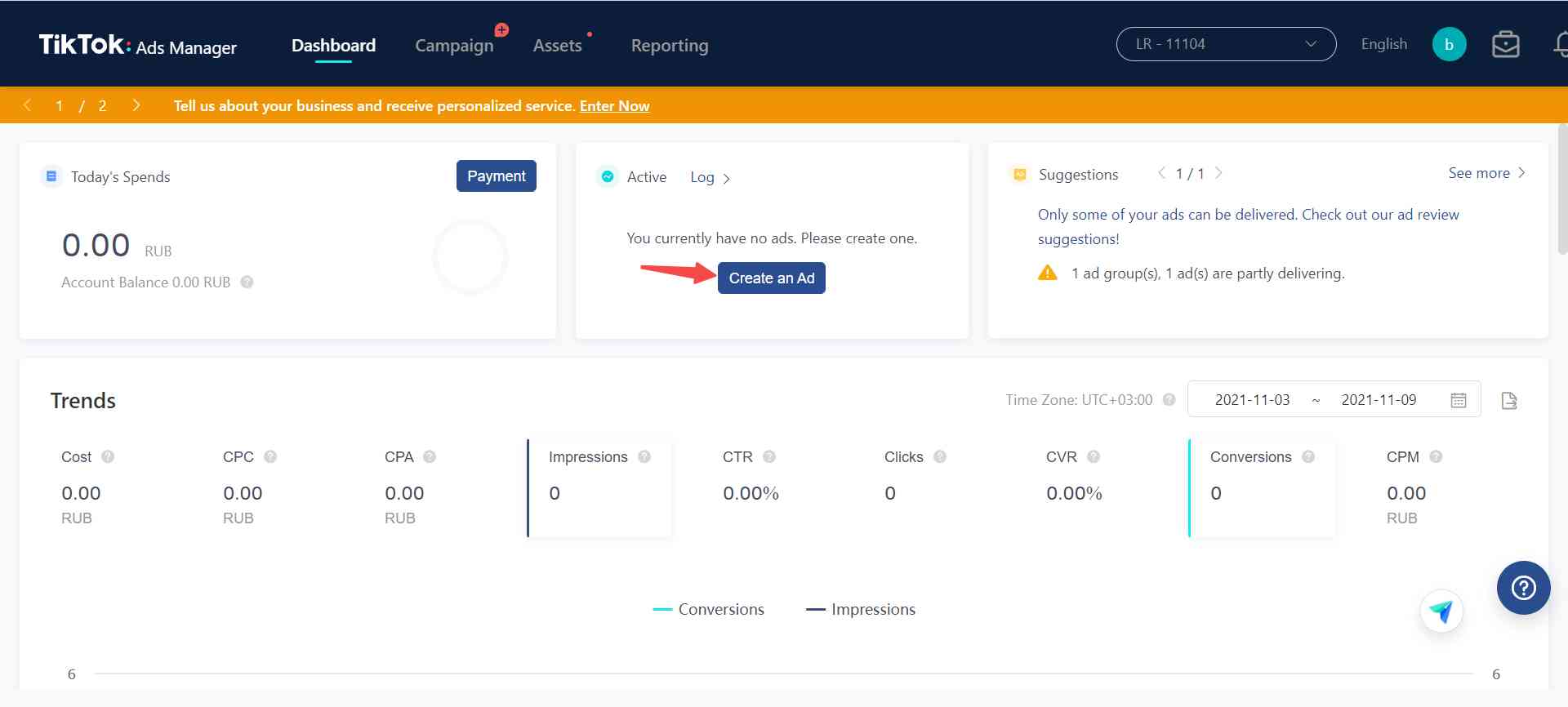
Once you log into the TikTok Ads Manager, you'll be greeted with a snapshot of essential information regarding your advertisements. This includes insights such as today’s total spend, active and inactive ads, trends, impressions, advertising costs, and more. As you scroll down, additional detailed information is presented to help you monitor your ad performance closely.
Main Menu Overview
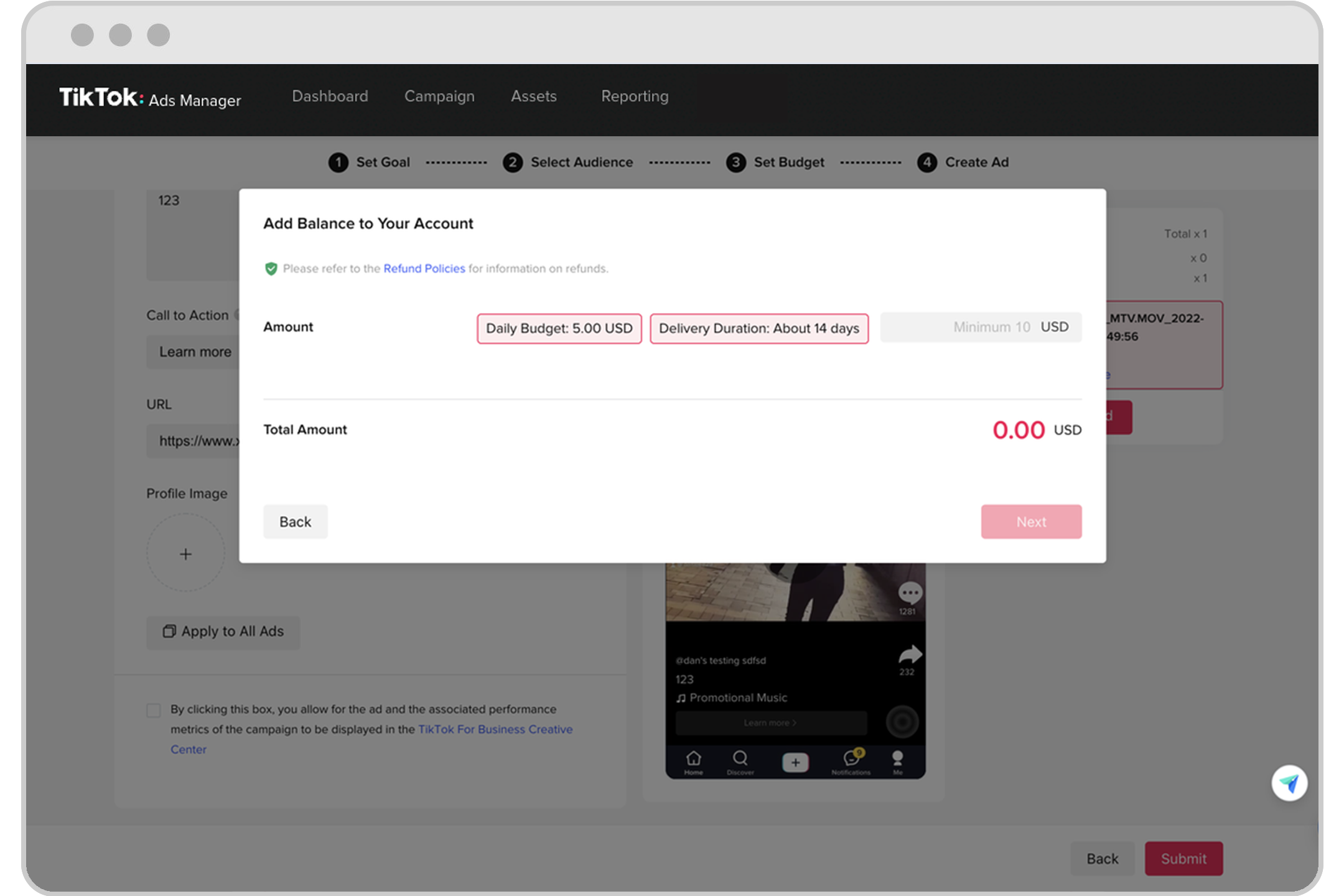
At the top of the dashboard, you will find the main menu, featuring several key options:
- Campaign Menu: Click here to create your ad campaigns.
- Assets Menu: This menu contains several submenus including: Events, Creatives, Audiences, Catalogs, Comments, Instant Pages.
- Reporting Menu: Use this option to generate detailed ad reports, including: Custom reports, Video insights, Creative inspiration, Audience insights.
These menus are designed to provide a comprehensive overview of your advertising activities, allowing you to manage and analyze your campaigns efficiently.
Account Management Features
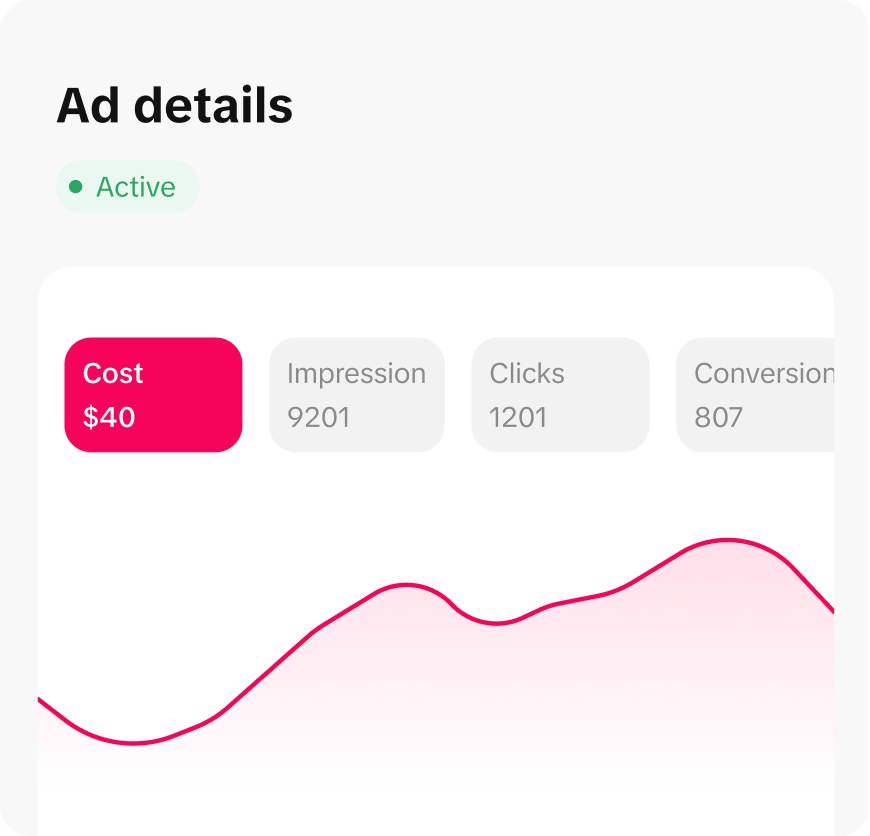
In the top right corner of the dashboard, you will notice several icons, including a notification icon, a business manager icon, and your TikTok Ads Manager account icon. Clicking your account icon will display several submenus, such as:
- Account Information
- Payment
- User Settings
These features help you manage your account efficiently and access core functionalities quickly.
Creating Ads
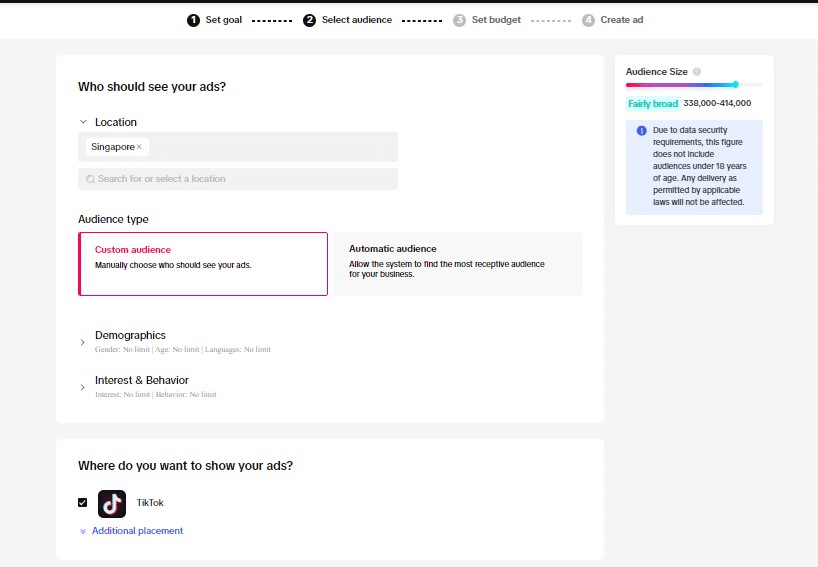
You can create a new ad directly from the dashboard by clicking the "Create an Ad" button. This functionality allows for a streamlined ad creation process, enhancing the overall user experience. Additionally, you can view a log of your account activity to keep track of changes and updates.
Key Metrics and Performance Insights

The dashboard highlights your key metrics, such as reach, impressions, clicks, and total cost, showing you the top-level results of your advertising spend. A performance funnel visualizes the user journey, helping you identify drop-off points in your strategy. Crucially, it provides demographic insights with charts showing the distribution of your audience by age and country, which is essential for refining your targeting on the TikTok platform.
Reporting and Analytics
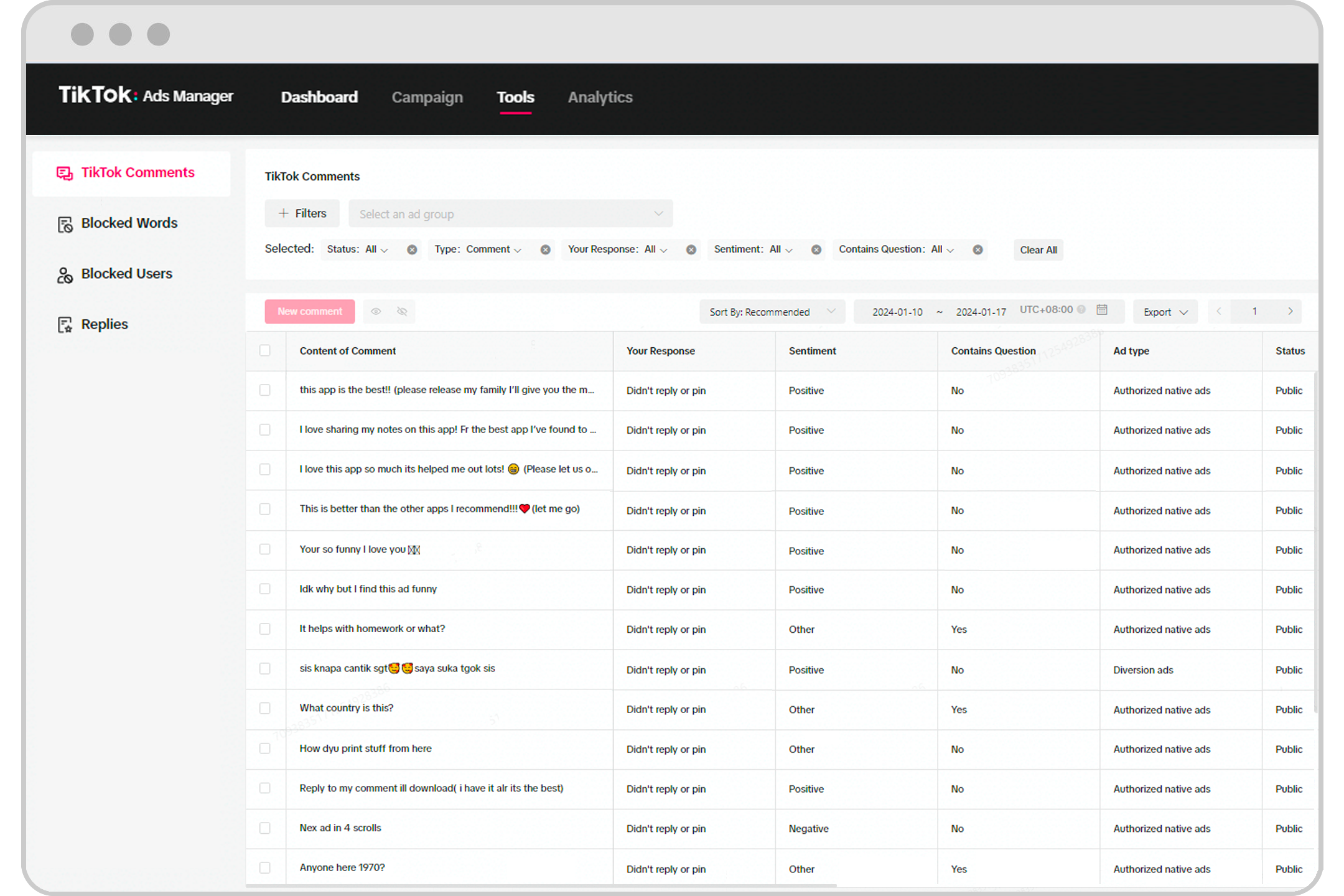
The Reporting menu is a crucial tool for generating detailed ad reports. You can generate custom reports, video insights, creative inspiration, and audience insights through this menu. These reports provide valuable data that can help you refine your advertising strategies and improve campaign performance.
Conclusion
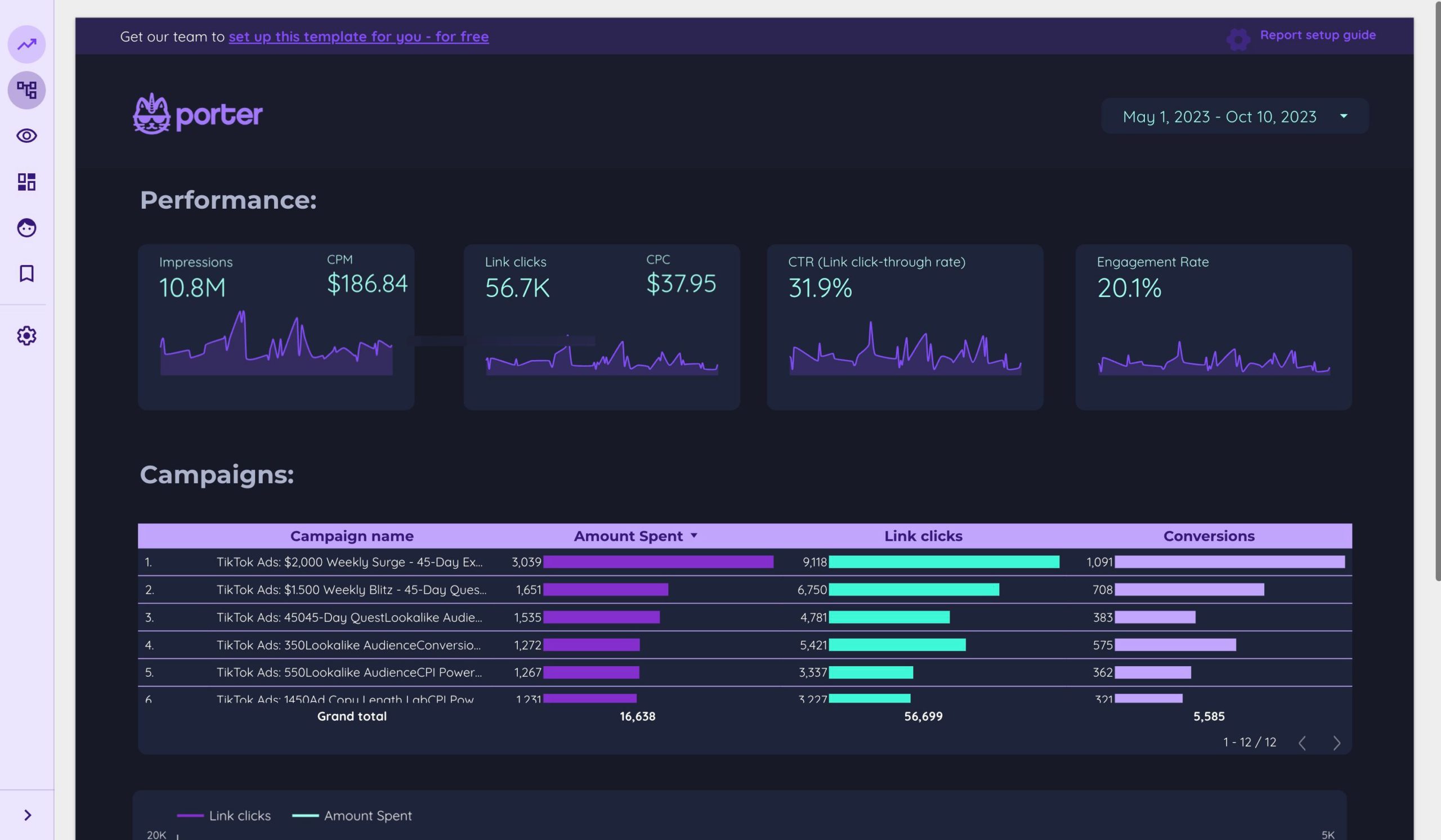
Navigating the TikTok Ads Manager dashboard is a critical step for any marketer looking to leverage the power of TikTok for their advertising efforts. By understanding the key features and functionalities of the dashboard, you can optimize your campaigns, gain valuable insights, and drive better results. Whether you're just starting out or looking to refine your existing strategies, the TikTok Ads Manager offers a wealth of tools and data to help you succeed.

Posting Komentar untuk "How to Navigate the TikTok Ads Manager Dashboard: A Complete Tour for Marketers"
Posting Komentar