
How to Set Up a Professional TikTok Live Streaming Setup in 2024
TikTok has become one of the most popular platforms for content creators, offering a unique space to connect with audiences through short-form videos and live streams. As the platform continues to evolve, so do the tools available to creators. One such tool is TikTok Live Studio, which allows users to stream high-quality live content directly from their computers. Whether you're a seasoned creator or just starting out, setting up a professional TikTok live streaming setup can significantly enhance your engagement and growth on the platform.
In this guide, we'll walk you through the essential steps to configure a professional TikTok live streaming setup, ensuring you deliver a seamless and engaging experience for your audience.
What is TikTok Live Studio?
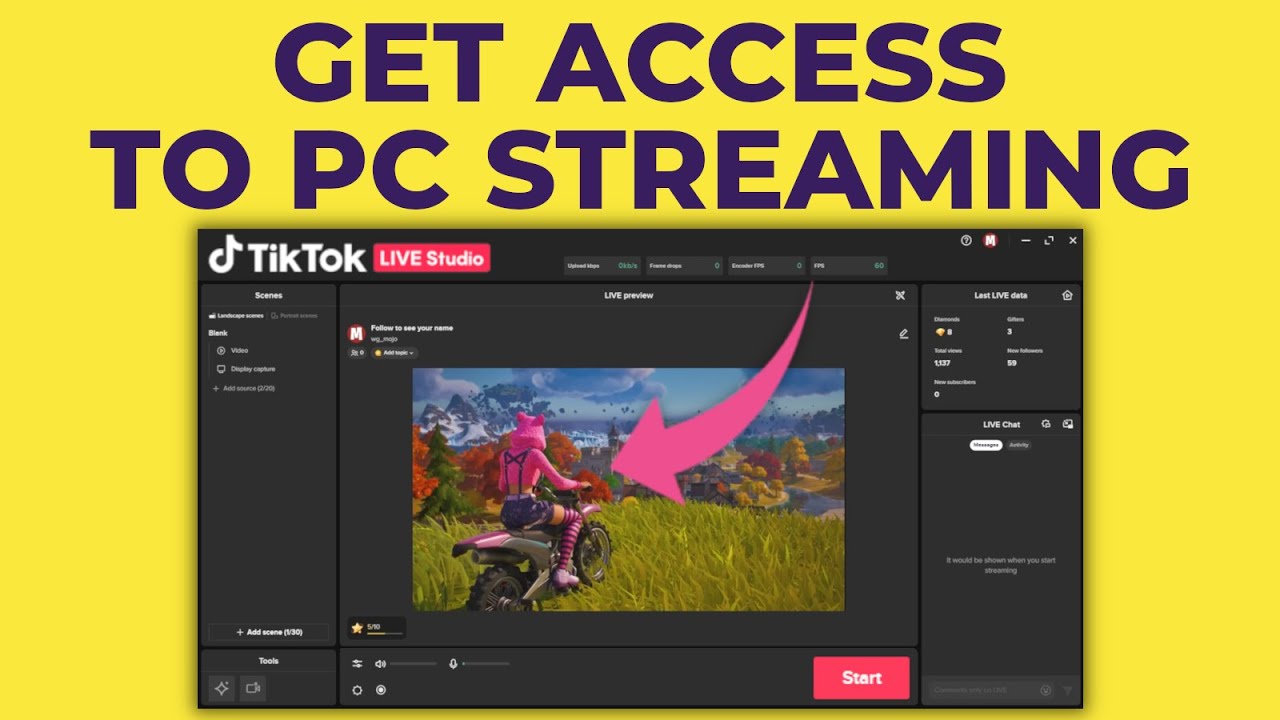
TikTok Live Studio is a dedicated streaming software designed specifically for TikTok users. It enables creators to broadcast live content directly to the platform, allowing real-time interaction with their audience. Unlike traditional streaming software like OBS (Open Broadcaster Software), TikTok Live Studio is optimized for the TikTok ecosystem, making it easier to manage scenes, engage with viewers, and integrate with TikTok’s features.
However, it's important to note that TikTok Live Studio has specific requirements, including follower thresholds and hardware capabilities, which may make it less accessible for some users. For those who don't meet these criteria, alternative solutions like using OBS with a stream key are also viable options.
Step-by-Step Guide to Setting Up Your TikTok Live Streaming Setup
1. Download and Install TikTok Live Studio
To get started, visit the official TikTok Live Studio download page at TikTok.com/Studio/Download. Click the "Free download for Windows" button. Once the download is complete, follow the installation prompts. You may need to approve security settings related to the software accessing your computer.
Note: TikTok Live Studio is only available for Windows. Mac users can run it via Parallels or Boot Camp, or use OBS with a stream key instead.
2. Check Your System Requirements
Before proceeding, ensure your device meets the following requirements:
- Follower Count: At least 3,000 followers for gaming creators, and 10,000 followers for non-gaming creators.
- Hardware: A mid-range PC or gaming laptop is recommended, especially for gaming streams.
- Internet Speed: A minimum upload speed of 10 Mbps for 1080p streams, and 6 Mbps for 720p.
You can test your internet speed using online tools like Ookla Speedtest before going live.
3. Configure Your Scene Settings

Once installed, open TikTok Live Studio and configure your scene. This includes selecting your camera, microphone, and adjusting video quality. You can use either a webcam or smartphone camera, and even capture your screen for gameplay or presentations.
Customize the layout by adding graphics, overlays, and branding elements to make your stream visually appealing. Ensure your audio and video are set up properly for optimal performance.
4. Customize Your Stream Settings
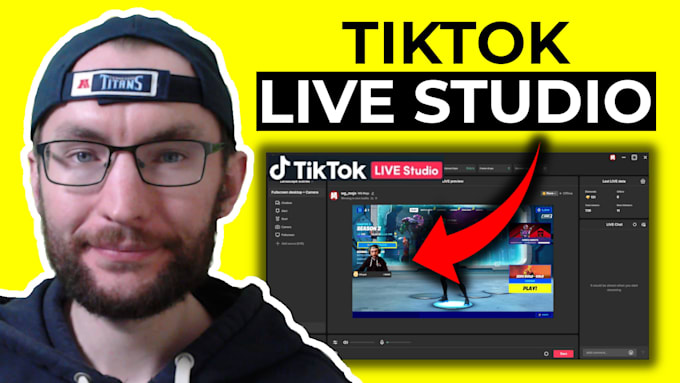
Navigate to the "Live Settings" section to adjust audio and image quality, pause or end the stream, and manage audio channels. You can also monitor the stability of your stream and view live data, such as total views and new followers.
Choose a resolution of 1920x1080 at 60fps with an 8000 kbps bitrate for high-quality streams. Portrait mode is recommended for TikTok, but landscape or dual layout options are also available depending on your content.
5. Add Overlays and Alerts

Enhance your stream by adding custom overlays and alerts. You can create unique designs using tools like Canva, Fiverr, or AI-generated assets. These elements help reinforce your brand and make your stream more engaging.
Additionally, consider using third-party tools like TikFinity to add alerts for new followers, gifts, and likes. These notifications can boost viewer interactions and encourage more participation during your live stream.
6. Optimize Chat Settings
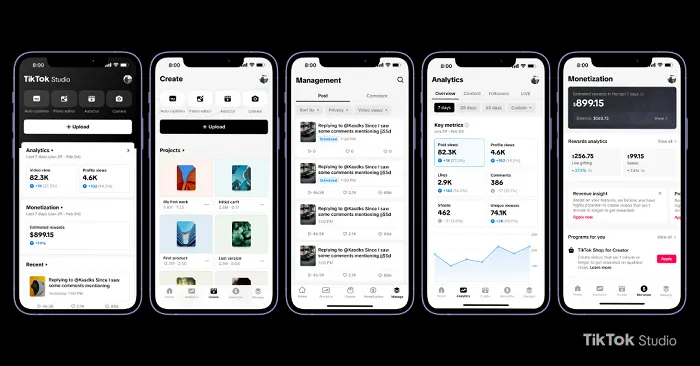
Engage with your audience by enabling auto-translate and moderation settings to filter spam. Use extended chat if you expect a high volume of messages, and consider using a second screen or pop-out chat for easier reading during your stream.
7. Go Live and Monitor Performance

When you're ready, click the "Broadcast LIVE" button and finalize your stream settings, such as the title, tags, and cover photo. Double-check your bitrate, resolution, and other settings before going live.
During the stream, monitor your performance using the live data section. Track metrics like total views, new followers, and engagement levels to refine your strategy over time.
Tips for Success
- Create an engaging title and thumbnail to attract viewers.
- Use consistent branding through overlays and graphics.
- Enable follower and gift alerts to encourage viewer interactions.
- Check your stream quality on a second device during the broadcast.
- Promote your live stream on your TikTok feed before going live to increase reach.
Final Thoughts
Setting up a professional TikTok live streaming setup requires careful planning and the right tools. Whether you choose TikTok Live Studio or an alternative like OBS, the key is to focus on delivering high-quality content that resonates with your audience. With the right equipment, configuration, and engagement strategies, you can turn your live streams into powerful tools for growth and connection on TikTok.
Start optimizing your setup today and take your TikTok streaming to the next level.

Posting Komentar untuk "How to Set Up a Professional TikTok Live Streaming Setup in 2024"
Posting Komentar