
How to Set Up TikTok Ads Pixel for E-Commerce: A Complete Guide
In the ever-evolving world of digital marketing, TikTok has emerged as a powerful platform for e-commerce businesses. With its massive user base and engaging content, TikTok offers unique opportunities for brands to reach new audiences and drive sales. One essential tool that can help you maximize your return on investment (ROI) is the TikTok Ads Pixel. This article will guide you through the process of setting up the TikTok Ads Pixel for e-commerce, ensuring accurate tracking and optimization of your ad campaigns.
Understanding the TikTok Ads Pixel
The TikTok Ads Pixel works by tracking users' actions after they view or engage with your ads on the platform. This conversion tracking allows you to measure your return on ad spend and gain valuable insights into your audience's behavior. By defining specific events, such as adding a product to a cart or completing a checkout, you can monitor how well your ads are performing and make data-driven decisions to optimize your campaigns.
Key features of the TikTok Ads Pixel include:
- Conversion Tracking: Measure the effectiveness of your TikTok ads based on the events you define.
- Ad Optimization: Use the data collected to refine your ad strategies and target the right audience.
- Event Monitoring: Track user actions like Add to Cart or View Content to understand customer behavior.
Step-by-Step Guide to Setting Up TikTok Ads Pixel for E-Commerce
1. Log Into Your TikTok Ads Manager Account
Begin by logging into your TikTok Ads Manager account. If you don’t have one, you’ll need to create a business account first. Once logged in, navigate to the "Assets" section and select "Events."
2. Create a New Pixel
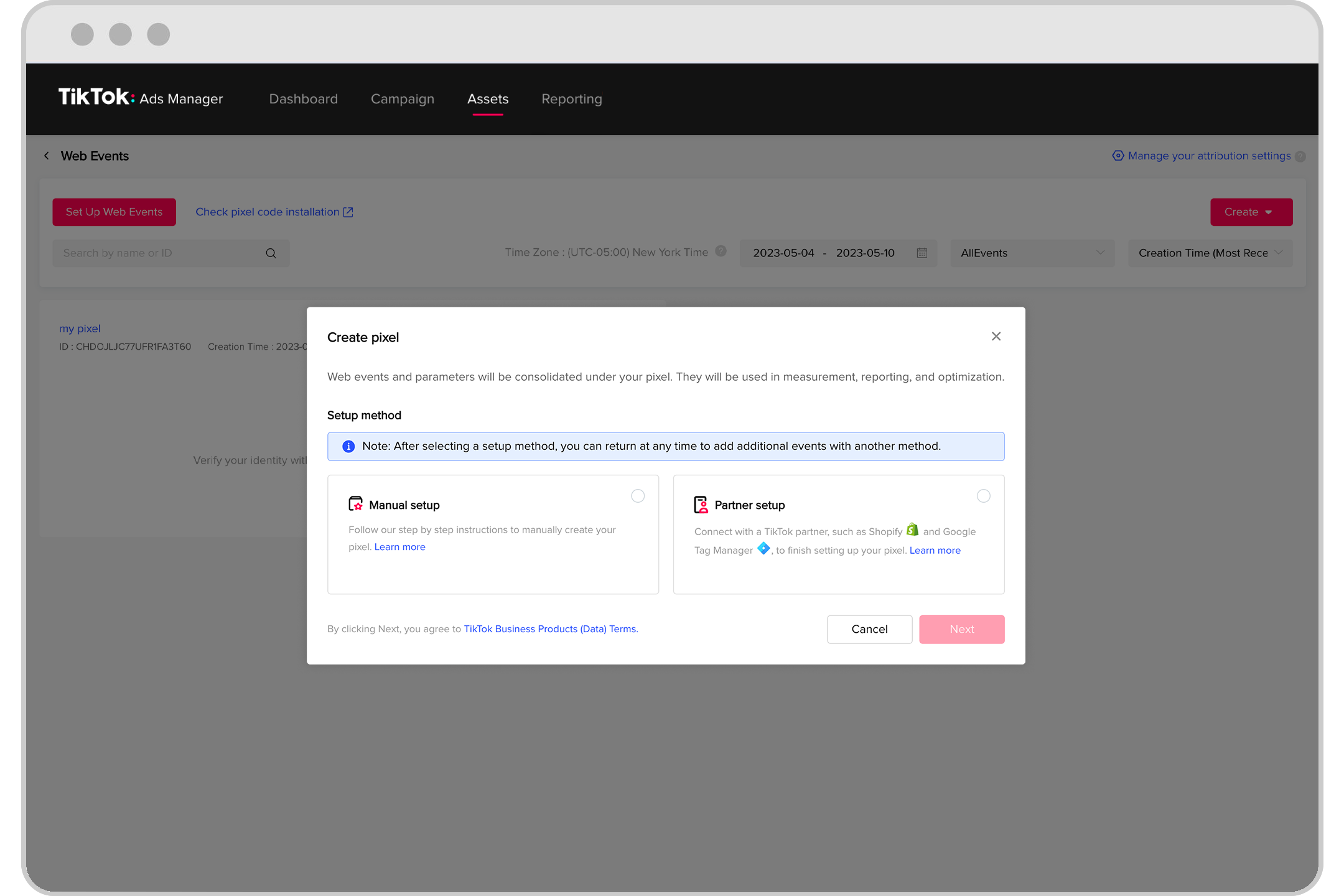
Click on "Create Pixel" to start the setup process. You'll be prompted to name your pixel and choose whether to install the pixel code manually. For more control over event rules, select "Developer Mode." This mode allows you to set up custom tracking rules and ensures accurate data collection.
3. Copy Your Pixel Code
After naming your pixel and selecting Developer Mode, click "Next" to proceed. You'll be provided with a unique Pixel Code. Make sure to copy this code accurately, as it will be used to track user interactions on your website.
4. Install the TikTok App on Shopify
If you're using Shopify for your e-commerce store, you'll need to install the TikTok app. Go to the Shopify App Store and search for the TikTok app. Install it and follow the prompts to connect your TikTok account to your Shopify store.
5. Connect Your Ad Account
Once the TikTok app is installed, connect your TikTok Ads account to your Shopify store. This connection enables the pixel to track user actions on your website.
6. Paste Your TikTok Pixel ID
Navigate to your Chip seller dashboard (or the relevant platform where you manage your TikTok ads). Go to "Campaign Details" and then "Conversion Tracking." Paste your TikTok pixel ID here to link your pixel to your ad campaigns.
7. Install TikTok Pixel Helper
To verify that your pixel is working correctly, install the TikTok Pixel Helper extension for Chrome. This tool allows you to check if events are firing correctly when users interact with your website.
Troubleshooting Common Issues
If you encounter issues with your TikTok Ads Pixel, consider the following troubleshooting steps:
- Confirm Pixel Installation: Use the TikTok Pixel Helper extension to check if events are firing correctly. Ensure the Pixel ID matches what is shown in your TikTok Ads Manager.
- Reinstall the TikTok App: If the integration fails, delete the TikTok app from your Shopify Admin and reinstall it from the Shopify App Store.
- Check Event Parameters: If you're using a theme like Dawn, ensure that the TikTok Pixel script includes the correct value parameters for events like Add to Cart or View Content.
- Update Theme and Clear Cache: Keep your Shopify theme updated and clear your browser cache to resolve any potential conflicts.
Optimizing Your TikTok Pixel for Success
Once your TikTok Ads Pixel is set up, you can begin optimizing your campaigns. Here are some tips to boost your success:
- Monitor Key Events: Focus on tracking critical events such as Add to Cart and Checkout to understand user behavior and improve your ad targeting.
- Adjust Campaigns Based on Data: Use the insights gained from your pixel to pivot and adjust your ad strategies for better performance.
- Test Different Themes: If you're using a customized theme, test your pixel with a fresh theme to rule out any theme-specific issues.
Conclusion
Setting up the TikTok Ads Pixel for e-commerce is a crucial step in maximizing the effectiveness of your digital marketing efforts. By accurately tracking user interactions and leveraging the insights gained, you can refine your ad strategies and achieve better ROI. Whether you're a seasoned marketer or just starting out, understanding and implementing the TikTok Ads Pixel will give you a competitive edge in the dynamic world of e-commerce.
[IMAGE: TikTok Ads Pixel Setup for E-Commerce]

Posting Komentar untuk "How to Set Up TikTok Ads Pixel for E-Commerce: A Complete Guide"
Posting Komentar