
How to Set Up a TikTok Ads Retargeting Campaign: Step-by-Step Guide
In today's digital landscape, where attention spans are short and competition is fierce, retargeting has become an essential tool for marketers. TikTok, with its massive user base and high engagement rates, offers a powerful platform to re-engage users who have shown interest in your brand. A well-executed TikTok ads retargeting campaign can significantly boost conversions, increase brand awareness, and drive sales. In this guide, we’ll walk you through the steps to set up a successful TikTok retargeting campaign.
Understanding TikTok Retargeting
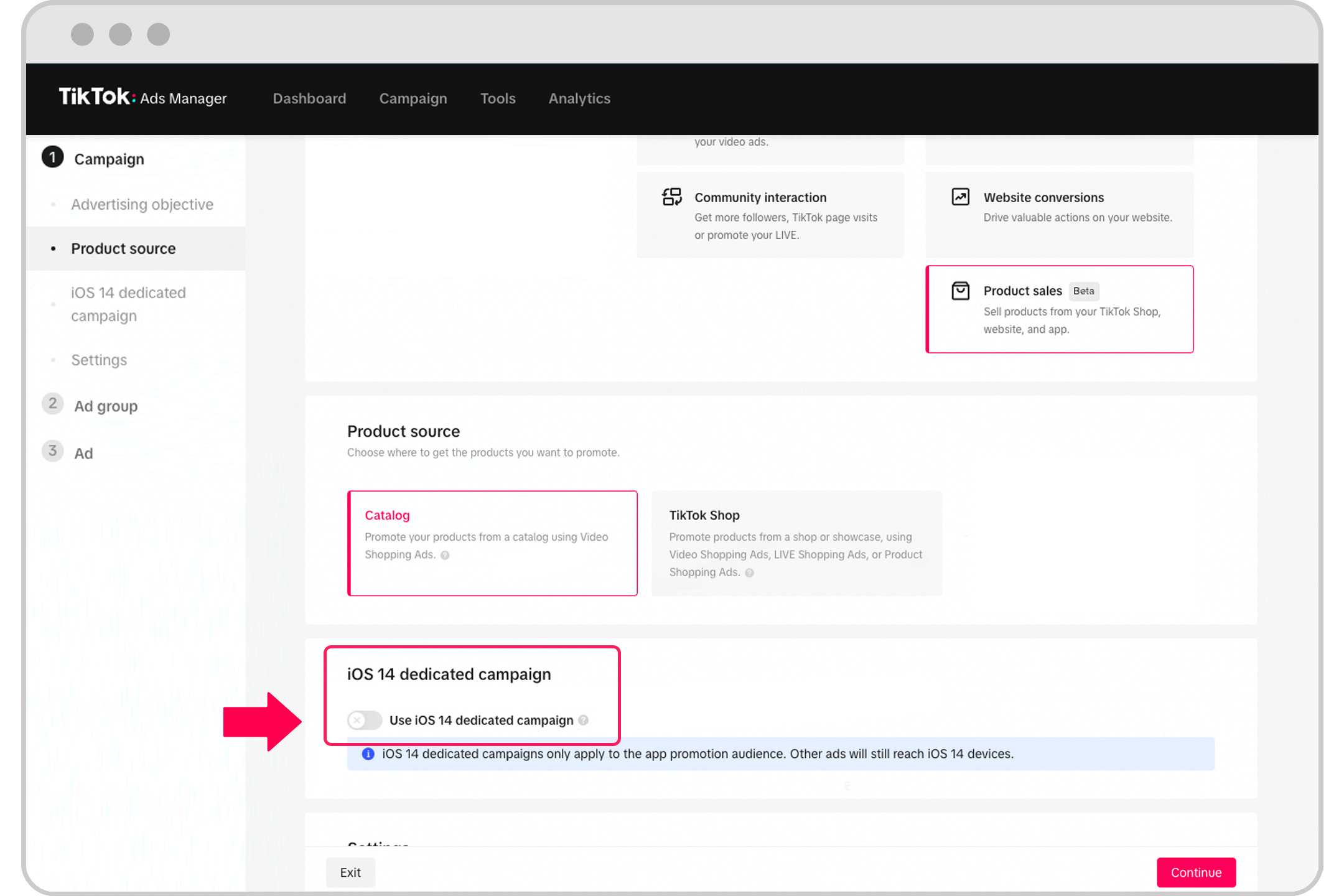
Before diving into the setup process, it’s important to understand what TikTok retargeting entails. Retargeting on TikTok involves showing ads to users who have previously interacted with your brand, such as visiting your website, engaging with your content, or downloading your app. This strategy helps keep your brand top of mind and encourages users to take further action.
TikTok provides several targeting options, including Custom Audiences, Lookalike Audiences, and Interest-Based Targeting. These tools allow you to reach users based on their behavior, preferences, and interactions with your brand.
Step 1: Set Up Your TikTok Business Account
To begin, ensure that you have a TikTok Business Account. This account gives you access to advanced advertising features, including retargeting capabilities. If you don’t already have one, you can create it by following these steps:
- Download the TikTok app and log in with your personal account.
- Tap on your profile icon and select "Switch to Pro Account."
- Choose the appropriate business category and complete the registration process.
Once your business account is set up, you can start creating campaigns.
Step 2: Install the TikTok Pixel

The TikTok Pixel is a tracking code that allows you to collect data about user interactions on your website. This data is crucial for building custom audiences and retargeting users who have visited your site.
To install the TikTok Pixel:
- Go to the TikTok Ads Manager and navigate to the "Pixels" section.
- Click "Create Pixel" and follow the instructions to generate the tracking code.
- Paste the code into the header of your website using a plugin or by editing your HTML directly.
Once the pixel is installed, TikTok will start tracking user activity, such as page views, button clicks, and form submissions.
Step 3: Create Custom Audiences
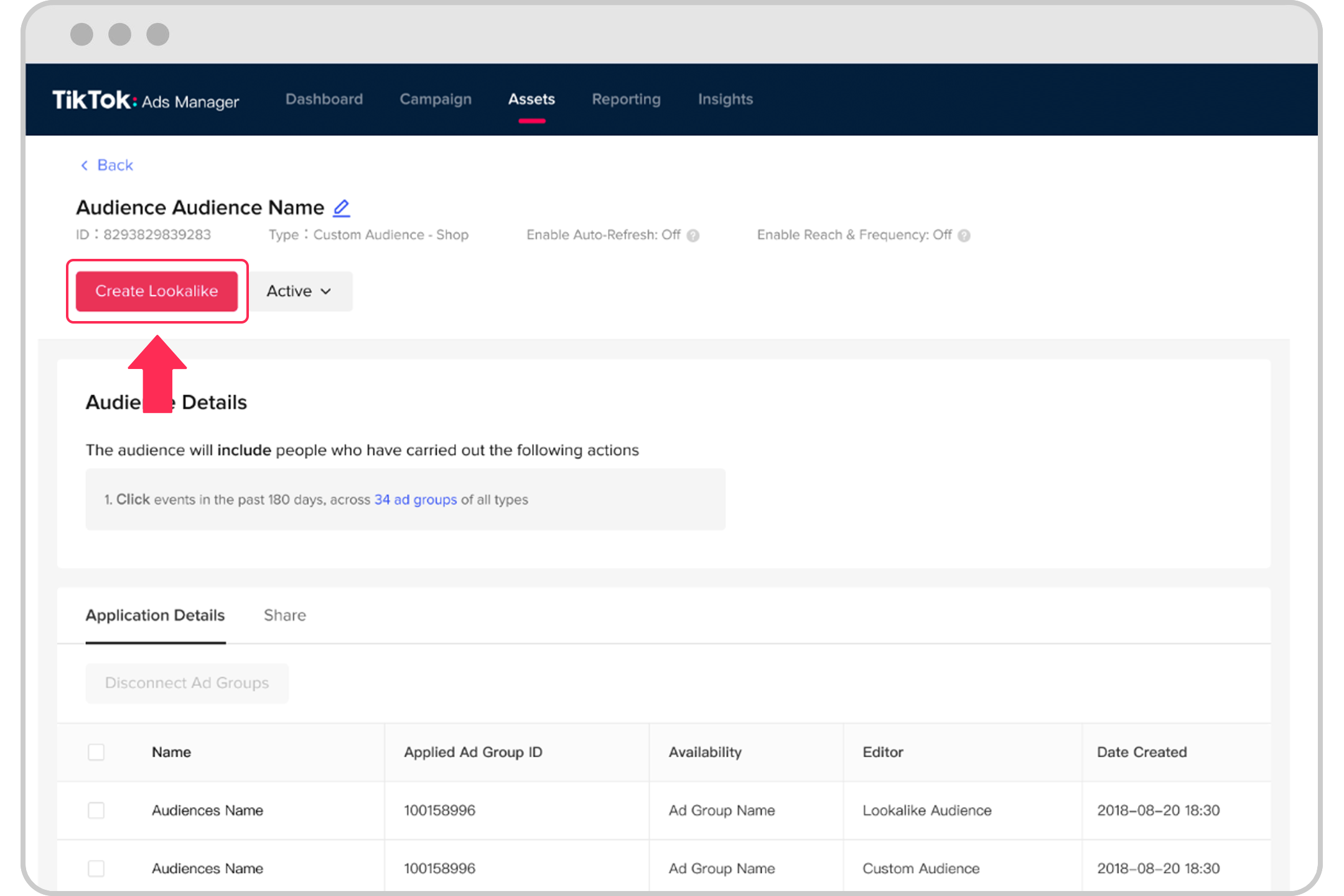
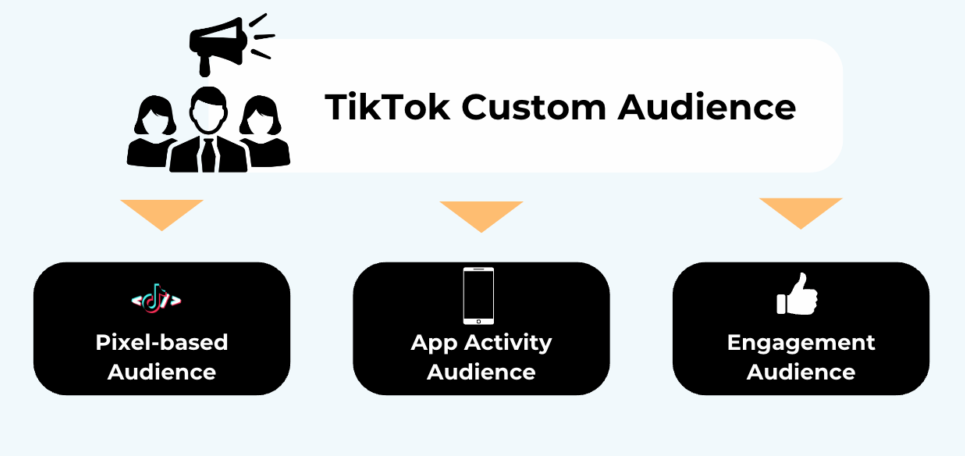
With the TikTok Pixel installed, you can now create Custom Audiences based on user behavior on your website. Custom Audiences allow you to target users who have taken specific actions, such as visiting a product page, adding items to their cart, or completing a purchase.
To create a Custom Audience:
- In the TikTok Ads Manager, go to the "Audiences" section.
- Click "Create Audience" and select "Custom Audience."
- Choose the type of audience you want to create, such as "Website Traffic" or "App Activity."
- Define your audience based on specific actions or time frames.
- Save your audience and use it in your retargeting campaigns.
Step 4: Set Up Retargeting Campaigns
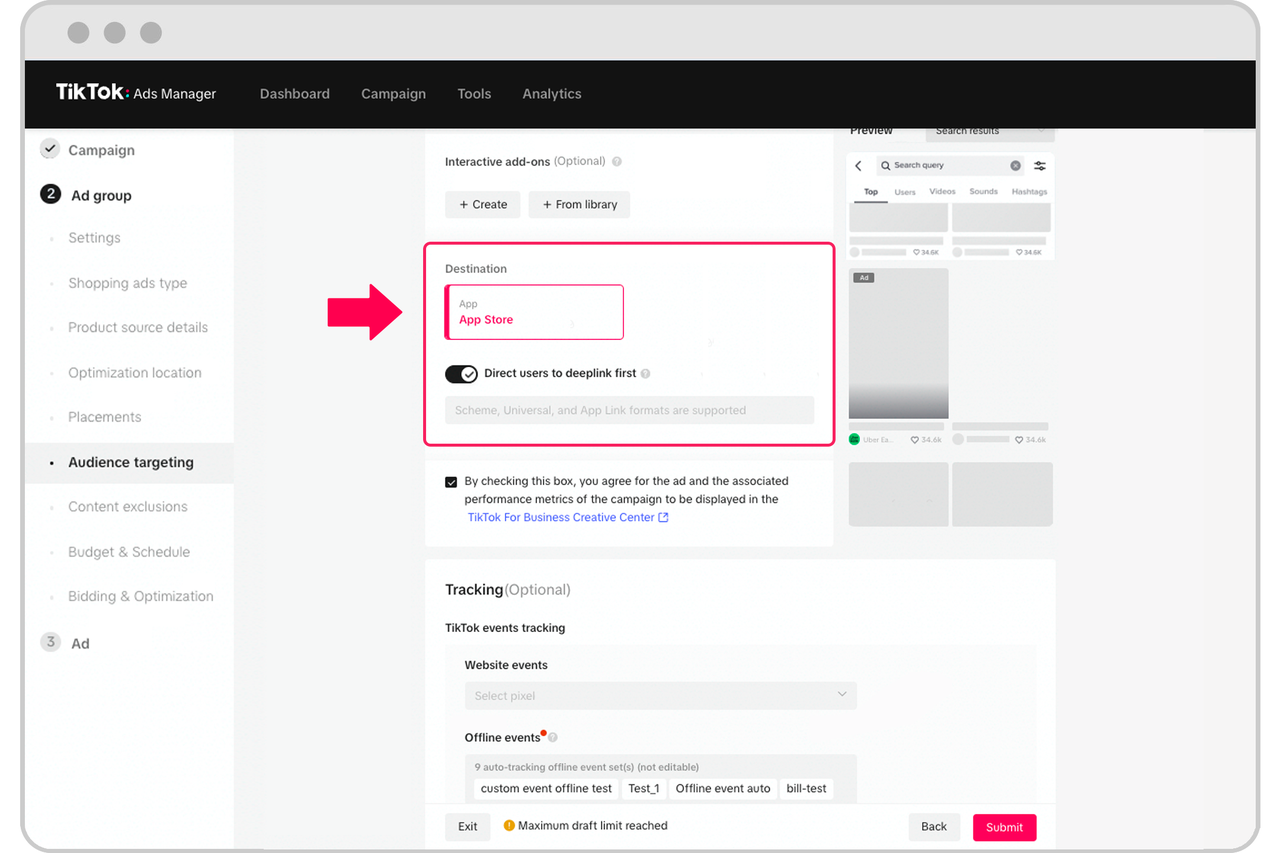
Now that you have your Custom Audiences ready, it's time to set up your retargeting campaigns. TikTok offers several campaign objectives, including Conversions, App Installs, and Brand Awareness. Choose the objective that aligns with your marketing goals.
To create a retargeting campaign:
- In the TikTok Ads Manager, click "Create Campaign."
- Select your campaign objective (e.g., Conversions).
- Choose the ad group level and select the Custom Audience you created.
- Define your targeting criteria, such as age, gender, location, and interests.
- Set your budget and schedule for the campaign.
- Upload your ad creative, including video, images, and text.
Step 5: Optimize Your Campaigns
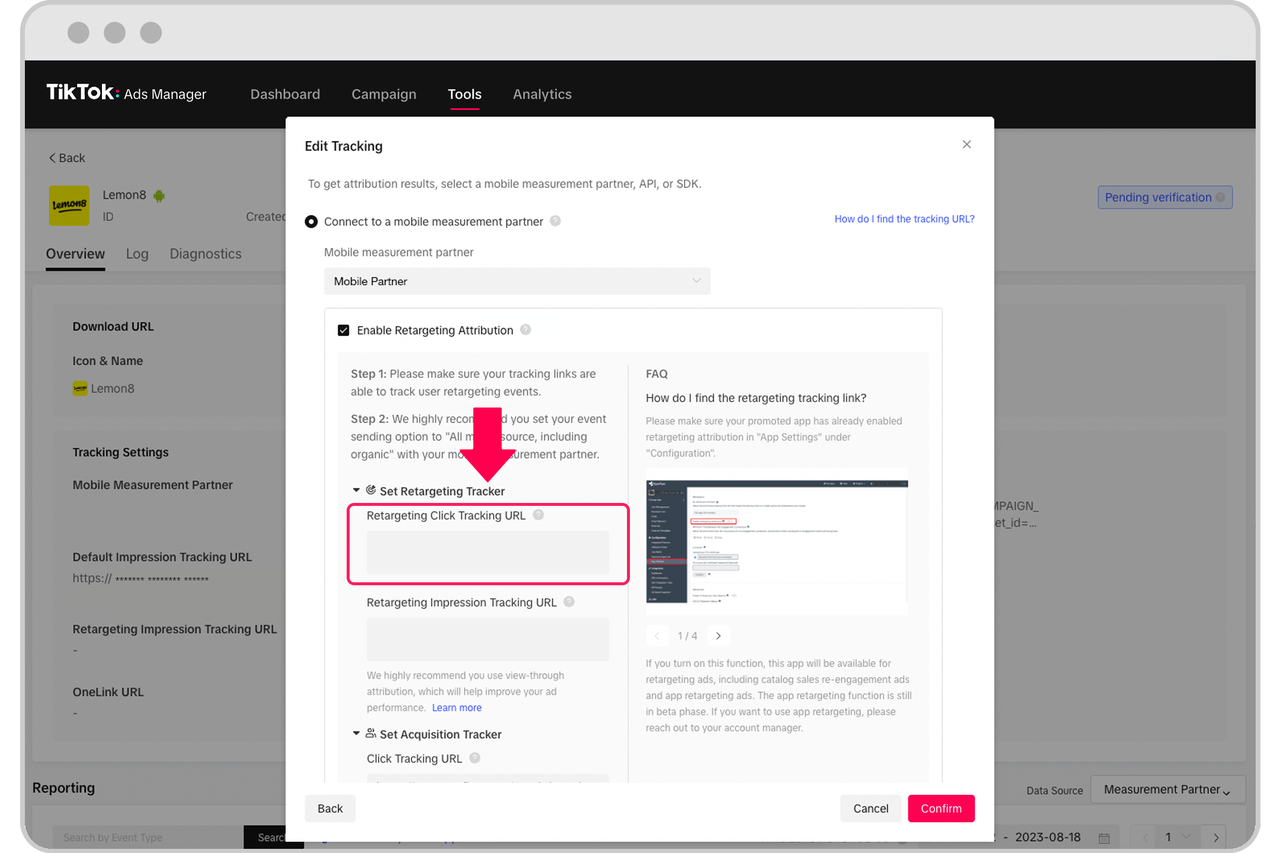
After launching your retargeting campaign, it's essential to monitor its performance and make adjustments as needed. TikTok provides detailed analytics that allow you to track metrics such as click-through rate (CTR), conversion rate, and cost per conversion.
To optimize your campaign:
- A/B Test Ad Creatives: Experiment with different ad formats, headlines, and calls-to-action to see what resonates best with your audience.
- Adjust Targeting: Refine your audience segments based on performance data to improve relevance and engagement.
- Monitor Frequency Caps: Avoid overwhelming users by setting limits on how often they see your ads.
- Use Lookalike Audiences: Expand your reach by targeting users who share similar characteristics with your existing customers.
Step 6: Leverage Lookalike Audiences
In addition to retargeting existing users, TikTok allows you to create Lookalike Audiences to reach new users who are likely to be interested in your brand. A Lookalike Audience is generated by analyzing the characteristics of your existing customers and finding users with similar traits.
To create a Lookalike Audience:
- In the TikTok Ads Manager, go to the "Audiences" section.
- Click "Create Audience" and select "Lookalike Audience."
- Choose your source audience (e.g., a Custom Audience of your most engaged users).
- Select the size of your Lookalike Audience (smaller = more similar, larger = broader reach).
- Save your audience and use it in your campaigns.
Conclusion
Setting up a TikTok ads retargeting campaign requires careful planning, execution, and optimization. By following the steps outlined above, you can effectively re-engage users who have shown interest in your brand and drive meaningful results. Remember to continuously monitor your campaigns, test different strategies, and leverage TikTok's advanced targeting options to maximize your return on investment.
Whether you're a small business owner or a seasoned marketer, TikTok retargeting offers a powerful way to connect with your audience and grow your brand in the ever-evolving digital landscape. Start today and watch your conversions soar.

Posting Komentar untuk "How to Set Up a TikTok Ads Retargeting Campaign: Step-by-Step Guide"
Posting Komentar