
How to Set Up TikTok Pixel Conversion Tracking for Your Business
In today’s digital landscape, social media platforms have become essential tools for businesses to reach their target audience. Among these, TikTok has emerged as a powerful advertising channel, especially in the United States. With its massive user base and high engagement rates, TikTok offers brands a unique opportunity to connect with younger demographics and drive conversions. However, to make the most of this platform, it's crucial to implement effective conversion tracking strategies.
One of the most reliable methods for tracking conversions on TikTok is through the TikTok Pixel. This tool allows you to monitor user interactions on your website, such as form submissions, purchases, and page views, which are critical for optimizing your ad campaigns. In this article, we’ll walk you through the process of setting up TikTok Pixel conversion tracking, ensuring that your business can measure and improve the performance of its TikTok ads.
Why Use TikTok Pixel for Conversion Tracking?
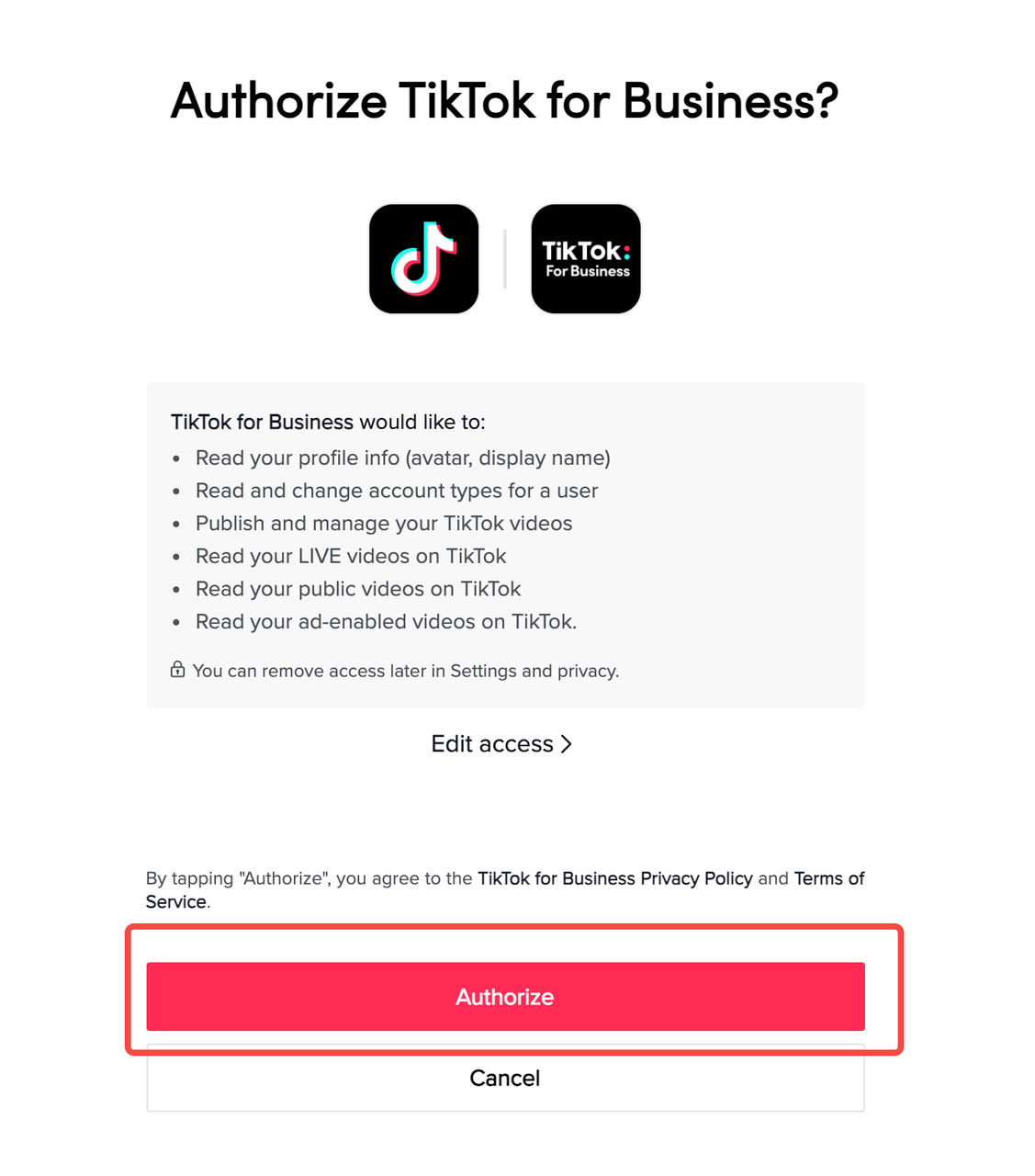
Before diving into the setup, it's important to understand why the TikTok Pixel is a valuable tool for businesses:
- Accurate Conversion Data: The pixel tracks user actions on your website, helping you understand how users interact with your content and what leads to conversions.
- Improved Ad Targeting: By collecting data on user behavior, you can create more targeted ad campaigns that resonate with your audience.
- Better ROI Measurement: With conversion tracking, you can determine which ads are driving the most value and adjust your budget accordingly.
- Cross-Platform Insights: The TikTok Pixel integrates with other marketing tools, providing a comprehensive view of your customer journey across different channels.
Step-by-Step Guide to Setting Up TikTok Pixel Conversion Tracking
1. Create a TikTok Business Account
To begin, you'll need a TikTok Business Account. If you don’t already have one, you can sign up at business.tiktok.com. This account will give you access to TikTok Ads Manager, where you can manage your pixel and track conversions.
2. Access TikTok Ads Manager
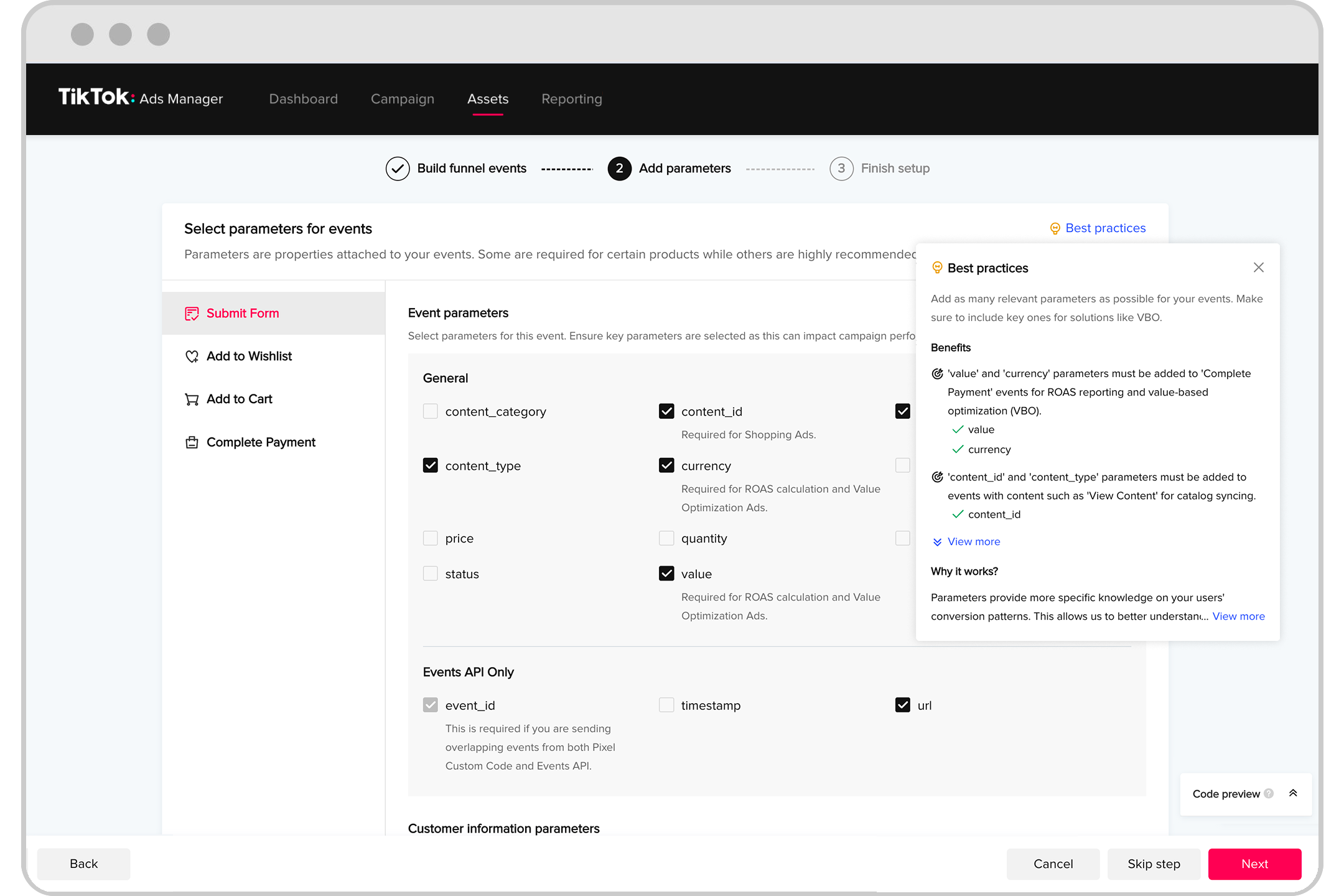
Once your business account is set up, log in to TikTok Ads Manager. From the dashboard, navigate to the "Assets" section, then click on "Events" and select "Web Events". This is where you'll create and manage your TikTok Pixel.
3. Set Up the TikTok Pixel
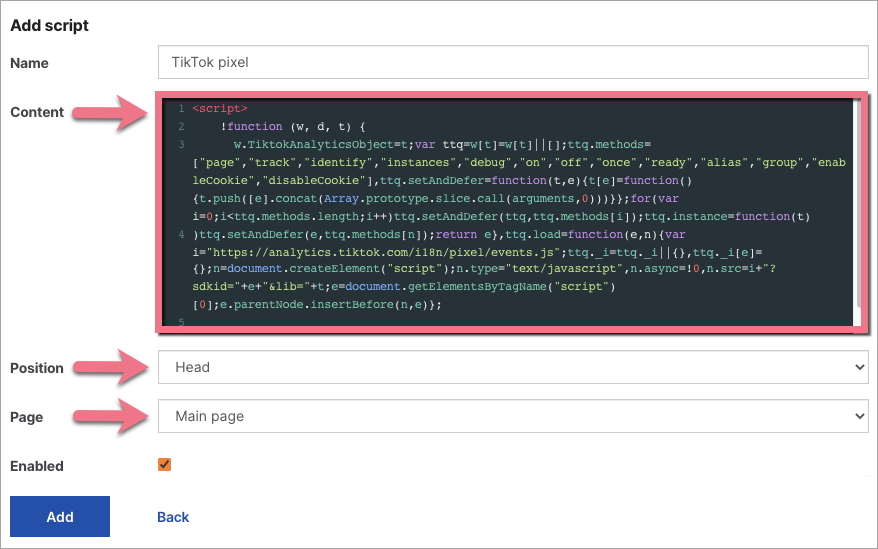
Click on "Manage" and then "Set Up Web Events". You’ll be prompted to enter a name for your pixel and choose the type of tracking you want to use. For maximum accuracy, select "Manually Install Pixel Code".
You’ll then receive a script similar to the following:
<script>
!function(w,d,t){w.TiktokAnalyticsObject=t;var ttq=w[t]=w[t]||[];ttq.methods=["page","track","identify","instances","debug","on","off","once","ready","alias","group","enableCookie","disableCookie"],ttq.setAndDefer=function(t,e){t[e]=function(){t.push([e].concat(Array.prototype.slice.call(arguments,0)))}};for(var i=0;i<ttq.methods.length;i++)ttq.setAndDefer(ttq,ttq.methods[i]);ttq.instance=function(t){for(var e=ttq._i[t]||[],n=0;n<ttq.methods.length;n++)ttq.setAndDefer(e,ttq.methods[n]);return e},ttq.load=function(e,n){var i="https://analytics.tiktok.com/i18n/pixel/events.js";ttq._i=ttq._i||{},ttq._i[e]=[],ttq._i[e]._u=i,ttq._t=ttq._t||{},ttq._t[e]=+new Date,ttq._o=ttq._o||{},ttq._o[e]=n||{};var o=document.createElement("script");o.type="text/javascript",o.async=!0,o.src=i+"?sdkid="+e+"&lib="+t;var a=document.getElementsByTagName("script")[0];a.parentNode.insertBefore(o,a)}; ttq.load('16372837AHDJDTAYDJ181'); ttq.page(); }(window, document, 'ttq');
</script>
4. Install the Pixel on Your Website
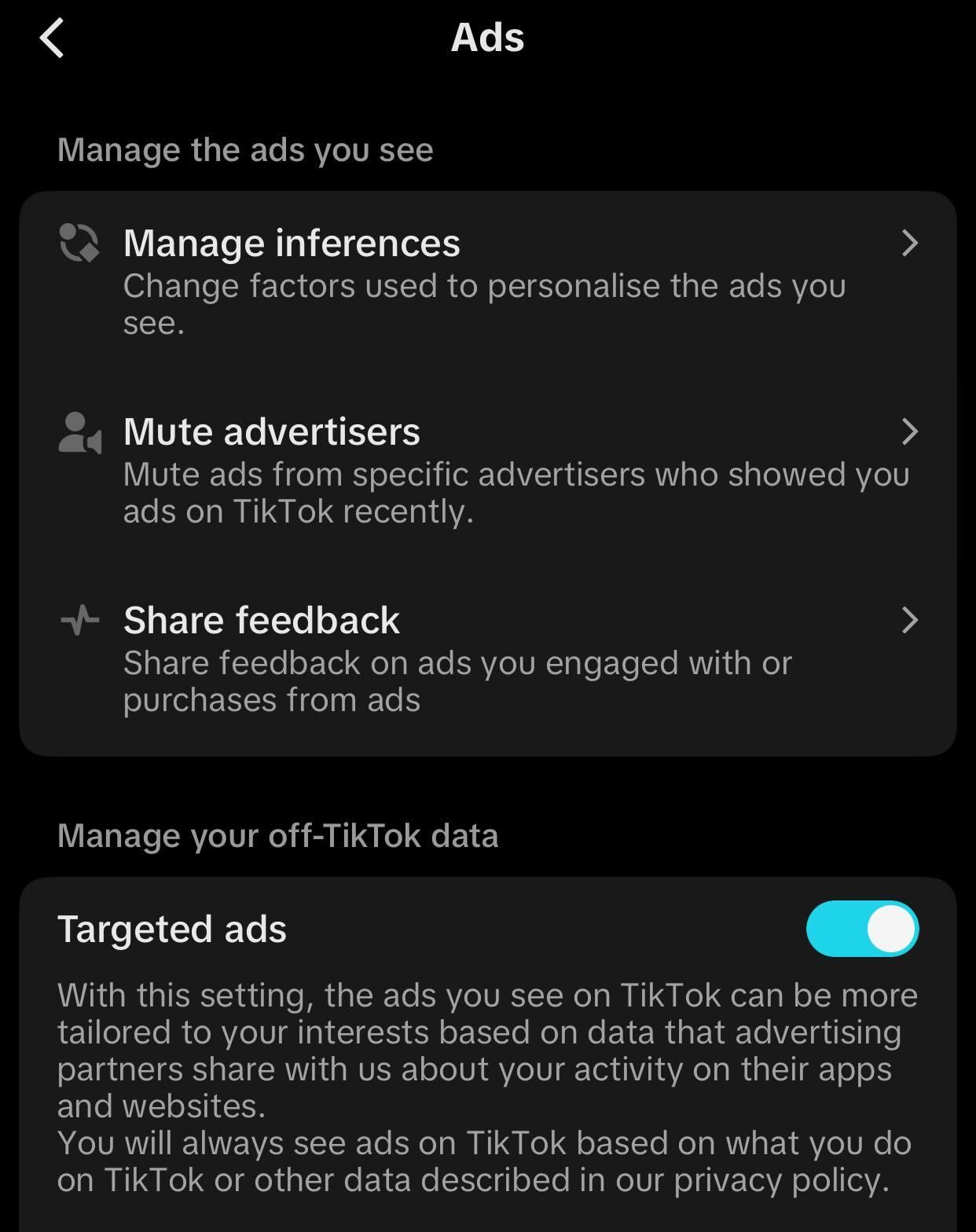
Next, you’ll need to install the pixel code on your website. You can do this by either:
- Adding the code directly to your website’s HTML, or
- Using a tag management system like Google Tag Manager (GTM).
Make sure the pixel is placed in the <head> section of every page you want to track. This ensures that all user activity is captured correctly.
5. Enable Advanced Matching
To enhance the accuracy of your tracking, enable Advanced Matching. This feature allows TikTok to match user data from your website with user profiles on the platform, improving ad targeting and conversion attribution.
You can enable advanced matching by going to "Settings" in the TikTok Ads Manager and toggling on "Allow First-Party Cookies" and "Automatic Advanced Matching".
6. Track Standard Events

TikTok supports several standard events that you can track using the pixel. These include:
- ViewContent: When a user views a specific page on your site.
- AddToCart: When a user adds an item to their cart.
- CompleteRegistration: When a user completes a registration form.
- Purchase: When a user makes a purchase.
To track these events, use the ttq.track() method in your code:
ttq.track('CompleteRegistration');
ttq.track('Purchase', { content_type: 'product', content_id: '123' });
7. Verify the Installation

After installing the pixel, verify that it’s working correctly. You can use the TikTok Pixel Helper browser extension to check if the pixel is firing on your website. This tool provides real-time feedback on event tracking and helps identify any issues.
Best Practices for Effective TikTok Pixel Tracking

To ensure your TikTok Pixel works optimally, follow these best practices:
- Use Both Client-Side and Server-Side Tracking: Implementing both the TikTok Pixel and the Events API ensures that even users with ad blockers or privacy settings enabled are tracked accurately.
- Track Key Conversions: Focus on tracking events that directly impact your business, such as form submissions, purchases, and sign-ups.
- Regularly Monitor Performance: Use TikTok Ads Manager to review conversion data and adjust your ad strategy accordingly.
- Enable Retargeting: Use the data collected by the pixel to create retargeting campaigns that re-engage users who visited your site but didn’t convert.
Conclusion

Setting up TikTok Pixel conversion tracking is a critical step for any business looking to leverage TikTok’s advertising capabilities. By accurately measuring user interactions and conversions, you can refine your ad campaigns, improve targeting, and ultimately boost your return on investment.
Whether you're a small business owner or a digital marketer, implementing the TikTok Pixel is a smart move that can help you stay ahead in the competitive world of social media advertising. With the right setup and optimization, your TikTok ads can drive meaningful results and grow your brand.

Posting Komentar untuk "How to Set Up TikTok Pixel Conversion Tracking for Your Business"
Posting Komentar