
How to Set Up the TikTok Pixel for Advanced Tracking and Conversion Optimization
In the ever-evolving digital advertising landscape, TikTok has emerged as a powerful platform for businesses in the United States. With its massive user base and engaging content, TikTok offers unique opportunities for brands to reach their target audiences effectively. One of the critical tools for maximizing the effectiveness of TikTok ads is the TikTok Pixel. This article will guide you through the advanced setup of the TikTok Pixel, ensuring accurate tracking and conversion optimization.
Understanding the TikTok Pixel

The TikTok Pixel is a tracking code that allows you to measure the effectiveness of your TikTok ads by tracking user interactions on your website. It helps you understand how users engage with your content and convert into customers. The pixel works by collecting data from users who interact with your ads, enabling you to create custom audiences and retarget them effectively.
Key Features of the TikTok Pixel
- Event Tracking: Track specific actions such as page views, button clicks, form submissions, and purchases.
- Advanced Matching: Enhance your targeting by matching user data with TikTok's database using email and phone numbers.
- Conversion Optimization: Improve ad performance by analyzing user behavior and optimizing your campaigns accordingly.
Setting Up the TikTok Pixel
Setting up the TikTok Pixel involves several steps, starting with installing the pixel code on your website. Here's a detailed guide:
Step 1: Access Your TikTok Ads Manager
Log in to your TikTok Ads Manager account at ads.tiktok.com. Navigate to the Assets section and select Events. From there, click on Web Events and choose Manage.
Step 2: Create a New Pixel
Click on Set Up Web Events and then Create a New Pixel. Enter your website’s name as the Pixel Name and select TikTok Pixel from the options provided. Choose Manually Install Pixel Code to proceed.
Step 3: Install the Pixel Code
Copy the generated pixel code and install it on your website. You can either add it directly to your site's codebase or use a tag management system like Google Tag Manager (GTM) or Segment.com.
Step 4: Enable Advanced Settings
Ensure that the Allow first-party cookie option is enabled. Also, activate the Automatic advanced matching feature and check both Phone Number and Email options to enhance your tracking capabilities.
Tracking Standard Events
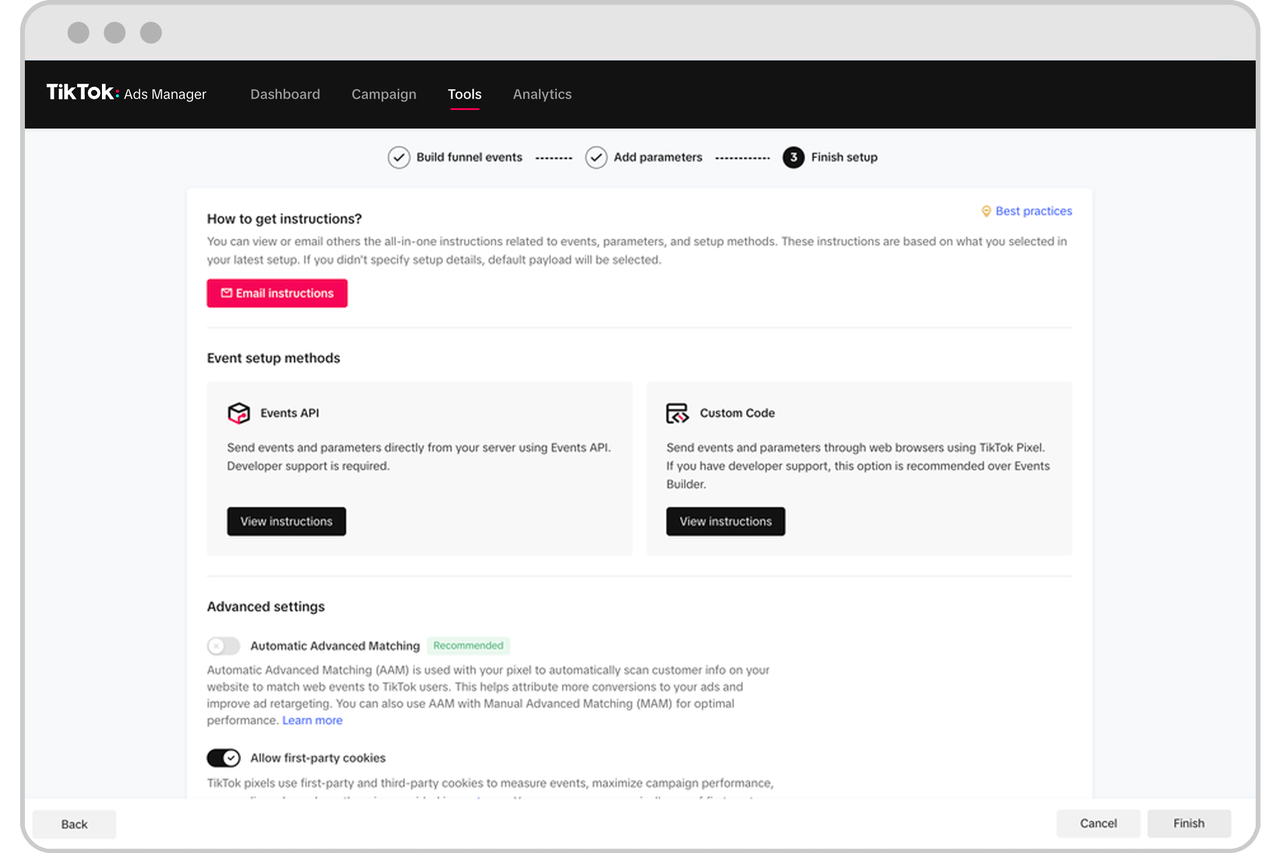
Once the TikTok Pixel is installed, you can start tracking standard events to monitor user interactions on your website. These events include:
- ViewContent: Track when a user views a specific page on your site.
- ClickButton: Monitor clicks on buttons throughout your website.
- Search: Record when a user enters a search query.
- AddToWishlist: Track when a user adds an item to their wishlist.
- AddToCart: Identify when a user adds a product to their cart.
- InitiateCheckout: Capture the initial step in the checkout process.
- AddPaymentInfo: Track when payment information is entered.
- CompletePayment: Record when payment is successfully processed.
- PlaceAnOrder: Monitor completed purchases.
- Contact: Track when a user initiates contact with your business.
- Download: Record file downloads, especially useful for B2B sites.
- SubmitForm: Monitor form submissions.
- CompleteRegistration: Track when a user completes a registration process.
- Subscribe: Record newsletter subscriptions.
To track any of these events, use the ttq.track() method in your code. For example:
ttq.track('CompleteRegistration');
Advanced Matching
Advanced matching enhances the accuracy of your tracking by allowing TikTok to match user data with your customer database. This feature is crucial for creating custom audiences and improving ad targeting.
Manual and Automatic Advanced Matching
TikTok recommends using both manual and automatic advanced matching. To implement manual advanced matching, use the ttq.identify() method to pass in a user's phone number and email address when they are collected. Ensure the phone number is in international format to avoid tracking errors.
For server-side tracking, use the Events API to send encrypted user data. This approach ensures that even users with ad blockers or privacy settings enabled can be tracked effectively.
Server-Side Events API Tracking
The TikTok Events API allows you to track customer activity on your website using server-side code. This method provides more reliable tracking, as it is not affected by ad blockers or privacy settings.
A typical JSON payload for the Events API includes: - pixel_code: Your TikTok Pixel ID. - event_id: A unique identifier for each event. - timestamp: The time the event occurred. - event: The type of event being tracked. - context: Additional details about the event, including user data. - properties: Custom properties related to the event.
By integrating the Events API with the TikTok Pixel, you can ensure that all user interactions are accurately tracked and attributed, providing a comprehensive view of your campaign performance.
Conclusion
Setting up the TikTok Pixel for advanced tracking and conversion optimization is essential for any business looking to maximize the effectiveness of their TikTok advertising efforts. By following the steps outlined in this article, you can ensure accurate data collection, improve ad targeting, and ultimately drive better results for your business.
Whether you're a small business owner or a digital marketer, leveraging the power of the TikTok Pixel can significantly enhance your online presence and help you achieve your marketing goals. If you need assistance with your TikTok advertising strategy, consider reaching out to a certified web analytics expert to ensure a seamless implementation.

Posting Komentar untuk "How to Set Up the TikTok Pixel for Advanced Tracking and Conversion Optimization"
Posting Komentar