
How to Use TikTok Ads Manager: A Complete Tutorial for Beginners
TikTok has evolved from a platform for short-form videos into a powerful tool for businesses. With over 2 billion monthly active users, it's no surprise that brands are leveraging TikTok Ads Manager to reach their target audience effectively. If you're new to TikTok advertising, this comprehensive tutorial will guide you through the process of setting up and managing your first TikTok ad campaign.
Understanding TikTok Ads Manager
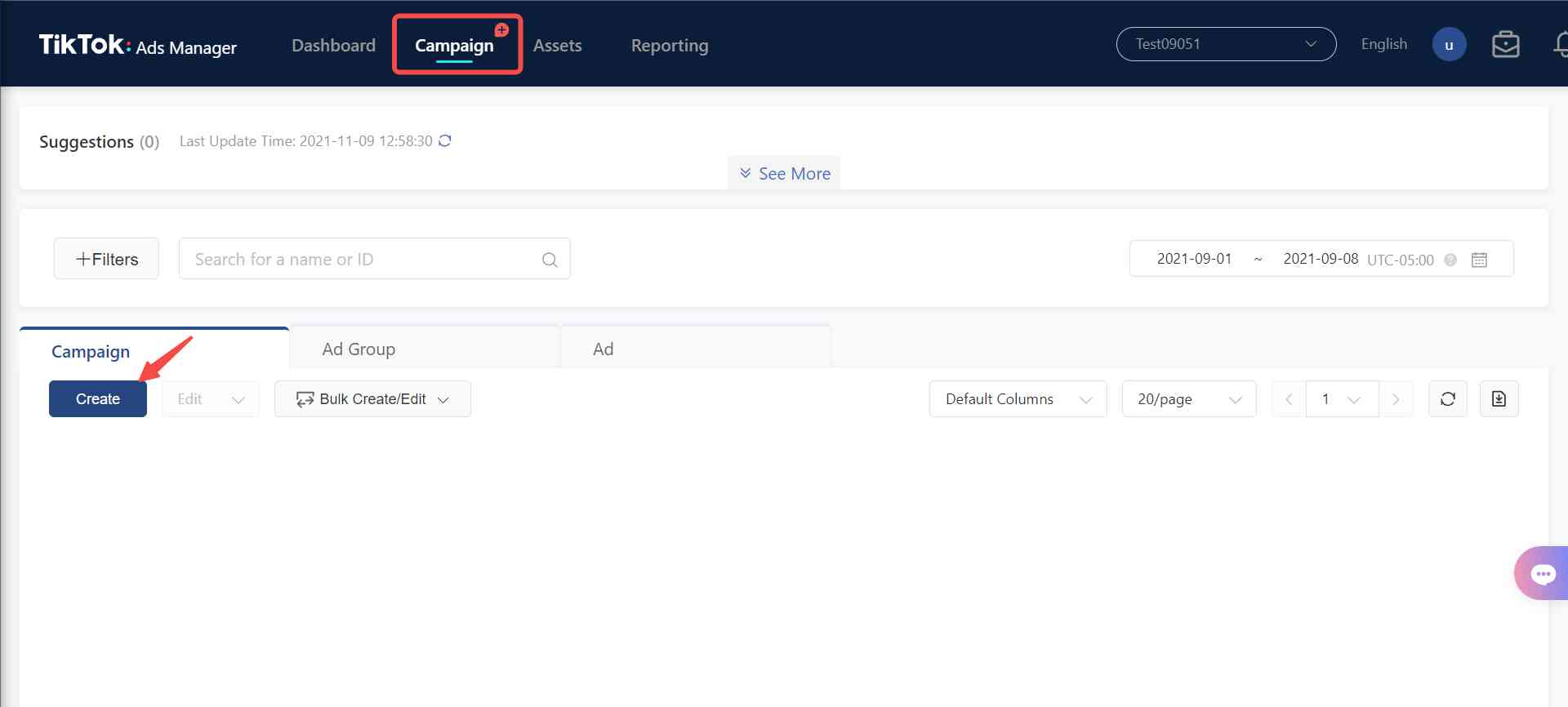
Before diving into the setup process, it's essential to understand what TikTok Ads Manager is and how it works. The Ads Manager is a web-based platform where advertisers can create, manage, and track their TikTok ad campaigns. It offers a range of tools and features to help you optimize your ads for maximum performance.
Key Features of TikTok Ads Manager
- Campaign Creation: You can create different types of campaigns based on your marketing goals.
- Ad Group Management: Organize your ads into groups to target specific audiences or objectives.
- Audience Targeting: Choose demographics, interests, behaviors, and more to reach the right people.
- Budget Control: Set daily or total budgets and adjust them as needed.
- Performance Analytics: Track metrics like clicks, views, conversions, and more to measure your campaign's success.
Step-by-Step Guide to Using TikTok Ads Manager

Step 1: Create a Business Account
To access TikTok Ads Manager, you need a business account. Here’s how to switch to one:
- Open the TikTok app and go to your profile.
- Tap the three dots (Settings) and select "Manage Account."
- Choose "Switch to Business Account" and follow the prompts.
This step is crucial because only business accounts have access to the Ads Manager.
Step 2: Integrate with Shopify (Optional)
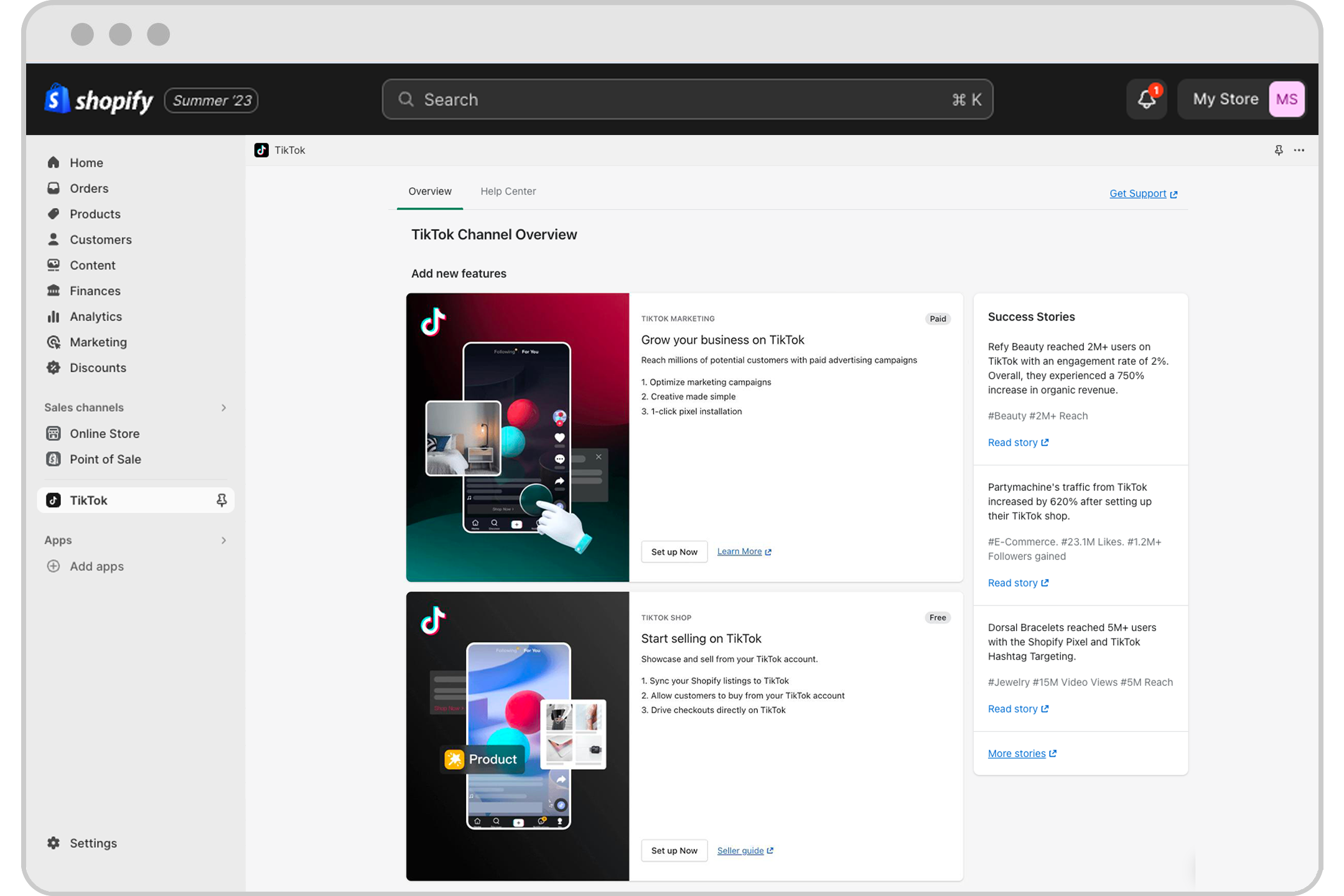
If you run an online store, integrating TikTok with Shopify can streamline your ad creation process. Here’s how to do it:
- Go to the TikTok Ads Manager website.
- Connect your Shopify account by following the on-screen instructions.
- Once connected, you can automatically sync your product catalog with TikTok.
Step 3: Access TikTok Ads Manager
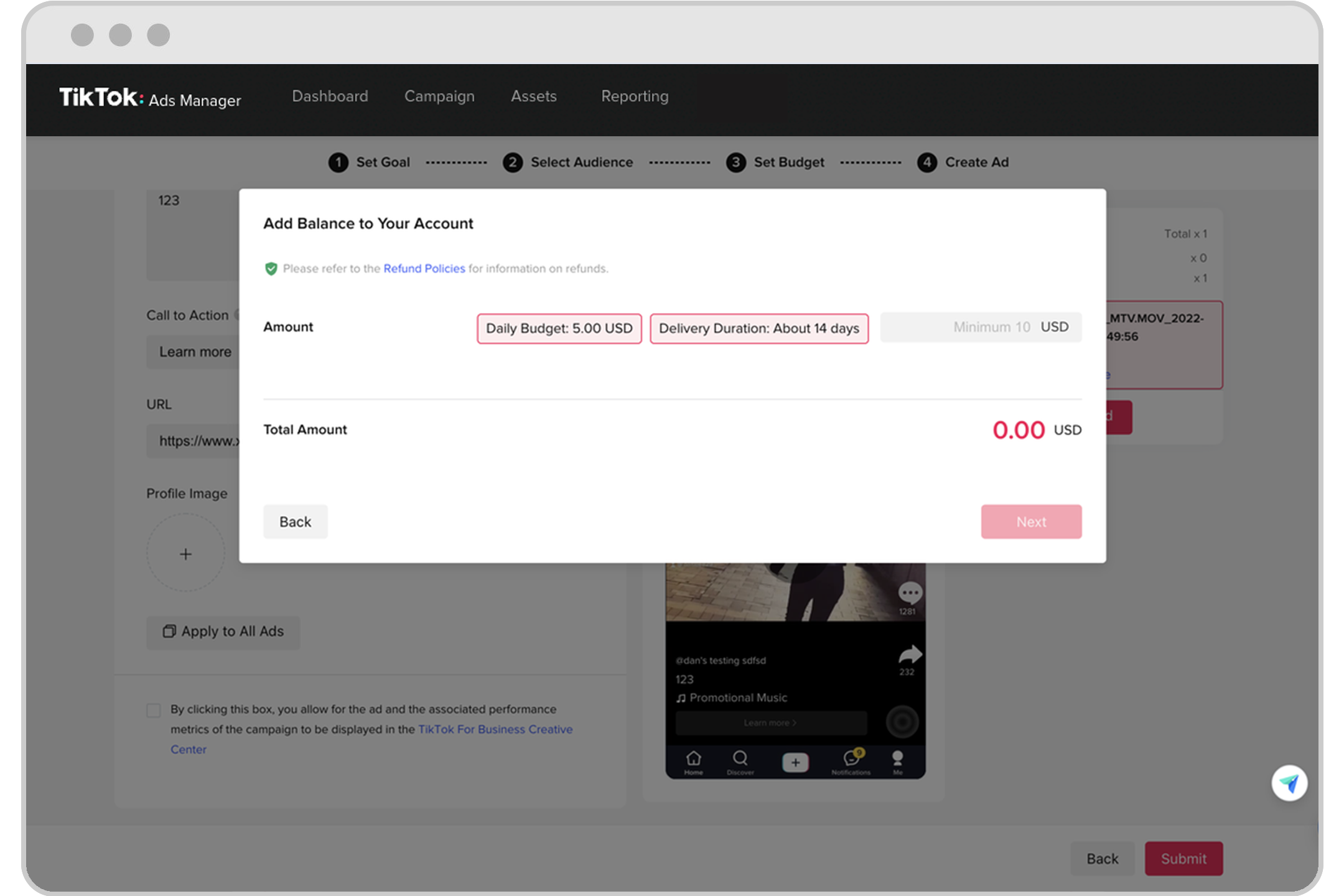
Once you have a business account, you can access the Ads Manager:
- Go to ads.tiktok.com.
- Log in using your TikTok credentials.
This is where you'll create and manage all your ad campaigns.
Step 4: Set Your Advertising Goal
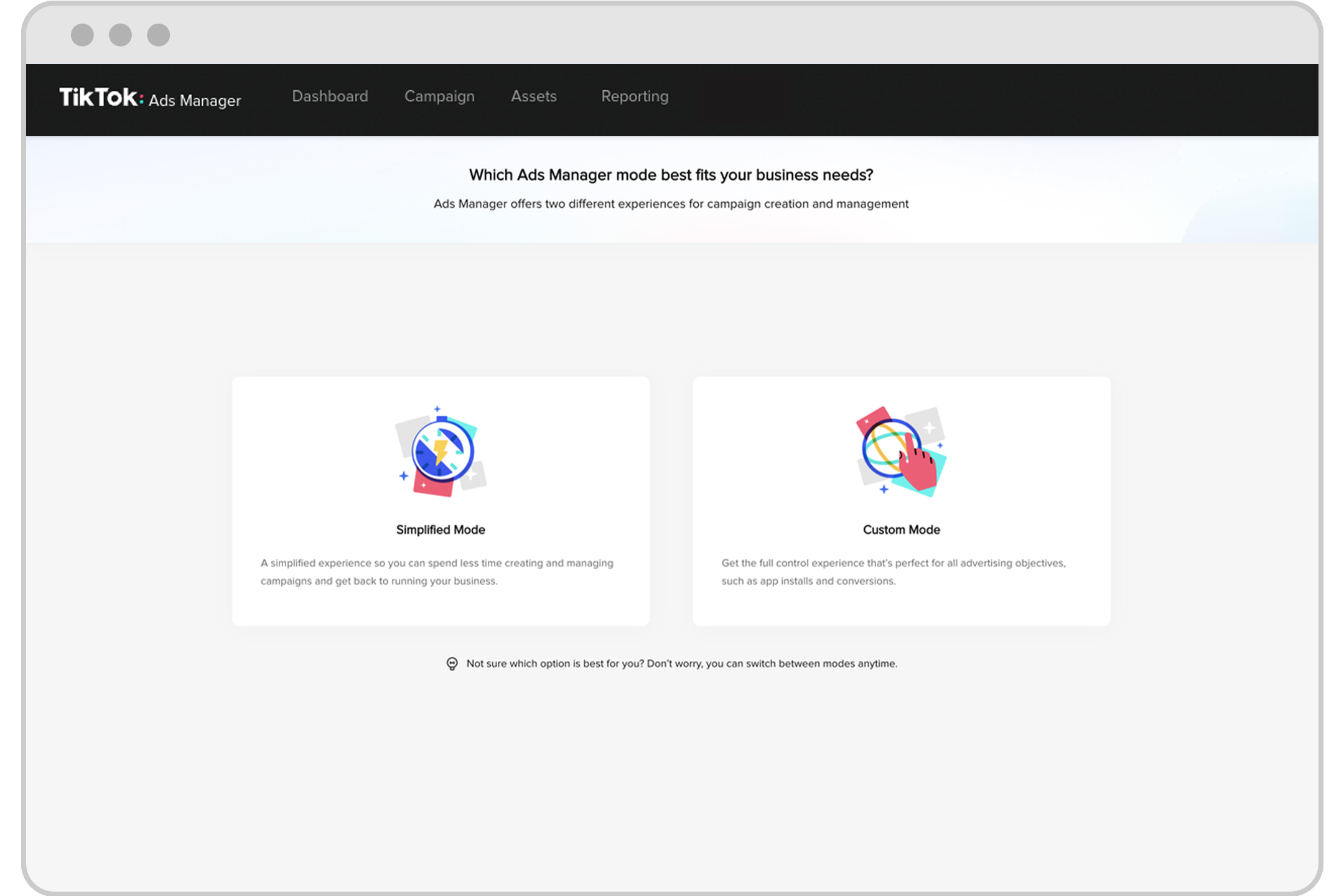
When you first log in, you’ll be asked to choose your advertising goal. TikTok offers several options, including:
- Traffic: Drive visitors to your website.
- Community Interaction: Increase engagement with your audience.
- Lead Generation: Collect contact information from potential customers.
- Website Conversions: Encourage actions like purchases or sign-ups.
Choose the goal that aligns with your business objectives.
Step 5: Select Your Audience
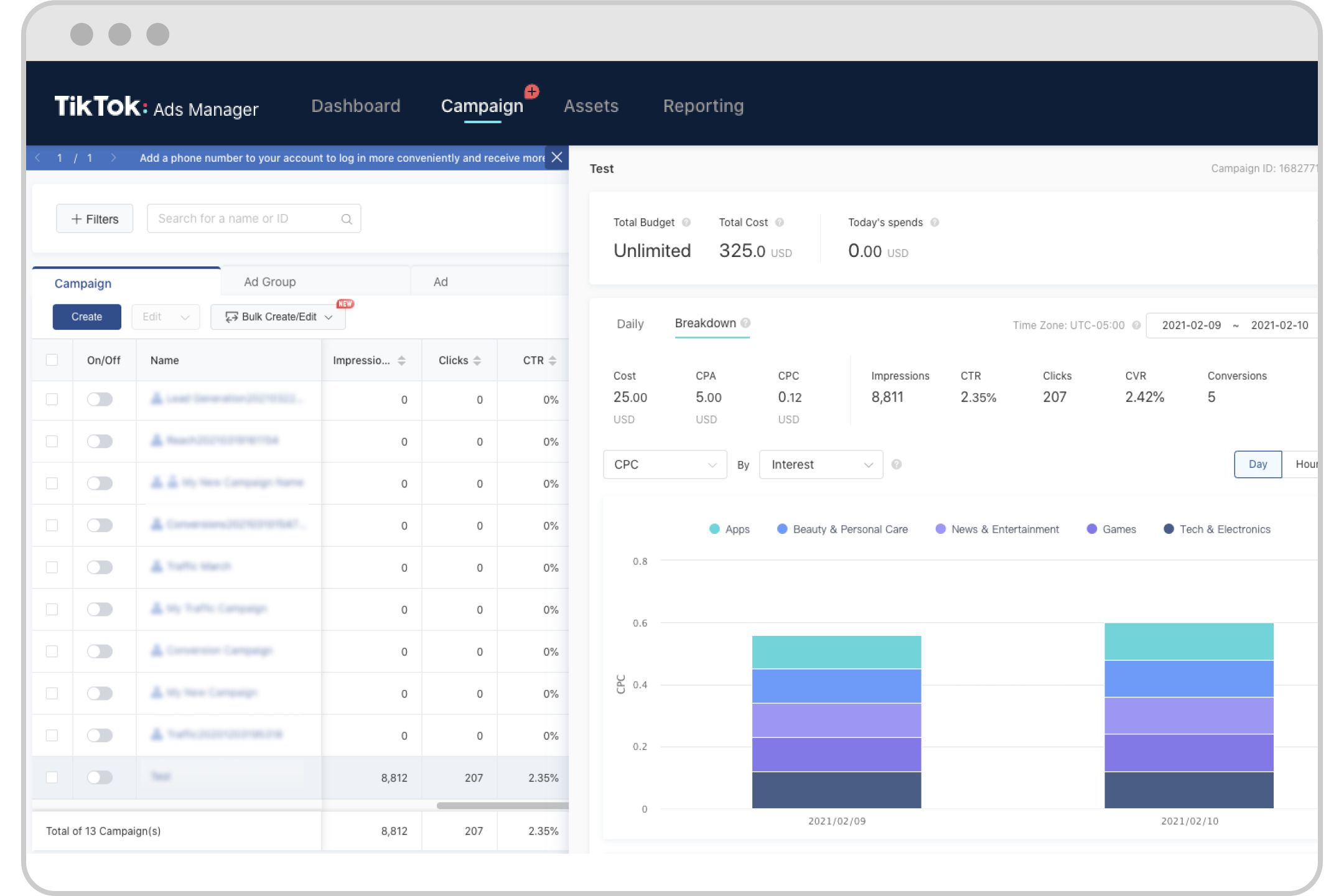
TikTok allows you to target specific audiences based on various criteria. You can either let TikTok handle the targeting or set it up manually:
- Automatic Audience: Let TikTok choose the best audience for you.
- Custom Audience: Define your target based on age, gender, location, interests, and more.
You can also use TikTok’s AI to refine your targeting further.
Step 6: Set Your Budget and Schedule
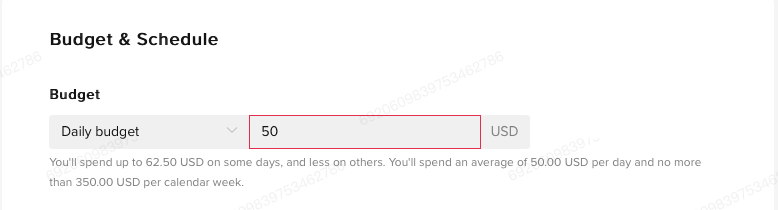
Next, determine your budget and schedule:
- Daily Budget: Start at $5 per day and adjust as needed.
- Campaign Duration: Choose a specific date range or set it to run indefinitely.
You can also set a total budget if you prefer a fixed amount for the entire campaign.
Step 7: Choose Bidding and Optimization
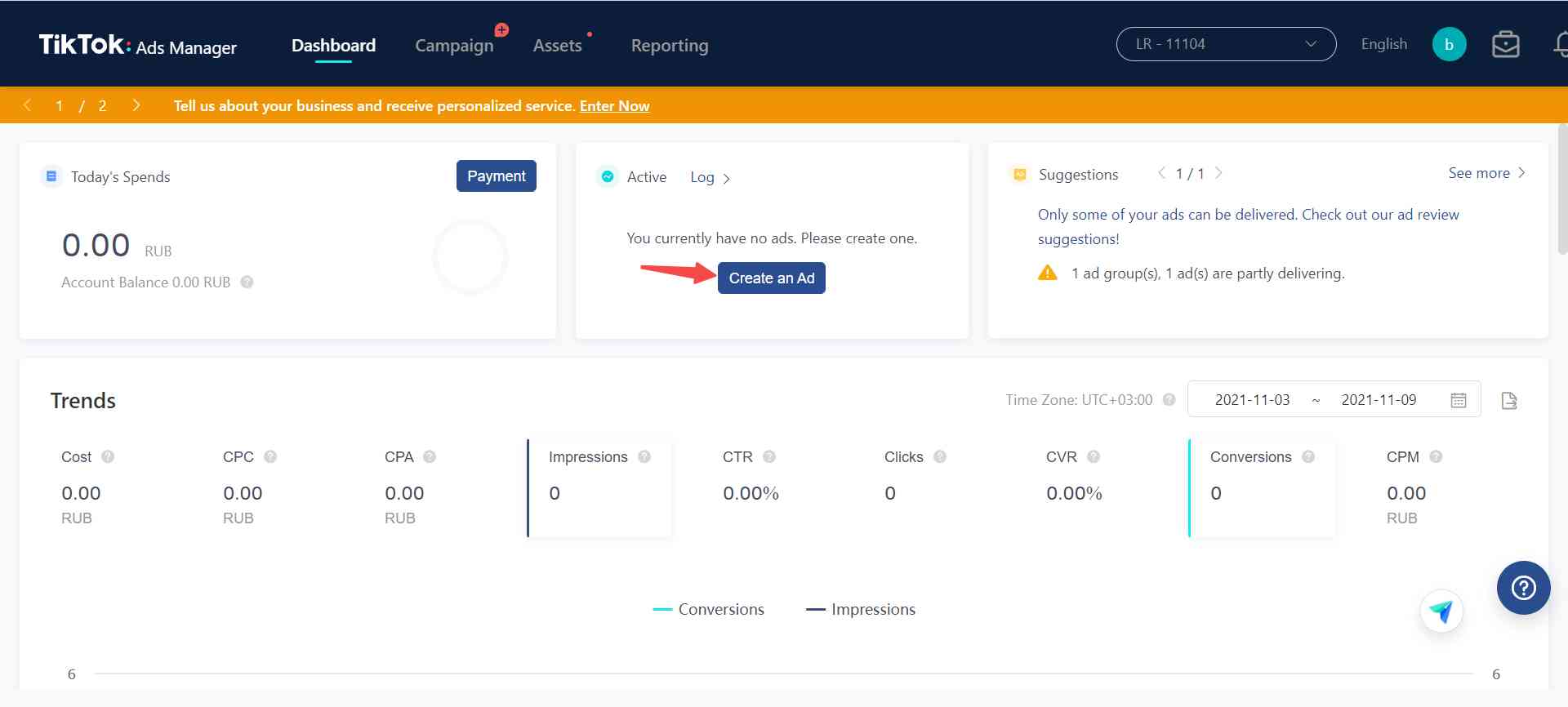
TikTok offers several bidding strategies to help you achieve your goals:
- Cost Per Click (CPC): Pay for each click on your ad.
- Cost Per View (CPV): Pay for every 6-second view of your ad.
- Cost Per Mille (CPM): Pay for every 1,000 impressions.
- Optimized CPM (oCPM): Pay for impressions targeted to users likely to convert.
Choose the strategy that best fits your campaign objectives.
Step 8: Create Your Ad

Now it's time to create your ad:
- Upload a video or use an existing TikTok post.
- Add a compelling caption and a call-to-action (CTA) button, such as "Shop Now" or "Learn More."
- Ensure your ad meets TikTok's technical requirements, such as resolution and file format.
Once you’re done, submit your ad for review.
Step 9: Monitor and Optimize
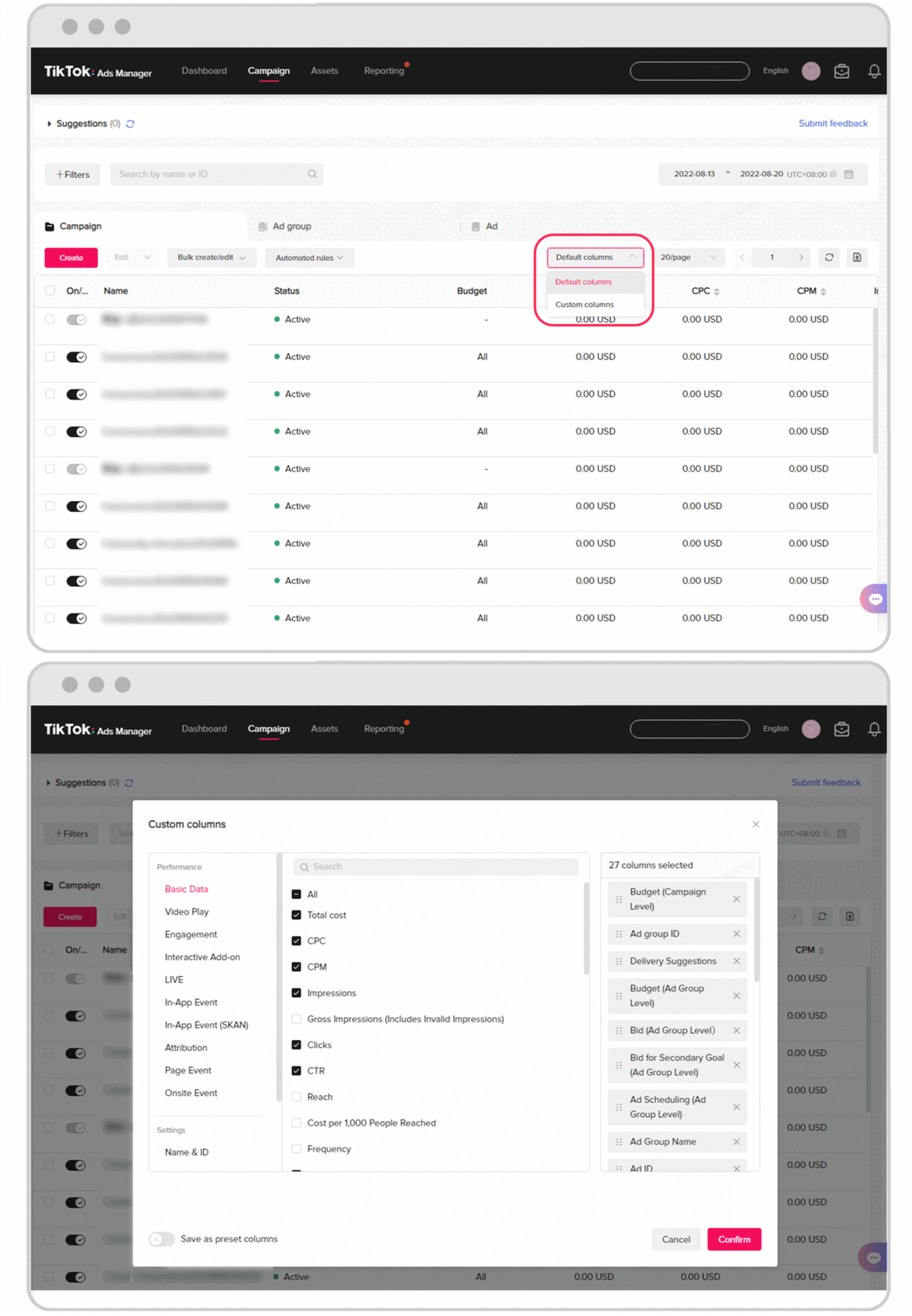
After your ad goes live, monitor its performance using TikTok’s analytics tools. Track metrics like clicks, views, and conversions to see how well your campaign is doing. Use this data to make adjustments and optimize your future campaigns.
Tips for Successful TikTok Ads

- Catch Attention Quickly: Start with a strong visual or unexpected element to grab viewers' attention.
- Use Captions: Include captions to ensure your message is clear even when the sound is off.
- Leverage TikTok Music: Use popular songs from TikTok’s music library to make your ads more engaging.
- Keep Ads Fresh: Update your creatives regularly to maintain audience interest.
- Collaborate with Creators: Partner with TikTok creators to reach a wider audience and build trust.
Conclusion
TikTok Ads Manager is a powerful tool that can help you reach a massive audience and grow your business. By following this step-by-step guide, you can create and manage successful ad campaigns that drive traffic, engagement, and conversions. Remember to experiment with different strategies and continuously optimize your campaigns to achieve the best results. With the right approach, TikTok can become a valuable part of your digital marketing strategy.

Posting Komentar untuk "How to Use TikTok Ads Manager: A Complete Tutorial for Beginners"
Posting Komentar