
How to Use TikTok Ads Manager Mobile App: A Complete Tutorial
TikTok has become a powerful platform for businesses looking to reach a massive audience. With its mobile app, users can easily create and manage ads, making it an essential tool for marketers. This tutorial will guide you through the process of using the TikTok Ads Manager mobile app, helping you understand its features and how to leverage them effectively.
Understanding the TikTok Ads Manager Mobile App
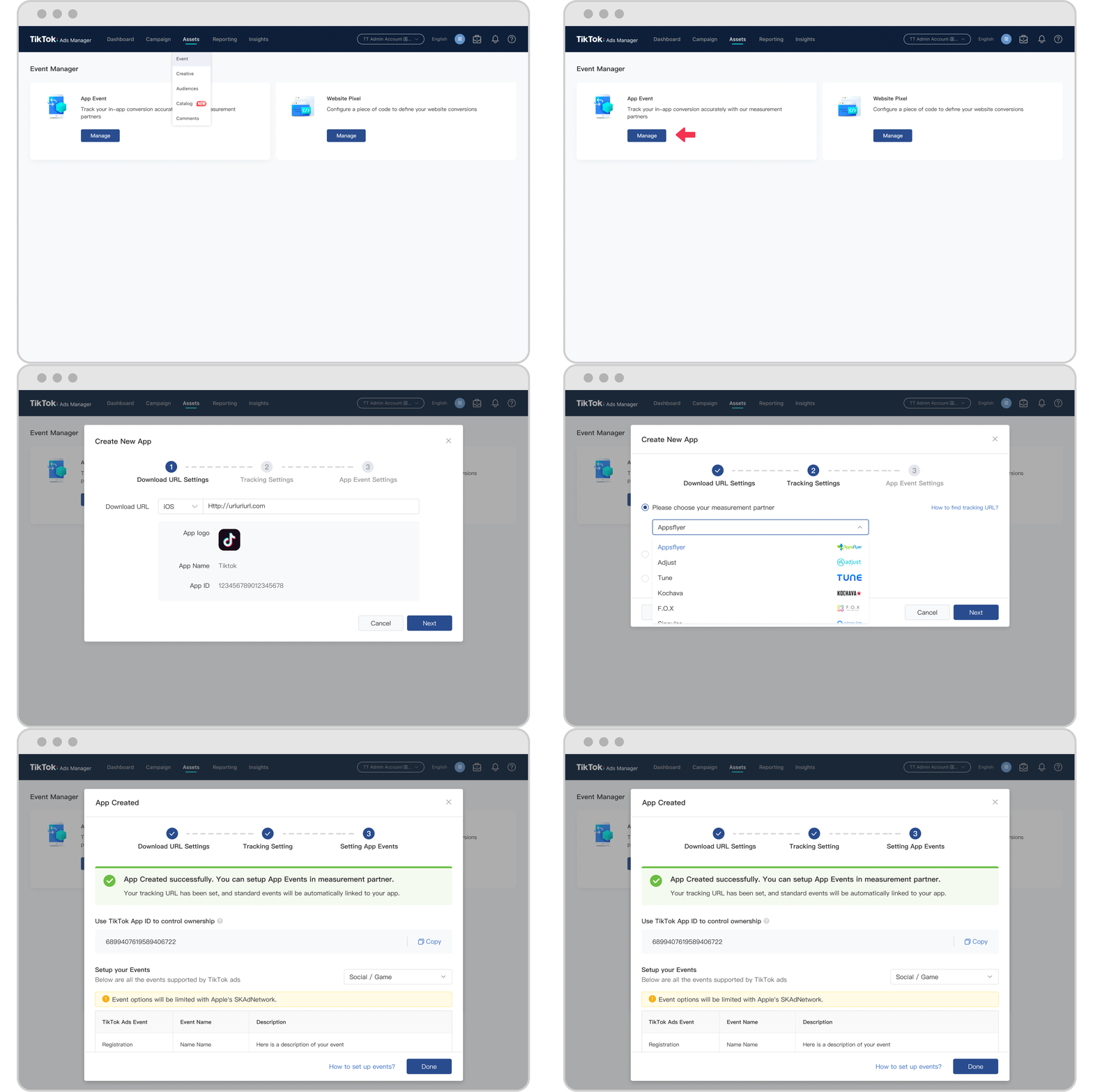
The TikTok Ads Manager mobile app is designed to help advertisers create, manage, and optimize their ad campaigns directly from their smartphones. It provides a user-friendly interface that allows you to track your campaign performance, adjust settings, and make real-time changes to your ads.
Key Features of the TikTok Ads Manager Mobile App
- Campaign Creation: Easily set up new ad campaigns with various objectives such as brand awareness, traffic, conversions, or engagement.
- Ad Group Management: Organize your ads into groups based on different targeting strategies, budgets, or creative assets.
- Performance Tracking: Monitor key metrics like click-through rates (CTR), conversion rates, and return on ad spend (ROAS).
- Creative Optimization: Test different ad creatives and see which ones perform best in real time.
Getting Started with TikTok Ads Manager
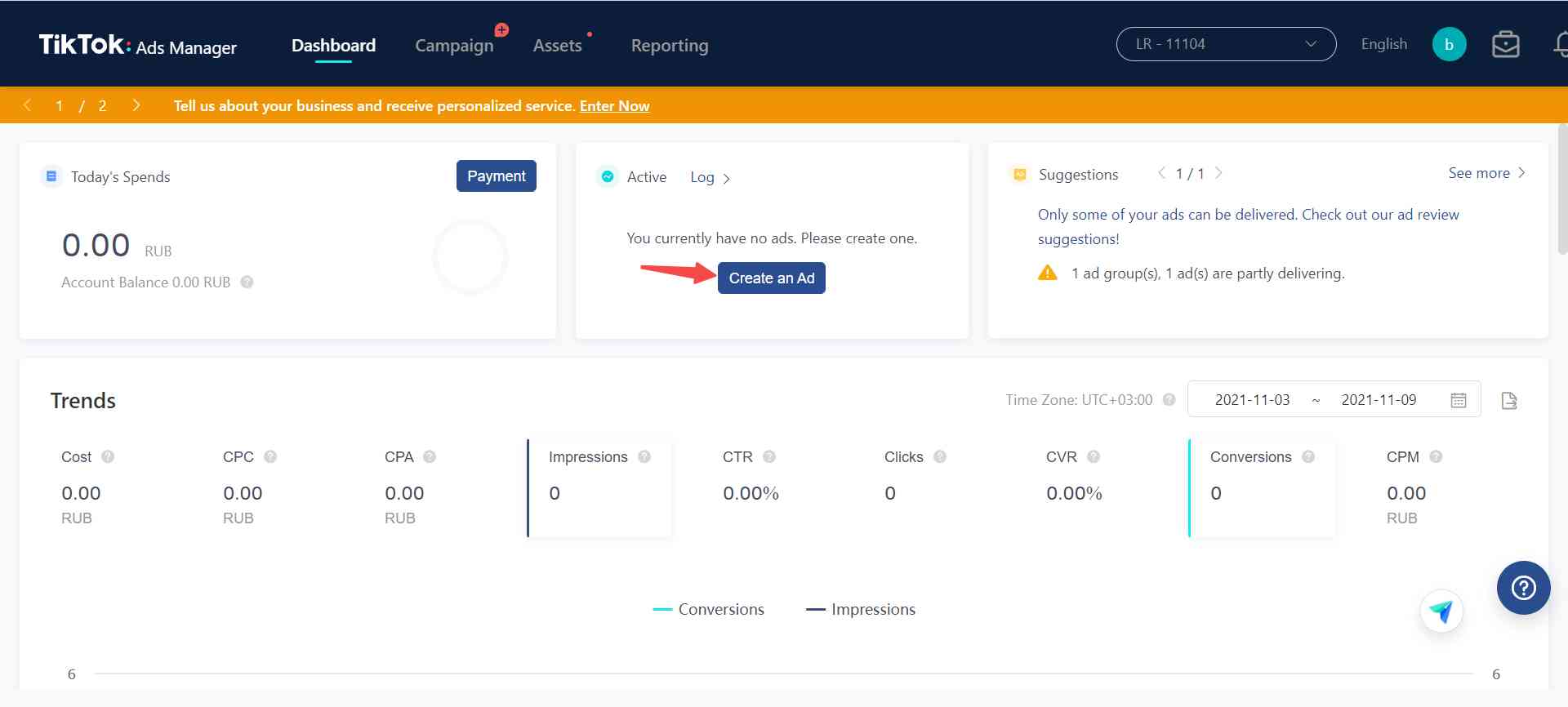
To start using the TikTok Ads Manager mobile app, follow these steps:
- Download the App: Install the TikTok Ads Manager app from the Google Play Store or Apple App Store.
- Create an Account: If you don’t have a TikTok business account, you’ll need to create one. You can do this by visiting the TikTok website and following the prompts.
- Set Up Your Ad Account: Once you have a business account, you can set up your ad account within the TikTok Ads Manager app. This involves providing your business information and setting up payment methods.
Navigating the App
Once you’ve set up your account, you’ll be directed to the main dashboard of the TikTok Ads Manager mobile app. Here, you can view all your active campaigns, review performance data, and access various tools to manage your ads.
Creating Your First Campaign
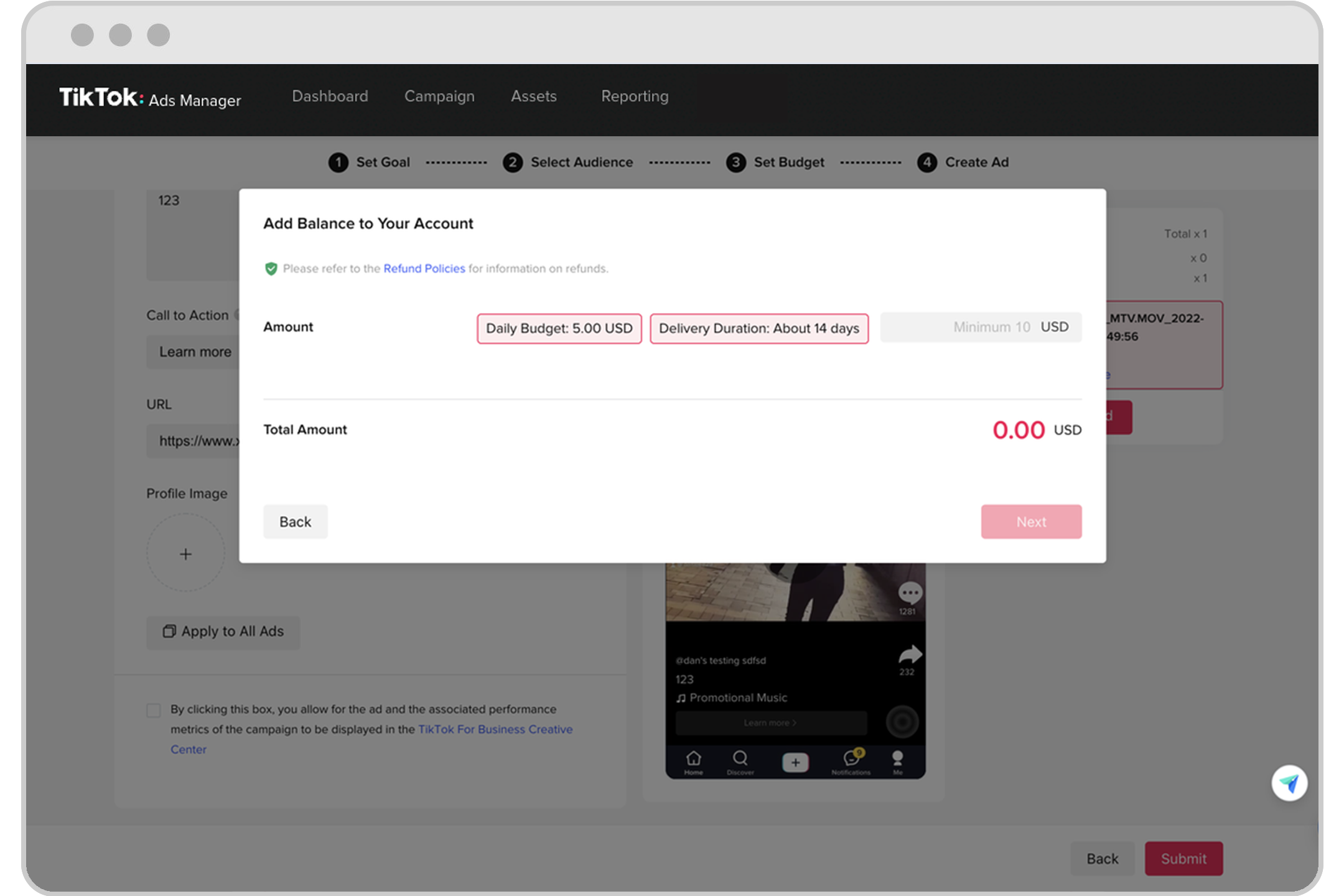
Creating a campaign in the TikTok Ads Manager mobile app is straightforward. Follow these steps to get started:
- Select Campaign Objective: Choose the objective for your campaign, such as increasing brand awareness, driving traffic to your website, or generating conversions.
- Set Budget and Schedule: Define your daily or total budget for the campaign and set the start and end dates.
- Choose Target Audience: Use the targeting options to define your ideal audience based on demographics, interests, and behaviors.
- Upload Creative Assets: Upload your ad creatives, including videos, images, and text. Make sure your creatives are optimized for mobile viewing and follow TikTok’s guidelines.
- Review and Launch: Review your campaign settings and launch your campaign.
Tips for Effective Campaigns
- Use High-Quality Creatives: Ensure your videos and images are high quality and visually appealing to capture attention.
- Leverage Trends: Incorporate trending sounds and challenges to increase the visibility of your ads.
- Test Different Variations: Experiment with different creatives and targeting strategies to find what works best for your audience.
Managing and Optimizing Your Campaigns
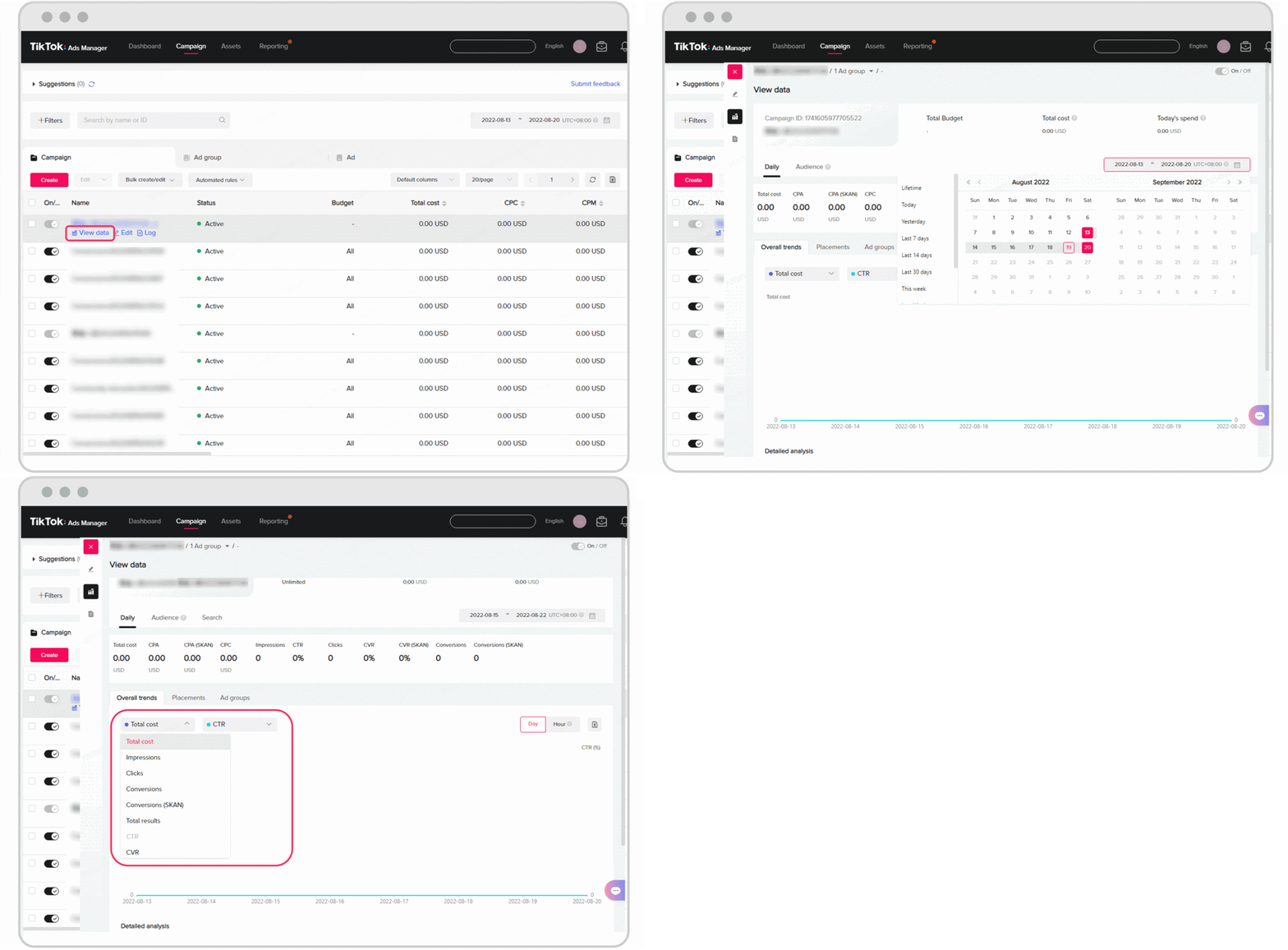
Once your campaign is live, it’s important to monitor its performance and make adjustments as needed. Here are some tips for managing and optimizing your campaigns:
- Track Key Metrics: Regularly check your campaign performance metrics, such as CTR, conversion rate, and ROAS. These metrics will help you understand how well your ads are performing.
- Adjust Targeting: If your campaign isn’t performing as expected, consider adjusting your targeting options to reach a more relevant audience.
- Optimize Creatives: Continuously test and refine your ad creatives to improve engagement and conversion rates.
- Scale Successful Campaigns: If a campaign is performing well, consider increasing your budget to scale it further.
Using Automated Tools
TikTok offers several automated tools to help you manage your campaigns more efficiently. For example, the Automated Creative Optimization (ACO) feature allows you to test multiple creatives and automatically allocate your budget to the best-performing ones.
Troubleshooting Common Issues
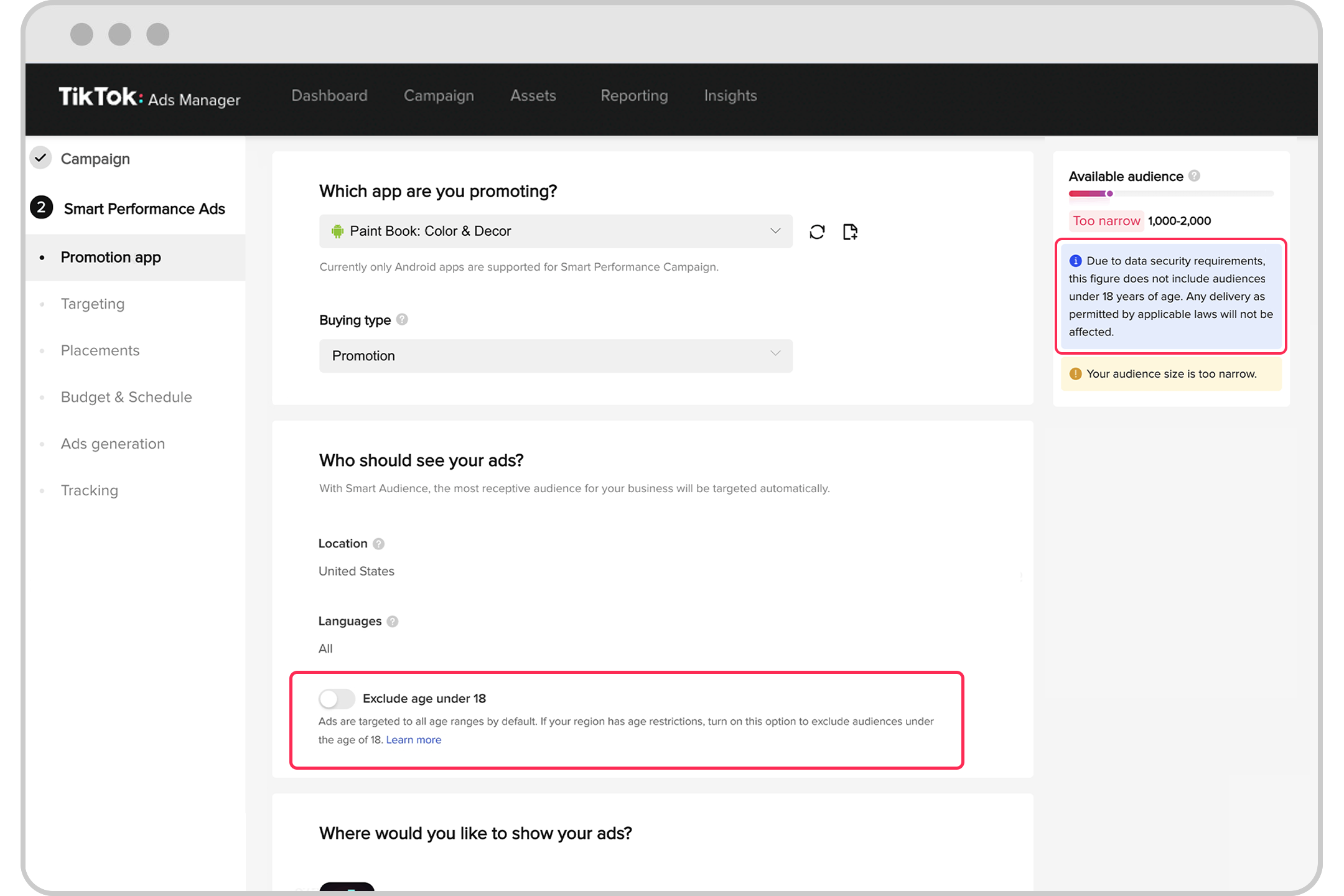
While using the TikTok Ads Manager mobile app, you may encounter some common issues. Here are a few troubleshooting tips:
- Ad Approval Delays: If your ad is not approved, check for any policy violations and ensure your creatives comply with TikTok’s guidelines.
- Low Engagement: If your ads aren’t getting much engagement, consider revising your targeting strategy or testing new creatives.
- Budget Limitations: If you’re hitting budget limits, consider increasing your daily budget or optimizing your campaign settings.
Conclusion
The TikTok Ads Manager mobile app is a powerful tool for businesses looking to create and manage effective ad campaigns on TikTok. By following the steps outlined in this tutorial, you can quickly get started and begin leveraging the platform’s vast audience. Remember to continuously monitor your campaign performance and make adjustments as needed to maximize your results.

Posting Komentar untuk "How to Use TikTok Ads Manager Mobile App: A Complete Tutorial"
Posting Komentar