
How to Validate Conversion Tracking in TikTok Ads Manager: A Complete Guide
TikTok has become a powerful platform for brands to reach new audiences, drive engagement, and generate sales. However, with the increasing competition and fast-paced nature of the app, it's essential to ensure that your advertising efforts are delivering real results. One of the most critical aspects of this process is conversion tracking validation in TikTok Ads Manager. This guide will walk you through the steps to effectively validate conversion tracking, ensuring that your campaigns are performing as expected.

Why Conversion Tracking Matters
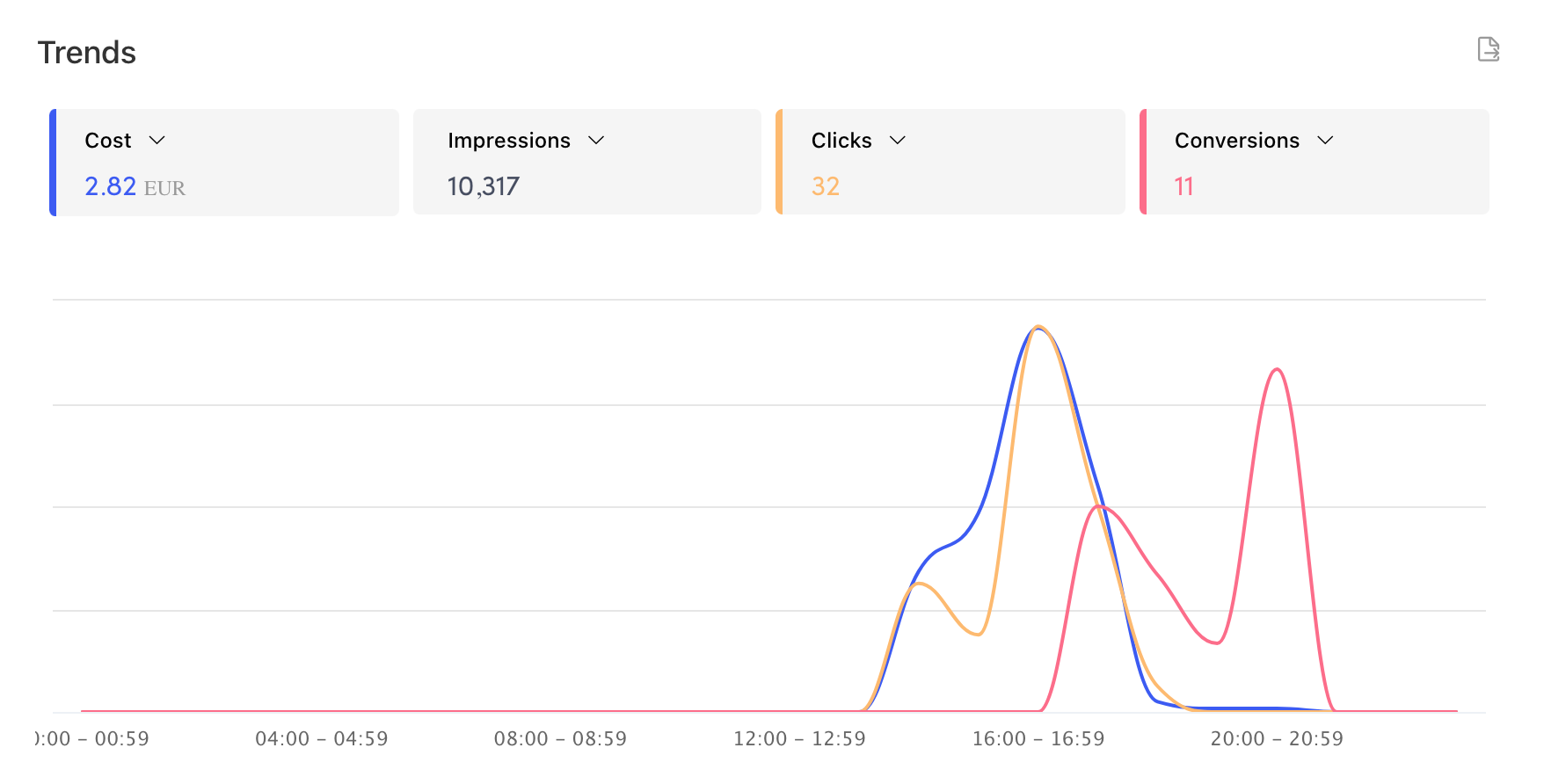
Conversion tracking allows you to measure the effectiveness of your TikTok ads by identifying which actions users take after clicking on your ad. These actions can include making a purchase, signing up for a newsletter, or downloading an app. By validating your conversion tracking, you gain insights into what’s working and what’s not, enabling you to optimize your campaigns for better performance.
Key Benefits of Validating Conversion Tracking
- Accurate Performance Metrics: Ensure that your data reflects real user behavior.
- Improved ROI: Identify which ads are driving conversions and allocate budgets accordingly.
- Better Campaign Optimization: Make informed decisions based on reliable data.
Steps to Validate Conversion Tracking in TikTok Ads Manager
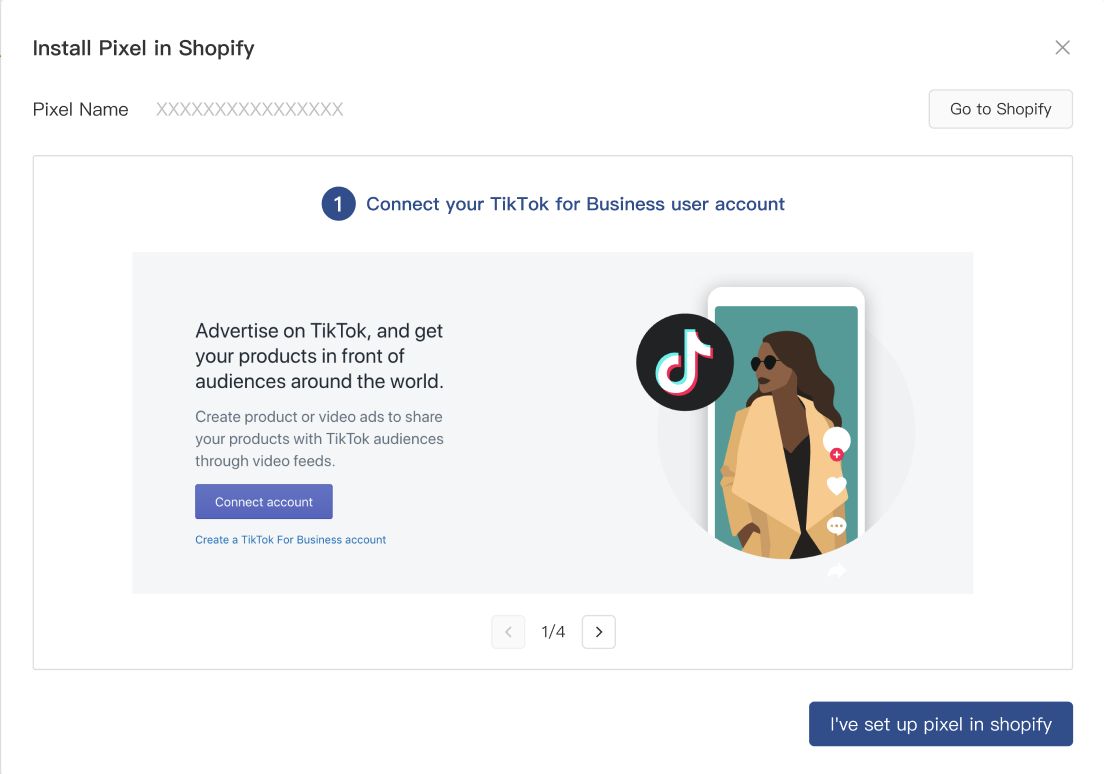
1. Set Up Your TikTok Pixel
Before you can validate conversion tracking, you need to install the TikTok Pixel on your website. The pixel is a small piece of code that tracks user interactions on your site. You can install it manually or use a third-party tool like Google Tag Manager.
Manual Installation Steps:
- Go to the TikTok Ads Manager and navigate to the Events Manager.
- Create a new pixel and choose the appropriate industry category.
- Copy the pixel code provided.
- Paste the code into the header section of your website.
- Use the TikTok Pixel Helper (a Chrome extension) to verify that the pixel is installed correctly.
2. Define Conversion Events

Once the pixel is installed, you need to define the specific events you want to track. These could be purchases, sign-ups, or any other action that signifies a conversion.
Common Conversion Events:
- Purchase
- Sign-up
- Lead Generation
- App Download
To set up these events: 1. In the Events Manager, select the event type you want to track. 2. Define the conditions under which the event should be triggered (e.g., when a user lands on a thank-you page after completing a purchase). 3. Save your event settings.
3. Test Your Conversion Tracking
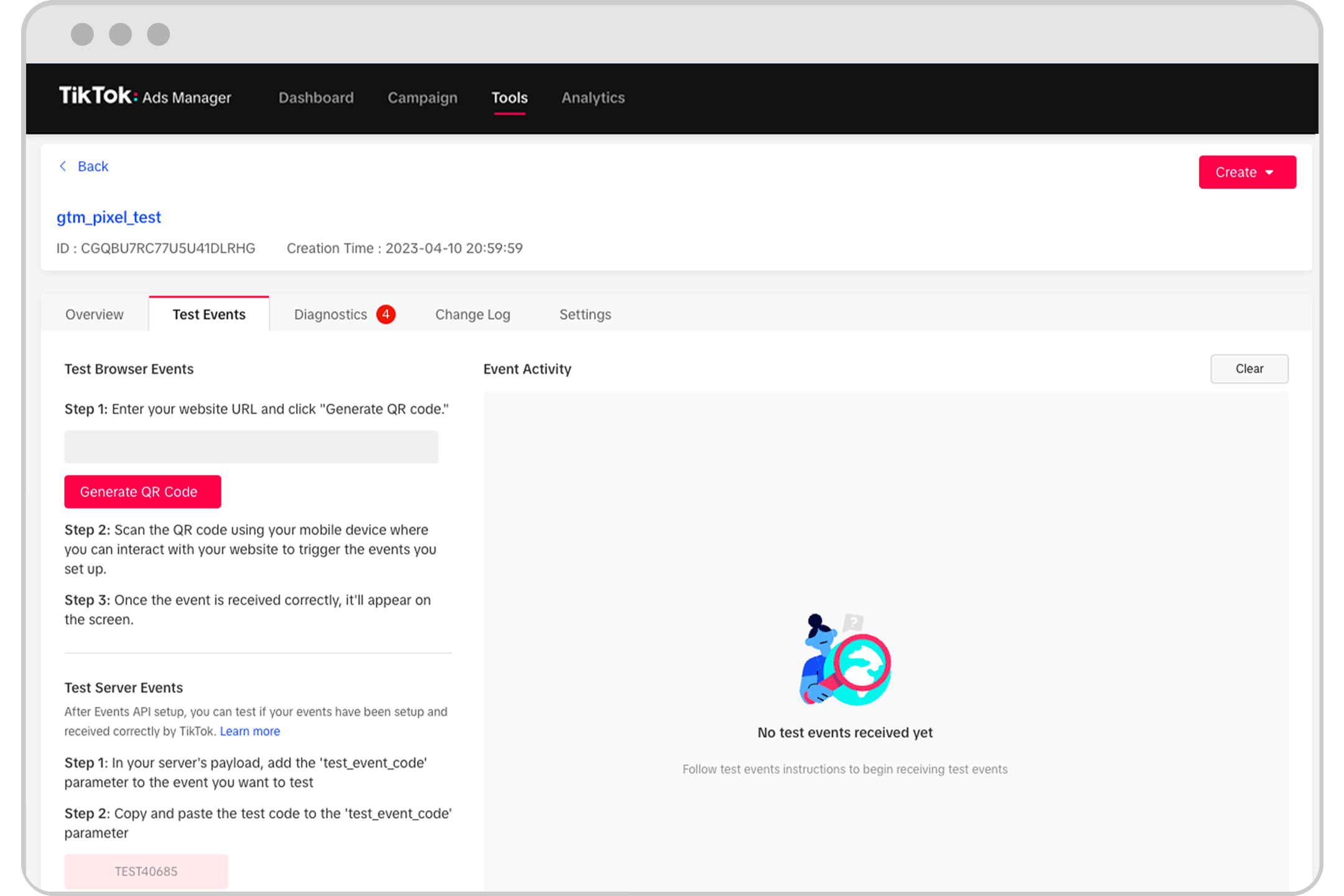
After setting up your events, it's crucial to test your conversion tracking to ensure it's working correctly. You can do this by simulating user actions on your website and checking if the events are being recorded in the Events Manager.
Testing Tips:
- Use a test account to simulate clicks and conversions.
- Check the Event Manager in real-time to see if the events are being tracked.
- Verify that the data aligns with your website analytics.
4. Monitor and Analyze Your Data

Once your conversion tracking is validated, monitor your campaign performance regularly. Use the Performance Reports in TikTok Ads Manager to analyze key metrics such as:
- Click-Through Rate (CTR)
- Conversion Rate
- Cost Per Conversion (CPC)
- Return on Ad Spend (ROAS)
By analyzing these metrics, you can identify trends and make data-driven decisions to improve your campaigns.
5. Optimize Based on Insights
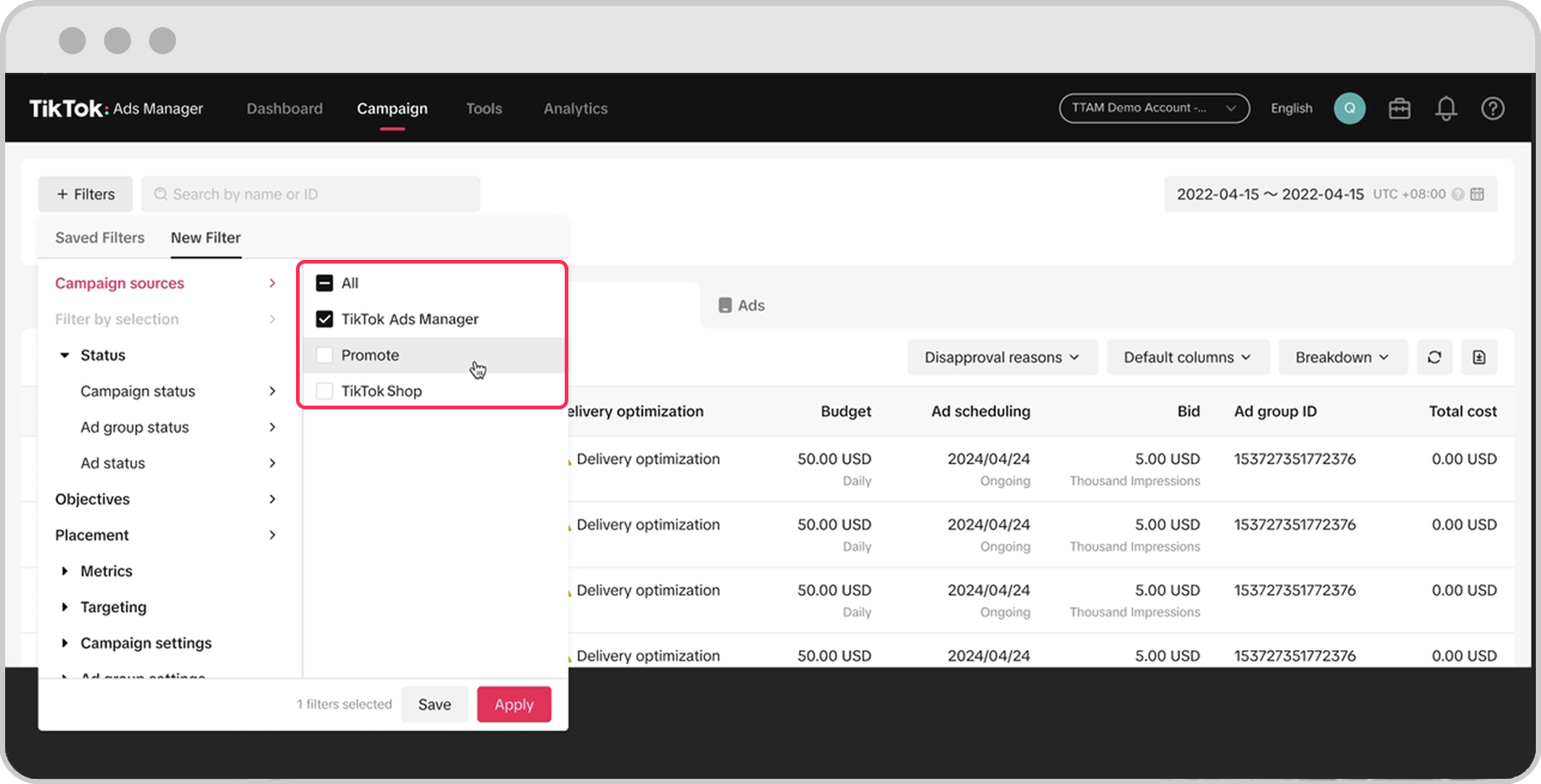
Use the insights from your data to optimize your campaigns. For example: - If a particular ad is generating high conversions, consider increasing its budget. - If a certain audience segment is underperforming, adjust your targeting or messaging.
Regularly reviewing and refining your campaigns ensures that you're getting the most out of your TikTok advertising efforts.
Best Practices for Conversion Tracking Validation

1. Use Clear and Consistent Event Naming
Ensure that your event names are descriptive and consistent across all campaigns. This makes it easier to track and analyze your data.
2. Regularly Update Your Pixel
As your website evolves, update your pixel to reflect any changes in user behavior or website structure. This ensures that your tracking remains accurate.
3. Leverage Advanced Matching
Advanced Matching helps improve the accuracy of your conversion tracking by using cookies and other identifiers. Enable this feature in your pixel settings to get more precise data.
4. Monitor for Errors
Use tools like the TikTok Pixel Helper to check for errors in your pixel implementation. Address any issues promptly to avoid data discrepancies.
Conclusion
Validating conversion tracking in TikTok Ads Manager is a critical step in ensuring the success of your advertising campaigns. By following the steps outlined in this guide, you can accurately track user actions, gain valuable insights, and optimize your campaigns for better performance. With the right tools and strategies, TikTok can become a powerful asset in your marketing arsenal.

Posting Komentar untuk "How to Validate Conversion Tracking in TikTok Ads Manager: A Complete Guide"
Posting Komentar