
How to Verify TikTok Pixel Events for Accurate Tracking
In the digital marketing world, accurate tracking is essential for measuring the success of your advertising campaigns. One of the most powerful tools in this regard is the TikTok Pixel, which allows you to track user interactions on your website and optimize your ad performance. However, simply installing the TikTok Pixel isn't enough—verifying TikTok pixel events is crucial to ensure that your tracking is working correctly and providing reliable data.
This article will guide you through the process of verifying TikTok Pixel events, explain why it's important, and provide practical steps to ensure your tracking is accurate and effective.
Why Verifying TikTok Pixel Events Matters
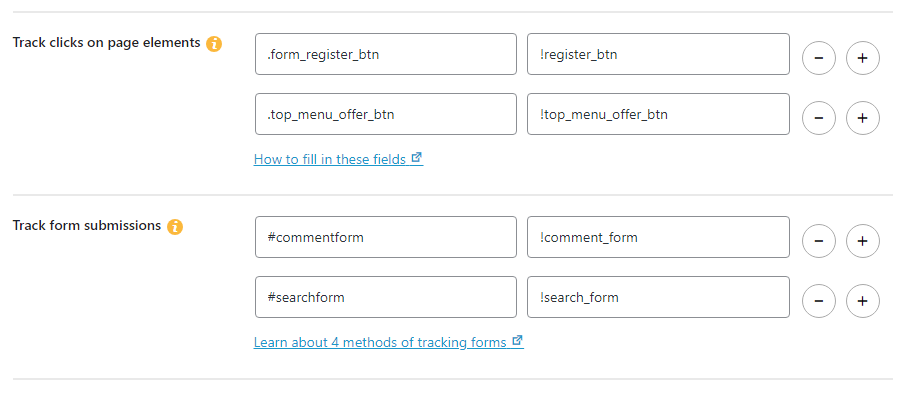
Verifying TikTok Pixel events is not just a technical formality—it's a critical step in ensuring that your ad campaigns are delivering the results you expect. Here’s why:
- Accurate Data: If your TikTok Pixel isn’t functioning properly, you might be missing out on key insights about how users interact with your site. This can lead to misinformed decisions and wasted ad spend.
- Optimized Campaigns: Properly verified events allow you to understand which ads are driving conversions, helping you refine your targeting and improve ROI.
- Troubleshooting: Verification helps identify and fix issues early, such as incorrect event setup or pixel installation errors.
Tools to Help Verify TikTok Pixel Events

One of the most useful tools for verifying TikTok Pixel events is the TikTok Pixel Helper, a Chrome extension designed specifically for this purpose. This tool can monitor whether your TikTok Pixel is functioning properly and help you troubleshoot any issues you may encounter.
Key Features of TikTok Pixel Helper:
- Error Detection: It checks for errors in your pixel implementation and highlights any problems that need fixing.
- Implementation Recommendations: The tool provides actionable recommendations to improve your pixel setup and ensure it's working as intended.
- Real-Time Monitoring: You can monitor your pixel activity in real time, giving you immediate feedback on its performance.
If you're using Google Tag Manager (GTM) to manage your tags, the TikTok Pixel Helper can also assist in verifying that your GTM setup is correctly integrating with the TikTok Pixel.
Steps to Verify TikTok Pixel Events
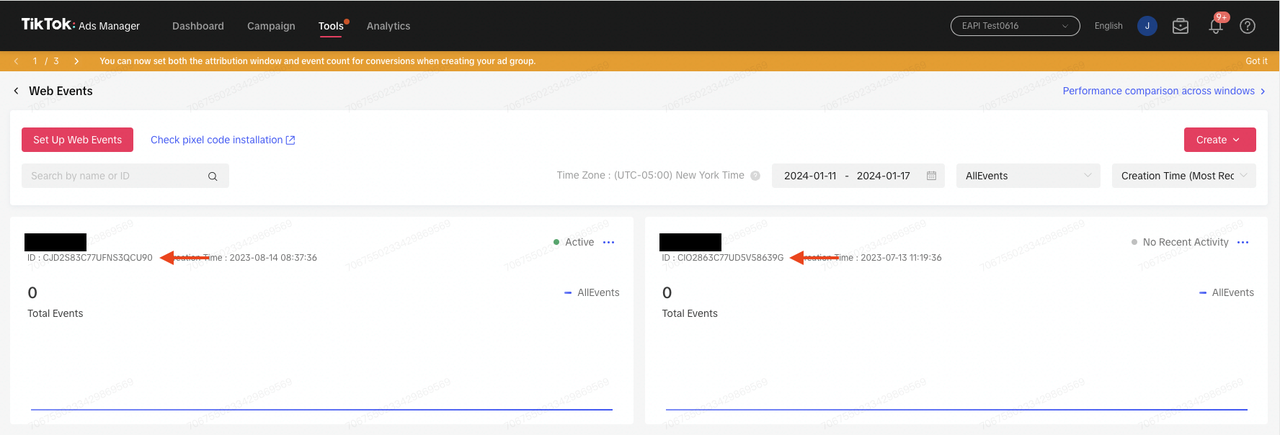
Here’s a step-by-step guide to help you verify your TikTok Pixel events effectively:
-
Install the TikTok Pixel Helper Extension
Begin by installing the TikTok Pixel Helper Chrome extension from the Chrome Web Store. Once installed, it will appear as an icon in your browser toolbar. -
Navigate to Your Website
Open the website where you've installed the TikTok Pixel. Make sure to trigger some of the events you want to track, such as page views, add-to-cart actions, or purchases. -
Check the Pixel Helper Dashboard
Click on the TikTok Pixel Helper icon in your browser. A panel will open showing details about the pixel events being tracked. Look for any error messages or warnings that indicate issues with your setup. -
Review Event Triggers
Ensure that all the events you’ve set up in TikTok Ads are firing correctly. For example, if you’re tracking "Add to Cart" events, make sure they appear in the Pixel Helper dashboard when the action occurs. -
Fix Any Issues Identified
If the Pixel Helper detects any errors, take the necessary steps to resolve them. This may involve adjusting your GTM setup, updating your pixel code, or checking for conflicts with other scripts on your site. -
Test Again
After making any changes, test your pixel again to confirm that the issues have been resolved and that events are being tracked accurately.
Best Practices for Maintaining Accurate Tracking
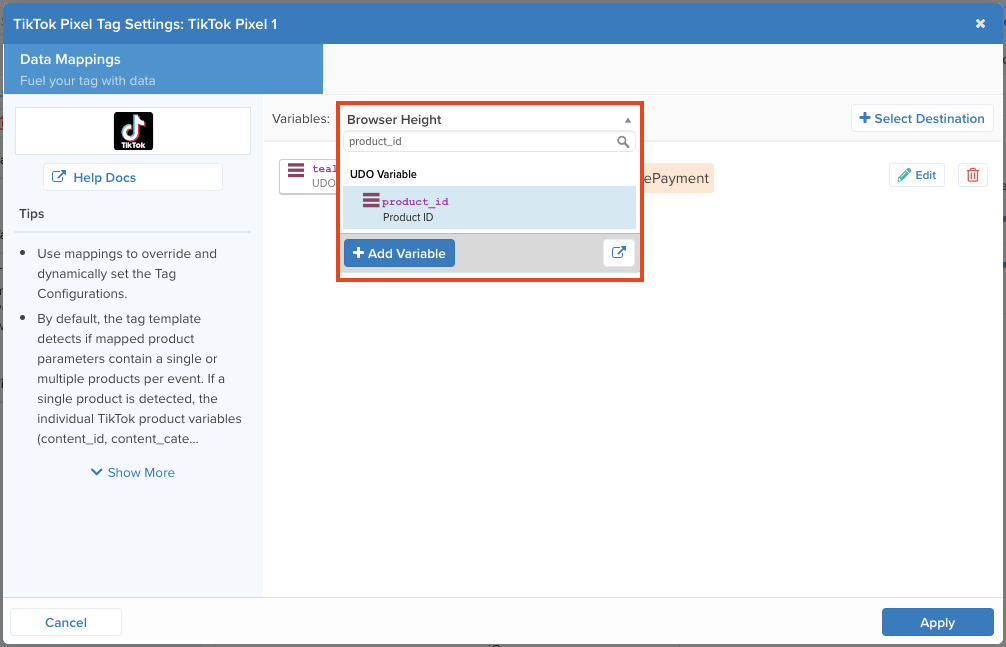
To ensure long-term accuracy and reliability in your TikTok Pixel events, consider the following best practices:
- Regular Audits: Periodically review your pixel setup and verify that all events are still firing correctly.
- Use Server-Side Tracking: Consider implementing server-side tracking solutions, such as the NS TikTok Pixel Event Tracking app, to bypass limitations caused by ad blockers or iOS privacy settings.
- Tag Sequencing: Ensure that your base pixel tag fires before any event tags. This helps prevent tracking issues that can occur when tags fire out of order.
- Limit Multiple Fires: Set your Custom HTML tag to fire only once per page to avoid duplication and inaccuracies in your data.
Conclusion
Verifying TikTok pixel events is a vital part of any successful digital marketing strategy. By ensuring your tracking is accurate and reliable, you can gain deeper insights into your audience, optimize your ad campaigns, and ultimately drive better results. Whether you're using the TikTok Pixel Helper or third-party tools like the NS TikTok Pixel Event Tracking app, taking the time to verify your events will pay off in the long run.
Start today by installing the right tools, testing your setup, and staying proactive in maintaining your tracking system. With accurate event verification, you'll be well-equipped to make data-driven decisions and maximize the impact of your TikTok advertising efforts.

Posting Komentar untuk "How to Verify TikTok Pixel Events for Accurate Tracking"
Posting Komentar