
TikTok Pixel Advanced Configuration Guide: Maximize Your Ad Performance
The TikTok Pixel is a powerful tool that allows businesses to track user interactions on their websites and optimize ad performance. While basic setup is straightforward, advanced configuration can significantly enhance the effectiveness of your advertising campaigns. This guide will walk you through the key steps to configure the TikTok Pixel for maximum impact.
Understanding the TikTok Pixel
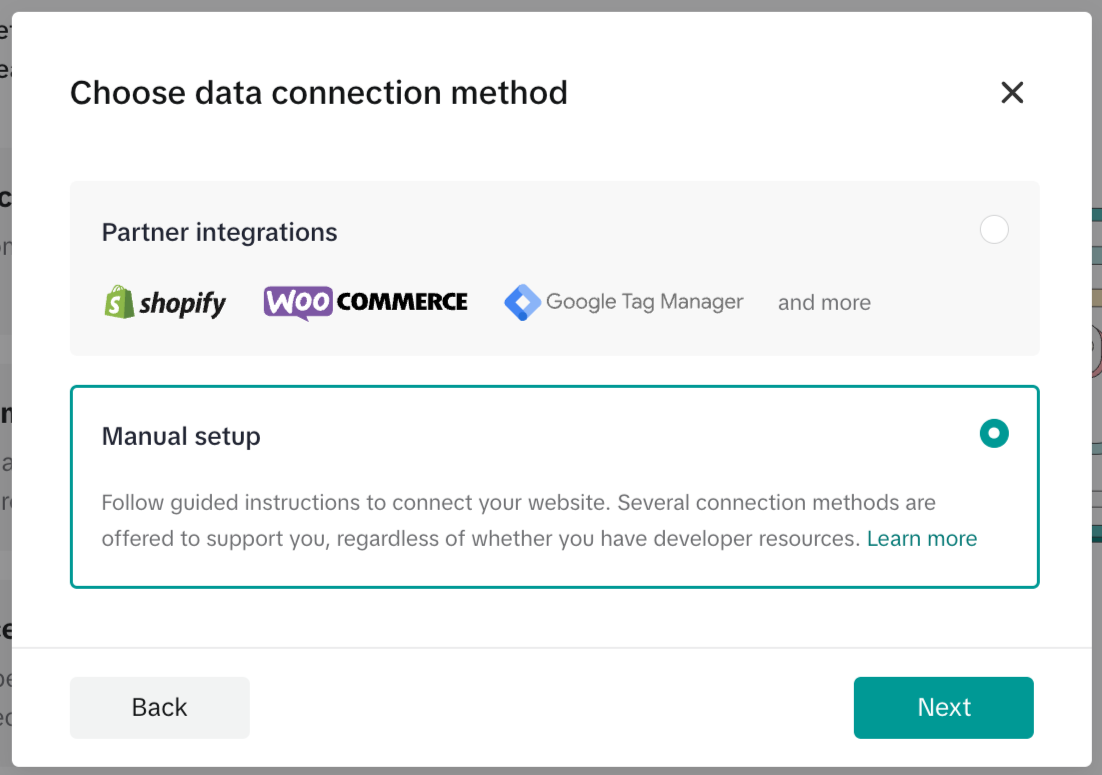
The TikTok Pixel is a tracking code that you place on your website to collect data about user behavior. It helps you measure the success of your ads by tracking actions such as clicks, conversions, and other important events. The pixel works by sending data back to TikTok's servers, which then uses this information to improve ad targeting and performance.
To get started, you need to create a TikTok Pixel in the TikTok Ads Manager. Once created, you'll receive a unique Pixel ID that you'll use to install the pixel on your website.
Installing the TikTok Pixel

There are several ways to install the TikTok Pixel on your website. The most common methods include using a Shopify app, integrating via Google Tag Manager, or manually adding the code to your site’s HTML.
Using a Shopify App
If you're using Shopify, there's a dedicated TikTok app that simplifies the installation process. Here's how to do it:
- Go to your Shopify Admin.
- Navigate to the Apps section.
- Search for the TikTok app and install it.
- Follow the setup instructions to connect your TikTok Pixel.
Once installed, the app will automatically inject the necessary tracking code into your website.
Integrating via Google Tag Manager
For more control over your tracking, you can use Google Tag Manager (GTM) to manage the TikTok Pixel. Here's how:
- Create a new tag in GTM.
- Choose the "Custom HTML" tag type.
- Paste the TikTok Pixel code into the HTML field.
- Set up triggers to fire the tag on specific pages or events.
This method allows you to have more flexibility in managing when and where the pixel fires.
Manual Installation
If you prefer to add the pixel manually, follow these steps:
- Copy the TikTok Pixel code from the Ads Manager.
- Paste the code into your website’s HTML before the closing
</head>tag. - Test the pixel using the TikTok Pixel Helper extension to ensure it's working correctly.
Configuring Events for Maximum Impact
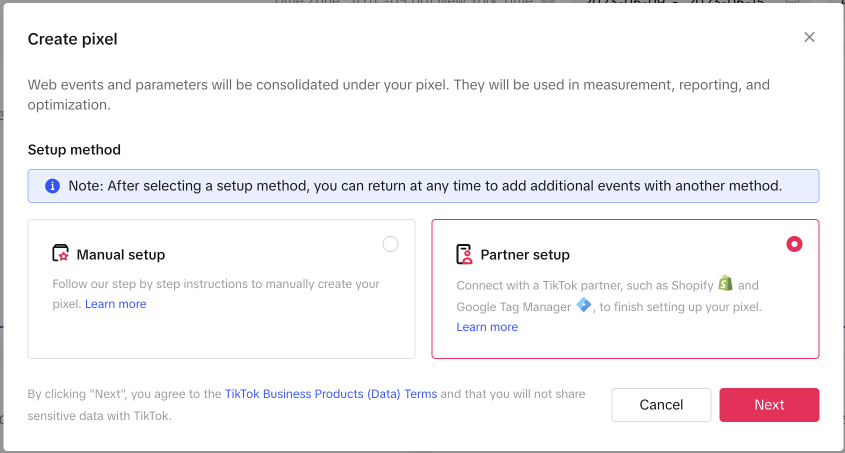
Once the pixel is installed, the next step is to configure the events that you want to track. These events help you understand how users interact with your website and what actions they take.
Common Events to Track
- View Content: Tracks when a user views a specific page or product.
- Add to Cart: Tracks when a user adds an item to their cart.
- Initiate Checkout: Tracks when a user starts the checkout process.
- Complete Payment: Tracks when a user completes a purchase.
Each of these events provides valuable insights into user behavior and can be used to optimize your ad campaigns.
Customizing Event Parameters
To get the most out of the TikTok Pixel, you can customize the parameters associated with each event. For example, when tracking an "Add to Cart" event, you can include parameters like the product ID, name, price, and currency.
Here's an example of how to track an "Add to Cart" event:
ttq.track('AddToCart', {
  content_id: '{{ product.id }}',
  content_name: '{{ product.title }}',
  currency: '{{ shop.currency }}',
  value: {{ product.price | money_without_currency }}
});
Make sure to replace the placeholders with actual values from your website.
Troubleshooting Common Issues
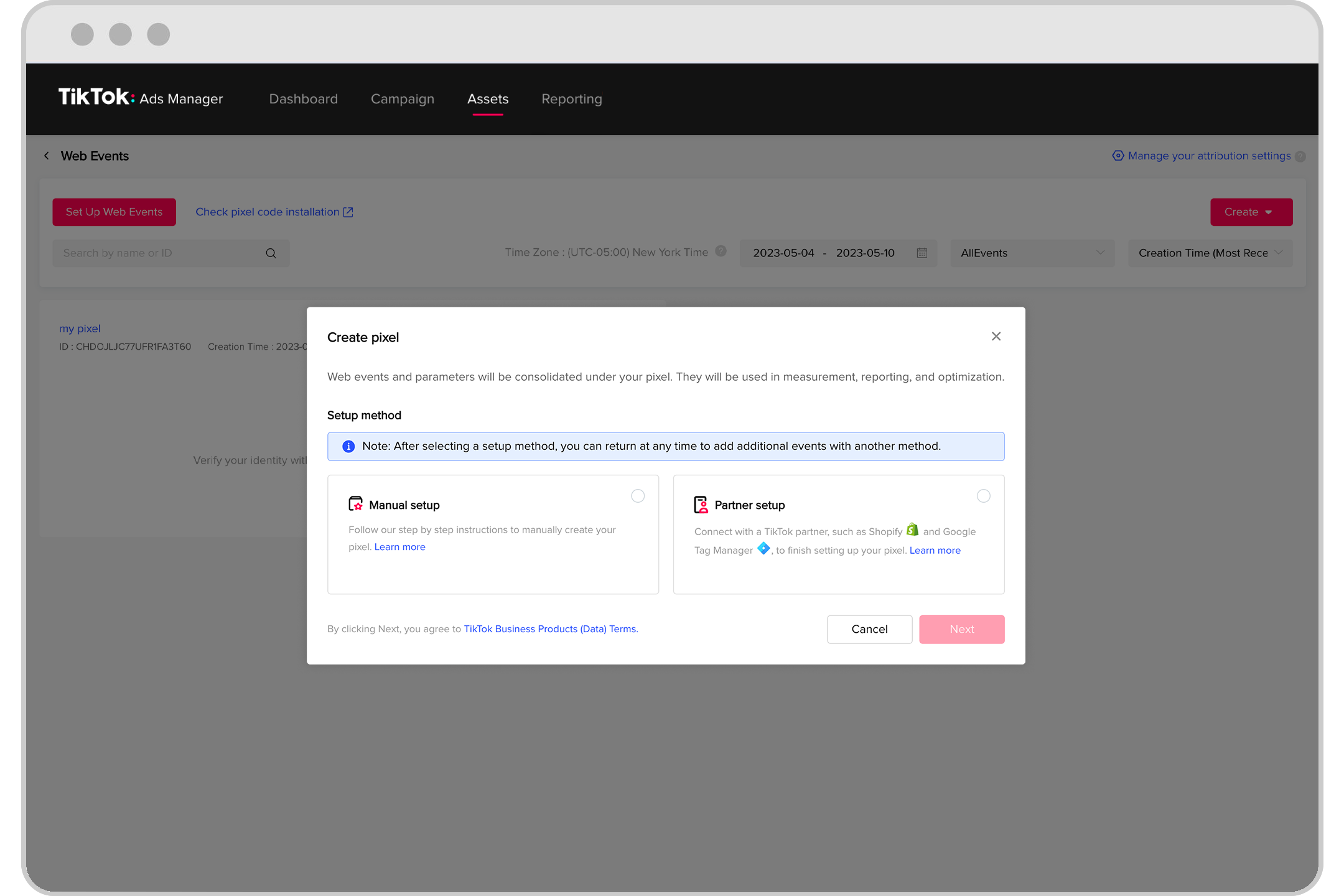
Even with proper configuration, issues can arise. Here are some common problems and how to fix them:
Missing Value Parameter
If the "Add to Cart" or "View Content" events aren't firing, it might be due to a missing value parameter. Ensure that your tracking code includes all necessary parameters.
Theme-Specific Issues
If you're using a custom theme, especially on platforms like Shopify, the theme might affect how events are triggered. Consider testing with a default theme to rule out any theme-specific issues.
Reinstalling the TikTok App
Sometimes, the integration can fail partially. Reinstalling the TikTok app can reset the pixel tracking. Follow these steps:
- Go to your Shopify Admin.
- Navigate to the Apps section.
- Delete the TikTok app.
- Reinstall the app from the Shopify App Store.
- Follow the setup instructions and reconnect your TikTok Pixel.
Final Tips for Success
- Regularly Test Your Pixel: Use tools like the TikTok Pixel Helper extension to ensure your pixel is firing correctly.
- Update Your Theme: Keep your website's theme up to date to avoid compatibility issues.
- Monitor Your Campaigns: Use the data collected by the TikTok Pixel to refine your ad strategies and improve performance.
By following this advanced configuration guide, you can unlock the full potential of the TikTok Pixel and significantly enhance your ad performance. With the right setup and ongoing monitoring, you'll be able to make data-driven decisions that drive growth and increase ROI.

Posting Komentar untuk "TikTok Pixel Advanced Configuration Guide: Maximize Your Ad Performance"
Posting Komentar