
How to Set Up TikTok Ads Pixel Correctly in 2024
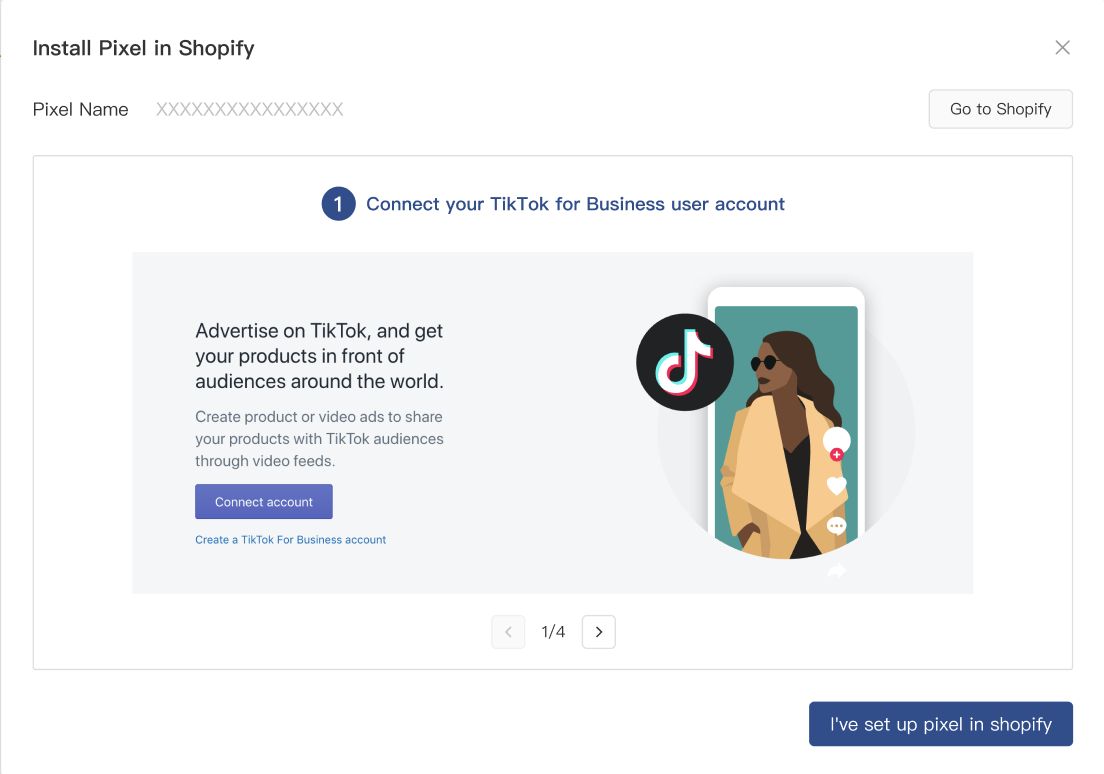
In today's digital marketing landscape, TikTok has emerged as a powerful platform for businesses to reach a vast and engaged audience. However, to truly harness the potential of TikTok ads, it's essential to set up the TikTok Ads Pixel correctly. The TikTok Pixel is a tracking code that allows you to measure the effectiveness of your ads by tracking user actions such as conversions, clicks, and views. Proper setup ensures that you can accurately analyze your ad performance and optimize your campaigns for better results.
Understanding the TikTok Ads Pixel
The TikTok Ads Pixel is a snippet of JavaScript code that you place on your website or app. It enables you to track user interactions with your ads and gather valuable data about how users engage with your content. This data is crucial for understanding which campaigns are driving conversions and which ones need improvement.
To set up the TikTok Ads Pixel correctly, you need to follow a series of steps that ensure the pixel is properly installed and configured. Whether you're using a Shopify store, a WordPress site, or another platform, the process involves verifying the installation, checking event parameters, and ensuring that all necessary information is being tracked.
Steps to Set Up TikTok Ads Pixel Correctly
1. Confirm TikTok Pixel Installation
Before diving into more complex troubleshooting, start by confirming that the TikTok Pixel is installed correctly. You can use the TikTok Pixel Helper extension for Chrome to check if the pixel is firing events on your website.
- Use the TikTok Pixel Helper Extension:
- Visit your website and trigger actions like "Add to Cart" or "View Content."
- Open the TikTok Pixel Helper Chrome extension and check if:
- Events are firing (e.g., no "Add to Cart" shows up now, so it seems broken).
- The Pixel ID is correct and matches what is shown in your TikTok Ads Manager.
2. Reinstall the TikTok App
Sometimes, the integration can fail partially, leading to missing event parameters. Reinstalling the TikTok app can reset the pixel tracking.
- Steps to Reinstall the TikTok App:
- Go to your Shopify Admin → Apps → Delete the TikTok app.
- Reinstall the TikTok app from the Shopify App Store.
- Follow the setup instructions and reconnect your TikTok Pixel.
- Once reinstalled, test the events again using the Pixel Helper.
3. Check Event Parameters in Your Shopify Theme
If you're using the Dawn theme, it dynamically triggers events via its default JavaScript. Ensure that Shopify is sending the correct value parameter for "Add to Cart" or "View Content."
- Check the Theme.liquid File:
- Go to Online Store → Themes → Edit Code.
- Look for any TikTok Pixel script in the theme.liquid file.
- If you see custom code added, ensure it includes the value parameter for the addToCart and ViewContent events. Example:
ttq.track('AddToCart', { content_id: '{{ product.id }}', content_name: '{{ product.title }}', currency: '{{ shop.currency }}', value: {{ product.price | money_without_currency }} });
- If you don’t see such a script, the TikTok app should be injecting this automatically, which suggests the app might not have integrated correctly.
4. Update Theme and Clear Cache
Ensure your Dawn theme is up to date and clear your browser cache.
- Update Theme:
- Go to Online Store → Themes → Update.
- Clear Browser Cache:
- Clear your browser cache and test the events again.
5. Test on a Fresh Store Theme
To rule out any theme-specific issue, install a fresh copy of the Dawn theme or another free Shopify theme.
- Test with a Fresh Theme:
- Install a fresh copy of the Dawn theme or another free Shopify theme.
- Test if the TikTok Pixel works correctly with a fresh theme.
- If it works, the issue is in your customized Dawn theme.
6. Manually Add TikTok Pixel Code as a Backup
If the Shopify TikTok app doesn't work reliably, manually add the TikTok Pixel code as a backup.
- Manual Setup:
- Go to TikTok Ads Manager and copy the Pixel Base Code.
- Paste it into your theme.liquid file before the closing tag.
- Add the ViewContent and AddToCart event codes manually.
Example Add to Cart Code:
document.querySelectorAll('form[action="/cart/add"]').forEach(form => {
  form.addEventListener('submit', function() {
    ttq.track('AddToCart', {
      content_id: '{{ product.id }}',
      content_name: '{{ product.title }}',
      currency: '{{ shop.currency }}',
      value: {{ product.price | money_without_currency }}
    });
  });
});
7. Verify Pixel Event Setup in TikTok Ads Manager
Double-check your Pixel event setup in TikTok Ads Manager.
- Verify Events:
- Go to Assets → Events → Web Events.
- Ensure that the events (Add to Cart, View Content) are set up to fire with all required parameters.
Alternative Methods for Setting Up TikTok Pixel
Using Google Tag Manager
Google Tag Manager is a tag management system that allows you to quickly add measurement codes and related code fragments collectively known as tags on your website. Here’s how to set up TikTok Pixel with Google Tag Manager:
- Familiarize Yourself with Google Tag Manager Concepts:
- Understand tags, triggers, and variables.
- Create a Google Tag Manager Web Container:
- Your Container permissions must have Publish, Approve, Edit, and Read permissions.
- Set Up a Google Tag Manager Account:
- Install it on your website.
- Install TikTok Pixel in TikTok Events Manager:
- Go to TikTok Events Manager. Click Data sources. Choose the TikTok Pixel you want to connect. Click Settings. Go to Partner Platform and click Choose Partner. Click Google Tag Manager and click Next.
- Click Client-side tagging.
- Click Get started to log in to your Google account that is linked to your Google Tag Manager workspace.
- Name your pixel if you created a new one. Select the Google Tag Manager account, Container and Workspace that you want to install the TikTok tags.
- If you want to use a new Container, create one in your Google Tag Manager account, then return to this screen and click Refresh.
- Select the method to set up events and parameters:
- Set up with TikTok Event Builder (Recommended): Create events and parameters directly from your website without requiring changes to website code.
- Use Google Tag Manager data layer APIs: Best fit for websites already using a Google Tag Manager data layer to send custom event data.
Using MonsterInsights for WordPress
If you're running a WordPress site, MonsterInsights offers a one-click solution for setting up the TikTok Ads Pixel.
- One-Click Pixel Installation:
- Install the TikTok pixel in seconds without touching a single line of code.
- Error-Free Tracking:
- You don’t have to worry if your pixel is installed correctly.
- Campaign Reports:
- If you properly tag your TikTok ads, you’ll see your traffic in the Campaigns report in your WordPress dashboard.
Conclusion
Setting up the TikTok Ads Pixel correctly is essential for maximizing the effectiveness of your advertising campaigns. By following the steps outlined above, you can ensure that your pixel is properly installed and configured, allowing you to track user interactions and gain valuable insights into your ad performance. Whether you're using a Shopify store, a WordPress site, or another platform, the key is to verify the installation, check event parameters, and ensure that all necessary information is being tracked. With the right setup, you'll be able to make data-driven decisions and optimize your campaigns for better results in 2024.

Posting Komentar untuk "How to Set Up TikTok Ads Pixel Correctly in 2024"
Posting Komentar