
How to Set Up TikTok Pixel for Conversions: A Step-by-Step Guide
In the ever-evolving world of digital marketing, businesses are constantly seeking ways to track user behavior and optimize their advertising efforts. One such tool that has gained significant traction is the TikTok Pixel. This powerful tracking code allows businesses to monitor user interactions with their website after clicking on TikTok ads, providing valuable insights into conversion rates and campaign performance. If you're looking to set up TikTok Pixel for conversions, this guide will walk you through the process step by step.
What is TikTok Pixel?
TikTok Pixel is a piece of code that you place on your website to measure user interactions with your website as a result of your TikTok advertisements. It helps you track various events such as page views, add-to-carts, and purchases, enabling you to understand the performance of your ads better. By leveraging TikTok Pixel, you can gain insights into how users engage with your brand on TikTok and make data-driven decisions to improve your advertising strategies.
Why Use TikTok Pixel with Shopify?
For businesses using Shopify, setting up TikTok Pixel is a straightforward process that can significantly enhance your advertising efforts. Here are some reasons why you should consider using TikTok Pixel with your Shopify store:
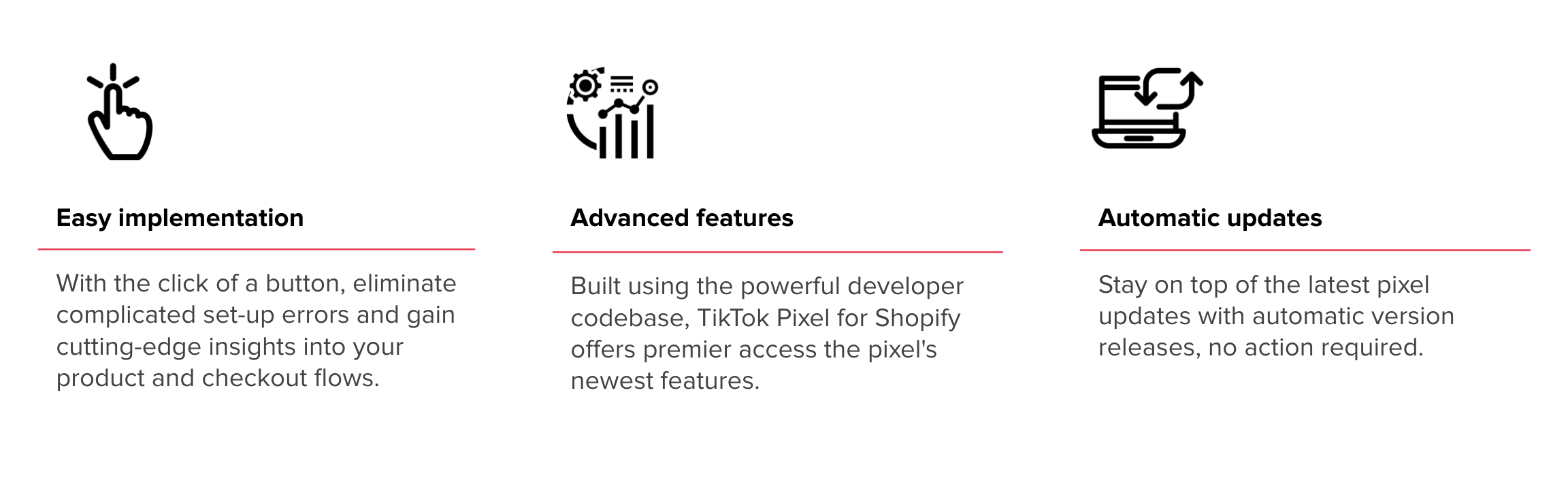
- Easy Implementation: Installing TikTok Pixel on Shopify is simple. The process is completed without ever having to go near the website code.
- Streamlined Installation Process: Follow these streamlined steps to create and install your Shopify TikTok Pixel. This process is designed so that it will be user-friendly, thus, you can set everything on your own without any expertise.
- Customizable Event Tracking: For standard events, you can choose which actions to track with your TikTok Pixel directly in the channel’s Analytics settings on Shopify.
Things to Prepare Before Installing TikTok Pixel on Shopify
Before diving into installing TikTok Pixel on your Shopify store, it's essential to have the following items ready:
- A TikTok For Business Account: You'll need a TikTok For Business account to create and manage your TikTok Pixel. If you don't have one yet, you can sign up.
- TikTok Ads Manager Access: This is where you'll create your pixel and monitor performance. Make sure your TikTok account is linked to Ads Manager and that you have the necessary permissions.
- Shopify Admin Access: You'll need full admin rights to your Shopify store so you can install the pixel, either through an app or by editing your store’s code (if going the manual route).
- Business Center Account (optional but recommended): If you're managing multiple assets like Pixel, Catalog, or permissions for a team, setting up a TikTok Business Center account helps keep everything organized.
How to Add TikTok Pixel to Shopify
There are three principal methods to add TikTok Pixel to your Shopify store. Let's explore each one:
Method 1: Set Up Manually
- Go to TikTok Ads Manager and enter your credentials for TikTok for Business. If you do not possess a TikTok for Business account, then you will set up one first.
- Go to Tools > Events > Web Events, and click Connect Data Source. Choose Web, type in your Shopify URL, and Manual Setup.
- Select Manual Connection Method, give your Pixel a name, and click Create. The code should then be displayed for you; click Copy Code to save it in your clipboard.
- In Shopify, navigate to Online Store > Themes > Actions > Edit Code. Under theme.liquid, insert the code just above the tag, and click Save.
- Under Settings, open the Checkout and paste the same Pixel code into the Additional Scripts box on the Order Status Page. Make sure to save the changes.
- Check TikTok Pixel Helper on your Chrome, or by using Test Events in Ads Manager, if your Pixel is installed and firing.
Method 2: Use TikTok Sales Channel App
- Begin by accessing your Shopify admin dashboard.
- Open the Sales Channel section and click TikTok. You will be redirected to the page of TikTok integration.
- Connect your TikTok for Business account or create one.
- Choose how much data you would prefer to share by selecting Standard, Enhanced, or Maximum.
- Click on “Create Pixel” for new setup, install with the guidance, in case you already have a pixel selected from the dropdown list to attach with your Shopify store.
- Click on “Set Up”, enter your business location, and other needed information in the ‘Company Information’ section.
- Review all information and hit the “Confirm” button to finish the integration.
Method 3: Use Dedicated Shopify Apps for TikTok Pixel
If you find the manual method too complex, consider using dedicated Shopify apps like TikTok Multi Pixels from Omega. These apps offer a user-friendly solution to easily add TikTok Pixels to your store without the technical hassle.
How to Verify Shopify TikTok Pixel Setup
Verifying the installation of the TikTok Pixel on your Shopify store ensures all is in order. Here are some ways to check your TikTok Pixel setup status:
- Use the TikTok Pixel Helper Extension: Install the TikTok Pixel Helper Chrome extension. Once added, visit your Shopify store and the extension will automatically detect whether a TikTok Pixel is installed and which events are firing.
- Check in TikTok Ads Manager: Go to your TikTok Ads Manager > Assets > Events. Find your pixel in the list and look at the status. If it’s marked as “Active” and event data is being received, your setup is working.
- Run Test Events: Go to the Test Events section of your TikTok Pixel. There, you can simulate actions like viewing a product page or adding to cart, to check if the right events are firing correctly.
Best Practices to Optimize TikTok Ads for Shopify Stores
To maximize the effectiveness of your TikTok ads, consider the following best practices:
- Map out campaign objectives: Outline what success looks like with the campaign, whether your aim is brand awareness or direct conversions.
- Use data-based custom audiences: Retargeting individuals who browsed, added to the cart, or ordered with pixel data is part of warm audiences compared to cold traffic.
- Optimize for mobile-first engagement: Since it is a full-screen experience scrolled speedily from one end to another, your videos ought to be short and straight to the point.
- Capture meaningful with your TikTok pixel: Track the events that are relevant to your business. The more accurate the data, the better your ad optimization and campaign performance over time.
- A/B test everything and scale what works: Try different combinations of creatives, audiences, placements, and pixels, and see what will yield the best results.
Conclusion
Setting up TikTok Pixel on Shopify integration is a must whether you are new to the TikTok ads or want to scale your campaigns. It allows you to track customer behavior, optimize conversions, and give useful insight into the performance of your advertisement. Whatever setup option works best for your scenario, from manual installation to the use of apps, TikTok has it all!

Posting Komentar untuk "How to Set Up TikTok Pixel for Conversions: A Step-by-Step Guide"
Posting Komentar