
Beginner's Guide to TikTok Ads Manager: How to Create and Manage Your First Ad Campaign
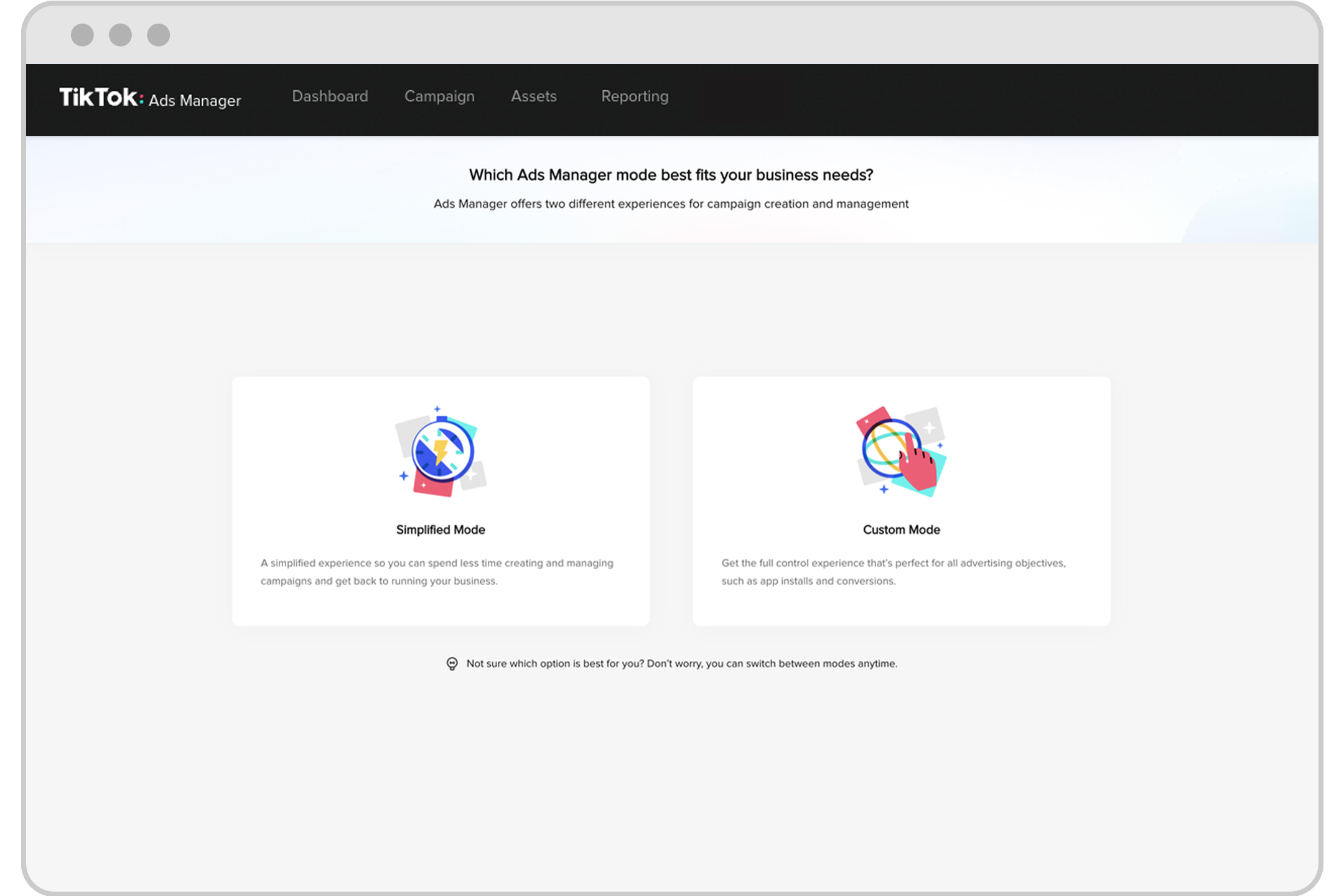
TikTok has become one of the most powerful platforms for digital marketing, with over a billion active users worldwide. For businesses looking to reach a younger, engaged audience, TikTok Ads Manager is an essential tool. However, for beginners, navigating this platform can be overwhelming. This guide will walk you through the basics of creating and managing your first ad campaign on TikTok.
Understanding TikTok Ads Manager
TikTok Ads Manager is the platform where advertisers can create, manage, and track their ad campaigns. It allows users to set objectives, target specific audiences, choose ad formats, and monitor performance metrics. Whether you're promoting a product, service, or brand, TikTok Ads Manager provides the tools needed to run effective advertising campaigns.
Why Previewing TikTok Ads is Important
Before launching any ad campaign, it’s crucial to preview your ads. Previewing helps ensure that your ad looks and functions as intended. Here are some reasons why previewing is essential:
- Visual and Audio Check: Previewing allows you to check the visual and audio elements of your ad, ensuring they meet your quality standards.
- Technical Issues: It helps identify any technical issues such as incorrect formatting, poor resolution, or audio problems.
- Compliance: Previewing ensures your ad complies with TikTok’s advertising policies, reducing the risk of rejection or flagging.
- Audience Perspective: Seeing your ad from the viewer's perspective helps ensure the message is clear and the call-to-action is compelling.
How to Preview TikTok Ads on TikTok Ads Manager
Previewing your ads directly within TikTok Ads Manager is straightforward. Follow these steps:
- Access the Campaign Page: Log in to your TikTok Ads Manager account and navigate to the Campaign page.
- Create a New Campaign: Click on "Create" to start building your campaign.
- Set Up Your Campaign: Define your campaign goal, select your target audience, and set your budget.
- Upload Your Media: Upload your video or image content to the Ad creation module.
- Preview Your Ad: Access the Ad preview box to see how your ad will appear. You can tap on each app icon at the top to change app previews and use the arrows at the bottom to switch between ad format previews.
Keep in mind that the Ad preview is not device-specific, so you may notice slight differences in appearance across different devices.
How to Preview TikTok Ads on Your Mobile Device
In addition to the web-based preview, you can also preview your ads directly on your mobile device using two methods: QR Code or User ID (UID).
Using a QR Code
- Generate a QR Code: Go to your Ad list in TikTok Ads Manager, find your ad, click the 3-dot symbol, and select "Preview." Choose TikTok as the placement and select "QR Code" as the preview method.
- Scan the QR Code: Open the TikTok app, tap the QR Code scanner icon, scan the generated code, and click "Preview Ad." Swipe through the For You feed until you see your ad and tap "Continue" after the disclaimer.
Note: Catalog Sales Ads and Collection Ads cannot be previewed using the QR Code method.
Using a User ID
- Access the Campaign Page: Log in to TikTok Ads Manager and go to your Ad list.
- Preview Your Ad: Click the 3-dot symbol on your ad, select "Preview," choose the placement, and select "User ID" as the preview method.
- Enter Your User ID: Enter your User ID and click "Preview Now."
- View Your Ad: Open the same app on your phone as the one you chose for your ad placement and refresh the home screen to see your ad preview.
How to Get Your User ID
You can obtain your User ID using either the Chat method or the Settings method.
Chat Method
- Download and log in to Resso.
- Go to your Me page and click the wheel icon to access settings.
- Double-click the Resso version number to reveal your User ID.
- Copy the UID by clicking on it.
Settings Method
- Download and log in to TikTok.
- Go to your Me page and click the 3-dot symbol.
- Scroll down to the app version number and tap it to reveal your User ID.
- The UID will be copied to your clipboard.
Important Notes When Previewing TikTok Ads
- Only approved ads can be previewed.
- Ensure your content and targeting options are relevant and engaging.
- Previews are available for 10 minutes; restart the process if you need to preview again.
- Make sure your device is connected to a corresponding VPN.
- For App Install ads, use an Android or iOS device based on the destination app store.
- Ad previews are free of charge.
- If your ad is placed on BuzzVideo, it will appear randomly in their ad placements.
Conclusion
Previewing your TikTok Ads is a critical step in ensuring your campaign is effective and compliant. By following the steps outlined in this guide, you can confidently create and manage your first ad campaign on TikTok. Remember, the key to successful advertising lies in thorough preparation and continuous optimization. With the right strategies and tools, you can unlock the full potential of TikTok Ads Manager and achieve your marketing goals.

Posting Komentar untuk "Beginner's Guide to TikTok Ads Manager: How to Create and Manage Your First Ad Campaign"
Posting Komentar