
How to Configure TikTok Ads Conversion Tracking for Maximum ROI
TikTok has become a powerful platform for digital marketers, offering a unique blend of creativity and engagement. However, to truly harness its potential, advertisers must understand how to configure TikTok Ads conversion tracking effectively. This process allows you to measure the success of your campaigns by tracking user actions, such as purchases, sign-ups, or app downloads. In this article, we will explore the steps to set up conversion tracking on TikTok, analyze performance data, and optimize your ad strategy for maximum return on investment (ROI).

Understanding TikTok Ads Conversion Tracking

Before diving into the technical aspects, it's essential to grasp what TikTok Ads conversion tracking entails. At its core, conversion tracking is a method used to monitor and measure the effectiveness of your advertising efforts. It helps you understand which ads are driving the most valuable actions from users, allowing you to refine your strategies accordingly.
To track conversions on TikTok, you can utilize tools like the TikTok Pixel or the TikTok Events API. These tools enable you to collect data about user interactions with your ads, providing insights into how users engage with your content and what actions they take after clicking on an ad.
Setting Up TikTok Pixel

The first step in configuring TikTok Ads conversion tracking is installing the TikTok Pixel on your website. Here’s a step-by-step guide:
- Access Your TikTok Business Account: Log in to your TikTok Business account and navigate to the "Ads Manager" section.
- Create a Pixel: In the "Pixel" tab, click on "Create Pixel." You'll need to provide a name for your pixel and select the website you want to track.
- Generate the Pixel Code: Once you've created the pixel, TikTok will generate a JavaScript code snippet that you need to add to your website's header.
- Install the Pixel: Copy the generated code and paste it into the HTML of your website. Ensure that it is placed correctly so that it loads when users visit your site.
- Verify Installation: After installation, use the TikTok Pixel Helper extension to verify that the pixel is working correctly. This tool will help you confirm that the pixel is firing on your website.
By following these steps, you’ll have the TikTok Pixel installed and ready to track user interactions on your website.
Utilizing the TikTok Events API
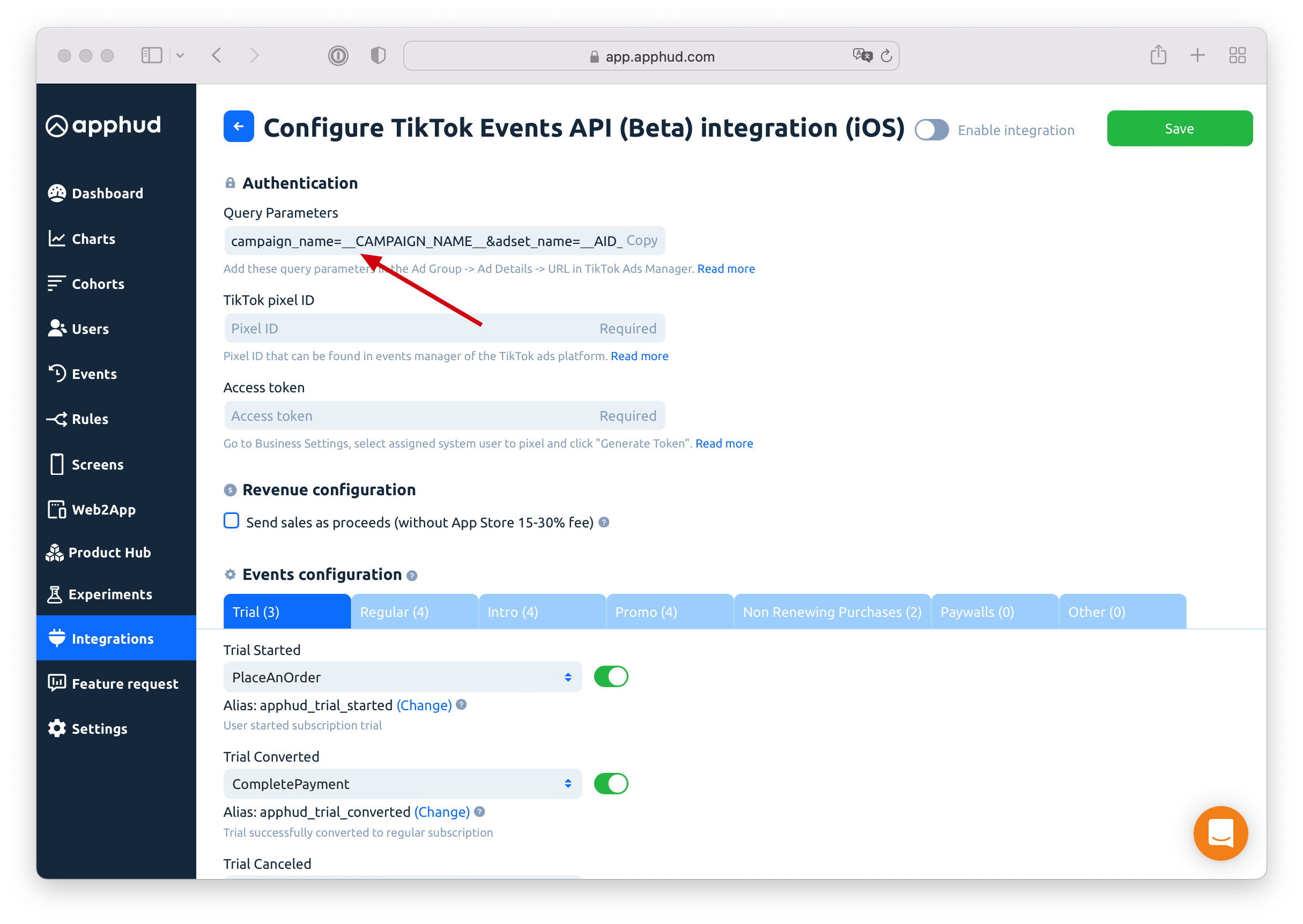
In addition to the TikTok Pixel, you can also use the TikTok Events API for more advanced tracking. The Events API is particularly useful for server-side tracking, which can be beneficial if you're dealing with high traffic volumes or have specific data requirements.
Here’s how to set up the TikTok Events API:
- Access the Events API: Go to the TikTok Business account and navigate to the "Events API" section.
- Set Up Event Tracking: Define the events you want to track, such as purchases, sign-ups, or page views. Each event should have a unique identifier and associated parameters.
- Integrate with Your Backend: Use the provided API endpoints to send event data from your backend to TikTok. This requires some development work, but it ensures accurate tracking even when cookies are disabled or ad blockers are active.
- Monitor Performance: Once integrated, you can monitor the performance of your events through the TikTok Ads Manager. This data will help you understand which events are most impactful and how they contribute to your overall campaign goals.
Analyzing Conversion Data

Once your tracking is set up, it's time to analyze the data collected from the TikTok Pixel and Events API. This analysis will provide insights into how well your ads are performing and where you can make improvements.
Key Metrics to Track
- Clicks: The number of times users clicked on your ads.
- Conversions: The number of users who completed a desired action after clicking on an ad.
- Conversion Rate (CVR): The percentage of users who converted out of the total clicks. This is calculated as:
$$ \text{Conversion Rate} = \left( \frac{\text{Number of Conversions}}{\text{Number of Clicks}} \right) \times 100 $$
- Cost per Acquisition (CPA): The cost incurred to acquire a customer through your ads.
- Return on Ad Spend (ROAS): A metric that measures the revenue generated for every dollar spent on ads.
Using TikTok Ads Manager Reports
TikTok Ads Manager offers a range of reports that can help you analyze your campaign performance. To access these reports:
- Navigate to Campaigns: In the Ads Manager, go to the "Campaigns" or "Ad Groups" section.
- Add Relevant Columns: Include columns such as "Clicks," "Conversions," "CVR," and "CPA" to get a comprehensive view of your performance.
- Segment Data: Break down your data by audience type, device, placement, and region to identify trends and patterns.
By analyzing these metrics, you can determine which ads are performing well and which ones need improvement. For example, if an ad has a high click-through rate (CTR) but a low CVR, it might indicate that the landing page needs optimization.
Optimizing Your Campaigns
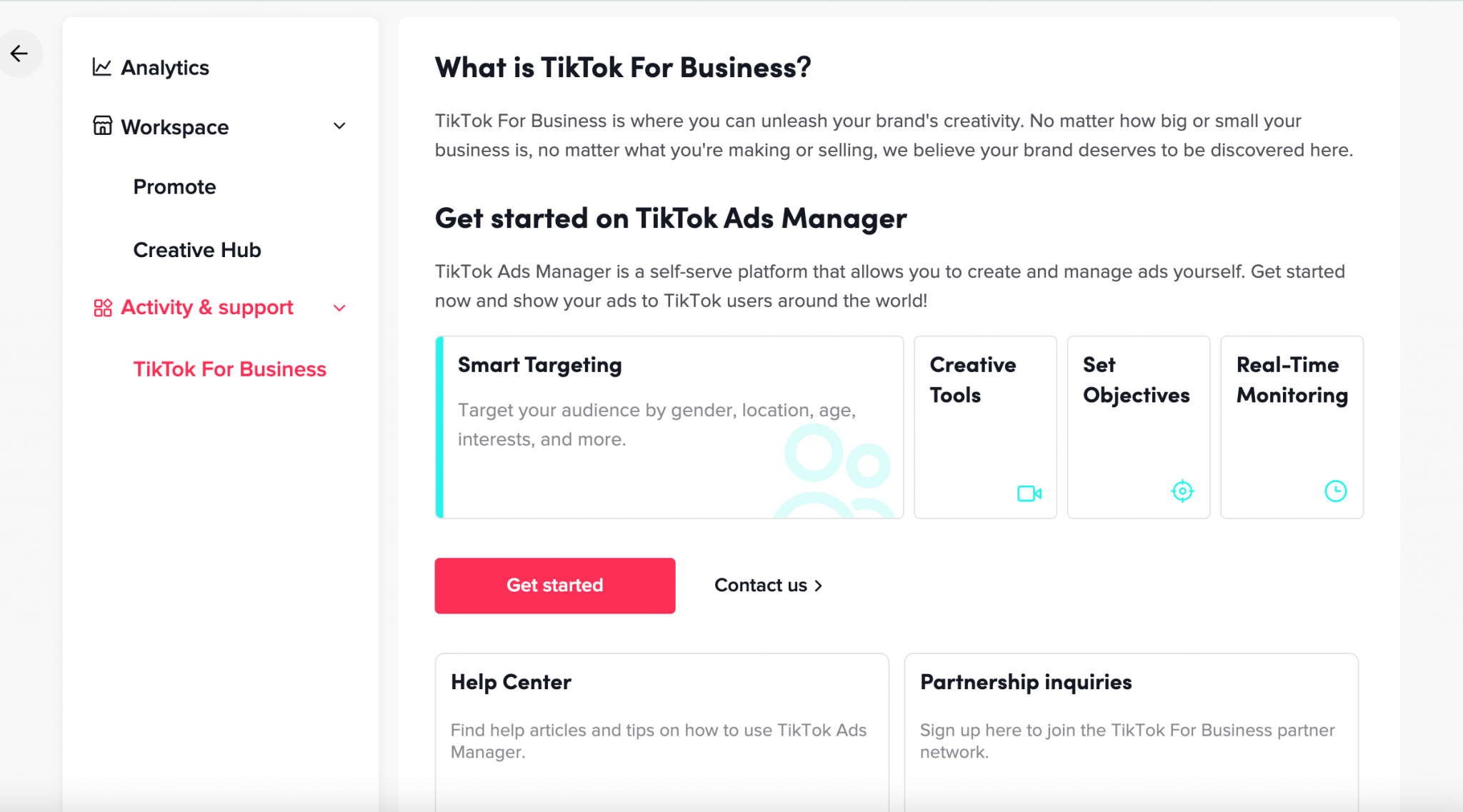
After analyzing your data, the next step is to optimize your campaigns based on the insights gained. Here are some strategies to consider:
- Refine Targeting: Use the data to identify which audiences are most likely to convert and adjust your targeting accordingly. This could involve focusing on interest-based or behavioral audiences.
- Enhance Ad Creatives: Create compelling and engaging ad content that resonates with your target audience. Use TikTok’s creative tools to add effects, filters, and music that align with current trends.
- Optimize Landing Pages: Ensure that your landing pages are mobile-friendly, load quickly, and offer a seamless user experience. A well-designed landing page can significantly improve your conversion rate.
- Test Different Strategies: Implement A/B testing to compare different ad versions, including variations in headlines, visuals, and calls to action. This will help you identify what works best for your audience.
Conclusion
Configuring TikTok Ads conversion tracking is a crucial step in maximizing your ROI. By setting up the TikTok Pixel and Events API, analyzing key metrics, and optimizing your campaigns, you can gain valuable insights into your ad performance and make data-driven decisions. As TikTok continues to evolve, staying informed about the latest trends and strategies will help you stay ahead of the competition and achieve your marketing goals.
Remember, the key to success on TikTok lies in understanding your audience, leveraging the right tools, and continuously refining your approach based on performance data. With the right strategies in place, you can unlock the full potential of TikTok advertising and drive meaningful results for your business.

Posting Komentar untuk "How to Configure TikTok Ads Conversion Tracking for Maximum ROI"
Posting Komentar