
How to Configure TikTok Event Tracking for Maximum Marketing Insights
In today's digital marketing landscape, leveraging data is essential for optimizing campaigns and understanding audience behavior. TikTok has emerged as a powerful platform for brands, offering unique opportunities to engage with a vast and diverse user base. One of the most effective ways to harness this potential is through TikTok event tracking, which allows marketers to collect valuable insights about user interactions and campaign performance.
Configuring TikTok event tracking involves setting up the TikTok Pixel and integrating it with the Events API. This dual tracking strategy ensures that events are captured reliably, even in environments where privacy policies or ad blockers might interfere. Let’s walk through the process step by step, highlighting best practices and key considerations.

Step 1: Install the TikTok Pixel
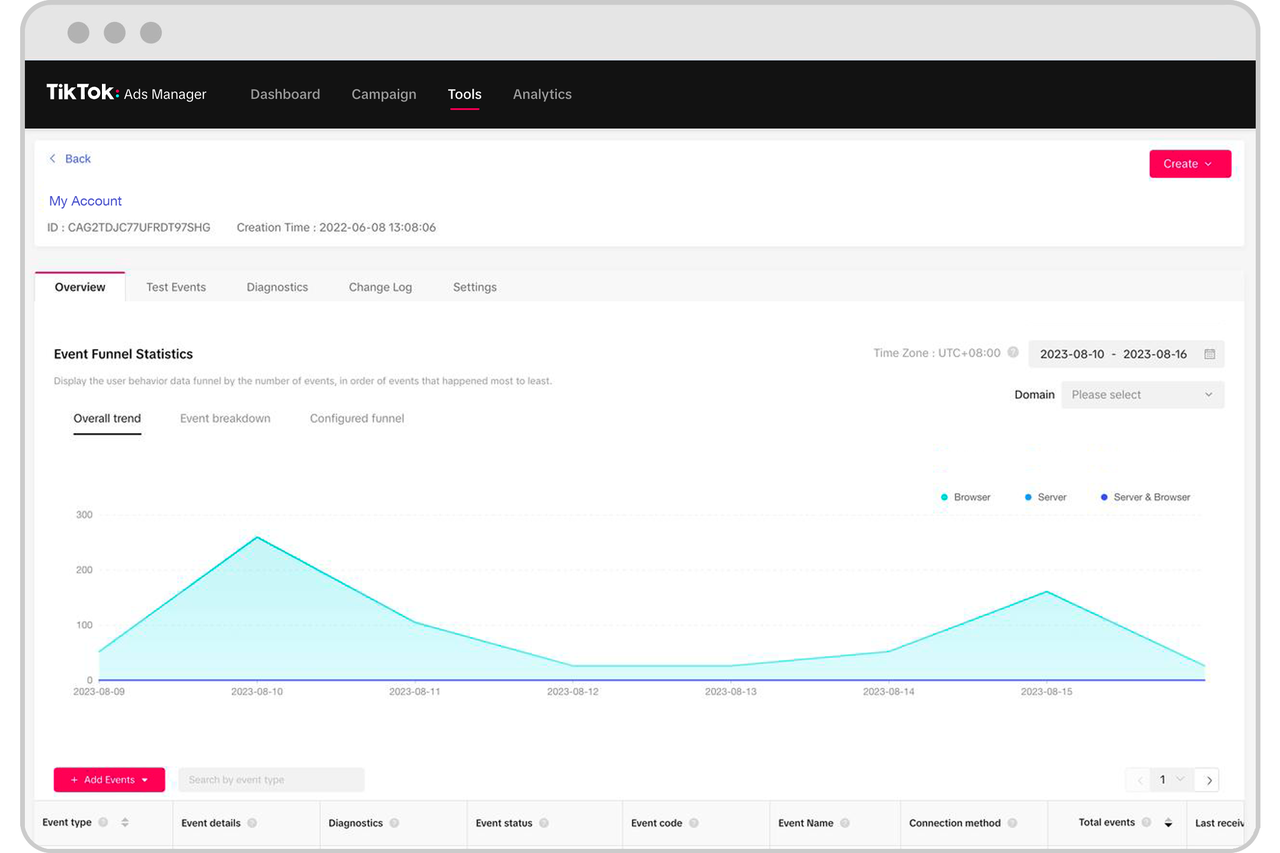
The first step in configuring TikTok event tracking is to install the TikTok Pixel on your website. This pixel acts as a tracking mechanism that records user interactions and sends this data back to TikTok for analysis.
To install the TikTok Pixel:
- Login to your Ads Manager account at ads.tiktok.com.
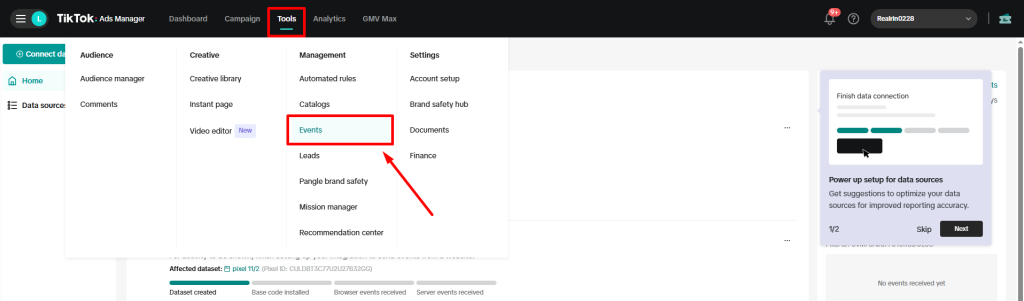
- Navigate to Assets > Events > Web Events and click the Manage button.
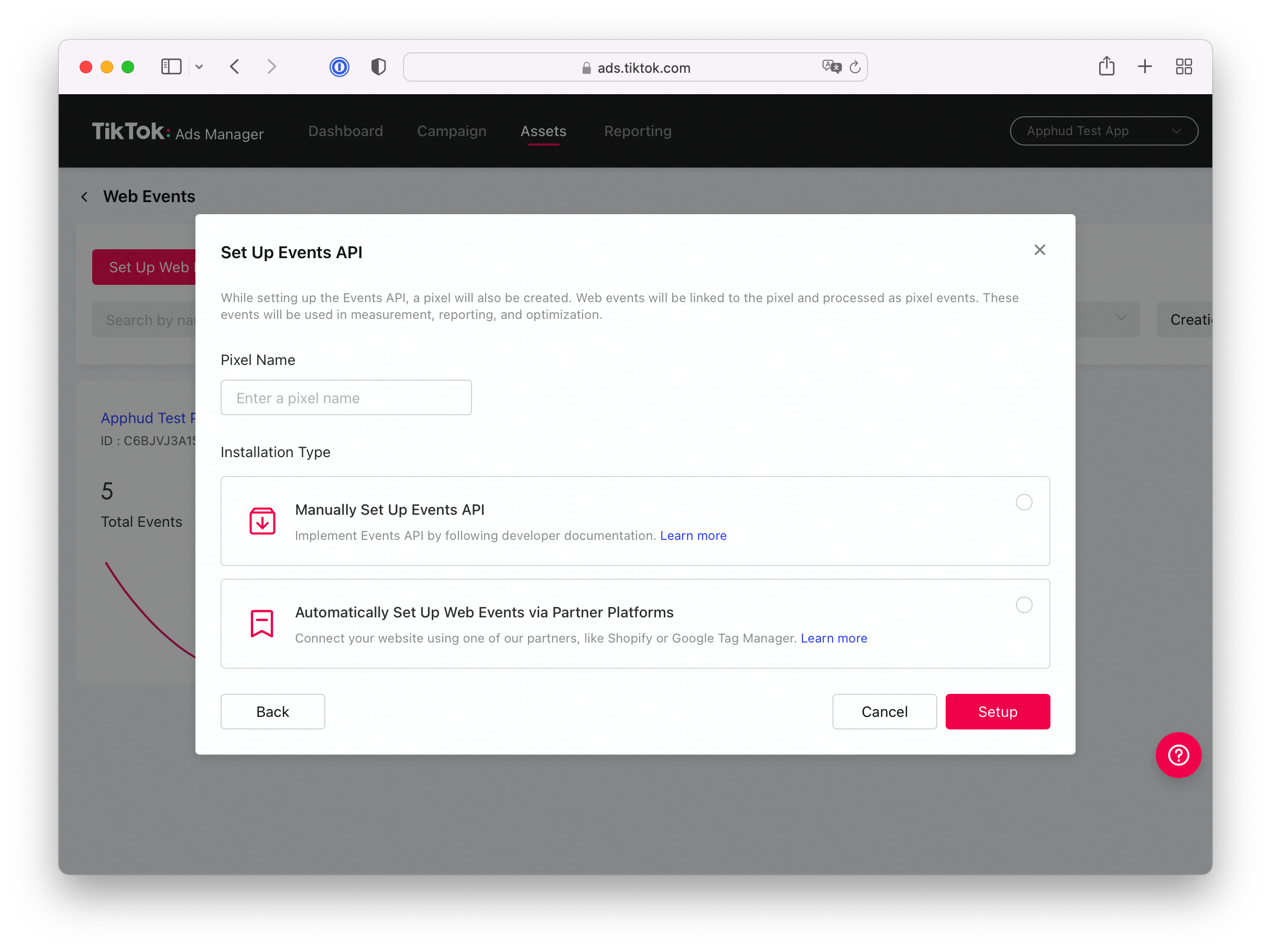
- Click the Set Up Web Events button and choose Manually Install Pixel Code.
- Enter your website’s name as the Pixel Name and select TikTok Pixel from the options.
- Choose Custom Code and proceed to create the pixel.
Once the pixel is created, you’ll receive a script that needs to be added to your website. This can be done directly in your codebase or via a tag management system like Google Tag Manager.
Step 2: Enable Advanced Matching

Advanced matching is a crucial feature that enhances the accuracy of your tracking by allowing TikTok to identify users based on their contact information. This is particularly useful for retargeting and creating more personalized ad experiences.
To enable advanced matching:
- Enable the Allow first-party cookie option.
- Enable the Automatic advanced matching option.
- Check both Phone Number and Email options to ensure comprehensive data collection.
This setup helps TikTok match user activity across different devices and browsers, providing a more accurate picture of your audience.
Step 3: Track Standard Events
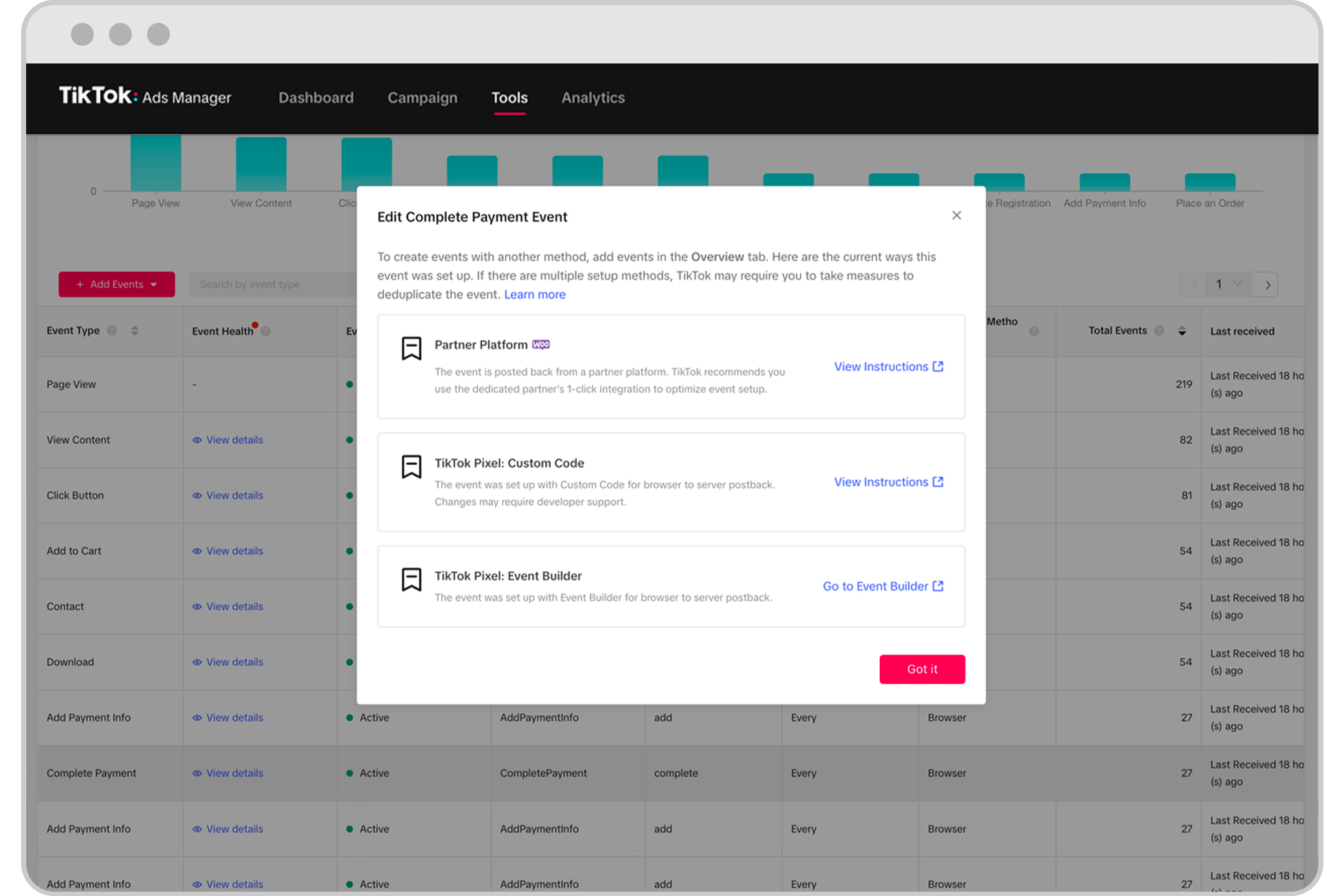
TikTok supports a range of standard events that can be used to track user interactions on your website. These events include actions such as viewing content, clicking buttons, and completing forms. Here are some common events and their use cases:
- ViewContent: Track when users view specific pages, especially those involved in lead generation.
- ClickButton: Monitor clicks on buttons throughout your site.
- Search: Record when users perform searches.
- AddToCart: Track when users add items to their cart.
- CompleteRegistration: Capture when users complete registration forms.
To track these events, use the ttq.track method with the appropriate event name. For example:
ttq.track('CompleteRegistration');
Step 4: Implement Server-Side Tracking with the Events API
For more reliable tracking, especially in environments where client-side tracking may be limited, consider using the TikTok Events API. This server-side approach ensures that events are tracked regardless of user settings or browser restrictions.
To implement the Events API:
- Generate a unique event ID for each event.
- Send this ID to both the TikTok Pixel and the Events API.
- Ensure that the event payload includes necessary details such as user information (encrypted), page URL, and other relevant context.
Here’s an example of a JSON payload for the Events API:
{
  "pixel_code": "{PIXEL-ID}",
  "event_id": "{UUID}",
  "timestamp": 1670353390,
  "event": "CompleteRegistration",
  "context": {
    "page": {
      "url": "https://apply.website.com/signup-complete"
    },
    "user": {
      "email": "{SHA256-EMAIL}",
      "phone_number": "{SHA256-PHONE}",
      "external_id": "{SHA256-USER-ID}"
    },
    "client_user_agent": "Mozilla/5.0 (Linux; Android 13; Pixel 6) AppleWebKit/537.36 (KHTML, like Gecko) Chrome/108.0.0.0 Mobile Safari/537.36",
    "ip": "{IP-ADDRESS}"
  },
  "properties": {
    "description": "New customer signup successfully completed",
    "content_type": "product",
    "content_id": "/signup-complete",
    "content_category": "apply.website.com"
  }
}
Step 5: Verify Your Setup
After implementing the tracking, it’s essential to verify that everything is working correctly. Use the TikTok Pixel Helper browser extension to check if the pixel is loading properly and if events are being fired as expected.
This tool provides detailed insights into how and where the pixel is loading on your website, helping you identify any issues quickly.
Conclusion
Configuring TikTok event tracking is a critical step in maximizing the effectiveness of your marketing efforts. By combining the TikTok Pixel with the Events API, you can gain deeper insights into user behavior, improve targeting, and ultimately drive better results.
As privacy policies continue to evolve, having a robust tracking strategy becomes even more important. Whether you’re a small business or a large enterprise, investing time in setting up and maintaining TikTok event tracking will pay off in the long run.
By following the steps outlined above, you’ll be well-equipped to leverage TikTok’s powerful advertising tools and stay ahead in the competitive digital marketing landscape.

Posting Komentar untuk "How to Configure TikTok Event Tracking for Maximum Marketing Insights"
Posting Komentar