
How to Create TikTok Pixel Custom Events for Advanced Tracking
Creating TikTok Pixel custom events is a powerful way to track user interactions on your website and optimize your advertising campaigns. By setting up custom events, you can gain deeper insights into how users engage with your content, allowing you to make more informed decisions about your marketing strategy.
Understanding TikTok Pixel and Custom Events

TikTok Pixel is a tracking tool that helps you measure the effectiveness of your ads by capturing user actions on your website. These actions, known as events, can include things like clicks, sign-ups, or purchases. While TikTok provides standard events for common actions, custom events allow you to track specific behaviors unique to your business.
Custom events are particularly useful when you want to monitor actions that aren't covered by the standard event types. For example, if you run an e-commerce site, you might want to track when a user adds a product to their cart or views a specific page. By creating custom events, you can gather more detailed data that aligns with your business goals.
Setting Up TikTok Pixel with Google Tag Manager
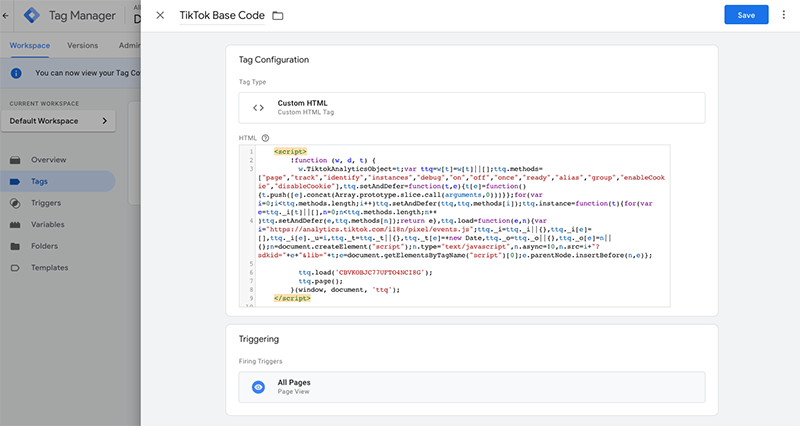
Before you can create custom events, you need to have TikTok Pixel installed on your website. One of the most efficient ways to do this is through Google Tag Manager (GTM). GTM allows you to manage and deploy tags on your website without needing to modify the code directly.
Here’s a step-by-step guide to setting up TikTok Pixel using GTM:
-
Create a Google Tag Manager Container: Start by creating a new container in your GTM account. This will serve as the workspace where you'll manage all your tags and triggers.
-
Install Google Tag Manager on Your Website: Once your container is set up, you'll need to install the GTM snippet on your website. This involves adding a piece of JavaScript code to your site's header.
-
Set Up TikTok Pixel in Events Manager: Go to TikTok Events Manager and navigate to the Data Sources section. Choose the TikTok Pixel you want to connect and click Settings. From there, select Partner Platform and choose Google Tag Manager.
-
Configure the Pixel in GTM: In GTM, you'll need to set up the TikTok Pixel tag. This involves specifying the pixel ID and configuring the settings to ensure it fires correctly on your website.
-
Use Data Layer Variables: To track custom events, you'll need to use data layer variables. These variables capture information from your website and pass it to GTM, which then sends it to TikTok Pixel.
Creating Custom Events in TikTok Pixel

Once TikTok Pixel is set up, you can start creating custom events. Here’s how you can do it:
-
Identify the Actions You Want to Track: Determine which user actions you want to monitor. These could be anything from clicking a button to completing a form.
-
Use the Event Builder: TikTok provides an Event Builder tool that allows you to create custom events without writing code. Simply select the type of event you want to track and configure the parameters.
-
Implement JavaScript Code for Advanced Tracking: If you need more control over your tracking, you can use JavaScript code to define custom events. This involves creating a function that captures the necessary data and sends it to TikTok Pixel.
Example code:
javascript
   function() {
     var ec = INSERT_YOUR_ECOMMERCE_VARIABLE_HERE;
     var ecItems = ec.items;
     return ecItems.map(function(product) {
       return {
         "content_id": !!product.item_id ? product.item_id.toString() : undefined,
         "price": !!product.price ? parseFloat(product.price) : undefined,
         "quantity": !!product.quantity ? parseInt(product.quantity) : undefined,
         "content_name": !!product.item_name ? product.item_name.toString() : undefined,
         "content_type": "product"
       };
     });
   }
Make sure to replace INSERT_YOUR_ECOMMERCE_VARIABLE_HERE with the appropriate variable from your data layer.
- Test Your Custom Events: After setting up your custom events, test them to ensure they're working correctly. Use tools like the GTM preview mode to verify that the events are being tracked as expected.
Best Practices for Using TikTok Pixel Custom Events
To get the most out of your custom events, follow these best practices:
-
Avoid Sensitive Data: Ensure that you don't send any sensitive information about your users. TikTok has strict policies regarding user privacy, and non-compliant events may be removed.
-
Use Descriptive Event Names: Choose clear and descriptive names for your events to make it easier to understand what each event represents.
-
Monitor and Optimize: Regularly review the data collected from your custom events and use it to refine your marketing strategies. This will help you improve the performance of your ads and increase conversions.
-
Stay Updated: Keep an eye on TikTok's updates and changes to their platform. New features and improvements can enhance your ability to track and analyze user behavior.
By following these steps and best practices, you can effectively create and utilize TikTok Pixel custom events to gain valuable insights into your audience's behavior and optimize your marketing efforts.

Posting Komentar untuk "How to Create TikTok Pixel Custom Events for Advanced Tracking"
Posting Komentar