
How to Implement Pixel Tracking for TikTok Ads in 2024
In the ever-evolving digital marketing landscape, TikTok has emerged as a powerful platform for businesses to reach their target audience. With its massive user base and high engagement rates, TikTok ads offer an excellent opportunity for brands to increase visibility and drive conversions. However, to make the most of these ads, it's essential to implement pixel tracking effectively. This article will guide you through the process of implementing pixel tracking for TikTok ads in 2024.
Understanding TikTok Pixel Tracking

TikTok Pixel is a tracking tool that allows businesses to measure the effectiveness of their ad campaigns by monitoring user actions on their website. By installing the TikTok Pixel, you can track events such as page views, product views, add-to-cart actions, and purchases. This data is crucial for optimizing your ad campaigns, retargeting users, and gaining insights into customer behavior.
Key Benefits of TikTok Pixel Tracking
- Conversion Tracking: Measure the number of sales, leads, or other valuable actions directly attributed to your TikTok ads.
- Ad Optimization: Monitor your sales in relation to your ads to pivot and adjust accordingly to find the right audience.
- Retargeting Capabilities: Target potential customers who visited your website but didn't make a purchase.
- User Insights: Gain valuable insights into how users interact with your website, helping you identify popular products and user behavior patterns.
Step-by-Step Guide to Implementing TikTok Pixel for Ads
1. Set Up Your TikTok Pixel
To begin, you need to create a TikTok Pixel in your TikTok Ads Manager account.
Steps: - Log into your TikTok Ads Manager account. - Name your pixel and select to install the pixel code manually. - Choose Developer Mode to set your event rules and click Next. - Copy your Pixel Code and complete your pixel creation.
2. Install the TikTok Pixel on Your Website
Once you have your Pixel ID, you need to install the TikTok Pixel on your website.
Steps:
- Go to your website's backend (e.g., Shopify, WooCommerce, WordPress).
- Locate the section where you can add custom code (usually in the theme settings or header/footer files).
- Paste the TikTok Pixel code before the closing </head> tag.
3. Configure Event Tracking
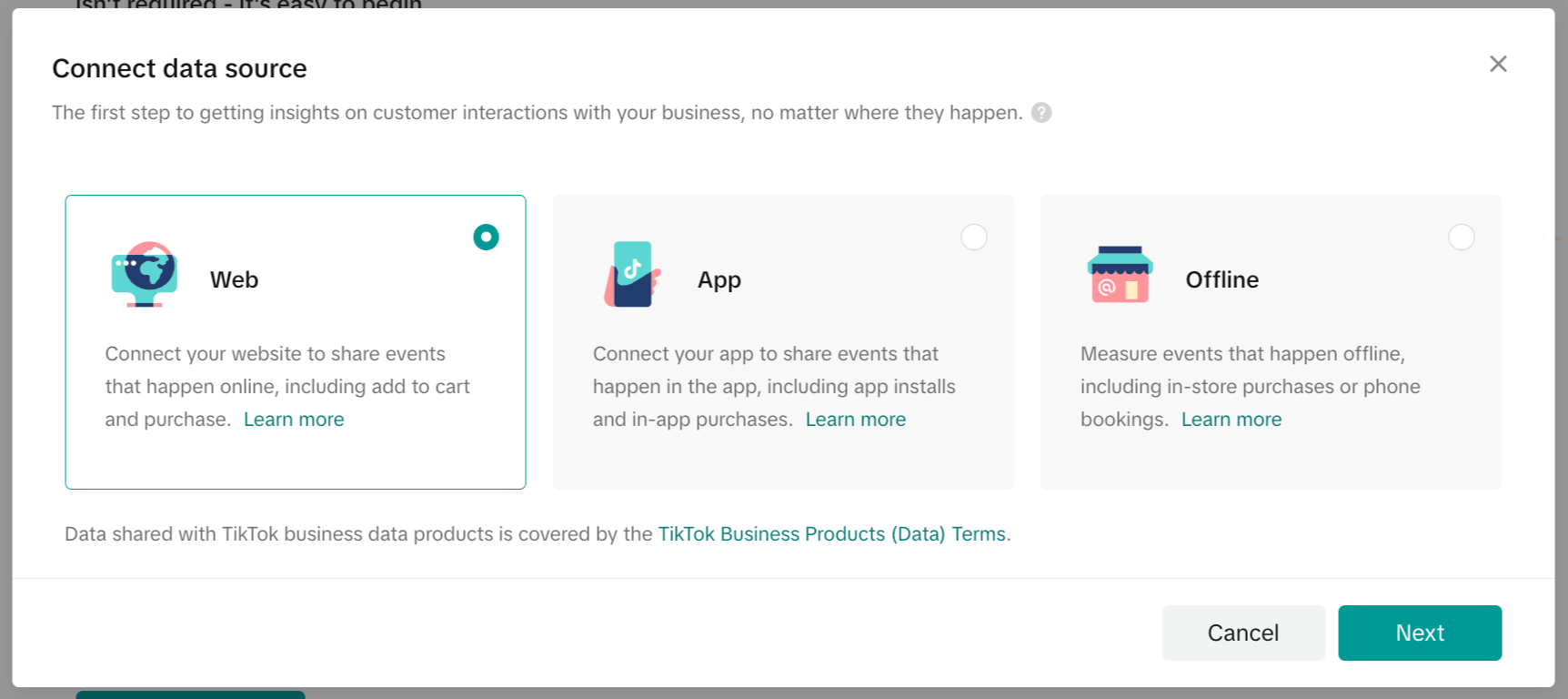
After installing the pixel, you need to configure the events you want to track. Common events include:
- Page View: Track when a user visits any page on your website.
- View Content: Track when a user views product pages.
- Add to Cart: Track when users add products to their shopping cart.
- Place Order: Track when a user completes a purchase.
Example Code for Add to Cart Event:
document.querySelectorAll('form[action="/cart/add"]').forEach(form => {
  form.addEventListener('submit', function() {
    ttq.track('AddToCart', {
      content_id: '{{ product.id }}',
      content_name: '{{ product.title }}',
      currency: '{{ shop.currency }}',
      value: {{ product.price | money_without_currency }}
    });
  });
});
4. Test Your Pixel Implementation
After setting up the pixel and configuring the events, it's essential to test your implementation to ensure everything is working correctly.
Tools to Use: - TikTok Pixel Helper (Chrome Extension): This extension helps you test and troubleshoot pixel installation on your website. It provides real-time feedback on whether conversion events are triggering.
Steps to Test: - Visit your website and trigger the events (e.g., add a product to your cart). - Open the TikTok Pixel Helper Chrome extension and check if the events are firing correctly. - Ensure the Pixel ID is correct and matches what is shown in your TikTok Ads Manager.
5. Optimize Your Ad Campaigns

With the TikTok Pixel implemented, you can now optimize your ad campaigns based on the data collected.
Tips for Optimization: - Use Advanced Matching: Enable advanced matching to send important customer information such as email and phone numbers to TikTok. This helps improve attribution and TikTok's algorithm-optimized ad delivery. - Set Up Retargeting and Lookalike Audiences: Create custom audiences based on past visitors, purchasers, or add-to-cart users. Use lookalike audiences to find new customers matching your best buyers. - A/B Test Multiple Creatives and Offers: Test different formats of ads, including Spark Ads, UGC-style videos, and product demos to see what resonates with your audience.
Troubleshooting Common Issues
If you encounter issues with your TikTok Pixel implementation, consider the following troubleshooting steps:
- Confirm TikTok Pixel Installation: Use the TikTok Pixel Helper extension to check if events are firing correctly.
- Reinstall the TikTok App: Sometimes, the integration can fail partially, leading to missing event parameters. Reinstalling the TikTok app can reset the pixel tracking.
- Check Event Parameters in Your Theme: If you're using a specific theme (e.g., Dawn), ensure that the theme triggers the events correctly. Check the theme.liquid file for any TikTok Pixel script and verify that it includes the necessary parameters.
Conclusion
Implementing pixel tracking for TikTok ads is a critical step in maximizing the effectiveness of your advertising efforts. By following the steps outlined in this article, you can ensure that your TikTok Pixel is properly set up and configured to track key events. This will not only help you measure the success of your ad campaigns but also provide valuable insights into user behavior, allowing you to make data-driven decisions to optimize your marketing strategy. With the right tools and configurations, you can leverage TikTok's powerful advertising platform to achieve your business goals in 2024 and beyond.
Posting Komentar untuk "How to Implement Pixel Tracking for TikTok Ads in 2024"
Posting Komentar