
How to Install the TikTok Pixel Code: A Step-by-Step Guide
In today's digital landscape, social media platforms like TikTok have become essential tools for businesses looking to reach new audiences and drive sales. One of the most effective ways to harness the power of TikTok is by installing the TikTok Pixel code. This powerful tool allows you to track user interactions, refine your advertising strategies, and gain valuable insights into customer behavior. In this guide, we'll walk you through the process of installing the TikTok Pixel code on your Shopify store.
Understanding the TikTok Pixel
Before diving into the installation process, it's important to understand what the TikTok Pixel is and why it's crucial for your business. The TikTok Pixel is a snippet of JavaScript code that you can add to your Shopify store to track visitor actions. These actions include events like 'view page' or 'purchase'. By tracking these events, you can better understand your customers' behavior, refine your ad campaigns, and target the right audiences.
The TikTok Pixel also helps in optimizing your remarketing strategies, allowing you to reach out again to visitors who didn't make a purchase on their first visit. With a better grip on conversion tracking, audience targeting, and ad optimization, the TikTok Pixel is your go-to for making smarter marketing moves.
Prerequisites for Installing the TikTok Pixel
To begin the installation process, ensure you're equipped with the following essentials:
- TikTok Business Account: Essential for accessing the TikTok Ads Manager to create and manage your pixel.
- TikTok Ads Manager Account: Required to manage your advertising campaigns and the pixel itself.
- Shopify Admin Access: Needed for adding or editing pixel code within your store’s backend.
- Understanding of Events (Customer Activity) to Track: Know which website actions (like page views and purchases) you plan to monitor with the pixel.
With these prerequisites in place, you're ready to proceed with the installation.
Methods to Install the TikTok Pixel on Your Shopify Store
There are several methods to install the TikTok Pixel on your Shopify store. Here are the most common ones:
Method 1: Installing Through the TikTok Sales Channel App
The TikTok Sales Channel app is the most popular method for integrating TikTok Pixel with your Shopify store. Here's how to do it:
- Install the TikTok App on Shopify: Navigate to Shopify’s App Store and install the TikTok app.
- Connect Your TikTok Business Account: Follow the prompts after installation to link your TikTok for Business account.
- Connect Your TikTok Ads Manager Account: After linking your TikTok for Business account, connect your TikTok Ads Manager account. This process will automatically create a TikTok Pixel for Shopify.
- Create a New Pixel or Select an Existing One: Once your accounts are connected, you have the option to either create a new TikTok Pixel or select an existing one.
- Choose Your Data Sharing Level: Go to the ‘Settings’ menu in Shopify and select ‘Data sharing’. Choose the level of data sharing you’re comfortable with (Standard, Enhanced, or Maximum).
- Double-Check TikTok Pixel Activation: Ensure the TikTok Pixel you’ve set up or selected is active in your TikTok Ads Manager account.
Method 2: Manual Installation
If you prefer a more hands-on approach, you can manually install the TikTok Pixel on your Shopify store. Here are the steps:
- Create Pixel on TikTok: Log into TikTok Ads Manager, select ‘Assets’, then ‘Events’, and click ‘Create Pixel’. Choose ‘Website Pixel’ and name your pixel.
- Copy Pixel Code: Ensure you have the pixel code copied to your clipboard or saved somewhere accessible.
- E-Commerce Events: Select this option and choose events like “Product Details”, “Add to Cart”, etc., as needed. Set your currency and ensure the statistic type is on ‘Every’.
- Pixel Setup Review: Review your pixel setup, ideally with your marketing manager, to ensure accuracy.
- Install the TikTok App on Shopify: Search for “TikTok” in the Shopify app store, install the official TikTok app, and link both your TikTok For Business and Ad accounts.
- Insert Pixel Code on Shopify: Access your Shopify store and go to ‘Online Store’ -> ‘Theme’ -> ‘Actions’ -> ‘Edit code’. Paste the pixel code between the and tags.
- Checkout Pixel Installation: Navigate to ‘Settings’ -> ‘Checkout’ in Shopify and insert your pixel code in the ‘Additional scripts’ field.
Method 3: Using Shopify TikTok Pixel Apps
Shopify apps offer a user-friendly way to add TikTok Pixels to your store. These apps simplify the installation process, providing you with advanced tracking capabilities and additional functionalities that go beyond the standard Pixel setup. Some popular apps include:
- Omega Pixel – TikTok Pixels
- Trackify X
- PixelTok: TikTok Pixel Install
- TiXel ‑ Multiple TikTok Pixels
These apps provide features such as server-side integration, event deduplication, and detailed data analysis, making them ideal for businesses looking to optimize their TikTok advertising efforts.
Verifying the TikTok Pixel Installation
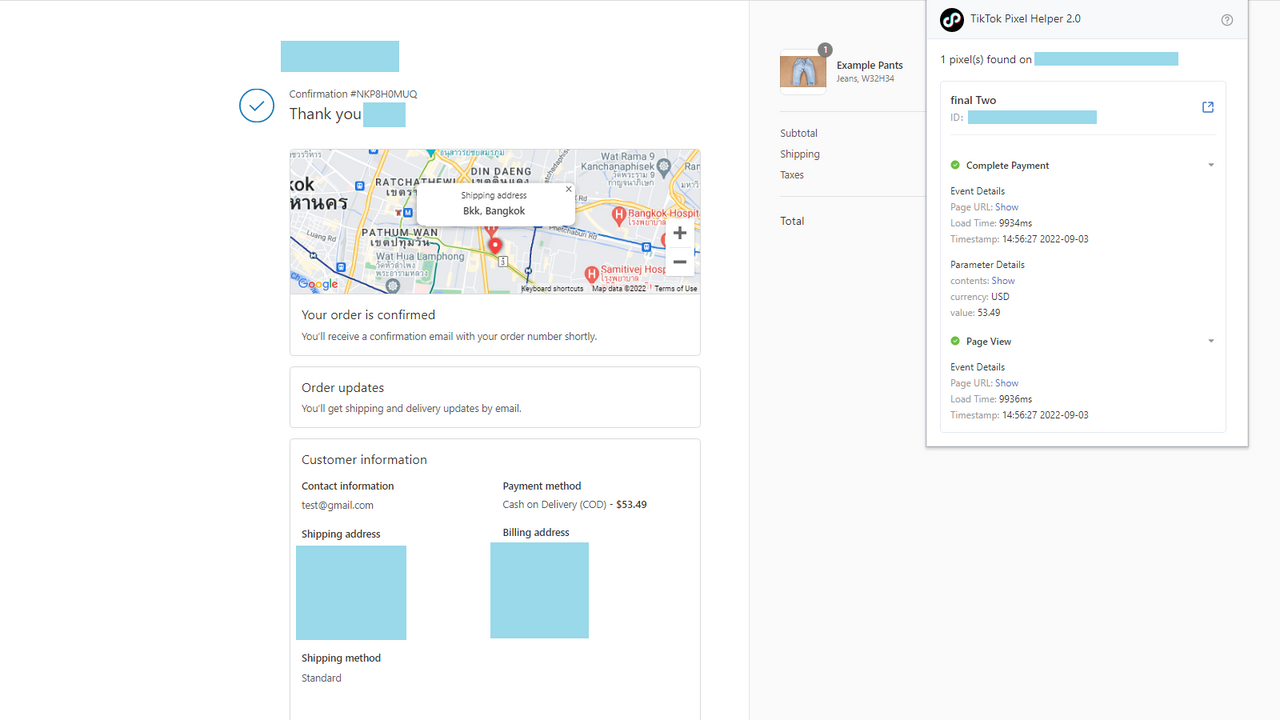
Once you've set up the TikTok Pixel on your Shopify store, it's important to make sure it's working correctly. Here's how to check using the TikTok Pixel Helper:
- Install TikTok Pixel Helper: This is a Chrome extension. Find it in the Chrome Web Store and add it to your browser.
- Visit Your Store: Open your Shopify store’s website in Chrome.
- Use the Pixel Helper: Click on the TikTok Pixel Helper icon in your browser. It will tell you if the TikTok Pixel is active on your site.
- Look for Events: The Pixel Helper shows events like page views or items added to the cart. These confirm the Pixel is tracking correctly.
- Refresh if Needed: If you don’t see any events, refresh your store’s page and check again.
By following these steps, you can ensure your TikTok Pixel is ready to collect valuable data to improve your ads.
Conclusion
Installing the TikTok Pixel code on your Shopify store is a powerful way to enhance your marketing efforts and gain valuable insights into customer behavior. By following the steps outlined in this guide, you can effectively track user interactions, refine your advertising strategies, and drive sales. Whether you choose to use the TikTok Sales Channel app, manual installation, or a third-party app, the key is to ensure the Pixel is properly installed and verified. With the right tools and strategies, you can take your Shopify store's marketing capabilities to a whole new level.

Posting Komentar untuk "How to Install the TikTok Pixel Code: A Step-by-Step Guide"
Posting Komentar