
How to Install TikTok Pixel Events for Effective Tracking
In today's digital marketing landscape, tracking user behavior on your website is crucial for optimizing ad campaigns and improving conversion rates. One powerful tool that can help you achieve this is the TikTok Pixel. If you're running a Shopify store and want to track user interactions with your TikTok ads, installing the TikTok Pixel is an essential step. This article will guide you through the process of installing TikTok Pixel events on your Shopify store, ensuring you get the most out of your advertising efforts.

Understanding the TikTok Pixel
The TikTok Pixel is a snippet of JavaScript code that you add to your Shopify store to track user actions such as page views, purchases, and add-to-cart events. It allows you to gather valuable insights into customer behavior, refine your ad targeting, and optimize your campaigns for better performance.
Key benefits of using the TikTok Pixel include:
- Improved Conversion Tracking: Track specific user actions like product views, cart additions, and purchases.
- Enhanced Audience Targeting: Use data from the Pixel to create custom audiences for more effective ad campaigns.
- Remarketing Opportunities: Reach users who have visited your site but didn’t make a purchase, encouraging them to return.
Prerequisites for Installing TikTok Pixel on Shopify
Before you begin the installation process, ensure you have the following:
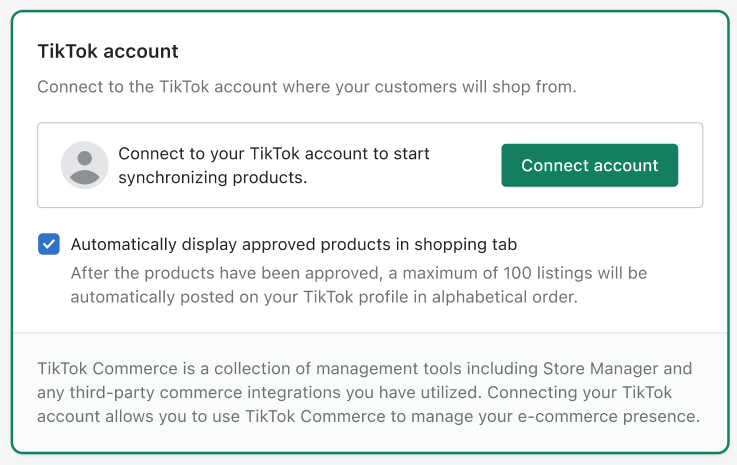
- TikTok Business Account: Required to access the TikTok Ads Manager and create your Pixel.
- TikTok Ads Manager Account: Necessary for managing your Pixel and advertising campaigns.
- Shopify Admin Access: Needed to add or edit the Pixel code in your store’s backend.
- Understanding of Events to Track: Know which user actions (e.g., page views, purchases) you want to monitor.
Methods to Install TikTok Pixel on Shopify
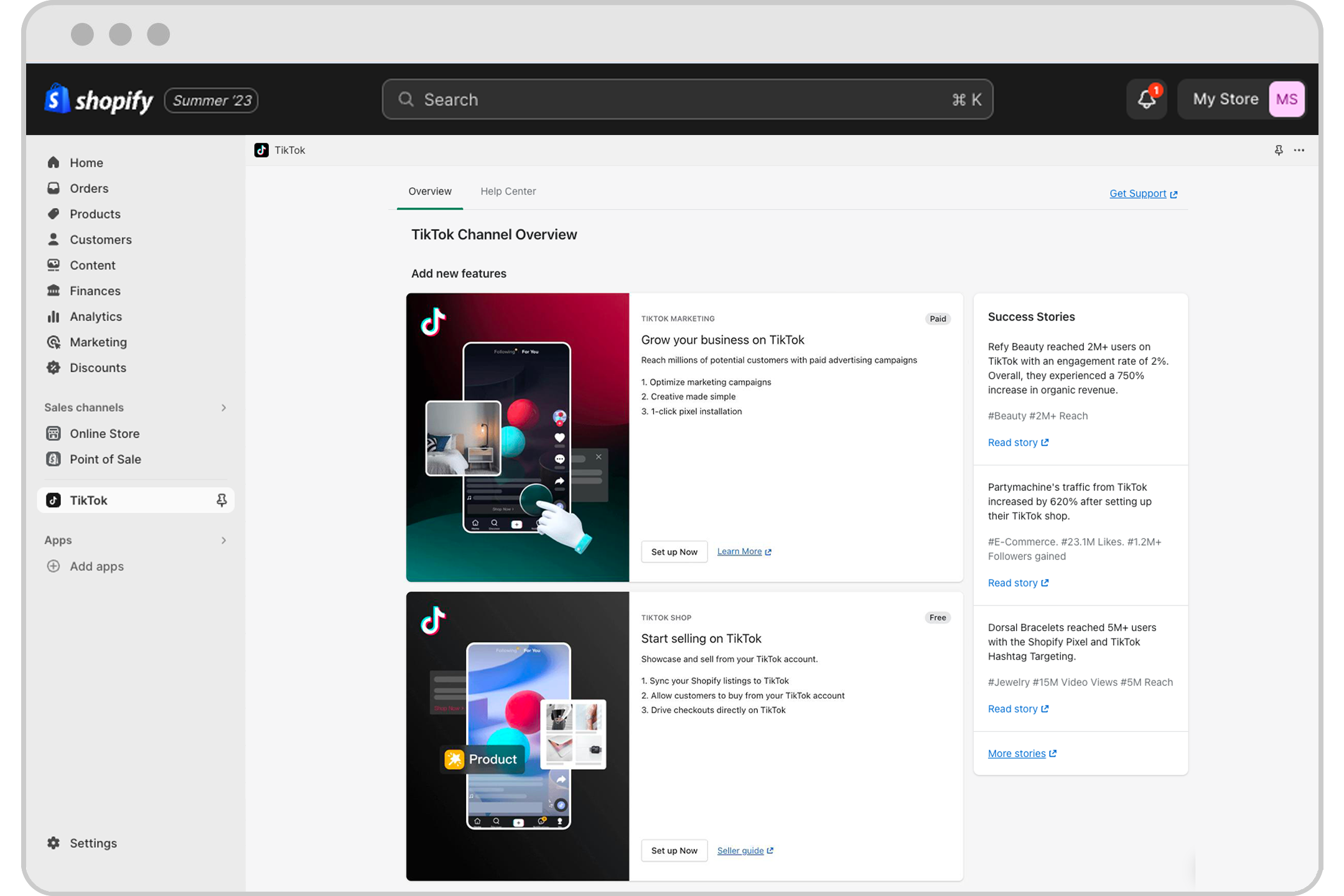
There are several ways to install the TikTok Pixel on your Shopify store. Below are the most common methods:
Method 1: Installing Through the TikTok Sales Channel App
This is the most popular method for integrating TikTok Pixel with your Shopify store. Here's how to do it:
- Install the TikTok App on Shopify: Go to the Shopify App Store and install the TikTok app.
- Connect Your TikTok Business Account: Follow the prompts after installation to link your TikTok for Business account.
- Connect Your TikTok Ads Manager Account: Link your TikTok Ads Manager account to complete the setup.
- Create or Select a Pixel: Choose to create a new Pixel or connect an existing one.
- Choose Data Sharing Level: Set your preferred data sharing level (Standard, Enhanced, or Maximum).
- Verify Pixel Activation: Ensure the Pixel is active in your TikTok Ads Manager account.
Method 2: Manual Installation
If you prefer a more hands-on approach, you can manually install the TikTok Pixel:
- Create a Pixel on TikTok: Log into TikTok Ads Manager, go to Assets > Events, and click Create Pixel.
- Copy the Pixel Code: Save the code to your clipboard.
- Insert Pixel Code on Shopify: Access your Shopify store’s backend, go to Online Store > Theme > Edit code, and paste the Pixel code between
<head>and</head>tags. - Checkout Pixel Installation: Add the Pixel code to the Additional scripts field in the Checkout settings.
Method 3: Using Shopify TikTok Pixel Apps

Several third-party apps simplify the installation process and offer advanced tracking features. Some popular options include:
- Omega Pixel – TikTok Pixels
- Trackify X
- PixelTok: TikTok Pixel Install
- TiXel ‑ Multiple TikTok Pixels
These apps provide user-friendly interfaces and additional functionalities beyond the standard Pixel setup.
Verifying TikTok Pixel Functionality
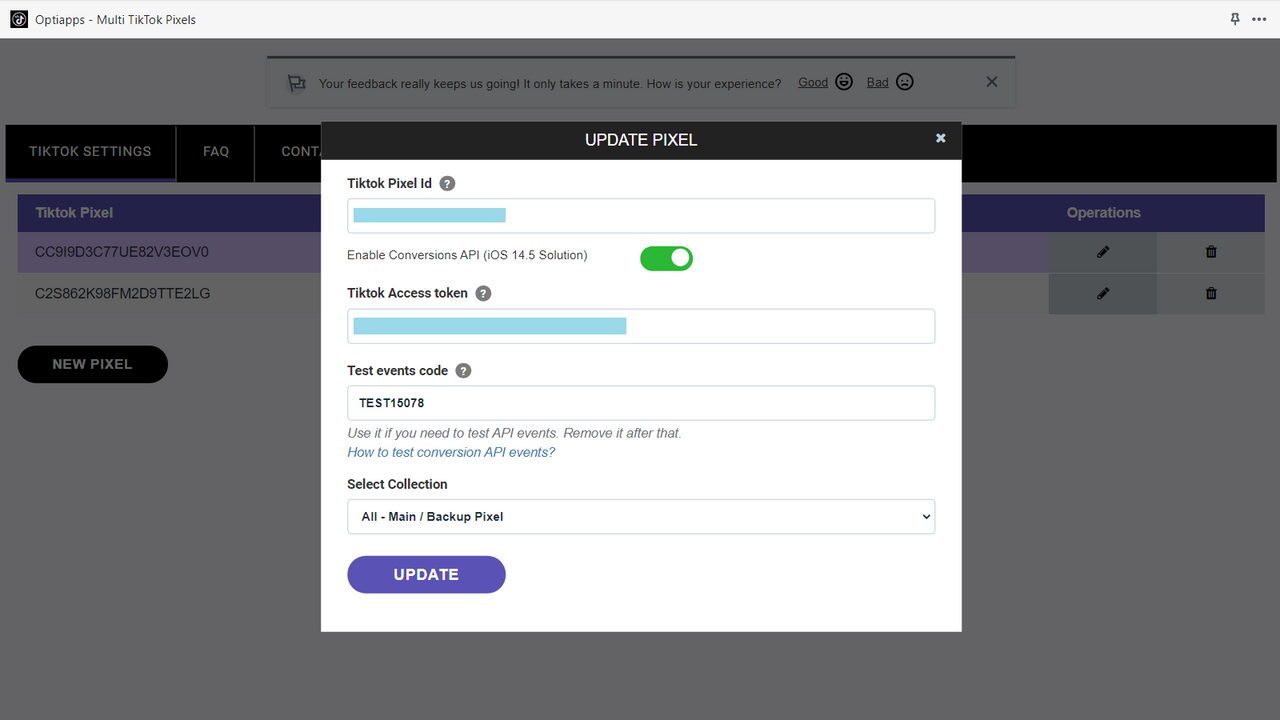
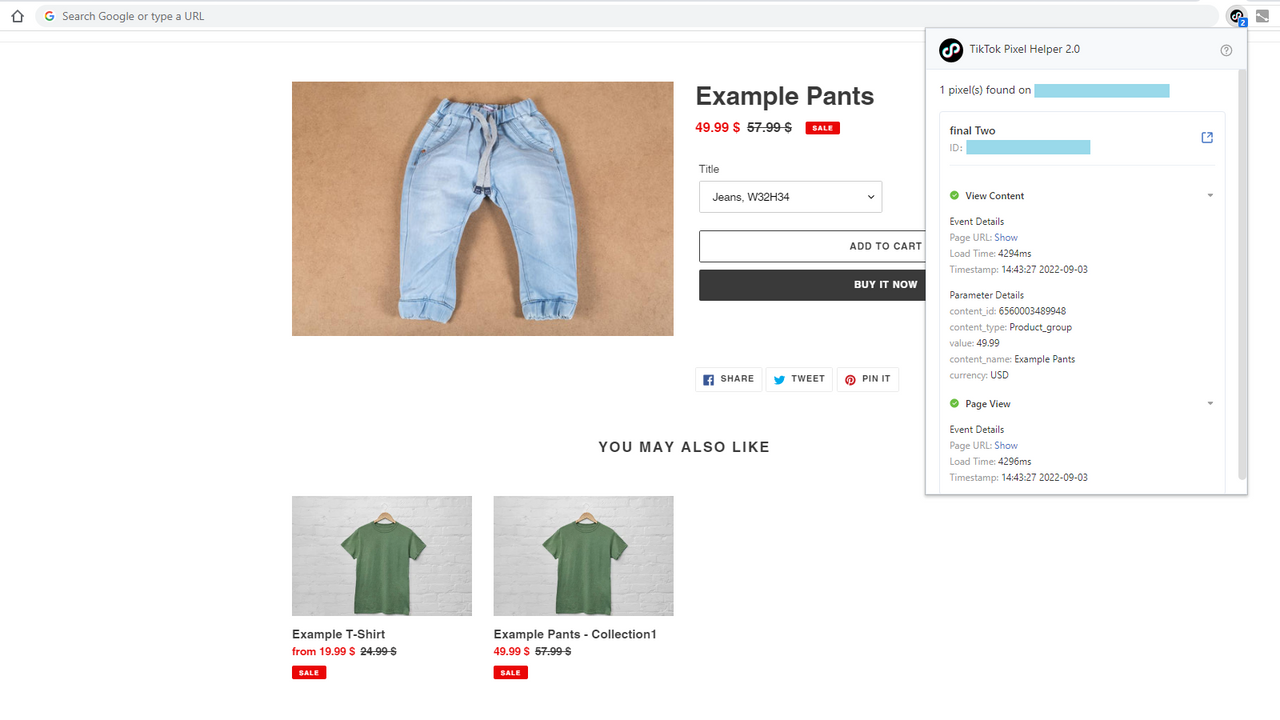
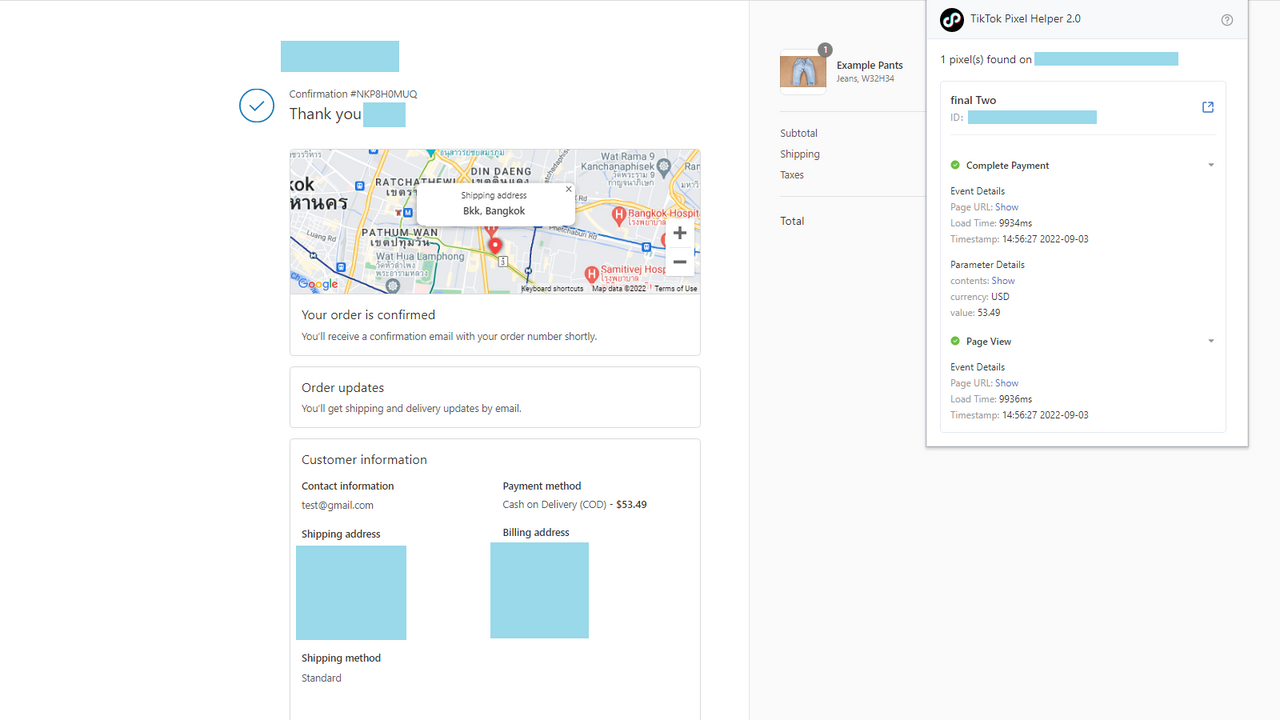
After installation, it's important to verify that the TikTok Pixel is working correctly. Use the TikTok Pixel Helper, a Chrome extension, to check if the Pixel is active and tracking events like page views and cart additions.
Steps to verify: 1. Install TikTok Pixel Helper: Add the extension to your browser. 2. Visit Your Store: Open your Shopify store in Chrome. 3. Use the Pixel Helper: Click the extension icon to check for active events. 4. Refresh if Needed: If no events are detected, refresh the page and check again.
Advanced Features and Best Practices
Once the TikTok Pixel is installed, consider these advanced features and best practices:
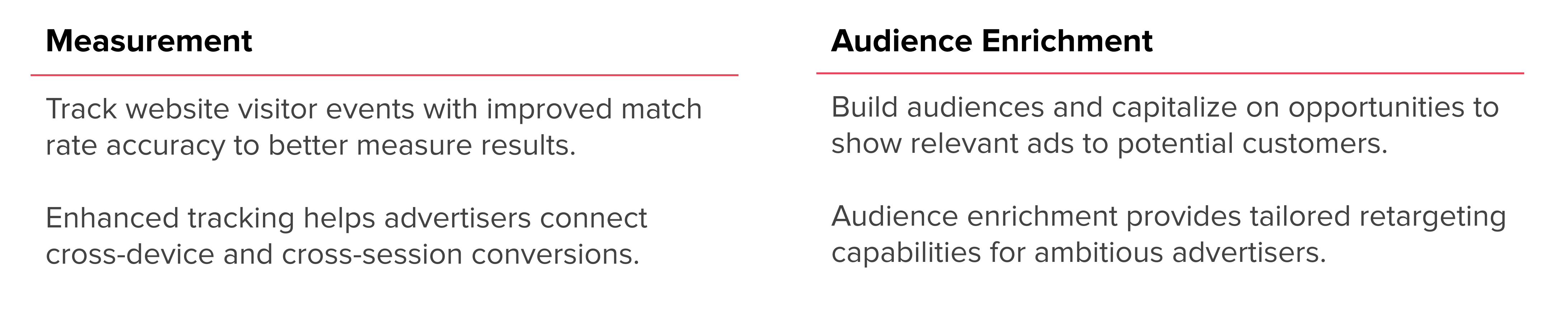
- Advanced Matching: Improve tracking accuracy by using first-party cookies.
- Audience Enrichment: Tailor ads based on detailed user data.
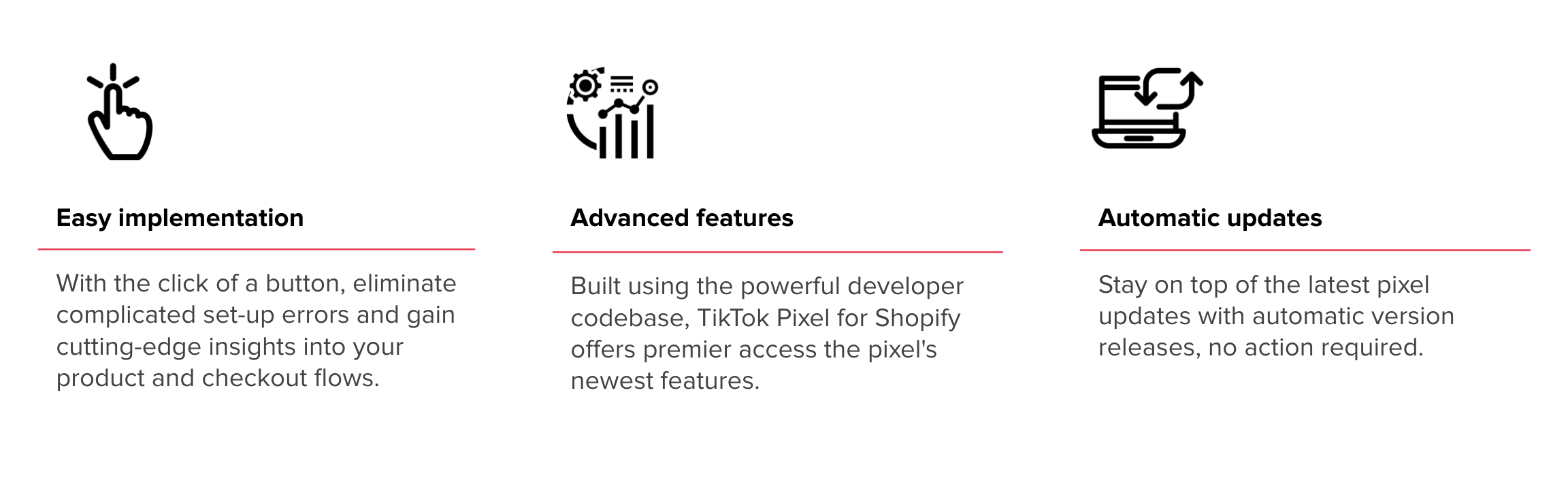
- Automated Updates: Keep your tools up-to-date with TikTok’s direct integration.
Best practices for effective TikTok advertising include: - Setting up key events like View Content, Add to Cart, and Complete Payment. - Using creative ad content and leveraging TikTok’s social commerce features. - Optimizing campaign settings for better performance.
Conclusion
Installing the TikTok Pixel on your Shopify store is a powerful way to track user behavior, optimize ad campaigns, and improve conversions. Whether you choose to use the TikTok Sales Channel app, manual installation, or third-party apps, the process is straightforward and offers significant benefits.
By following the steps outlined in this guide, you'll be well on your way to harnessing the full potential of the TikTok Pixel and taking your Shopify store's marketing efforts to the next level.

Posting Komentar untuk "How to Install TikTok Pixel Events for Effective Tracking"
Posting Komentar