
How to Install TikTok Pixel Tracking: A Step-by-Step Guide
Understanding the Importance of TikTok Pixel Tracking

In today's digital marketing landscape, understanding user behavior and measuring the effectiveness of your advertising campaigns is crucial. The TikTok Pixel is a powerful tool that allows businesses to track user interactions with their ads, providing valuable insights into customer behavior. By utilizing the TikTok Pixel, you can measure conversions based on specific events you define, such as adding a product to a cart or completing a checkout. This data enables you to optimize your ad strategies and improve your return on investment (ROI).
Step-by-Step Guide to Installing TikTok Pixel
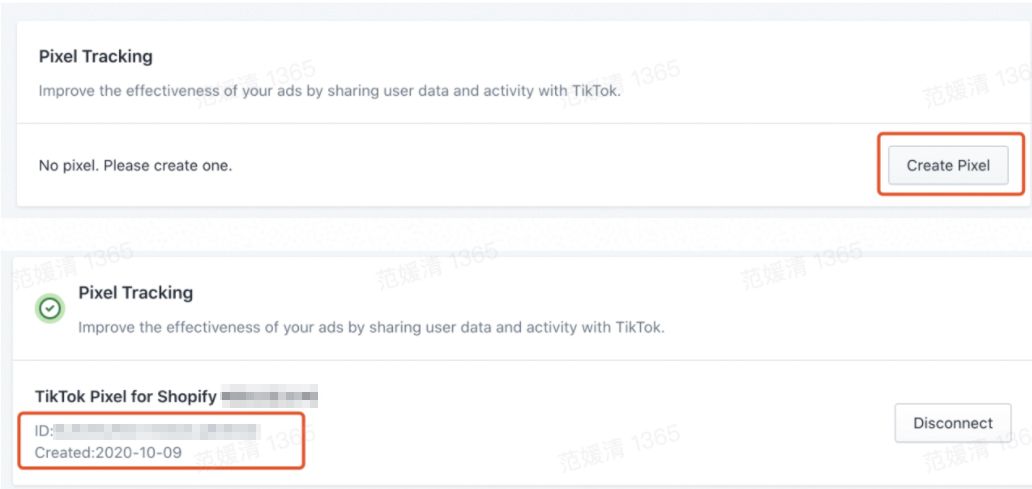
Step 1: Log Into Your TikTok Ads Manager Account
Before you begin the installation process, ensure you have access to your TikTok Ads Manager account. This is where you will manage all aspects of your TikTok advertising campaigns, including setting up and managing your pixel.
Step 2: Name Your Pixel and Select Manual Installation
Once logged in, navigate to the section where you can create a new pixel. You'll need to name your pixel for easy identification later. Choose the option to install the pixel code manually. This gives you more control over the tracking rules and events you want to monitor.
Step 3: Choose Developer Mode for Event Rules
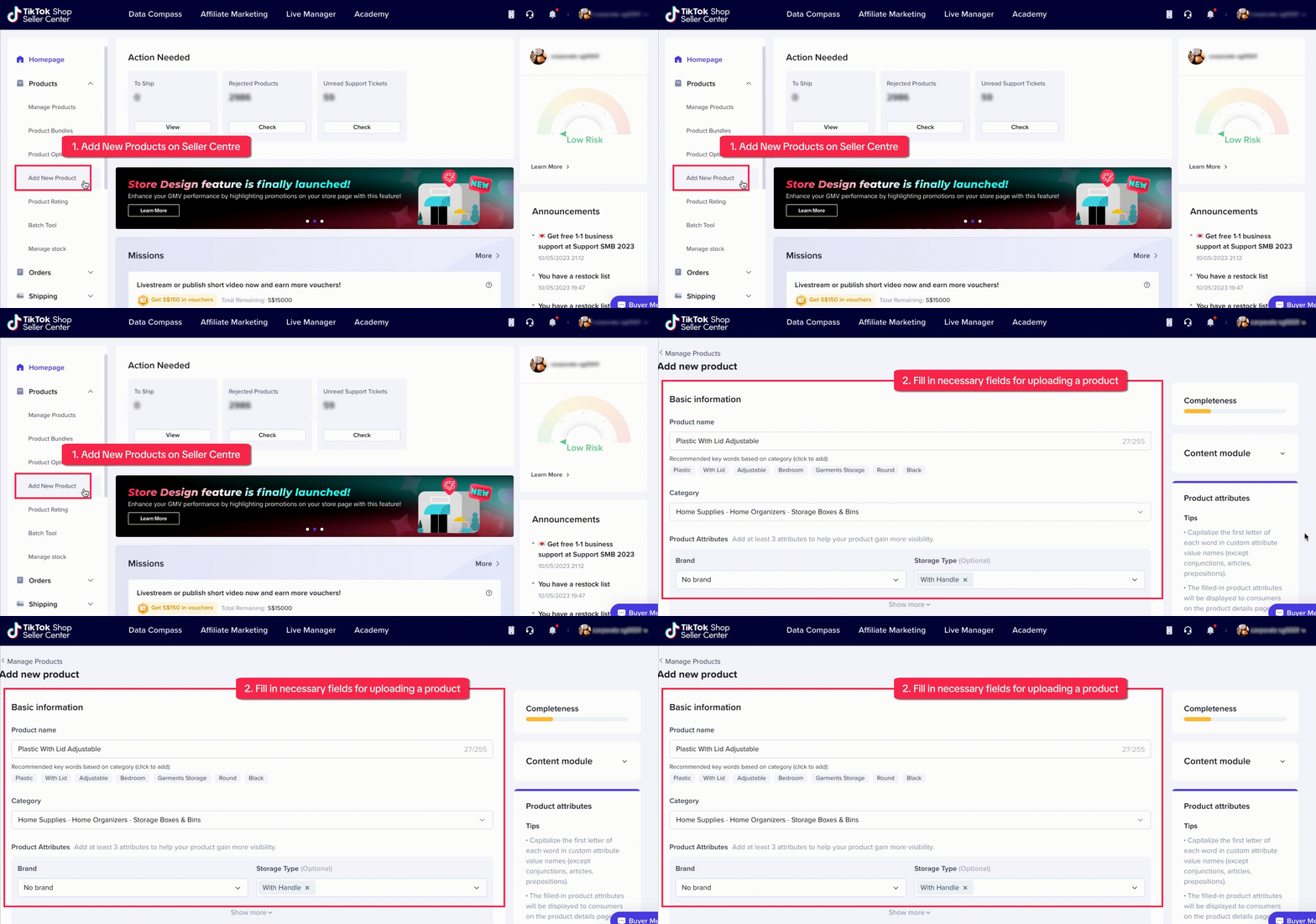
When setting up your pixel, it's essential to select Developer Mode. This mode allows you to define custom event rules that align with your business objectives. If you accidentally choose Standard Mode, you may need to create a new pixel to ensure accurate tracking.
Step 4: Copy Your Pixel Code
After selecting Developer Mode, you'll be prompted to copy your Pixel Code. This unique code is necessary for integrating the TikTok Pixel into your website or platform. Make sure to save this code in a secure location.
Step 5: Access Your Chip Seller Dashboard
If you're using a platform like Chip to manage your e-commerce operations, you'll need to access your Chip seller dashboard. This is where you'll link your TikTok Pixel to your account.
Step 6: Paste Your TikTok Pixel ID

Navigate to the Campaign Details section within your Chip seller dashboard. Look for the Conversion Tracking option and paste your TikTok Pixel ID into the designated field. This step ensures that your pixel is correctly linked to your advertising campaigns.
Step 7: Install TikTok Pixel Helper
To fully utilize the capabilities of the TikTok Pixel, consider installing the TikTok Pixel Helper. This tool provides additional features and simplifies the tracking process, allowing you to monitor your ad performance in real-time.
Optimizing Your TikTok Pixel for Success
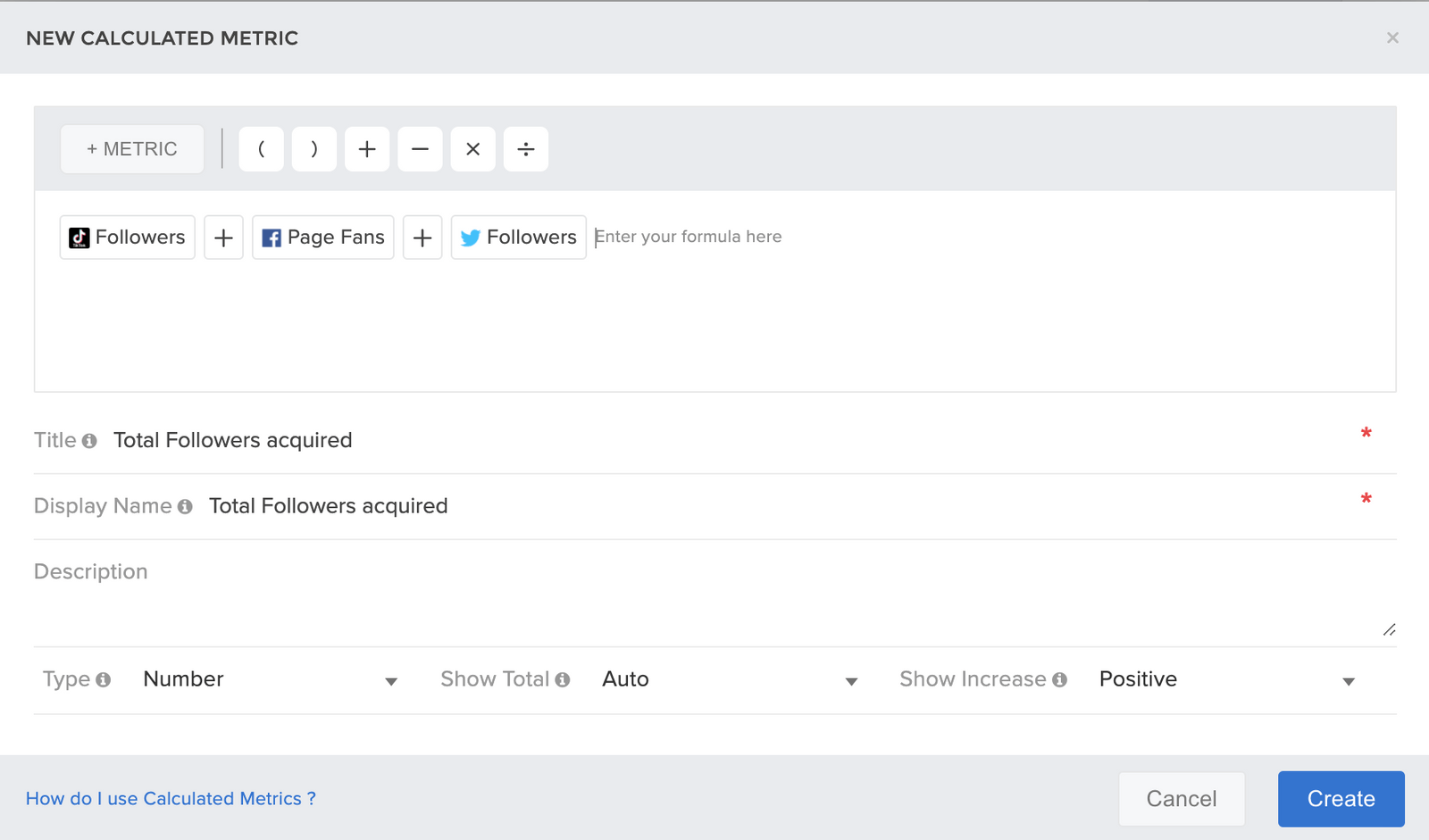
Once your TikTok Pixel is installed, it's time to optimize it for maximum impact. Here are some tips to help you get the most out of your tracking:
- Define Clear Events: Identify the key actions you want to track, such as purchases, sign-ups, or page views. These events will provide actionable insights into your campaign performance.
- Monitor Ad Performance: Use the data collected by the TikTok Pixel to analyze which ads are driving conversions and adjust your strategies accordingly.
- Leverage Real-Time Analytics: Take advantage of real-time analytics to make informed decisions quickly. This can help you respond to trends and optimize your campaigns on the fly.
Additional Tools for Enhanced Tracking
For businesses looking to enhance their tracking capabilities, tools like Magic TikTok Pixel can provide advanced analytics and reporting features. These tools help you stay ahead of the competition by offering deeper insights into your advertising methods and sales performance.
Installing TikTok Pixel on Shopify
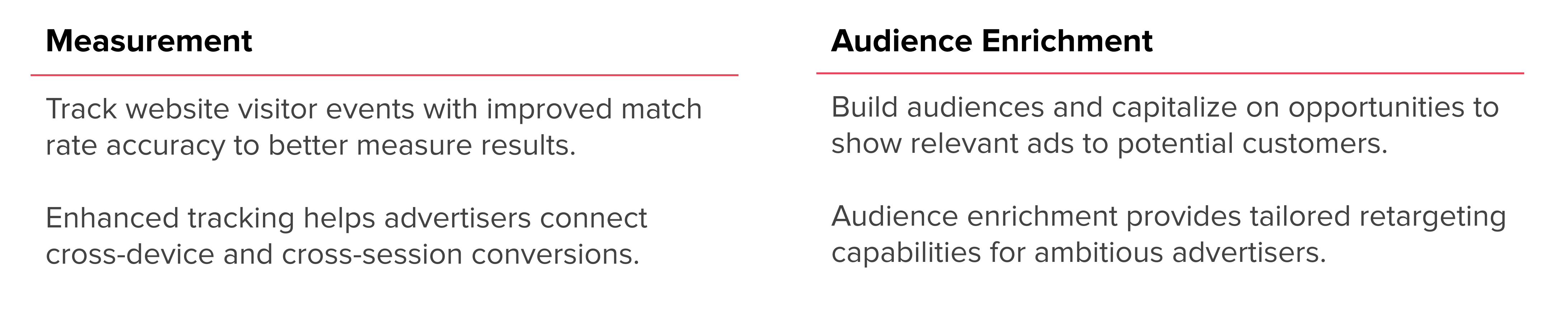
If you're using Shopify to manage your online store, the process of installing the TikTok Pixel is straightforward. Follow these steps to integrate the pixel with your Shopify account:
- Install the TikTok App: Begin by installing the TikTok app from the Shopify App Store. This app facilitates the integration of TikTok Pixel with your Shopify store.
- Connect Your TikTok Account: After installing the app, connect your TikTok business account to your Shopify store. This ensures that your pixel is properly linked to your advertising efforts.
- Create a New Pixel: Within the TikTok app, create a new pixel and follow the prompts to set up your tracking rules. This step is crucial for defining the events you want to monitor.
- Link Your Ad Account: Connect your TikTok Ads account to your Shopify store to enable seamless tracking across platforms.
By following these steps, you can effectively install and utilize the TikTok Pixel on Shopify, enhancing your ability to track and analyze your advertising campaigns.
Conclusion
Installing TikTok Pixel tracking is an essential step for any business looking to measure the effectiveness of their advertising campaigns. By following the step-by-step guide outlined above, you can ensure that your pixel is correctly set up and optimized for success. With the right tools and strategies in place, you can gain valuable insights into customer behavior and make data-driven decisions to boost your ROI. Whether you're using Shopify or another platform, the TikTok Pixel offers a powerful way to track and analyze your advertising efforts.

Posting Komentar untuk "How to Install TikTok Pixel Tracking: A Step-by-Step Guide"
Posting Komentar