
How to Integrate TikTok Pixel with Shopify: A Step-by-Step Guide

In the ever-evolving world of e-commerce, leveraging social media platforms for advertising has become a necessity. TikTok, with its massive user base and engaging content, is an excellent channel for reaching potential customers. Integrating TikTok Pixel with your Shopify store allows you to track user behavior, optimize ad performance, and gain valuable insights into your marketing efforts. This guide will walk you through the process of setting up TikTok Pixel on Shopify, ensuring that your campaigns are as effective as possible.
Why Use TikTok Pixel with Shopify?
TikTok Pixel is a powerful tool that helps you measure the effectiveness of your TikTok ads by tracking user interactions on your website. When integrated with Shopify, it provides real-time data on customer actions such as product views, add-to-cart events, and purchases. This information is crucial for optimizing your ad campaigns and improving conversion rates.
Here are some key benefits of using TikTok Pixel with Shopify:
- Enhanced Ad Performance: By tracking user behavior, you can refine your ad targeting and improve the return on investment (ROI) of your campaigns.
- Detailed Analytics: Gain insights into how users interact with your website, allowing you to make data-driven decisions.
- Customizable Tracking: Choose which events to track based on your business goals, ensuring that you collect relevant data.
Things to Prepare Before Installing TikTok Pixel on Shopify

Before you begin the integration process, ensure you have the following:
- TikTok For Business Account: You'll need a TikTok For Business account to create and manage your TikTok Pixel. If you don't have one, sign up for it first.
- TikTok Ads Manager Access: This is where you'll create your pixel and monitor performance. Make sure your TikTok account is linked to Ads Manager and that you have the necessary permissions.
- Shopify Admin Access: You'll need full admin rights to your Shopify store to install the pixel, either through an app or by editing your store’s code.
- Business Center Account (Optional but Recommended): Setting up a TikTok Business Center account helps keep your assets organized, especially if you're managing multiple pixels or teams.
How to Add TikTok Pixel to Shopify
There are three main methods to add TikTok Pixel to your Shopify store. Choose the one that best suits your technical skills and preferences.
Method 1: Set Up Manually
- Log in to TikTok Ads Manager: Go to the TikTok Ads Manager and log in with your TikTok For Business account.
- Create a Pixel: Navigate to Tools > Events > Web Events, and click Connect Data Source. Choose Web, type in your Shopify URL, and select Manual Setup.
- Generate the Pixel Code: Select Manual Connection Method, give your Pixel a name, and click Create. Copy the code provided.
- Insert the Code in Shopify: In your Shopify admin, go to Online Store > Themes > Actions > Edit Code. Under theme.liquid, insert the code just above the tag, and click Save.
- Add the Pixel to the Order Status Page: Go to Settings > Checkout and paste the same Pixel code into the Additional Scripts box. Save your changes.
- Verify the Installation: Use the TikTok Pixel Helper extension on Chrome or run Test Events in Ads Manager to check if your Pixel is installed and firing correctly.
Method 2: Use TikTok Sales Channel App
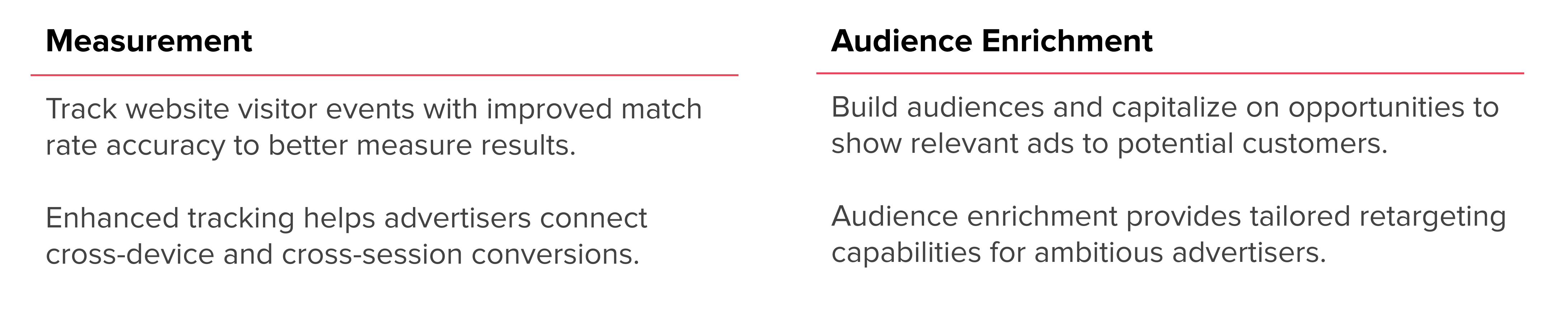
- Access Your Shopify Admin Dashboard: Log in to your Shopify admin and navigate to the Sales Channel section.
- Connect Your TikTok Account: Click TikTok and connect your TikTok For Business account or create one if you don't have one.
- Choose Data Sharing Preferences: Select Standard, Enhanced, or Maximum based on your data sharing needs.
- Create or Attach a Pixel: Click “Create Pixel” for a new setup or attach an existing pixel from the dropdown list.
- Complete the Integration: Enter your business location and other required information, then review and confirm the details.
Method 3: Use Dedicated Shopify Apps
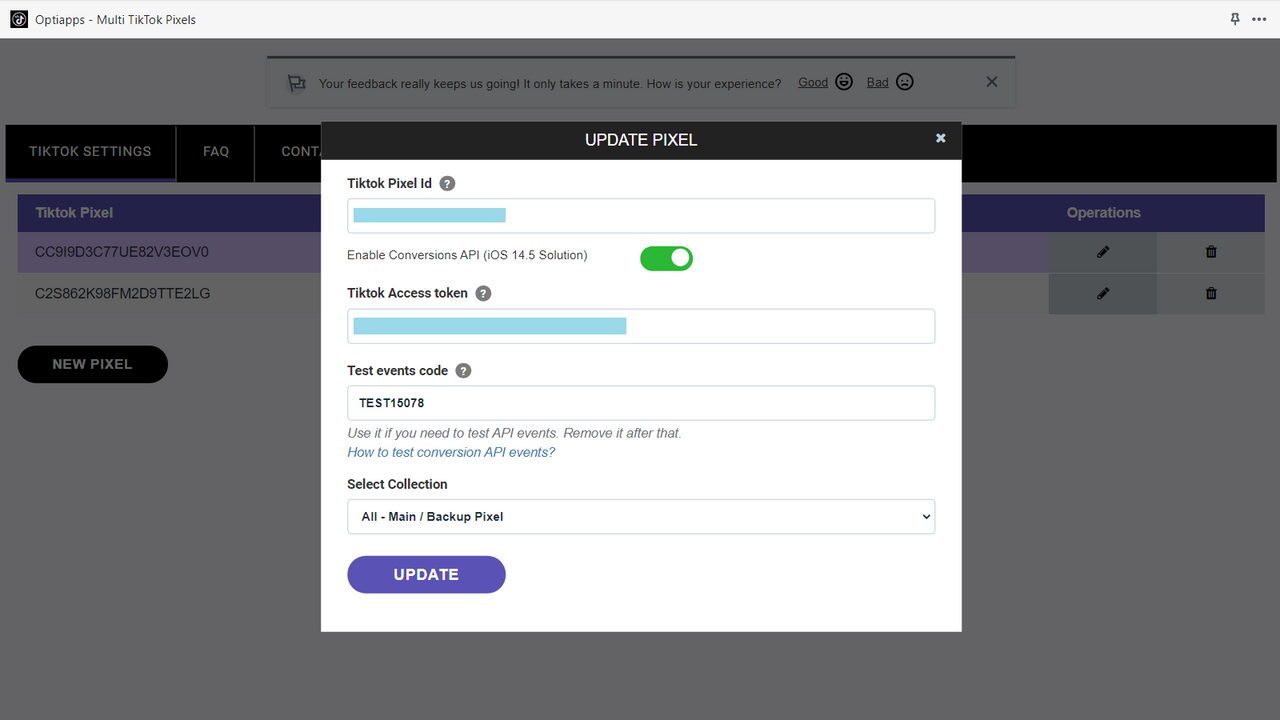
If you prefer a more user-friendly approach, consider using a Shopify app like TikTok Multi Pixels by Omega. These apps simplify the process of adding and managing TikTok Pixels without the need for manual coding. They also offer features like automatic product catalog synchronization and event tracking.
How to Verify Shopify TikTok Pixel Setup
After installing the TikTok Pixel, it's essential to verify that it's working correctly. Here are a few ways to do this:
- Use the TikTok Pixel Helper Extension: Install the TikTok Pixel Helper Chrome extension and visit your Shopify store. The extension will detect if a TikTok Pixel is installed and which events are firing.
- Check in TikTok Ads Manager: Go to your TikTok Ads Manager > Assets > Events. Look for your pixel in the list and check its status. If it's marked as "Active" and event data is being received, your setup is working.
- Run Test Events: Simulate actions like viewing a product page or adding to cart in the Test Events section of your TikTok Pixel to ensure the right events are firing correctly.
Best Practices to Optimize TikTok Ads for Shopify Stores

To get the most out of your TikTok Pixel integration, follow these best practices:
- Map Out Campaign Objectives: Define what success looks like for your campaign, whether it's brand awareness or direct conversions.
- Use Data-Based Custom Audiences: Retarget users who have engaged with your site, such as those who browsed products or added items to their cart.
- Optimize for Mobile-First Engagement: Since TikTok is a mobile-first platform, ensure your videos are short, engaging, and optimized for mobile viewing.
- Track Relevant Events: Focus on tracking events that align with your business goals, such as product views, add-to-cart, and purchases.
- A/B Test Everything: Experiment with different creatives, audiences, and placements to find what works best for your store.
FAQs
Q: How to disconnect your Shopify store from TikTok?
A: To remove the TikTok sales channel from your Shopify store, sign in to your Shopify admin, head over to “Apps & Sales Channels,” locate the TikTok integration, and select “Disconnect.”
Q: When does TikTok Pixel start collecting data?
A: Usually, data starts appearing within a few hours after the installation, but it may take up to 24 hours in some cases.
Q: Can I track specific product performance with TikTok Pixel?
A: Yes! The pixel can track activities like product views, add to cart, and purchases, giving you insight into how each product performs via TikTok ads.
Q: Can one activate more than one TikTok pixel for their Shopify store?
A: Yes! Using apps like TikTok Multi Pixels by Omega allows you to manage multiple pixels without conflicts.
Conclusion
Integrating TikTok Pixel with your Shopify store is a strategic move that can significantly enhance your advertising efforts. By tracking user behavior and optimizing your campaigns, you can maximize your ROI and drive more sales. Whether you choose to set it up manually, use the TikTok Sales Channel App, or opt for a dedicated Shopify app, the process is straightforward and well worth the effort. With the right tools and strategies, you can unlock the full potential of TikTok for your e-commerce business.

Posting Komentar untuk "How to Integrate TikTok Pixel with Shopify: A Step-by-Step Guide"
Posting Komentar