
How to Manually Set Up TikTok Pixel: A Complete Step-by-Step Guide
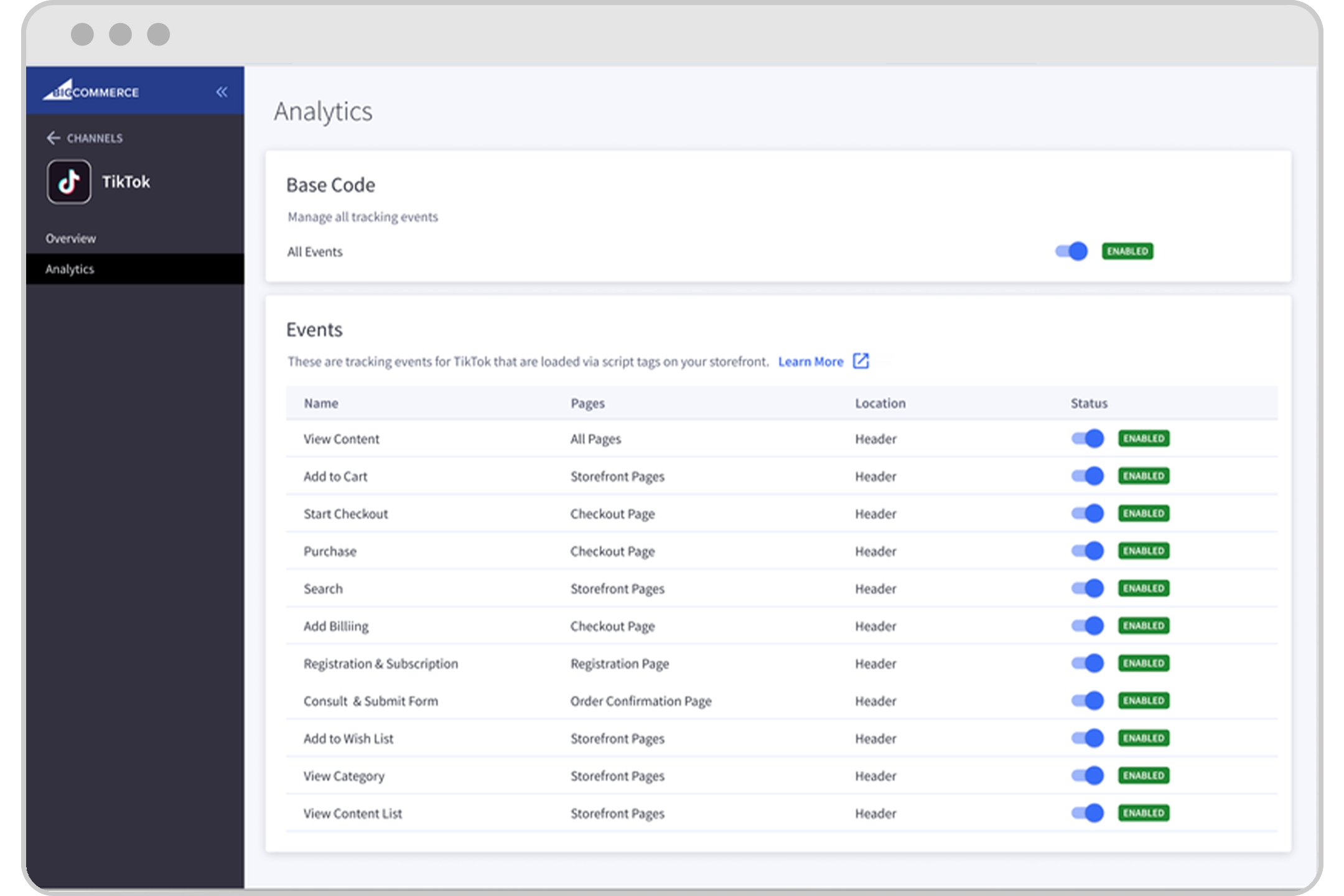
The TikTok Pixel is a powerful tool that allows businesses to track user interactions on their websites and optimize their advertising campaigns. For those who are looking to take control of their data and ensure accurate tracking, manually setting up the TikTok Pixel is the way to go. This guide will walk you through the entire process, from creating your pixel to defining events and launching your ads.
What Is a TikTok Pixel?

Before diving into the setup process, it's essential to understand what a TikTok Pixel is. The TikTok Pixel is a piece of code that you place on your website to track user actions, such as page views, form submissions, and purchases. It helps you measure the effectiveness of your TikTok ads by providing insights into how users interact with your content after seeing your ads.
Benefits of Using a TikTok Pixel
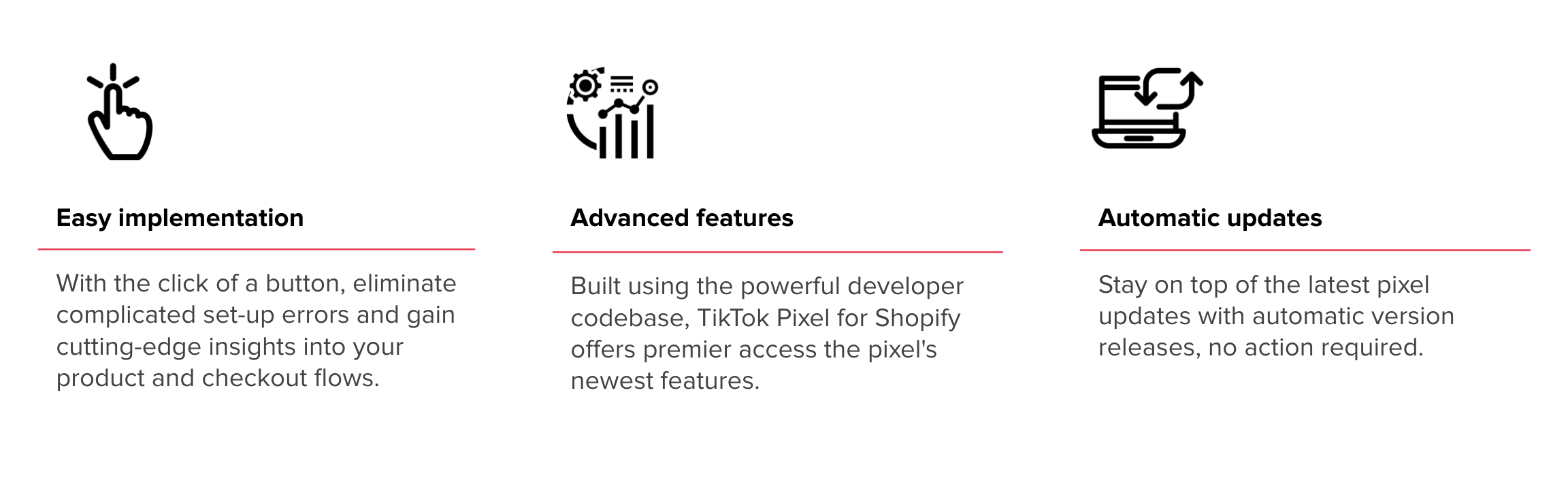
Using a TikTok Pixel offers several advantages for businesses:
- Conversion Tracking: Track user actions on your website, such as completing a purchase or filling out a form.
- Ad Optimization: Use the data collected to refine your ad campaigns and target the right audience.
- Improved Attribution: Gain a better understanding of which ads are driving conversions and adjust your strategy accordingly.
5 Steps to Install a TikTok Pixel Manually
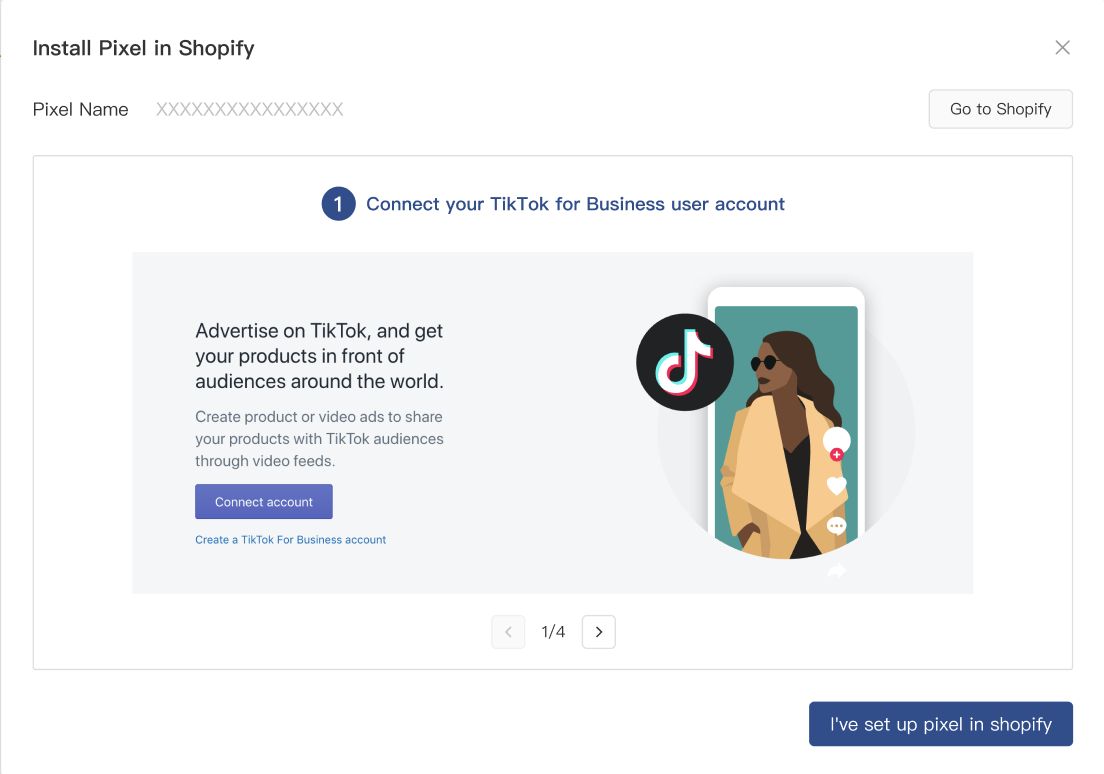
Setting up the TikTok Pixel manually involves a few straightforward steps. Follow these instructions to ensure a smooth installation:
1. Creating Your TikTok Pixel
To begin, log in to your TikTok Ads Manager account. Navigate to the "Library" section and click on "Event." From there, select "Website Pixel" and choose "Manage." You'll be taken to the "Create Pixel" page, where you can enter a name for your pixel and proceed.
2. Installing the TikTok Pixel
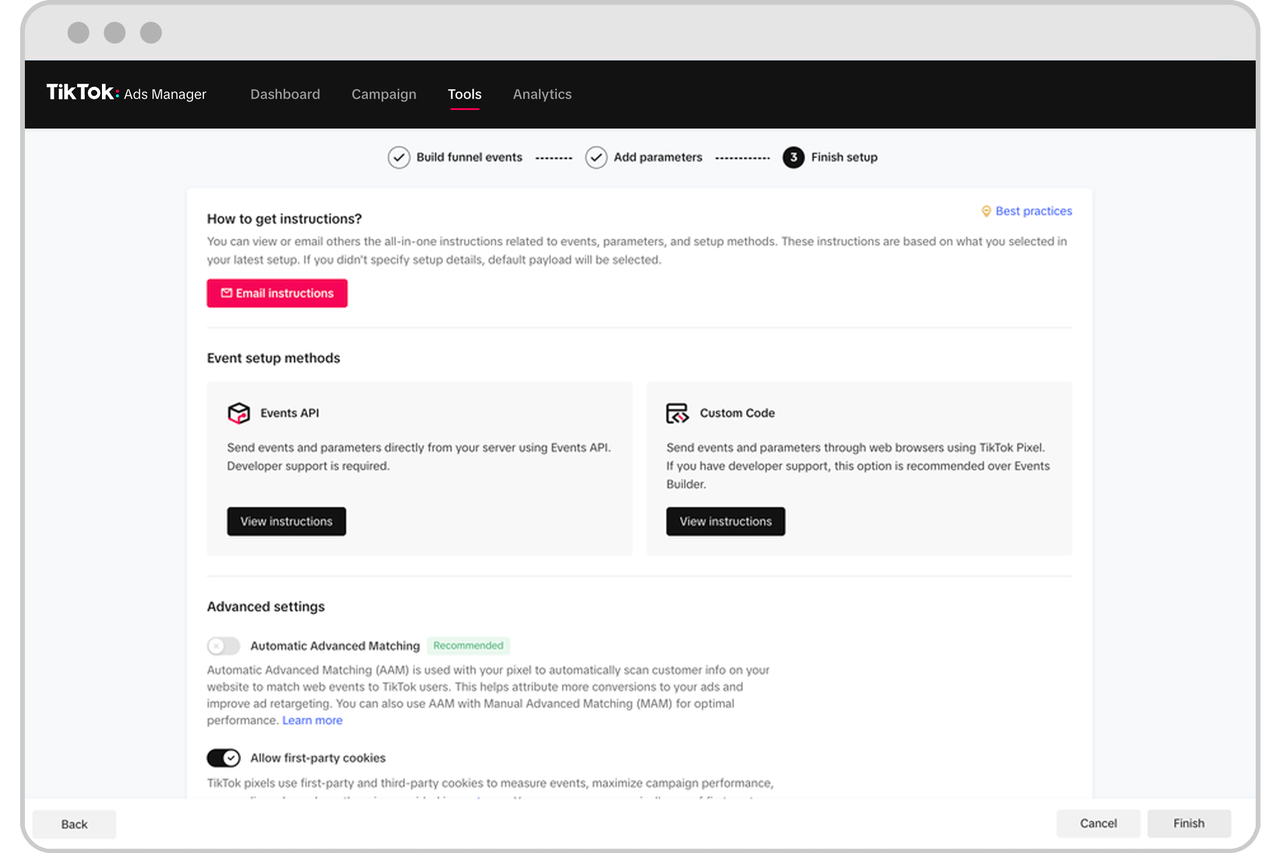
Once your pixel is created, you'll need to install it on your website. You have two options: manual installation or using a third-party tool like Google Tag Manager. For manual installation, copy the pixel code provided and paste it into the header section of your website. You can also use the TikTok Pixel Helper plugin to verify the installation.
3. Choose an Industry Category
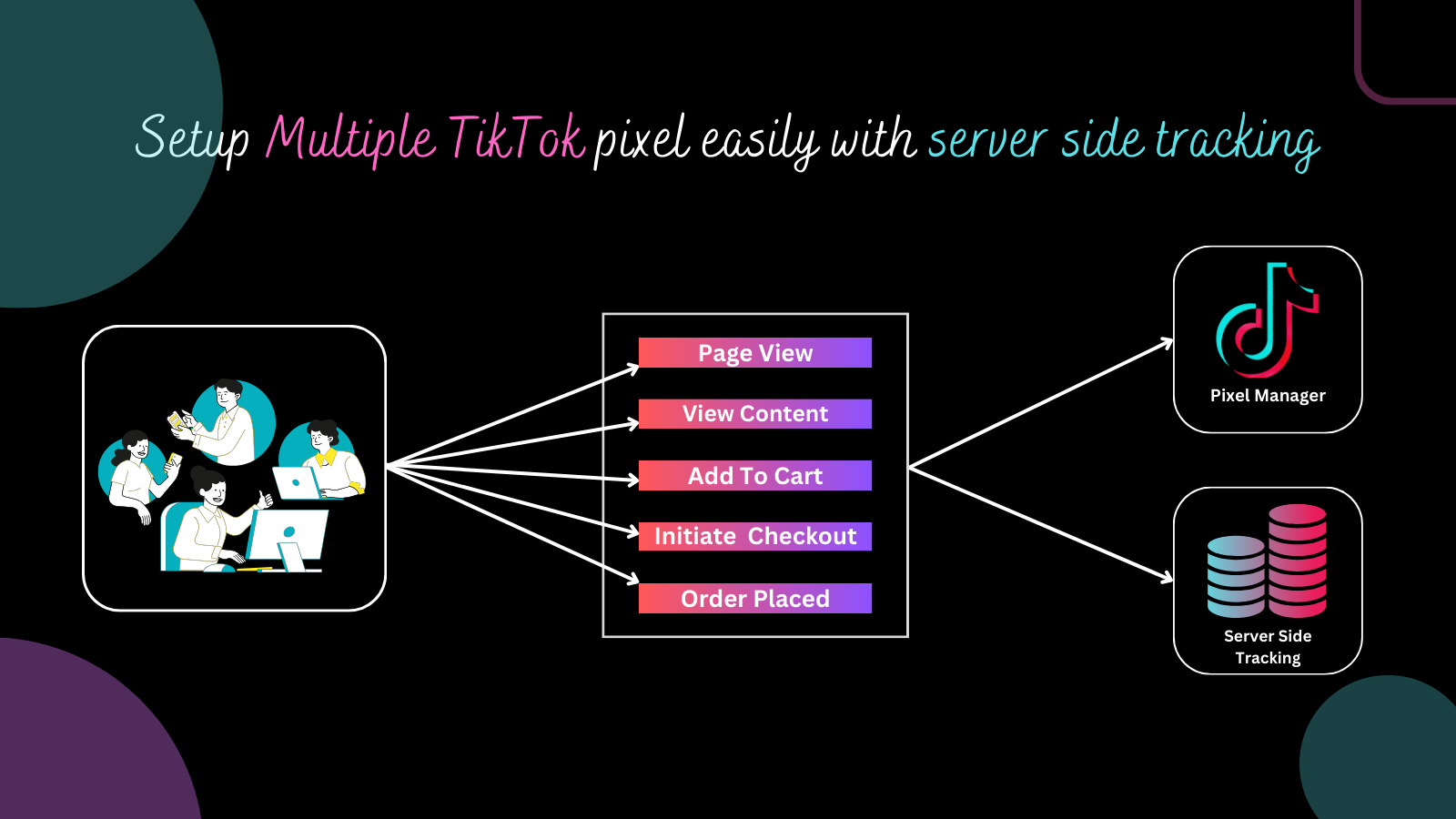
Selecting the appropriate industry category for your business is crucial. This helps the TikTok Pixel understand the type of events you want to track. Options include e-commerce, consultation, app downloads, and more. Choose the one that best fits your business model.
4. Define Events
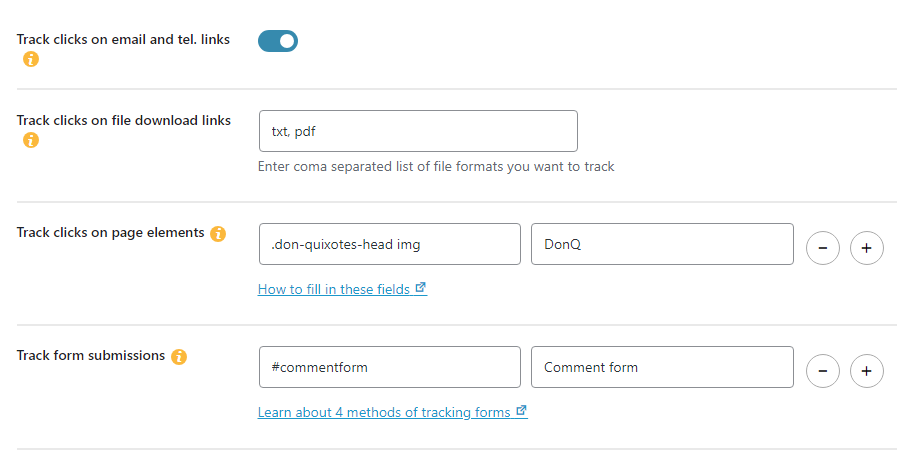
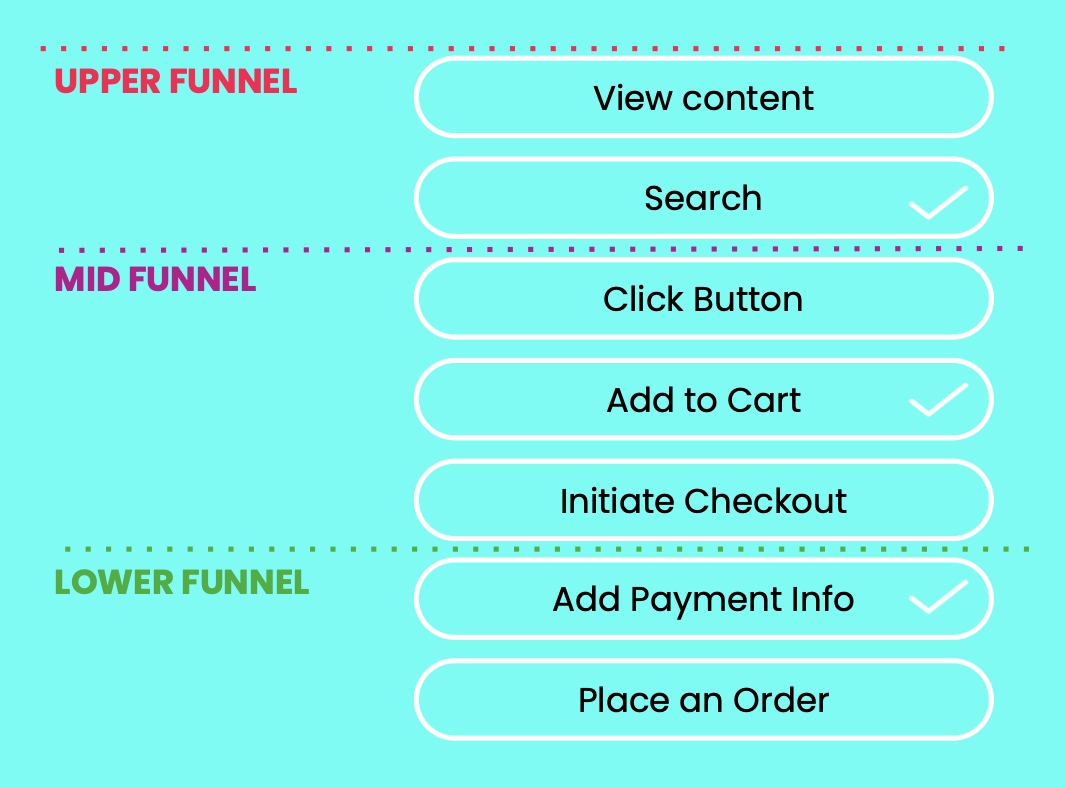
After choosing an industry category, define the events you want to track. You can use default events or create custom ones. For each event, specify a name, value, currency, and statistical method (e.g., "Every Time" or "Once"). This step ensures that the pixel captures the right data.
5. Create Your TikTok Ads

Once your pixel is set up and events are defined, you can start creating your TikTok ads. Choose the pixel you've created and select the events you want to track. This integration allows you to monitor the performance of your ads and make data-driven decisions.
Event Setup Modes
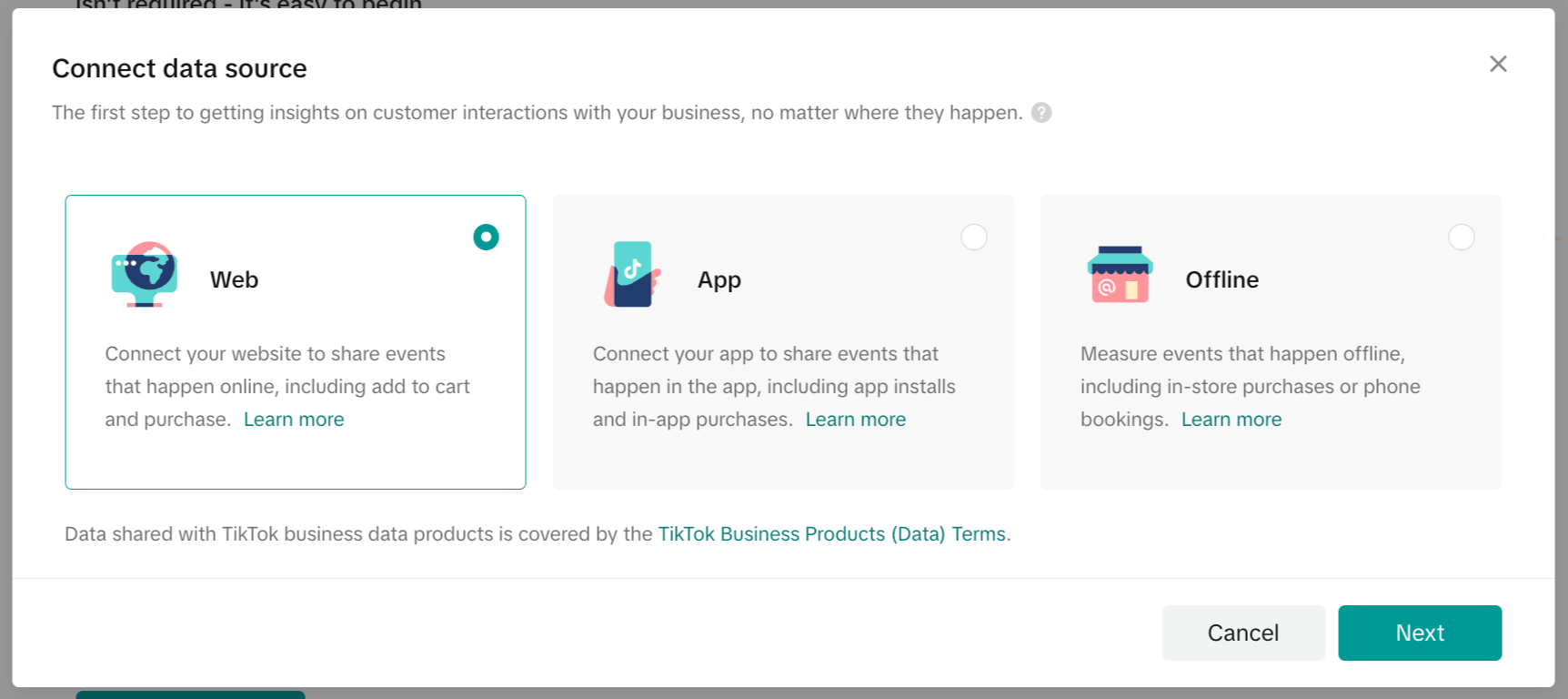
When setting up your TikTok Pixel, you can choose between Standard Mode and Developer Mode.
- Standard Mode: Ideal for creating events using the Events Manager. This mode is suitable for most businesses and allows you to track user behavior using URL keywords or web elements.
- Developer Mode: Offers more flexibility for advanced users. In this mode, you can create custom events and track specific actions, such as scrolling down a page or clicking a button.
How to Create Events (Standard Mode)
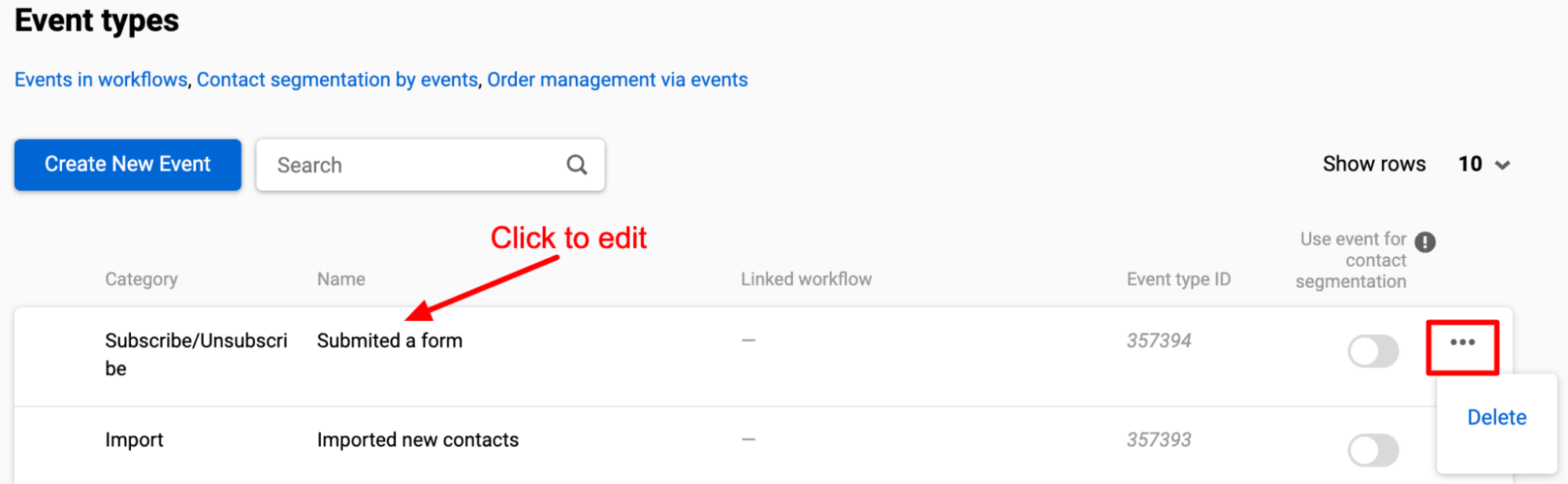
Creating events in Standard Mode involves the following steps:
- Create Events Page: After installing the pixel, navigate to the "Create Events" page.
- Track URL Keywords: Use URL keywords to track user visits to specific pages on your website.
- Track Web Elements: Identify and track specific elements on your website, such as buttons or links.
- Review Events: Review all your events and details under "Events Summary" before finalizing.
Conclusion
Manually setting up the TikTok Pixel is a valuable investment for any business looking to optimize their online presence and advertising efforts. By following the steps outlined in this guide, you can ensure accurate tracking of user interactions and make informed decisions to improve your ad performance. Whether you're an e-commerce store owner or a digital marketer, the TikTok Pixel is a powerful tool that can help you achieve your goals.

Posting Komentar untuk "How to Manually Set Up TikTok Pixel: A Complete Step-by-Step Guide"
Posting Komentar