
How to Set Up Custom TikTok Pixel Events for Your Business
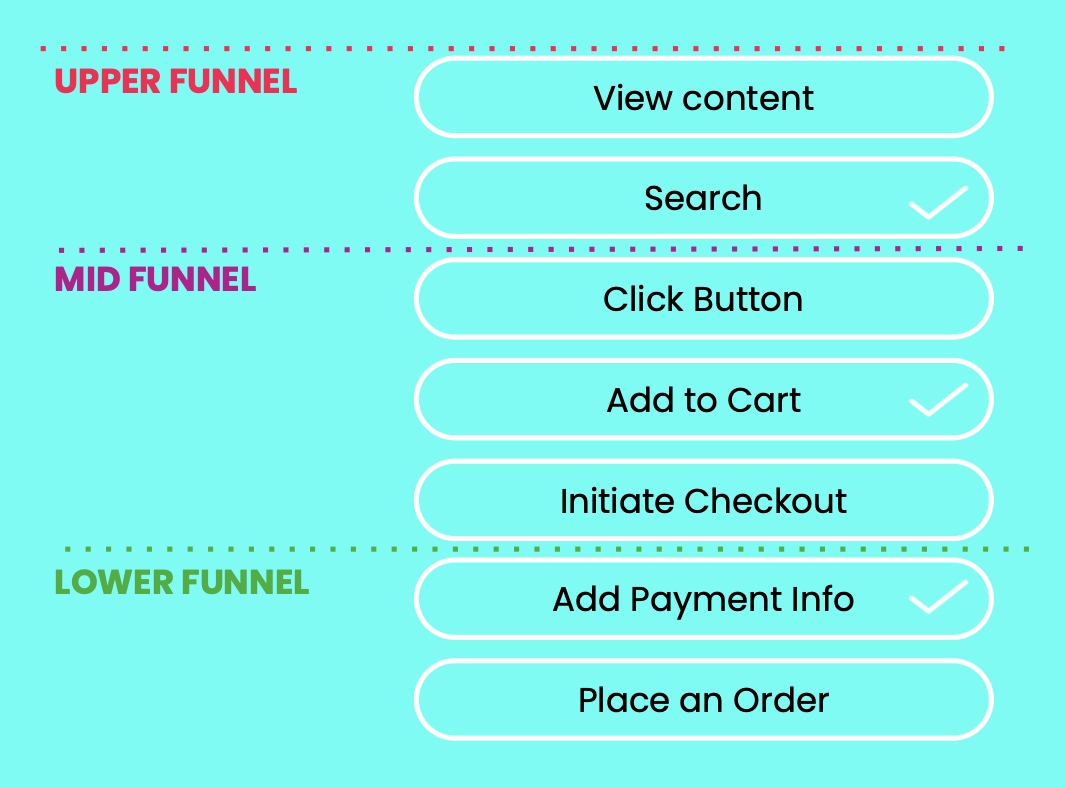
In the ever-evolving world of digital marketing, businesses are constantly seeking ways to optimize their advertising strategies. One powerful tool that has gained significant traction is the TikTok Pixel. This tracking code allows businesses to monitor user interactions on their websites and measure the effectiveness of their TikTok ads. For Shopify merchants, setting up custom TikTok pixel events can be a game-changer in understanding customer behavior and improving ad performance.
Understanding the Importance of TikTok Pixel Events
The TikTok Pixel is essential for tracking conversions and other key actions taken by users on your website. By setting up custom events, you can gain deeper insights into how users interact with your products and services. This data is crucial for optimizing your ad campaigns and ensuring that your marketing efforts are aligned with your business goals.
However, many Shopify merchants find themselves investing heavily in TikTok without truly knowing which ads are driving results. The challenges posed by iOS privacy changes, ad blockers, and limited pixel data make it difficult to obtain accurate insights. That’s where tools like NS TikTok Pixel Event Tracking come into play, offering a no-code solution to simplify the setup process and provide reliable, real-time data.
Easy Pixel Setup (No Coding Required)
One of the standout features of NS TikTok Pixel Event Tracking is its ease of use. The app allows merchants to set up multiple TikTok pixels across their Shopify store without requiring any coding skills. This feature removes technical barriers, making it simple for any merchant, whether a beginner or an experienced advertiser, to start tracking key customer behaviors instantly.
To get started, all you need to do is connect your TikTok Ads account, and the app will automatically handle the pixel integration for you. This ensures that your store is fully equipped to capture important customer actions from day one, setting a solid foundation for smarter ad targeting and better campaign performance.
Accurate Conversion Tracking with Server-Side Data
Another highlight of NS TikTok Pixel Event Tracking is its ability to achieve highly accurate tracking of customer events using server-side technology. This feature ensures that you capture every important customer action—such as product views, add-to-carts, checkouts, and purchases—with outstanding precision, even under challenging conditions like iOS privacy restrictions or ad blockers.
Thanks to Events API integration, your conversion data remains complete and consistent across different devices and browsers. You no longer have to second-guess your ad performance due to lost or blocked signals, giving you the confidence to make data-driven decisions and scale your campaigns effectively.
Custom Tracking & Real-Time Analytics
NS TikTok Pixel Event Tracking also offers the flexibility to customize your tracking setup and access real-time analytics directly from your Shopify dashboard. This feature allows you to track customer actions on your entire store, specific collections, or even individual products, tailoring your data collection to match your unique campaign goals.
By viewing real-time performance insights, you can quickly detect patterns, identify winning products, and adjust your strategies without delay. With a clear and intuitive visual dashboard, all your key metrics are organized for easy analysis. This helps you move beyond guesswork, spot valuable trends early, and fine-tune your ad creatives and targeting based on solid evidence—not assumptions.
Setting Up TikTok Pixel with Google Tag Manager
For those who prefer using Google Tag Manager, there are two methods to set up TikTok Pixel:
- Familiarize yourself with Google Tag Manager concepts like tags, triggers, and variables.
- Create a Google Tag Manager web container for the website. Your Container permissions must have Publish, Approve, Edit, and Read permissions.
- Set up a Google Tag Manager account and install it on your website.
Before installing TikTok Pixel in Events Manager for Google Tag Manager, you need to:
- Go to TikTok Events Manager. Click Data sources. Choose the TikTok Pixel you want to connect. Click Settings. Go to Partner Platform and click Choose Partner. Click Google Tag Manager and click Next.
- Click Client-side tagging.
- Click Get started to log in to your Google account that is linked to your Google Tag Manager workspace. Name your pixel if you created a new one. Select the Google Tag Manager account, Container and Workspace that you want to install the TikTok tags.
If you want to use a new Container, create one in your Google Tag Manager account, then return to this screen and click Refresh.
Select the method to set up events and parameters:
- Set up with TikTok Event Builder (Recommended): You can create events and parameters directly from your website without requiring changes to website code. Learn how to set up events and parameters in Event Builder.
- Use Google Tag Manager data layer APIs: A data layer is a JavaScript object that is used to pass information from your website to your Tag Manager container. This method installs TikTok tags and variables to automatically convert data layer events to TikTok Pixel events, and is best fit for websites already using a Google Tag Manager data layer to send custom event data.
Review the pending changes to your Google Tag Manager account and confirm the account information is correct. Note: You won't be able to modify changes after you publish them.
When you're finished, click Publish. The TikTok Pixel tag will be installed on your website. Refresh your website for the changes to take effect.
Conclusion
Setting up custom TikTok pixel events is a crucial step for any business looking to maximize the effectiveness of their TikTok advertising. With the right tools and strategies, you can gain valuable insights into customer behavior and make data-driven decisions to optimize your campaigns. Whether you choose a no-code solution like NS TikTok Pixel Event Tracking or opt for Google Tag Manager, the key is to ensure accurate tracking and real-time analytics to stay ahead in the competitive digital landscape.

Posting Komentar untuk "How to Set Up Custom TikTok Pixel Events for Your Business"
Posting Komentar