
How to Set Up TikTok Pixel: A Complete Step-by-Step Guide
Setting up the TikTok Pixel is a crucial step for any business looking to track user behavior on their website after interacting with TikTok ads. The TikTok Pixel acts as a tracking tool that helps you understand how users engage with your site, allowing you to optimize your ad campaigns and improve conversion rates. This guide will walk you through the entire process of setting up the TikTok Pixel using Google Tag Manager (GTM), ensuring that you can start collecting valuable data right away.
What is the TikTok Pixel?
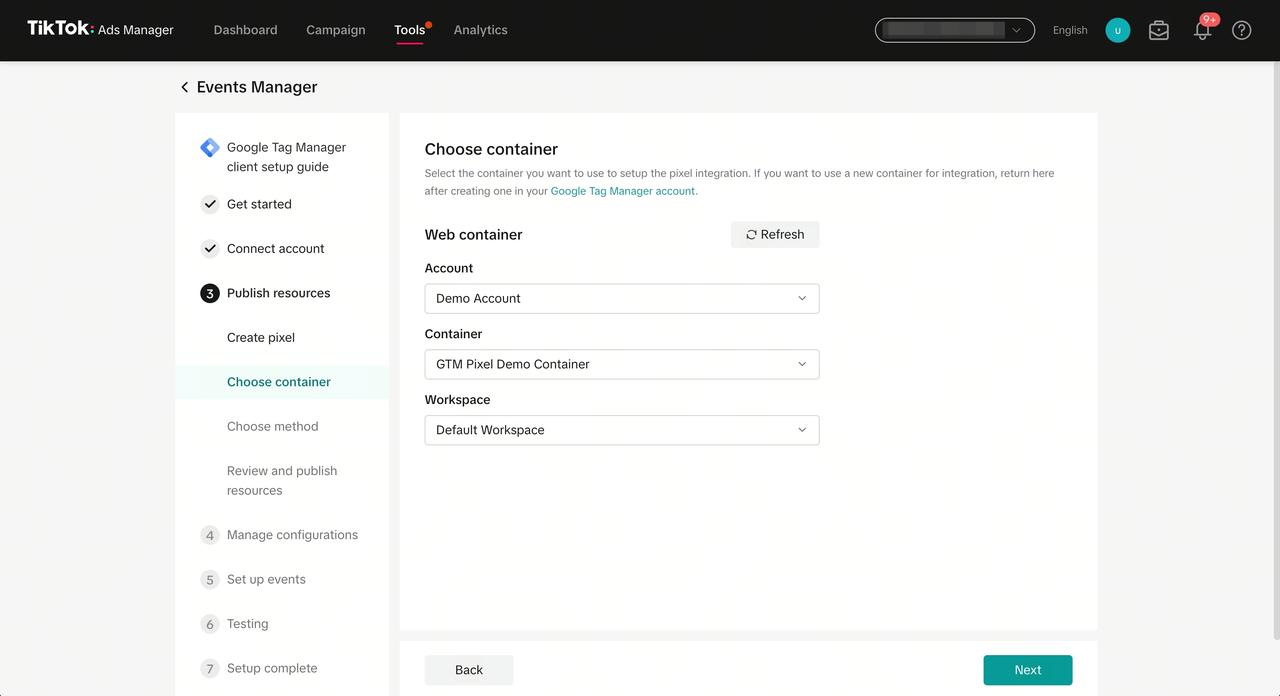
The TikTok Pixel is a piece of code that you place on your website to track user actions. It allows you to monitor conversions, retarget users, and gain insights into the effectiveness of your TikTok ads. By integrating the TikTok Pixel with Google Tag Manager, you can manage your tracking tags more efficiently and ensure that your data is accurate and reliable.
Why Use Google Tag Manager?
Google Tag Manager is a powerful tool that allows you to manage and deploy marketing tags (snippets of code) on your website without needing to modify the site's code directly. Using GTM to set up the TikTok Pixel offers several advantages, including:
- Centralized management of all your tracking tags.
- Easier updates and modifications without requiring developer assistance.
- Improved accuracy in tracking user behavior across different platforms.
Step-by-Step Guide to Setting Up TikTok Pixel via Google Tag Manager
1. Create a TikTok Pixel
Before you can set up the TikTok Pixel in Google Tag Manager, you need to create a pixel in your TikTok Ads Manager account.
Steps:
- Log in to your TikTok Ads Manager.
- Navigate to the Pixels section.
- Click Create Pixel.
- Enter a name for your pixel and select the website URL where you want to track user activity.
- Click Create Pixel.
Once created, you'll be provided with a unique pixel ID, which you'll use later in Google Tag Manager.
2. Access Google Tag Manager
To set up the TikTok Pixel in GTM, you need access to your GTM account.
Steps:
- Go to Google Tag Manager.
- Log in with your Google account.
- Select the container associated with your website.
3. Create a New Tag for the TikTok Pixel
Now that you have your pixel ID, it's time to create a new tag in GTM.
Steps:
- In the GTM dashboard, click Tags.
- Click New to create a new tag.
- Choose Custom HTML as the tag type.
- Paste the following code into the HTML field, replacing
YOUR_PIXEL_IDwith your actual TikTok Pixel ID:
<!-- TikTok Pixel Code -->
<script>
  !function (e) {
    var n = e.createElement("script");
    n.type = "text/javascript";
    n.async = !0;
    n.src = "https://www.tiktok.com/tracking/pixel.js";
    var t = e.getElementsByTagName("script")[0];
    t.parentNode.insertBefore(n, t)
  }(document);
</script>
- Click Save.
4. Set Up a Trigger for the TikTok Pixel
Next, you need to define when the TikTok Pixel should fire. Typically, you'll want it to fire on page load or specific events like form submissions.
Steps:
- In the GTM dashboard, click Triggers.
- Click New to create a new trigger.
- Choose All Pages or Some Pages depending on your needs.
- Click Save.
5. Preview and Test Your Setup
Before publishing your changes, it's essential to test your setup to ensure everything is working correctly.
Steps:
- Click Preview in the GTM dashboard.
- Visit your website and check if the TikTok Pixel is firing correctly.
- Use the GTM preview mode to verify that the tag is being triggered as expected.
6. Publish Your Changes
Once you're satisfied that the TikTok Pixel is working correctly, it's time to publish your changes.
Steps:
- Click Submit in the GTM dashboard.
- Add a version name and description.
- Click Publish.
Conclusion
Setting up the TikTok Pixel via Google Tag Manager is a straightforward process that can significantly enhance your ability to track user behavior and optimize your TikTok ad campaigns. By following the steps outlined in this guide, you'll be able to collect valuable data that will help you make informed decisions about your marketing strategy. Remember to regularly review and update your tracking setup to ensure that you're getting the most out of your TikTok Pixel.

Posting Komentar untuk "How to Set Up TikTok Pixel: A Complete Step-by-Step Guide"
Posting Komentar