
How to Install the TikTok Pixel: A Step-by-Step Tutorial for Marketers

In today's digital marketing landscape, tracking user interactions and optimizing ad campaigns is crucial for businesses looking to maximize their return on investment. One of the most effective tools for this purpose is the TikTok Pixel. This article provides a comprehensive guide on how to install the TikTok Pixel, specifically focusing on integrating it with GoHighLevel and WooCommerce. Whether you're a seasoned marketer or just starting out, this tutorial will walk you through the process step by step.
Understanding the TikTok Pixel

The TikTok Pixel is a piece of JavaScript code that allows you to track user events on your website, such as page views, form submissions, and purchases. By installing the TikTok Pixel, you can gain valuable insights into user behavior, which can be used to refine your advertising strategies and improve campaign performance.
For businesses using platforms like GoHighLevel or WooCommerce, the TikTok Pixel offers a powerful way to track conversions and optimize ad spend. It enables you to create custom audiences, retarget users, and measure the effectiveness of your TikTok ads.
Step-by-Step Installation Guide for GoHighLevel
- Access TikTok Ads Manager
- Open your browser and navigate to the TikTok Ads Manager.
- Log in to your account and click on "Tools" in the top menu.
-
Select "Events" to view existing pixels or create a new one.
-
Create a New Pixel
- Click the "+" icon to create a new pixel.
- Choose "Web Events" to track data from your website.
- Enter your website URL and click "Next."
- Select "Manual Setup" since you're using GoHighLevel.
- Choose "TikTok Pixel" as the pixel type and give it a name (e.g., "YouTube Demo").
-
Click "Create" to finalize the setup.
-
Install the TikTok Pixel in GoHighLevel
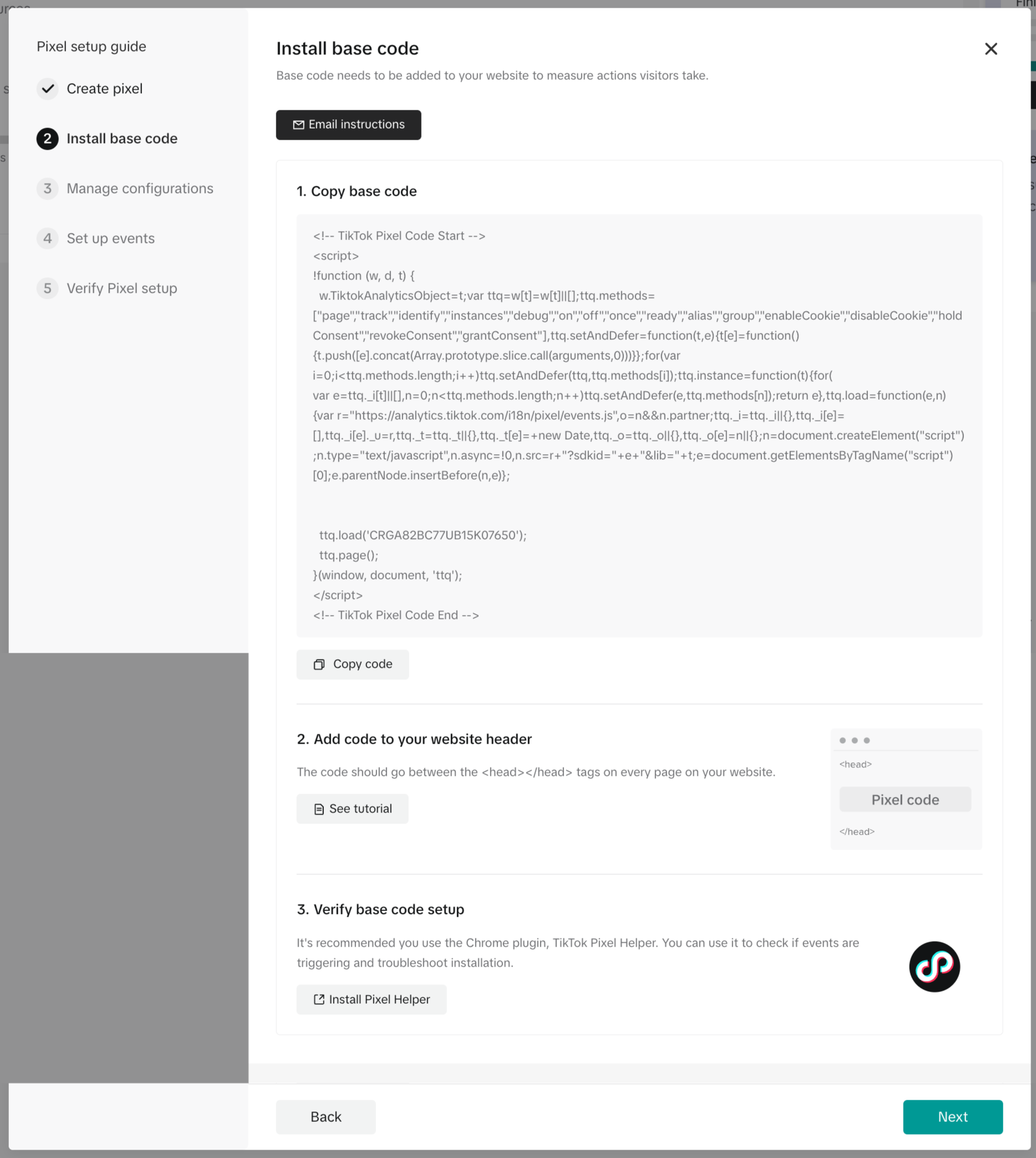
- Copy the TikTok Pixel code provided.
- Go to GoHighLevel and navigate to "Sites."
- Select the funnel or website where you want to install the pixel.
- Open the selected funnel, go to "Settings," and locate the "Tracking Code" section.
-
Paste the TikTok Pixel code into the header section and click "Save."
-
Verify Installation
- Install the TikTok Pixel Helper Chrome extension from the Chrome Web Store.
- Configure the extension to enable "Automatic Advanced Matching."
- Use the Event Builder to track specific actions, such as form submissions or page visits.
- Test the installation by filling out a form and navigating to the thank-you page.
Installing TikTok Pixel on WooCommerce
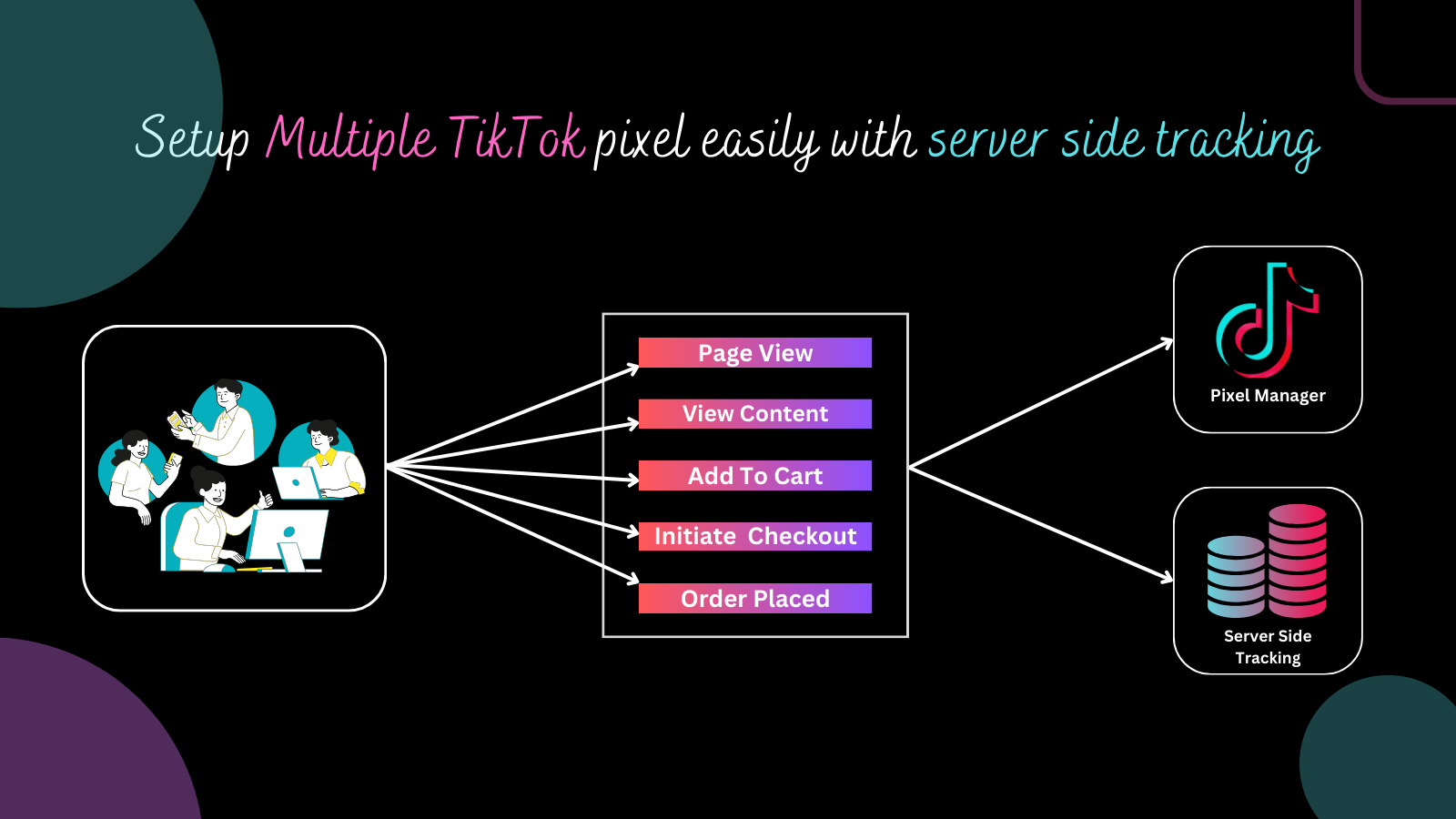
For WooCommerce store owners, integrating the TikTok Pixel can provide valuable insights into customer behavior and help optimize ad campaigns. Here's how to do it:
- Use FunnelKit Funnel Builder
- Install the FunnelKit Funnel Builder plugin on your WordPress site.
-
Activate the plugin and navigate to its settings.
-
Set Up TikTok Pixel
- Go to your TikTok Business Manager account and create a new pixel.
- Copy the generated Pixel ID.
-
Paste the Pixel ID into the FunnelKit settings under the TikTok section.
-
Enable Event Tracking
- Choose the events you want to track, such as "Page View," "Add to Cart," or "Place Order."
-
Save your settings to activate the tracking.
-
Test Your Setup
- Use the TikTok Pixel Helper extension to verify that the pixel is firing correctly.
- Navigate through your WooCommerce store and check if the events are being tracked.
Tips for Optimizing TikTok Pixel

To get the most out of your TikTok Pixel, consider the following tips:
- Enable Advanced Matching: This feature helps improve ad targeting by capturing visitor information such as email addresses and phone numbers.
- Use UTM Parameters: Add UTM tags to your ad links to track traffic sources and analyze campaign performance.
- Set Up Retargeting Audiences: Create custom audiences based on user behavior to retarget potential customers.
- A/B Test Ad Creatives: Experiment with different ad formats and content to find what resonates best with your audience.
Frequently Asked Questions
What is the TikTok Pixel?
The TikTok Pixel is a JavaScript code snippet that tracks user interactions on your website, enabling you to monitor ad performance and optimize campaigns.
Why is a thank-you page important?
A thank-you page is essential for tracking conversions, allowing you to measure the success of form submissions and other key actions.
How do I install the TikTok Pixel on GoHighLevel?
You can install the TikTok Pixel by copying the code from TikTok Ads Manager and pasting it into the tracking code section of your GoHighLevel funnel.
Can I track multiple events with the TikTok Pixel?
Yes, you can track various events using the Event Builder in TikTok Ads Manager.
What should I do if my pixel isn't working?
Check that the code was copied and pasted correctly, ensure no browser extensions are blocking the pixel, and use the TikTok Pixel Helper to diagnose issues.
By following this comprehensive guide, you can effectively install and utilize the TikTok Pixel to enhance your digital marketing efforts. Whether you're using GoHighLevel or WooCommerce, the steps outlined here will help you track user interactions, optimize ad campaigns, and achieve better results. Stay informed and make the most of your TikTok advertising strategy.

Posting Komentar untuk "How to Install the TikTok Pixel: A Step-by-Step Tutorial for Marketers"
Posting Komentar